
Introduction
Thank you for choosing the MCY KCH101-SR 10-in-1 USB C Hub Multiport Adapter. This device is designed to expand the connectivity of your USB-C enabled laptop, tablet, or smartphone, providing a comprehensive solution for various peripherals, external displays, and network access. Please read this manual carefully to ensure proper setup and operation.
Product Overview
The MCY KCH101-SR is a versatile 10-in-1 USB C hub that integrates multiple essential ports into a compact design. It features:
- 1 x HDMI 8K@30Hz Port: For connecting a single external display with up to 8K resolution.
- 1 x HDMI 4K@60Hz Port: For connecting a second external display with up to 4K resolution.
- 2 x USB-A 3.0 Data Ports: For high-speed data transfer up to 5Gbps.
- 2 x USB-C Data Ports: For high-speed data transfer up to 5Gbps.
- 1 x USB-C PD 100W Charging Port: For pass-through power delivery to charge your host device.
- 1 x SD Card Reader: Supports various SD card formats with speeds up to 25MB/s.
- 1 x TF Card Reader: Supports various Micro SD card formats with speeds up to 25MB/s.
- 1 x RJ45 Gigabit Ethernet Port: Provides stable wired network connectivity up to 1000Mbps.

Figure 1: Overview of the MCY 10-in-1 USB C Hub with all ports clearly labeled, including PD 100W, USB-C 3.0, HDMI 8K@30Hz, HDMI 4K@60Hz, RJ45 (1000Mbps), USB-C Data, SD2.0/TF2.0, and USB-A 3.0.
Setup Instructions
The MCY KCH101-SR hub is designed for plug-and-play functionality, requiring no driver installation for most operating systems. Follow these steps to set up your hub:
- Verify Host Device Compatibility: Ensure your computer's USB-C port supports audio and video transmission (DisplayPort Alternate Mode, or DP Alt Mode), such as USB 4.0, Thunderbolt 3, or Thunderbolt 4.
- Connect the Hub: Plug the integrated USB-C cable of the MCY hub into an available USB-C port on your laptop, tablet, or smartphone.
- Connect Peripherals: Connect your external monitors to the HDMI ports, USB devices (e.g., mouse, keyboard, external hard drives) to the USB-A or USB-C data ports, and an Ethernet cable to the RJ45 port.
- Connect Power (Optional but Recommended): For stable operation and to charge your host device, connect your laptop's original USB-C power adapter to the PD 100W USB-C charging port on the hub.

Figure 2: Illustration of connecting a 100W power adapter to the USB-C PD port on the hub, which then delivers 90W output to the laptop, ensuring continuous power.
Operating Instructions
Display Output
The hub supports various display configurations for both Windows and macOS systems:
- Single Display: Up to 8K@30Hz via HDMI1.
- Dual Displays: Up to 4K@60Hz simultaneously via HDMI1 and HDMI2.
Important Notes for Display Output:
- For 8K resolution via HDMI1, your PC must support the DP1.4 protocol.
- Mac systems only support a maximum of 4K resolution for external displays.
- For macOS, when using dual external monitors, both displays will show identical content (mirror mode). Extended display functionality with different content on each external monitor is not supported on macOS through this hub.

Figure 3: Visual representation of the hub supporting a single 8K@30Hz display or dual 4K@60Hz displays in both mirror and extend modes.

Figure 4: Comparison of dual display configurations for Windows (supporting mirror and extend modes with different content) and Mac OS (supporting mirror mode only for external displays).
Data Transfer
The hub provides high-speed data transfer capabilities:
- USB-A 3.0 and USB-C Data Ports: Both types of ports support data transfer speeds up to 5Gbps, allowing for quick transfer of large files.
- SD/TF Card Readers: Supports data transfer up to 25MB/s. Note that the SD and TF card slots cannot be read simultaneously.

Figure 5: Visualizing 5Gbps data transfer speed through the USB-A and USB-C data ports on the hub.

Figure 6: The universal SD/TF card reader supporting various card types and offering speeds up to 25MB/s. Only one card slot can be read at a time.
Ethernet Connection
Connect an Ethernet cable to the RJ45 port for a stable and fast wired network connection, supporting speeds of 10Mbps, 100Mbps, and 1000Mbps.

Figure 7: A laptop connected to the hub, which is then connected to an Ethernet cable, illustrating a fast and stable 1000Mbps wired network connection.
Compatibility
The MCY KCH101-SR hub offers broad compatibility with various devices and operating systems:
- Operating Systems: Windows, macOS, ChromeOS, UNIX, LINUX, iPadOS, Android.
- Compatible Devices (USB-C/Thunderbolt 3/4 enabled):
- Mac: MacBook M5/M4/M3/M2/M1, MacBook Pro (2015-2019), MacBook Air (2018-2020), Mac Mini 2018/2020, iMac.
- Dell: XPS (13/15/17 inch), Inspiron 5000/7000 series, Latitude 5420/7420/7490.
- HP: Elitebook, Zbook g7/g8, Probook, Chromebook Pro X360 Fortis.
- Lenovo: Thinkpad, t14/s, t490, Yoga, Yoga 7i 2-in-1.
- Microsoft: Surface Pro 8/7/X/Go/Laptop 3.
- Huawei: MateBook 13/13s/14/14s/16.
- Honor: MagicBook Pro 2019/2020, MagicBook 14/15 2020.
- Google: PixelBook, Chromebook M3.
- Xiaomi: Air 12.5"/13.3".
- Apple iPad: iPad Pro 11"/12.9" (2018), iPad Mini (new), iPad Air/Pro/Mini.
- Samsung: S10/S10+, S20, S21, S22, Galaxy Tab.
- Other: Steam Deck, Type C Smartphones (iPhone 15/16/17 series, OnePlus 11, etc.) that support Type-C interface video and data output.
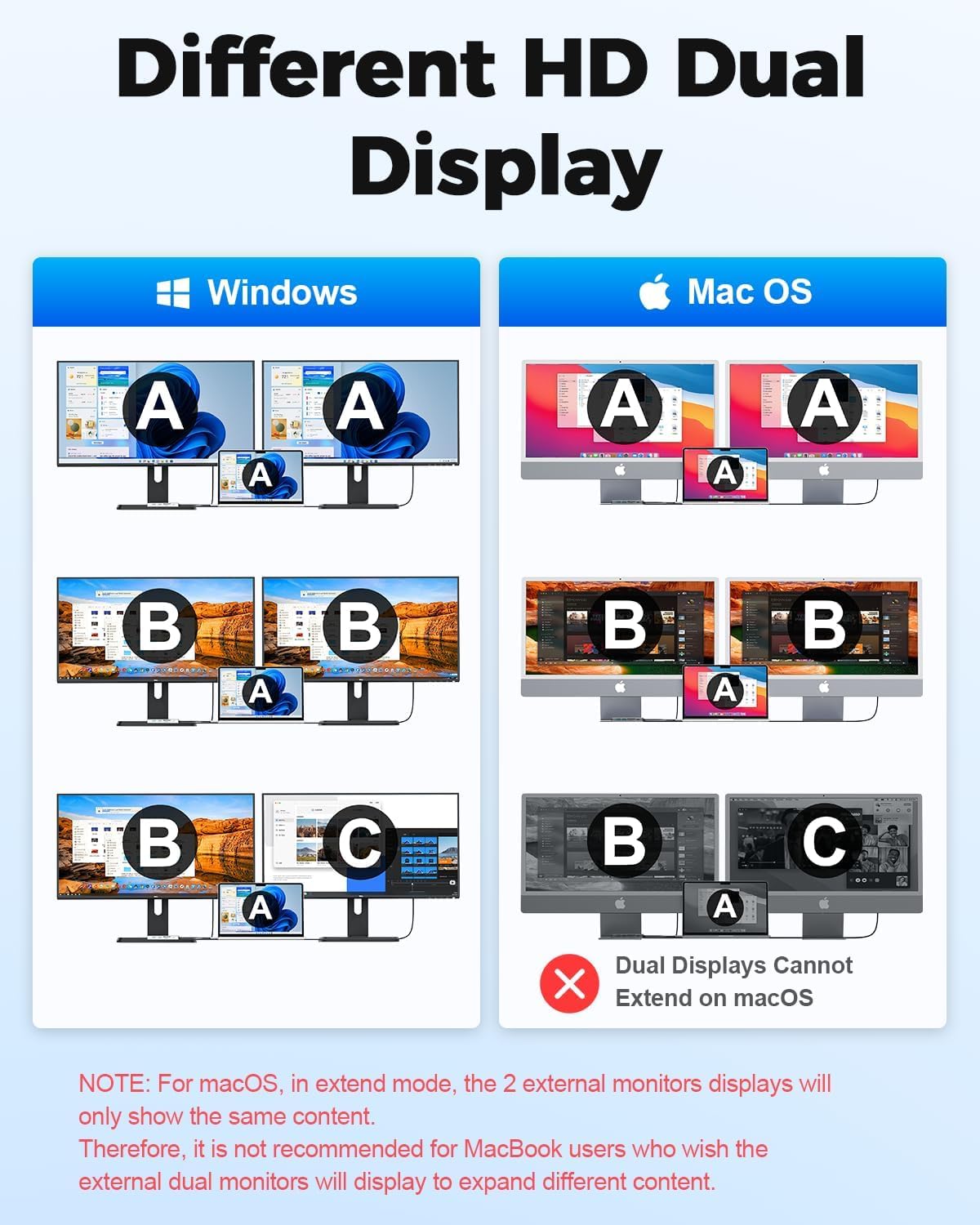
Figure 8: Icons representing compatible operating systems (Mac OS, Windows, iPad OS, Chrome OS, Android) and examples of compatible devices including iPads, MacBooks, Dell, HP, Lenovo laptops, and various smartphones.
Specifications
| Feature | Detail |
|---|---|
| Model Number | KCH101-SR |
| Brand | MCY |
| Color | Silver |
| Hardware Interface | USB 3.0, USB-C, HDMI, RJ45, SD/TF |
| HDMI 1 Output | Up to 8K@30Hz |
| HDMI 2 Output | Up to 4K@60Hz |
| USB-A 3.0 Data Ports | 2 ports, 5Gbps data transfer |
| USB-C Data Ports | 2 ports, 5Gbps data transfer |
| USB-C PD Charging | Up to 100W pass-through |
| Ethernet Port | RJ45, 10/100/1000Mbps Gigabit Ethernet |
| Card Reader | SD/TF (Micro SD), up to 25MB/s (cannot read simultaneously) |
| Special Features | Anti-Slip, Fast Charging, Plug and Play, Portable |
| Package Dimensions | 6.2 x 3.25 x 0.45 inches |
| Item Weight | 3.2 ounces |
| Manufacturer | Shenzhen HongTian Electronics Co.,Ltd. |
Troubleshooting
If you encounter issues with your MCY USB C Hub, please refer to the following common solutions:
- No Display Output:
- Ensure your host device's USB-C port supports DisplayPort Alternate Mode (DP Alt Mode).
- Check all cable connections (USB-C from hub to device, HDMI from hub to monitor).
- Verify monitor input settings are correct (e.g., HDMI 1, HDMI 2).
- For 8K resolution, confirm your PC supports DP1.4 protocol.
- Restart your host device.
- External Monitors Display Identical Content on macOS: This is a limitation of macOS when using multiple external displays via a single hub. The hub functions as designed for macOS by mirroring the display across external monitors.
- Slow Data Transfer:
- Ensure you are using USB 3.0 compatible devices and cables.
- Connect the hub's PD port to a power source, especially when using multiple power-hungry devices.
- SD/TF Card Not Reading: Ensure only one card (either SD or TF) is inserted at a time, as simultaneous reading is not supported.
- No Network Connection:
- Check the Ethernet cable connection to both the hub and your router/modem.
- Verify network settings on your host device.
- Ensure the hub is receiving sufficient power.
- Hub Overheating: The hub is designed with an intelligent chip for heat dissipation. While it may become warm during heavy use (e.g., dual 4K displays, 100W PD charging, and multiple data transfers), this is normal. If it becomes excessively hot, disconnect some peripherals or the power source to allow it to cool down.
Maintenance
To ensure the longevity and optimal performance of your MCY USB C Hub, follow these maintenance guidelines:
- Cleaning: Use a soft, dry cloth to wipe the surface of the hub. Avoid using liquid cleaners or abrasive materials.
- Storage: Store the hub in a cool, dry place away from direct sunlight and extreme temperatures.
- Handling: Avoid dropping the hub or subjecting it to strong impacts. Do not bend or pull the integrated USB-C cable excessively.
- Power: Always use a compatible power adapter for the PD charging port.
Warranty and Support
MCY is committed to providing high-quality products and customer satisfaction. Your MCY KCH101-SR USB C Hub comes with the following:
- 30-Day Money-Back Guarantee: You may return your undamaged MCY product within 30 days of purchase for a full refund for any reason.
- 18-Month Warranty: For 18 months after the date of purchase, MCY will address all quality-related issues with a replacement or full refund.
For any inquiries or support needs, please contact our customer service team:
Customer Service Email: jiejielss@outlook.com
Our customer service is available 24/7 to assist you.

Figure 9: An image depicting a customer service representative, symbolizing the available support for MCY products.


