
Introduction
Welcome to the user manual for your new ATOZEE Android 14 Tablet. This device is designed to offer versatility, functioning as both a tablet and a portable laptop when paired with its included accessories. This manual provides essential information for setting up, operating, maintaining, and troubleshooting your tablet to ensure optimal performance and user experience.
What's in the Box
Please verify that all items are present in your package:
- 1 x ATOZEE 10-inch Android 14 Tablet
- 1 x Bluetooth Keyboard
- 1 x Bluetooth Mouse
- 1 x Standable Protective Case
- 1 x Flexible Stylus
- 1 x Type-C Charging Cable
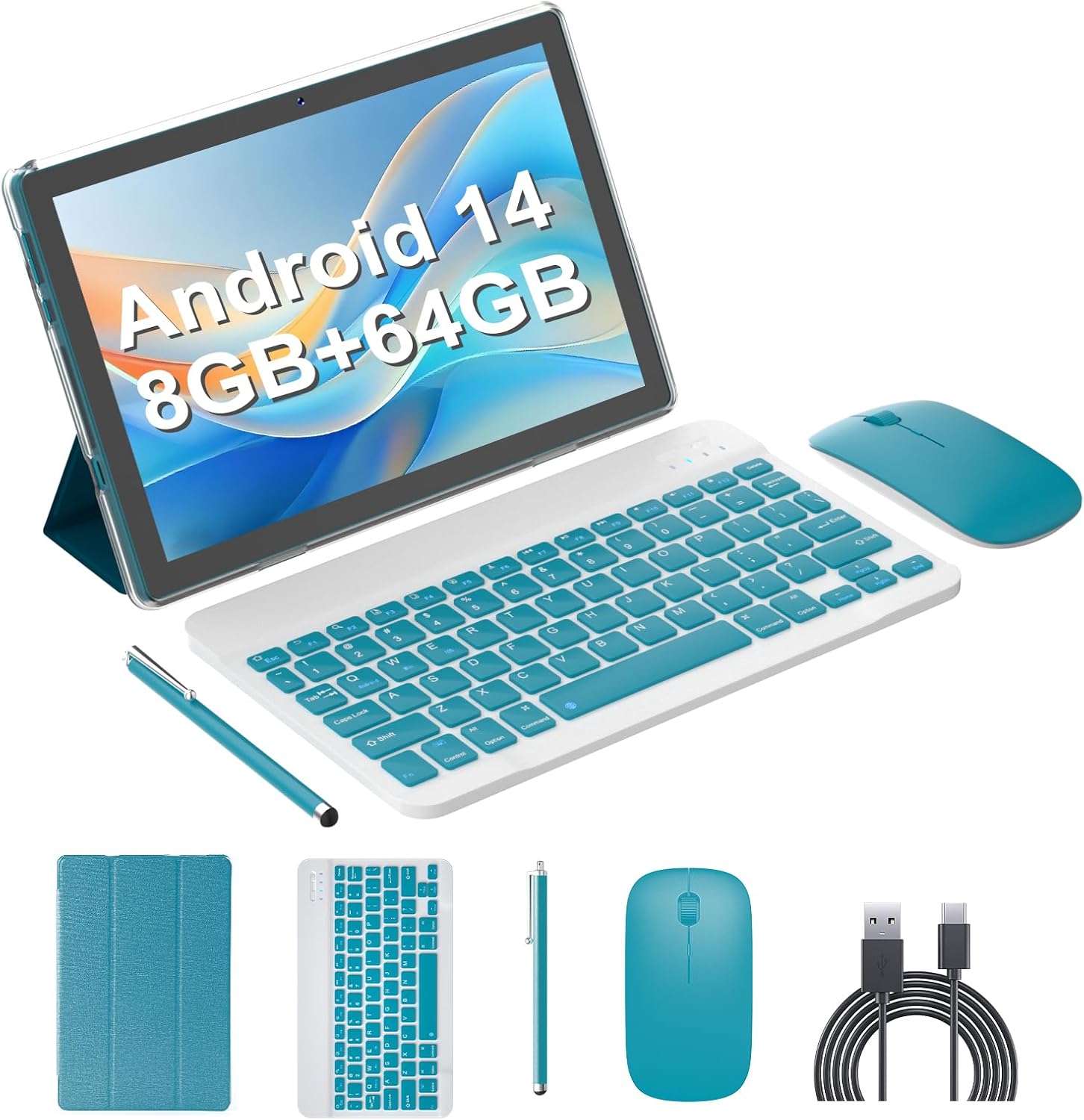
Image: The ATOZEE Android 14 Tablet and its complete set of accessories, including the keyboard, mouse, protective case, stylus, and charging cable.
Product Overview
Components and Controls
Familiarize yourself with the tablet's physical features:
- Power Button: Located on the side, used to turn the tablet on/off or put it to sleep.
- Volume Buttons: Adjust audio output.
- USB Type-C Port: For charging and data transfer.
- Headphone Jack: For connecting wired audio devices.
- MicroSD Card Slot: For expanding storage up to 1TB.
- Front Camera: For video calls and selfies (2MP).
- Rear Camera: For photos and videos (8MP with auto focus and flash).
- Speakers: Dual speakers for stereo audio output.

Image: The ATOZEE Android 14 Tablet with its keyboard and mouse, highlighting the 6000mAh battery capacity and Type-C charging port.
Setup
1. Charging the Tablet
Before first use, fully charge your tablet. Connect the provided Type-C cable to the tablet's charging port and the other end to a compatible USB power adapter (not included) or a computer's USB port.
2. Powering On/Off
- To Power On: Press and hold the Power button until the screen lights up.
- To Power Off: Press and hold the Power button, then select 'Power off' from the options on the screen.
- To Sleep/Wake: Briefly press the Power button.
3. Initial Setup
Upon first power-on, follow the on-screen prompts to:
- Select your preferred language.
- Connect to a Wi-Fi network.
- Sign in with your Google Account or create a new one.
- Review and accept terms and conditions.
4. Connecting Bluetooth Accessories (Keyboard and Mouse)
To use your tablet in laptop mode, connect the Bluetooth keyboard and mouse:
- Ensure the keyboard and mouse are charged and powered on.
- On your tablet, go to Settings > Connected devices > Bluetooth.
- Turn on Bluetooth. The tablet will scan for available devices.
- Select the keyboard and mouse from the list of available devices to pair. Follow any on-screen prompts for pairing codes.
- Once paired, the accessories will automatically connect when in range and powered on.

Image: A woman using the ATOZEE tablet in its protective case, paired with the Bluetooth keyboard and mouse, demonstrating its 2-in-1 functionality.
Operating Instructions
1. Basic Navigation
Your tablet uses a touch-sensitive screen. Common gestures include:
- Tap: Select an item or open an app.
- Tap & Hold: Access contextual menus or move icons.
- Swipe: Scroll through pages or navigate between screens.
- Pinch-to-Zoom: Zoom in or out on images and web pages.
2. Wi-Fi Connection
To connect to the internet:
- Go to Settings > Network & internet > Internet.
- Ensure Wi-Fi is turned on.
- Select your desired network from the list and enter the password if prompted.
3. Bluetooth Connection
To connect to other Bluetooth devices (headphones, speakers, etc.):
- Go to Settings > Connected devices > Bluetooth.
- Turn on Bluetooth.
- Put your Bluetooth device into pairing mode.
- Select the device from the tablet's list to pair.
4. Camera Usage
Your tablet features a 2MP front camera and an 8MP rear camera.
- Open the Camera app.
- Tap the icon to switch between front and rear cameras.
- Tap the shutter button to take a photo or start/stop video recording.
5. Storage Management
The tablet comes with 64GB of internal storage (ROM) and supports expansion up to 1TB via a microSD card.
- To view storage usage, go to Settings > Storage.
- Insert a microSD card into the designated slot to expand storage for apps, photos, and videos.
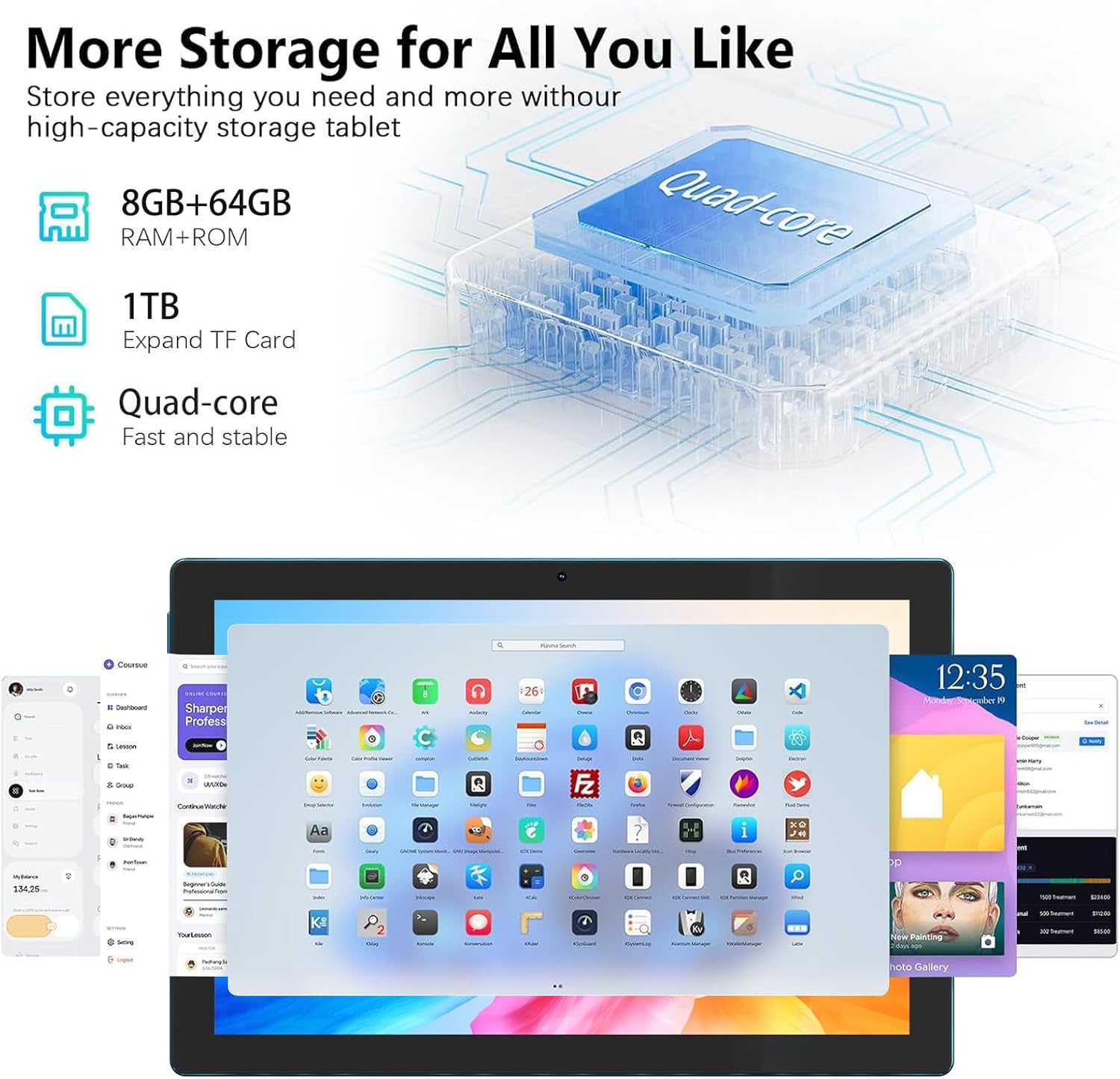
Image: Visual representation of the tablet's 8GB RAM, 64GB ROM, and support for 1TB TF card expansion, powered by a Quad-core processor.
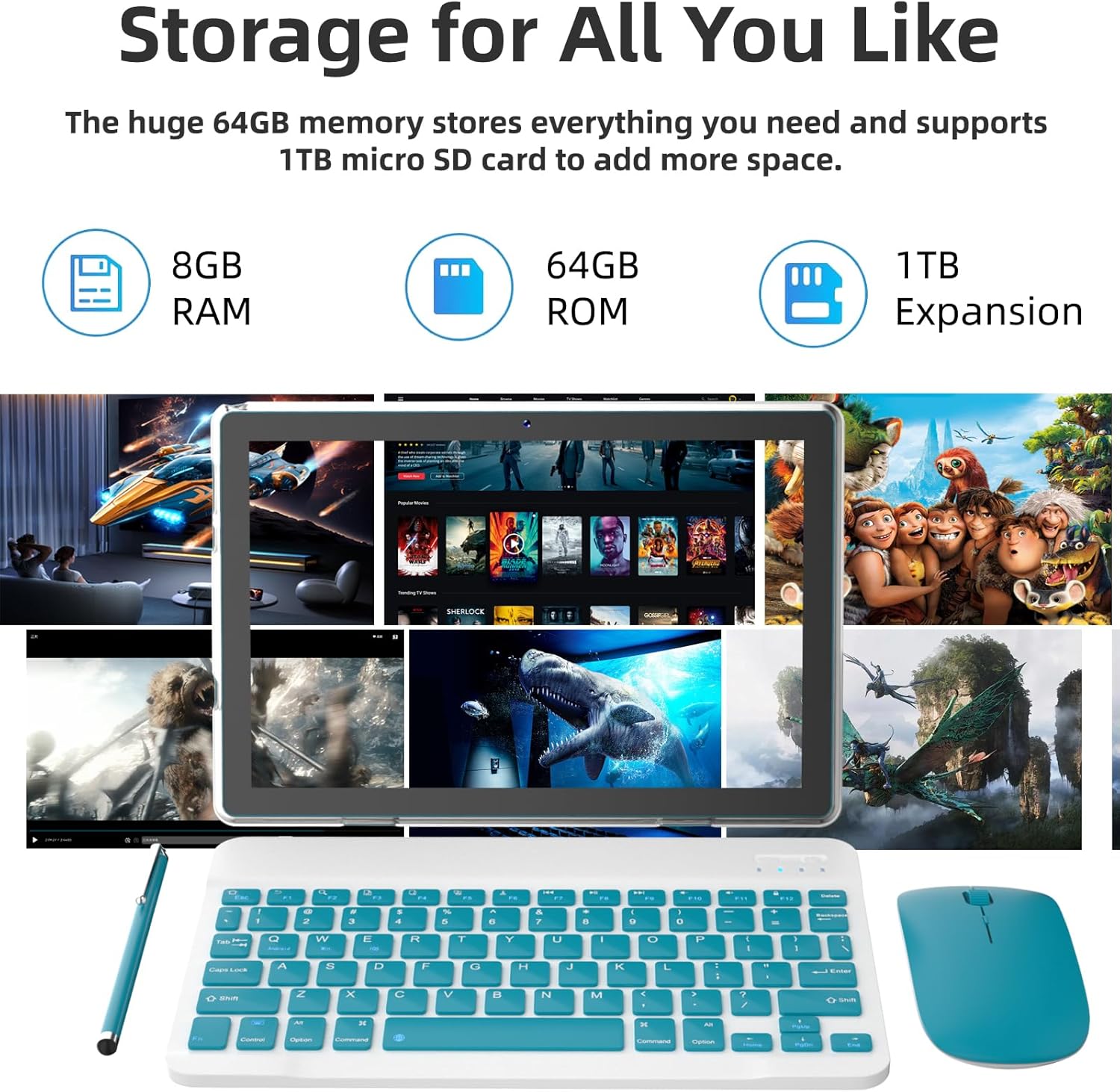
Image: The tablet screen showcasing various applications and media content, emphasizing the ample storage for user data.
6. Using 2-in-1 Features (Tablet Mode / Laptop Mode)
The included protective case allows you to prop up the tablet, transforming it into a laptop-like setup when combined with the Bluetooth keyboard and mouse. This enables efficient typing and navigation for productivity tasks.

Image: A user operating the ATOZEE tablet in its standable protective case with the Bluetooth keyboard, simulating a laptop workstation.
Maintenance
1. Cleaning
Use a soft, lint-free cloth to clean the screen and body of the tablet. Avoid abrasive cleaners or solvents that may damage the surface.
2. Battery Care
The tablet is equipped with a 6000mAh battery, providing approximately 6-8 hours of regular operation. To prolong battery life:
- Avoid extreme temperatures.
- Do not let the battery fully discharge frequently.
- Unplug the charger once the tablet is fully charged.
3. Software Updates
Your tablet runs on Android 14. Ensure your system is up to date for optimal performance and security:
- Go to Settings > System > System update.
- Check for available updates and follow the instructions to install them.
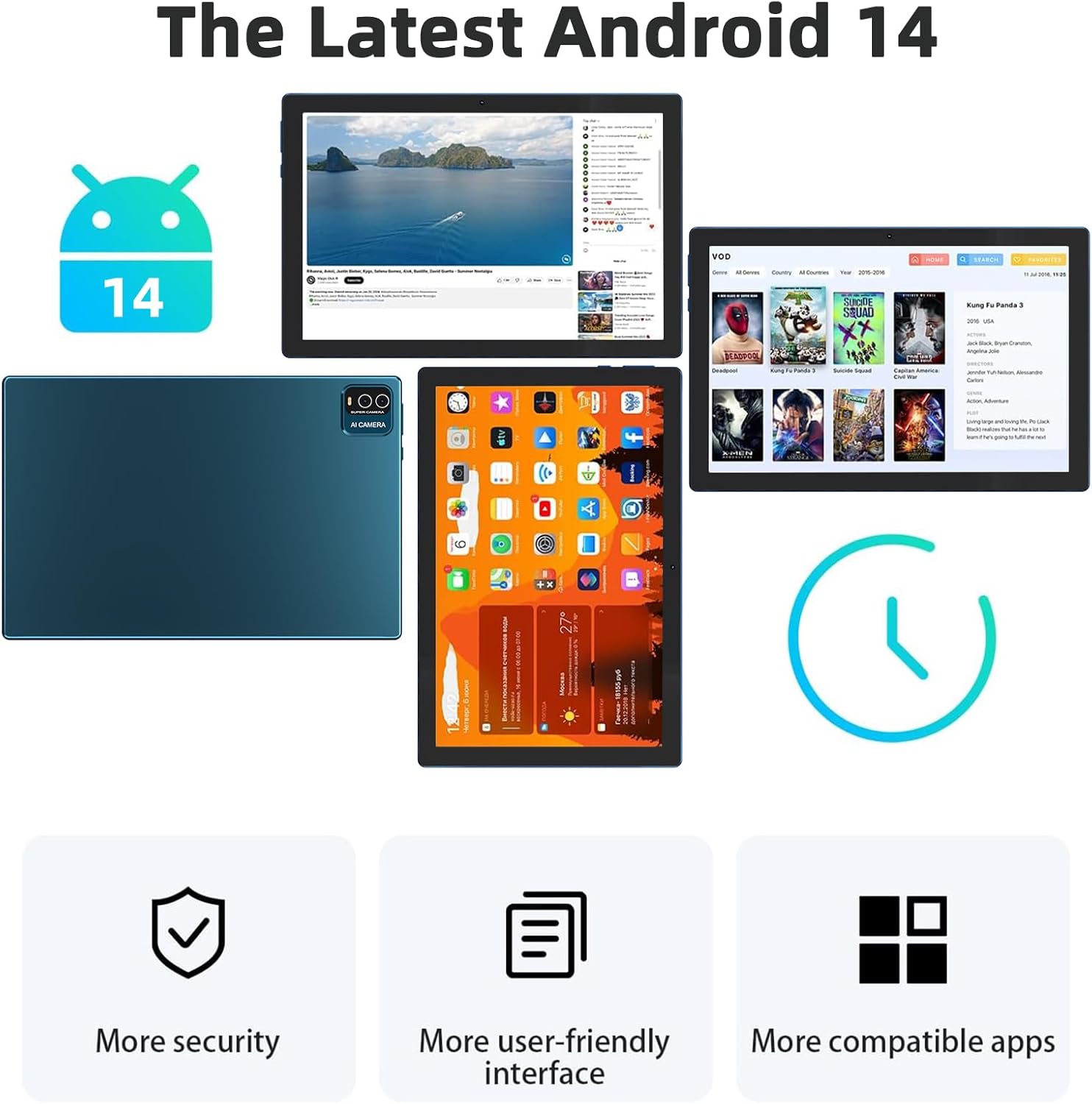
Image: A graphic highlighting the key benefits of the Android 14 operating system, such as improved security, a user-friendly interface, and enhanced app compatibility.
Troubleshooting
If you encounter issues with your tablet, refer to the following common problems and solutions:
| Problem | Solution |
|---|---|
| Tablet won't turn on | Ensure the tablet is charged. Connect it to a power source for at least 30 minutes, then try powering on again. |
| Wi-Fi not connecting | Check if Wi-Fi is enabled in settings. Restart your router and the tablet. Ensure you are entering the correct password. |
| Slow performance | Close unused apps. Clear cache for frequently used apps. Check for system updates. Consider performing a factory reset if the issue persists (back up data first). |
| Bluetooth accessories not pairing | Ensure accessories are charged and in pairing mode. Turn tablet's Bluetooth off and on. Remove previous pairings and try again. |
| Screen unresponsive | Restart the tablet by holding the power button. If unresponsive, force restart by holding the power button for 10-15 seconds. |
Specifications
Key technical specifications for your ATOZEE NV10S Tablet:
| Feature | Specification |
|---|---|
| Operating System | Android 14 |
| Screen Size | 10.1 Inches |
| Screen Resolution | 1280 x 800 Pixels (IPS HD) |
| Processor | 2 GHz Quad-core |
| RAM | 8GB (includes 6GB virtual memory) |
| Internal Storage (ROM) | 64GB |
| Expandable Storage | Up to 1TB via MicroSD card |
| Rear Camera | 8MP with Auto Focus and Flash |
| Front Camera | 2MP |
| Battery Capacity | 6000mAh (approx. 6-8 hours usage) |
| Wireless Connectivity | Wi-Fi 6 (802.11ac), Bluetooth |
| Dimensions (LxWxH) | 9.6 x 6.7 x 0.3 inches |
| Item Weight | 2.7 pounds |
Warranty Information
This product is covered by a standard manufacturer's warranty. For specific details regarding warranty duration and terms, please refer to the documentation included with your purchase or contact the seller directly. Keep your proof of purchase for warranty claims.
Support
For further assistance, technical support, or inquiries not covered in this manual, please contact the ATOZEE customer service team or the retailer from whom you purchased the product. Contact information can typically be found on the product packaging or the seller's online store page.