
1. Introduction
This manual provides detailed instructions for the safe and efficient use of your DOOGEE Tab G6 Android 15 Tablet. Please read this manual thoroughly before operating your device to ensure proper functionality and to prevent damage. Keep this manual for future reference.
2. Package Contents
Verify that all items listed below are included in your package. If any items are missing or damaged, please contact your retailer.
- DOOGEE Tab G6 Tablet
- Type-C Cable
- Charger
- Stylus (VIP Edition)
- Pre-applied Screen Protector Film
- Bluetooth Mouse (VIP Edition)
- Protective Leather Case (VIP Edition)
- Bluetooth Keyboard (VIP Edition)
- SIM Ejector Tool
- User Manual

Image: The DOOGEE Tab G6 tablet shown with its full set of accessories, including a Bluetooth keyboard, mouse, stylus, charger, and protective case.

Image: A visual representation of the complete package contents for the DOOGEE Tab G6, detailing each accessory.
3. Device Layout
The DOOGEE Tab G6 features a sleek design with a metallic body. It is designed to be thin and lightweight for portability.
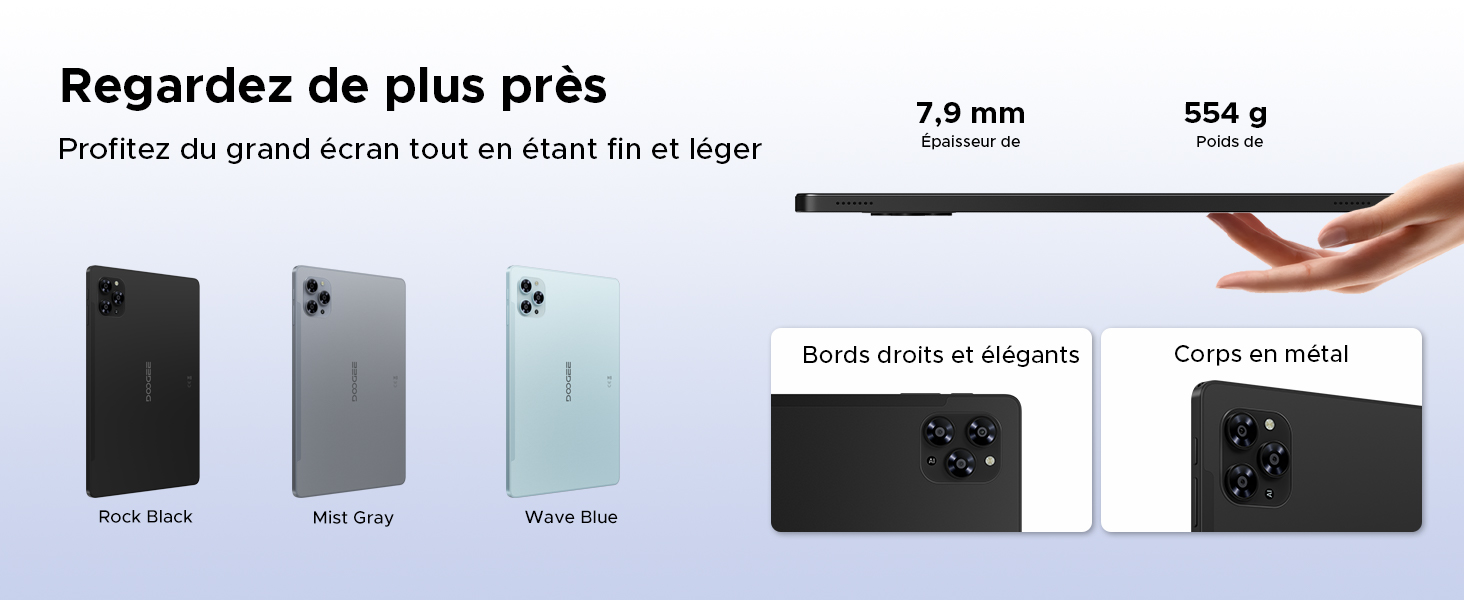
Image: A visual emphasizing the tablet's slim profile (7.9 mm thickness) and light weight (554 g), alongside details of its metal construction and design.
4. Initial Setup
4.1 Charging the Tablet
Before first use, fully charge your DOOGEE Tab G6 using the provided charger and Type-C cable. Connect the Type-C cable to the tablet's charging port and the charger to a power outlet. The battery indicator on the screen will show the charging status.
4.2 Powering On/Off
- To Power On: Press and hold the Power button until the DOOGEE logo appears on the screen.
- To Power Off: Press and hold the Power button until the power options appear. Select 'Power off' and confirm.
4.3 SIM and MicroSD Card Installation
The DOOGEE Tab G6 supports dual SIM cards and a MicroSD card for expanded storage.
- Locate the SIM card tray on the side of the tablet.
- Insert the SIM ejector tool into the small hole next to the tray and press gently until the tray pops out.
- Place your Nano-SIM cards and/or MicroSD card into the designated slots on the tray, ensuring correct orientation.
- Carefully push the tray back into the tablet until it clicks into place.

Image: A detailed view of the tablet's dual SIM and MicroSD card tray, illustrating how to insert the cards.
4.4 Connecting Bluetooth Accessories
Your DOOGEE Tab G6 comes with a Bluetooth keyboard and mouse. To connect them:
- Ensure the accessories are charged and in pairing mode (refer to their individual manuals if needed).
- On your tablet, go to Settings > Connected devices > Bluetooth.
- Turn on Bluetooth and scan for available devices.
- Select the keyboard or mouse from the list to pair. Follow any on-screen prompts.
5. Operating Your Tablet
5.1 Android 15 Operating System
The DOOGEE Tab G6 runs on the latest Android 15 operating system, offering an intuitive interface and enhanced features.
- Multi-User System: Create separate user profiles for different individuals, each with their own apps, settings, and data.
- Parental Control: Manage and restrict content, screen time, and app usage for children's profiles.
- Bedtime Mode: Schedule the tablet to automatically switch to grayscale and silence notifications for a better night's sleep.
- Enhanced Security and Privacy: Benefit from improved app permission management, data encryption, and regular security updates.

Image: An illustration of the Android 15 operating system and its key features for user management and well-being.
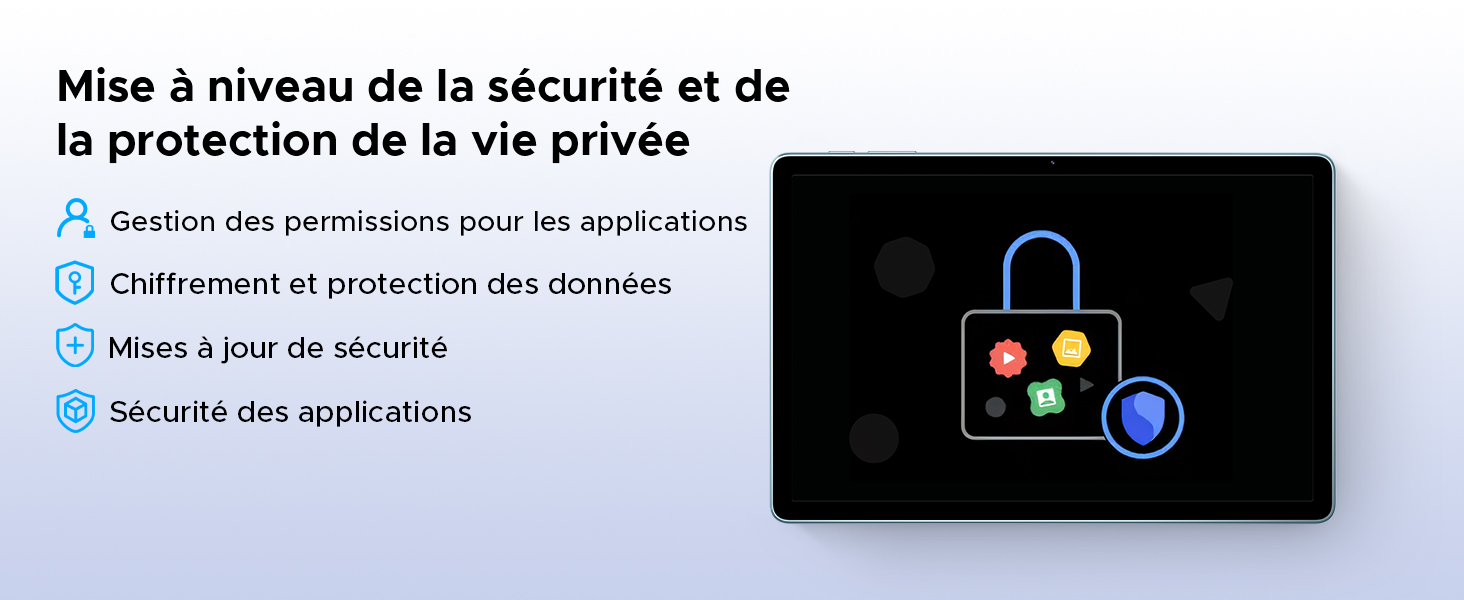
Image: A visual representation of the security and privacy enhancements in Android 15.
5.2 Display and Visuals
The tablet features an 11-inch HD IPS display with a 90Hz refresh rate for smooth visuals.
- 90Hz Refresh Rate: Provides a smoother scrolling and gaming experience.
- Eye Comfort Mode: Reduces blue light emission to minimize eye strain, especially during prolonged use.
- Dark Mode: Changes the system's color scheme to a darker palette, which can be more comfortable for eyes in low-light conditions and save battery.
- Widevine L1 Support: Allows for streaming high-definition content from supported platforms like Netflix, Amazon Prime Video, and YouTube.

Image: The tablet's 11-inch HD 90Hz IPS display, showcasing its visual clarity and smooth performance.
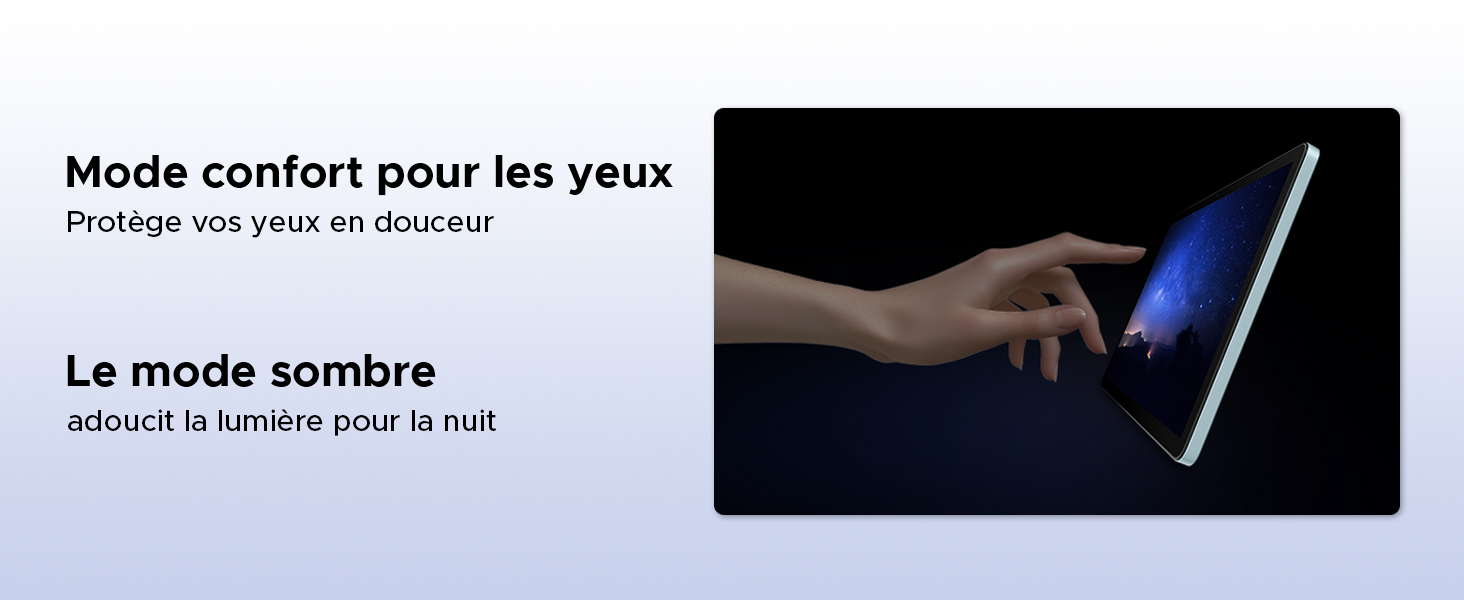
Image: Demonstrating the eye comfort and dark mode features for improved viewing experience.
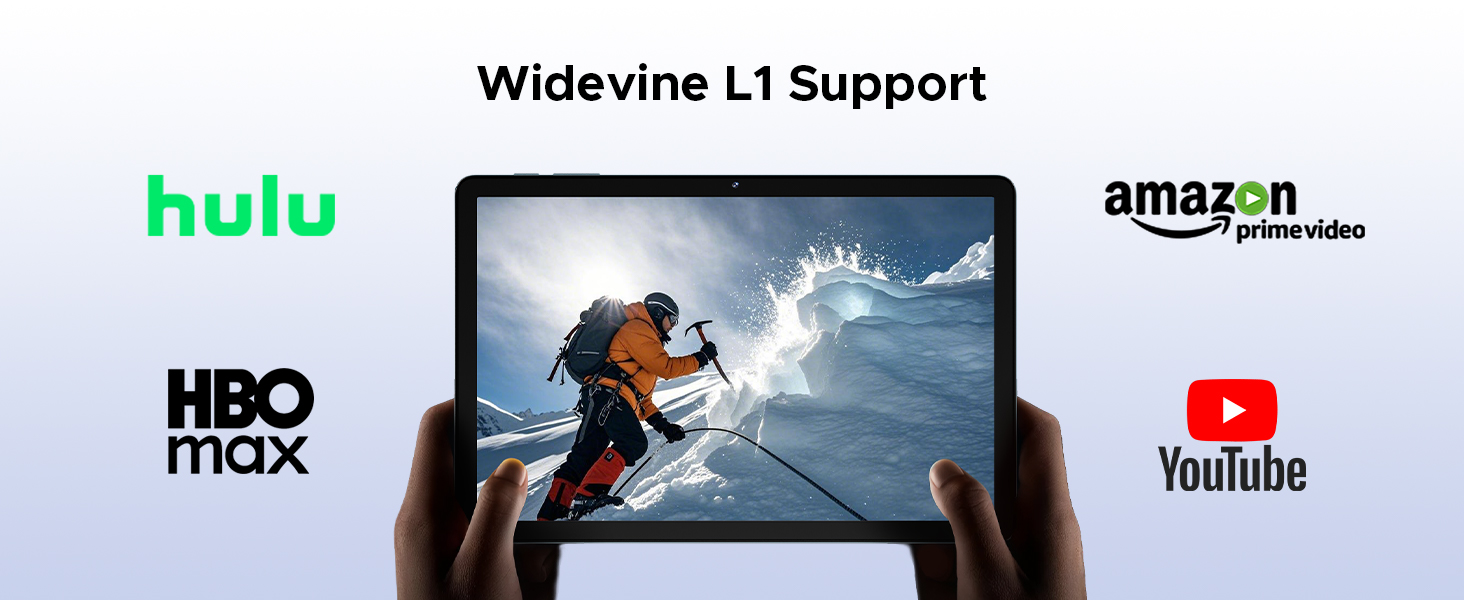
Image: Highlighting the tablet's Widevine L1 support for streaming HD content from popular platforms.
5.3 Performance and Storage
The DOOGEE Tab G6 is powered by an Octa-Core Unisoc T7250 processor and offers ample storage.
- Unisoc T7250 Octa-Core Processor: Provides efficient performance for multitasking, gaming, and media consumption.
- 30GB RAM (6GB Physical + 24GB Virtual): Ensures smooth operation and quick app switching.
- 256GB Internal Storage (ROM): Sufficient space for applications, photos, and videos.
- Expandable Storage up to 2TB (TF Card): Allows for significant expansion of storage capacity for large media libraries.

Image: A detailed view of the Unisoc T7250 octa-core processor, emphasizing its role in the tablet's performance.
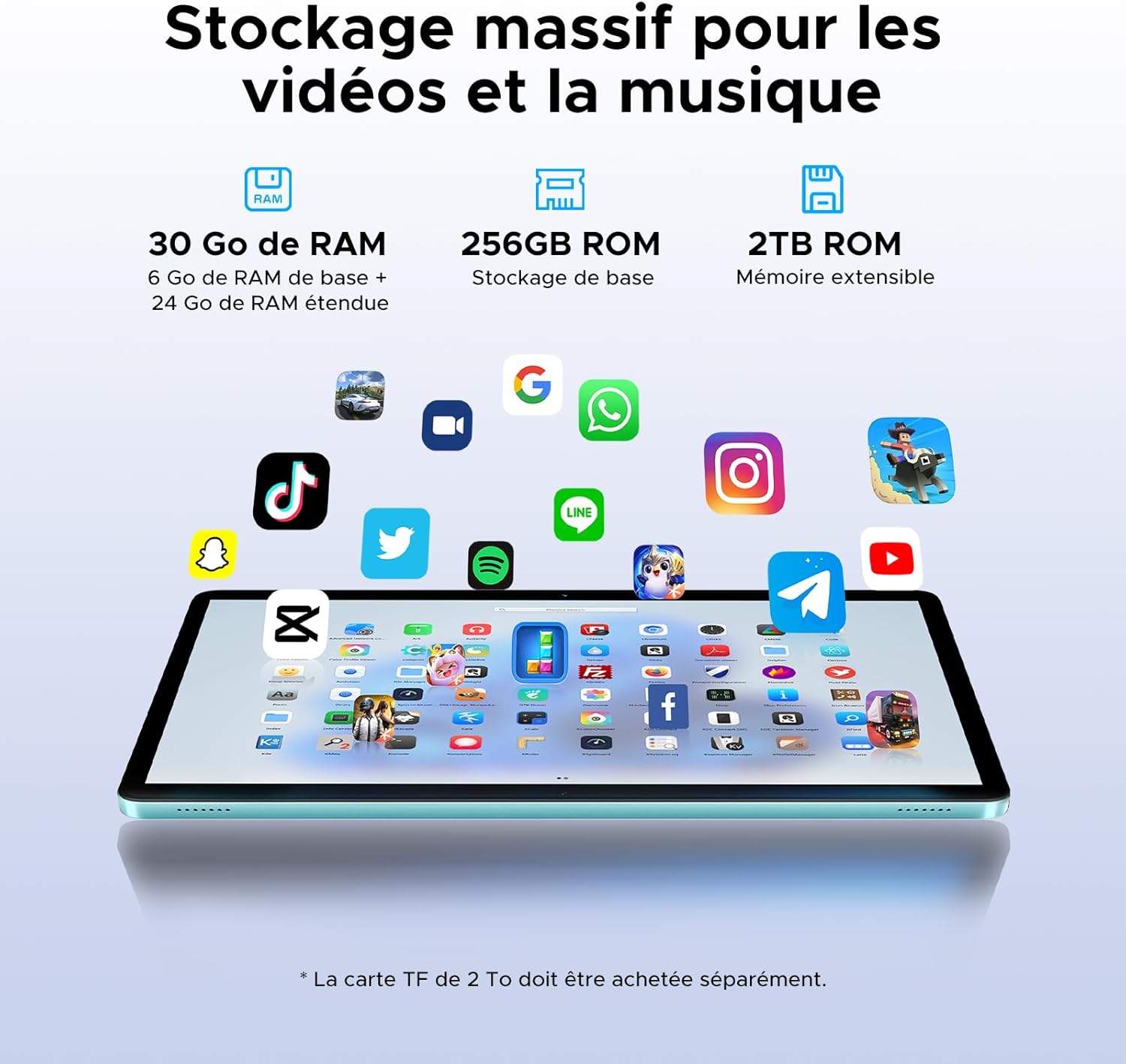
Image: Illustrating the tablet's substantial storage capabilities for apps, videos, and music.
5.4 Connectivity
Stay connected with versatile network options.
- Dual SIM 4G LTE: Supports mobile data and calls, providing connectivity even without Wi-Fi.
- Wi-Fi 5 (802.11ac): Offers fast and stable wireless internet connection.
Image: Highlighting the benefits of 4G LTE dual SIM connectivity for mobile internet and calls.
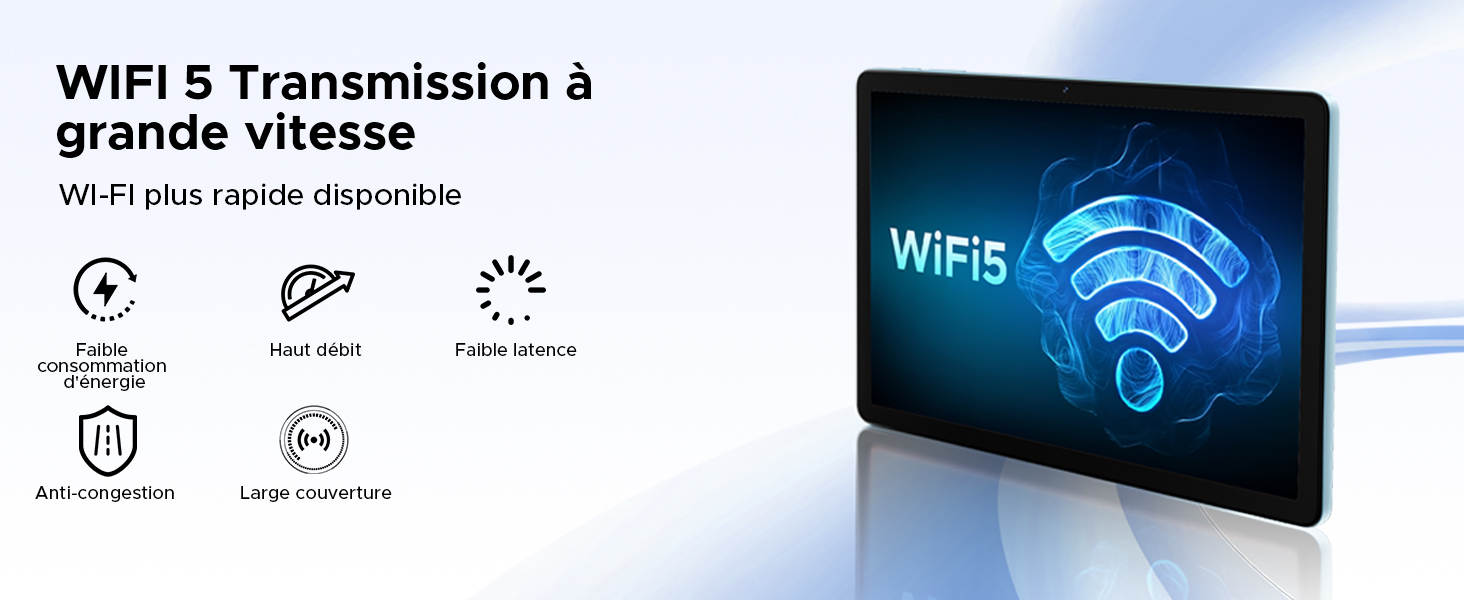
Image: Detailing the advantages of WiFi 5 for fast and reliable internet access.
5.5 Camera Functions
Capture moments and unlock your device with the integrated cameras.
- 13MP Main Camera: For clear photos and videos.
- 5MP Front Camera: Ideal for video calls and selfies.
- Face ID: Securely unlock your tablet using facial recognition.
- Camera Modes: Includes filter and beauty modes for enhanced photography.

Image: Showcasing the tablet's 13MP main and 5MP front cameras, along with sample images.
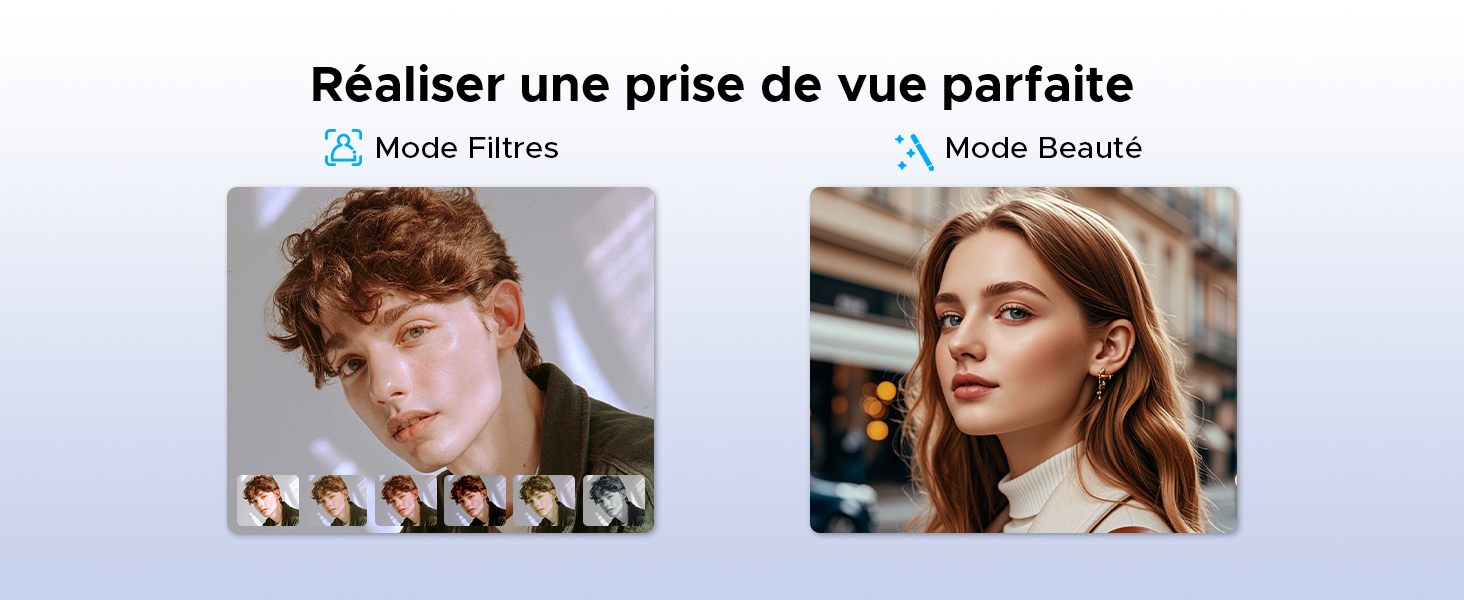
Image: Examples of filter and beauty modes available in the camera application.
5.6 Audio and Entertainment
Enjoy immersive sound and radio on your tablet.
- Premium 1217 BOX Dual Speakers: Delivers clear and immersive stereo sound.
- FM Radio: Connect wired earphones to use the built-in FM radio function.

Image: The tablet's dual speakers providing an immersive audio experience during gaming.
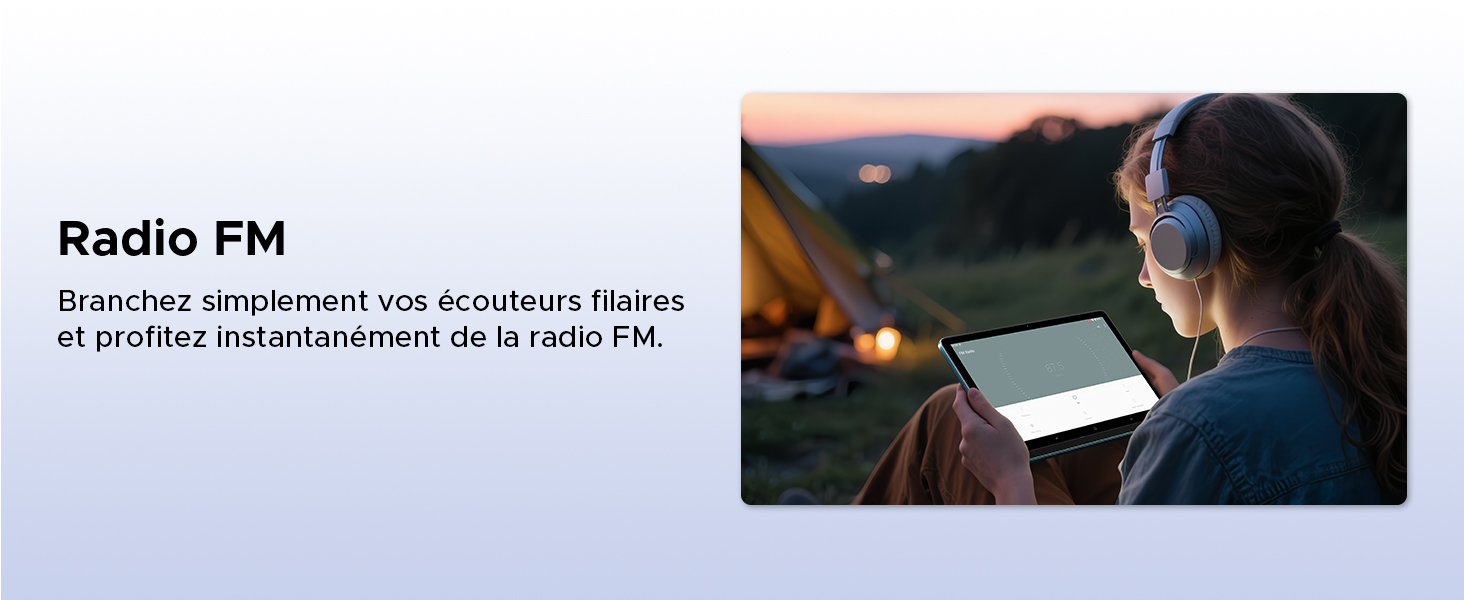
Image: Demonstrating the FM radio functionality, accessible by plugging in wired earphones.
5.7 Productivity
Enhance your work and multitasking capabilities.
- WPS Office Integration: Pre-installed WPS Office allows for easy document editing and file viewing.
- Split Screen Multitasking: Use two applications simultaneously side-by-side for increased productivity.
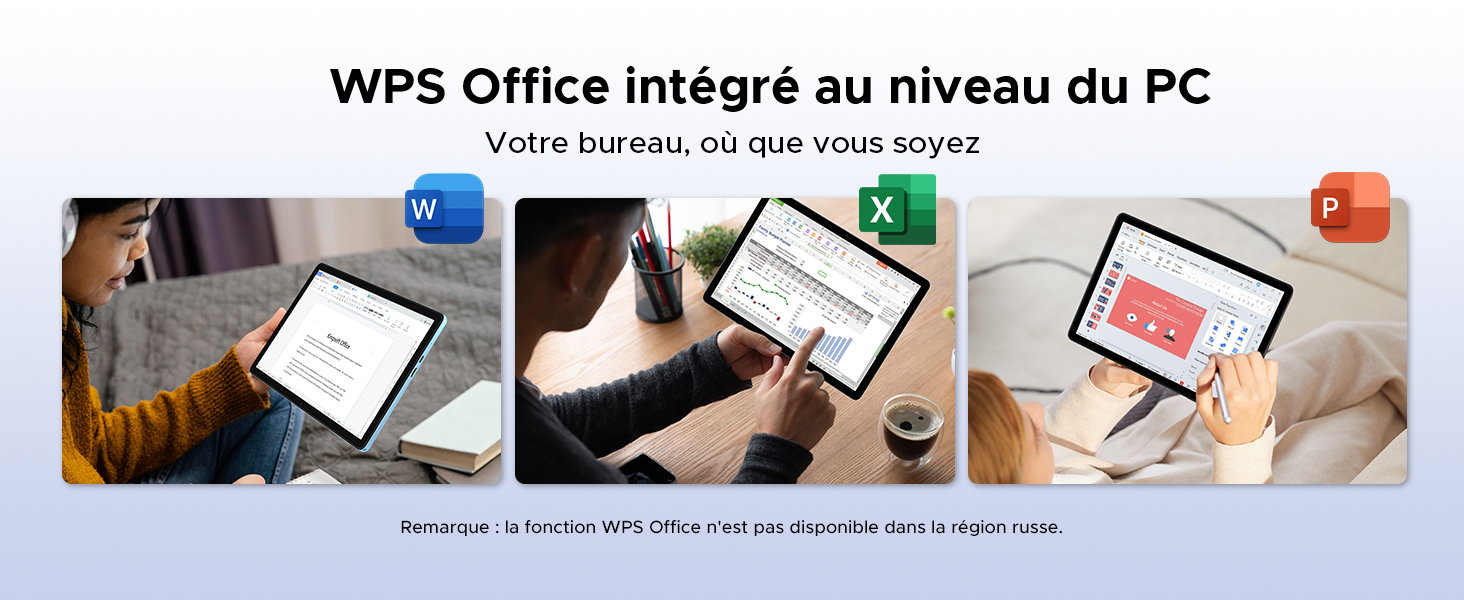
Image: Illustrating the tablet's capability for office tasks using WPS Office, anytime and anywhere.
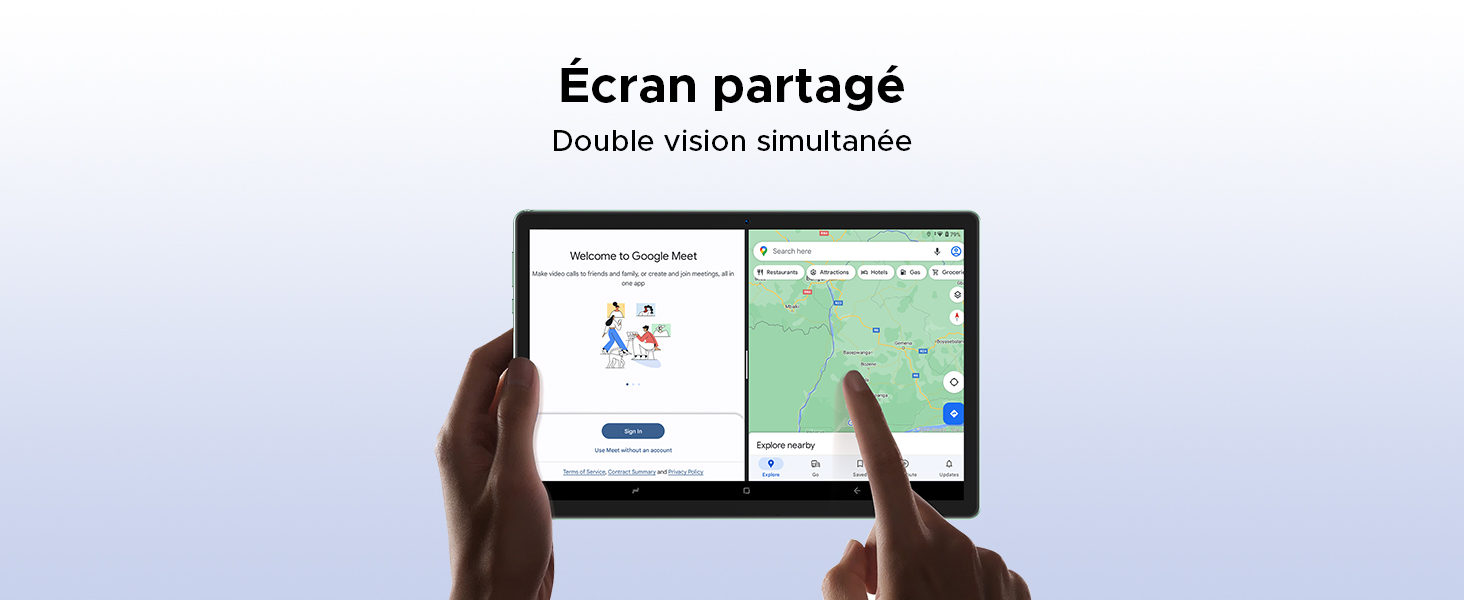
Image: Demonstrating the split-screen feature for simultaneous dual-app viewing.
5.8 Navigation
The DOOGEE Tab G6 supports multiple global navigation satellite systems for precise positioning.
- GPS, Glonass, Galileo, Beidou: Ensures accurate and reliable navigation services.
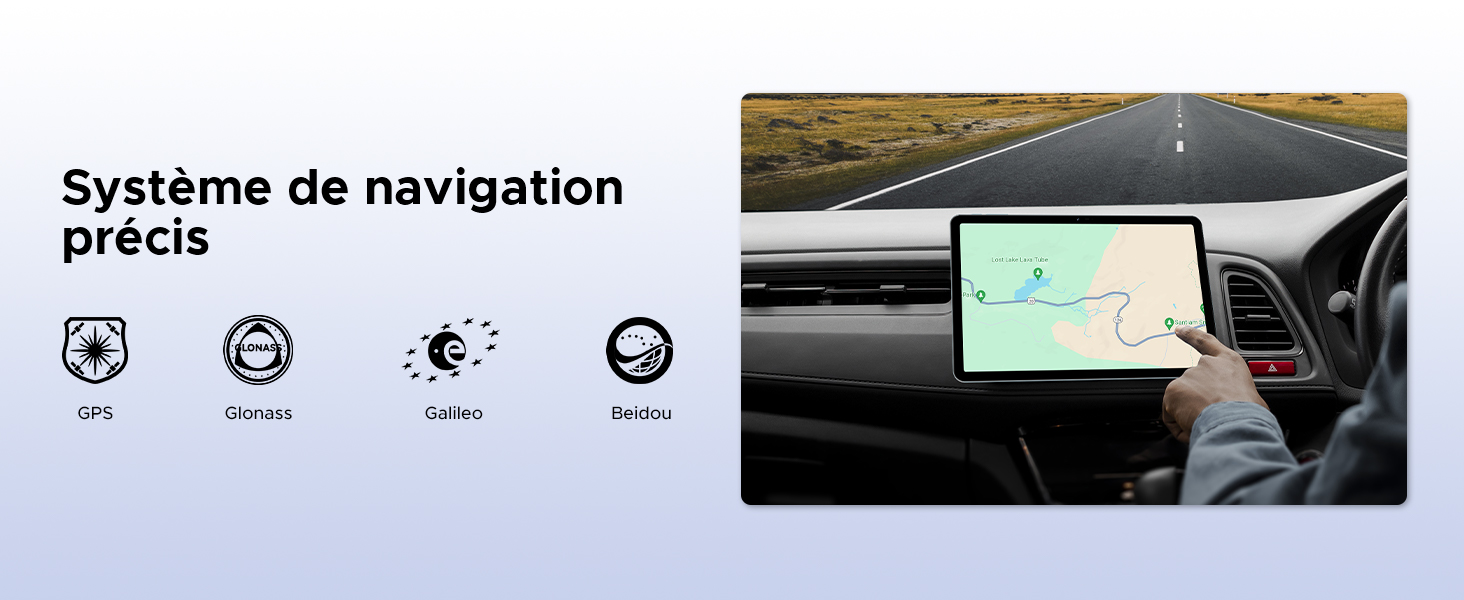
Image: The tablet being used for precise navigation in a vehicle, supported by multiple satellite systems.
6. Maintenance and Care
6.1 Cleaning Your Tablet
To clean your tablet, use a soft, lint-free cloth. For stubborn smudges, slightly dampen the cloth with water or a screen cleaner designed for electronics. Avoid using harsh chemicals, abrasive materials, or excessive moisture.
6.2 Battery Longevity
The DOOGEE Tab G6 is equipped with an 8000mAh battery. To maximize its lifespan:
- Avoid extreme temperatures.
- Do not let the battery completely drain frequently.
- Use the original charger and cable.
- For long-term storage, charge the tablet to about 50% and power it off.

Image: An internal view of the tablet highlighting its 8000mAh battery, along with its charging capabilities.
6.3 Software Updates
Regularly check for and install software updates to ensure your tablet has the latest features, security patches, and performance improvements. You can usually find this option in Settings > System > System update.
7. Troubleshooting
If you encounter issues with your DOOGEE Tab G6, try the following common solutions:
- Device not turning on: Ensure the battery is charged. Connect the charger and wait a few minutes before attempting to power on again.
- Apps crashing or freezing: Close and restart the app. If the issue persists, clear the app's cache (Settings > Apps > [App Name] > Storage > Clear cache) or reinstall the app.
- Connectivity issues (Wi-Fi/4G): Toggle Wi-Fi or mobile data off and on. Restart your router for Wi-Fi issues. Ensure your SIM card is correctly inserted and active for 4G issues.
- Slow performance: Close unnecessary background apps. Clear cache and temporary files. Consider performing a factory reset as a last resort (back up your data first).
- Touchscreen unresponsive: Restart the tablet. If the issue continues, contact support.
For more complex issues, refer to the online support resources or contact DOOGEE customer service.
8. Specifications
| Feature | Specification |
|---|---|
| Brand | DOOGEE |
| Model Number | TAB G6-V |
| Series | TAB G6 VIP |
| Operating System | Android 15 |
| Processor Brand | Unisoc |
| Screen Size | 11 Inches (10.1 Inches in some specs) |
| Screen Resolution | 1200 x 1920 pixels (1280x800 in some images) |
| RAM | 30 GB (6GB physical + 24GB virtual) |
| Storage Capacity | 256 GB |
| Expandable Storage | Up to 2 TB (TF card) |
| Connectivity Type | Cellular, Wi-Fi |
| Hardware Interface | Bluetooth, USB |
| Compatible Peripherals | Keyboard, Mouse |
| Battery Life (Average) | 24 hours (8000 mAh) |
| Item Dimensions (L x W x H) | 24.5 x 16.3 x 1 centimeters |
| Item Weight | 514 Grams |
| Main Camera | 13 MP |
| Front Camera | 5 MP |
| Year of Model | 2025 |
9. Warranty and Support Information
For warranty details, please refer to the warranty card included in your product packaging or visit the official DOOGEE website. If you require technical assistance or have questions not covered in this manual, please contact DOOGEE customer support through their official channels.


