
1. Introduction
Thank you for choosing the Roinvou Car Radio Stereo. This manual provides comprehensive instructions to help you install, operate, and maintain your new head unit. Please read this manual thoroughly before installation and use to ensure proper functionality and safety. Keep this manual for future reference.

Image 1.1: Roinvou Car Radio Stereo installed in a Suzuki Swift dashboard.
2. Product Features
- Vehicle Compatibility: Designed for Suzuki Swift models from 2005 to 2010. Ensures seamless integration with the original dash panel without wiring modifications.
- Wired/Wireless CarPlay & Android Auto: Supports intelligent switching, wireless priority, and wired backup. Automatically activates upon car entry for navigation, music, and calls. Includes Siri/Google Assistant support for hands-free operation.
- GPS Navigation & WiFi Connectivity: Supports online maps and includes pre-loaded offline North American maps. Fast and stable WiFi connection allows app downloads and online video streaming (e.g., YouTube, TikTok).
- FM/RDS & DSP & EQ Settings: RDS provides radio station names, traffic, and news. Features intelligent channel memory. DSP technology enhances sound quality, and multi-mode EQ allows manual adjustment of frequency bands.
- Bluetooth Handsfree & Mirror Link: Supports multi-device Bluetooth headset switching for music and calls. Seamless screen mirroring projects phone interface to the car screen with touch reverse operation.
- Steering Wheel Control & AHD Reversing Camera: Easy installation for a 170-degree ultra-wide AHD rear-view camera. Supports original steering wheel control button learning for convenient radio operation.
3. Package Contents
Verify that all items listed below are included in your package:
- Roinvou Car Stereo for Suzuki Swift
- Power Cable
- USB Adapter Cable
- RCA Harness
- GPS Antenna
- AHD Backup Camera
- External Microphone
- Rear Camera Input Cable
- Dual USB Cable
- Installation Tool

Image 3.1: Visual representation of the package contents.
4. Setup & Installation
Professional installation is recommended. Ensure the vehicle's power is disconnected before beginning installation.
4.1. Wiring Port Overview
Refer to the diagram below for the main wiring connections.

Image 4.1: Main wiring ports and their connections.
4.2. CANBUS Connection
The CANBUS system facilitates communication between the car stereo and your vehicle's existing systems, such as steering wheel controls.
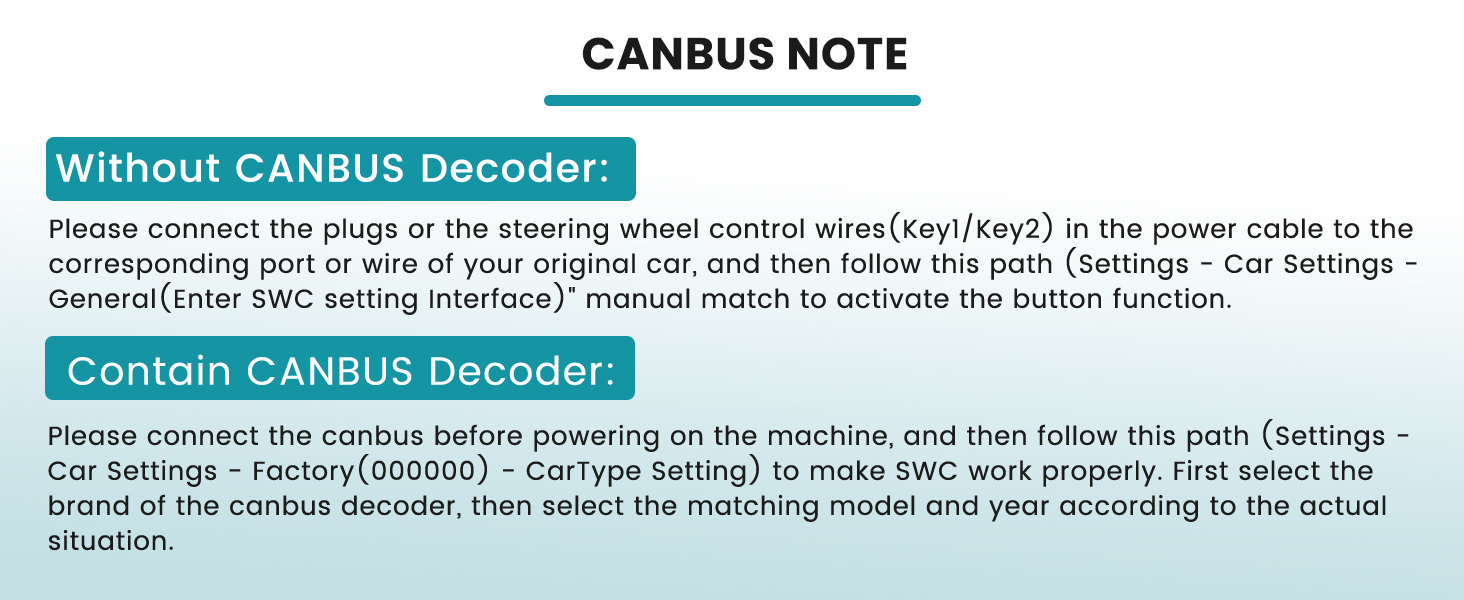
Image 4.2: CANBUS connection instructions.
4.3. Reversing Camera Wiring
Properly connect the AHD reversing camera for enhanced safety during parking.

Image 4.3: Reversing camera wiring guide.
4.4. General Installation Steps
- Carefully remove the original car radio and dashboard trim.
- Connect the power cable, USB adapter cable, RCA harness, GPS antenna, and other necessary cables to the new Roinvou head unit.
- If applicable, connect the CANBUS decoder and reversing camera as per the diagrams.
- Mount the new head unit securely into the dashboard opening.
- Reconnect the vehicle's power and test all functions before fully reassembling the dashboard trim.
5. Operating Instructions
This section details the various functions and how to operate your Roinvou Car Radio Stereo.
5.1. Interface Overview
The main interface provides quick access to key features. Navigate through applications by swiping the screen.

Image 5.1: Comparison of the dashboard before and after installing the Roinvou Car Radio Stereo.
5.2. Wireless CarPlay and Android Auto Connection
Connect your smartphone wirelessly for seamless integration with CarPlay or Android Auto.
Video 5.2.1: Guide to Wireless CarPlay and Android Auto connection.
Video 5.2.2: Main functions and connection methods for CarPlay, Android Auto, and Mirror Link.
Video 5.2.3: Bluetooth Wireless CarPlay and Android Auto demonstration.
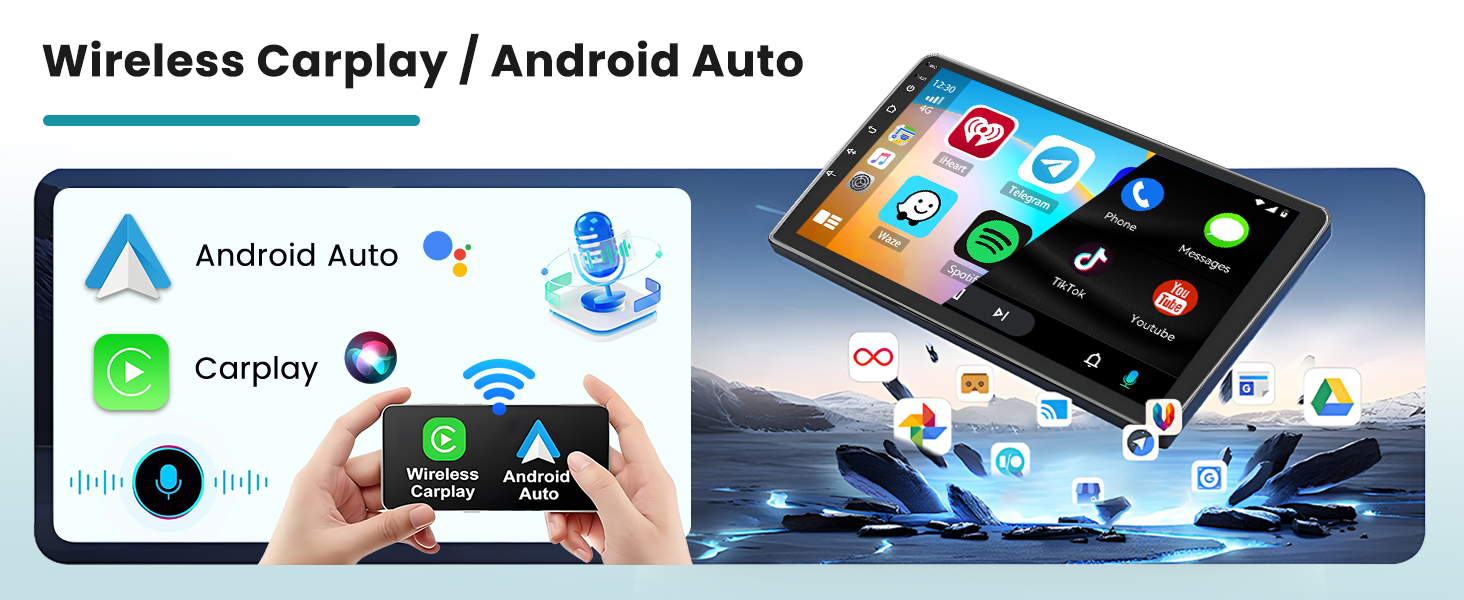
Image 5.2.4: Wireless CarPlay and Android Auto connection overview.
5.3. Wireless Mirroring
Mirror your smartphone screen to the car stereo display for viewing content directly.
Video 5.3.1: How to connect Mirror Link.
5.4. GPS Navigation & WiFi
Utilize the built-in GPS for navigation and connect to WiFi for online services.

Image 5.4.1: GPS Navigation and WiFi Connection interface.
5.5. Bluetooth Handsfree & FM/RDS Radio
Make hands-free calls and enjoy FM radio with RDS information.

Image 5.5.1: Bluetooth Handsfree and FM/RDS Radio features.
5.6. Steering Wheel Control & AHD Rear View Camera
Configure steering wheel controls and view the AHD rear camera feed.

Image 5.6.1: Steering Wheel Control and AHD Rear View Camera display.
5.7. UI Themes & EQ Settings
Customize your user interface and audio equalizer settings.

Image 5.7.1: Various UI themes and EQ settings for audio customization.
5.8. General Operation Demonstration
This video provides a general overview of the Android 13 car radio stereo's features, including navigation, music, and other applications.
Video 5.8.1: Android 13 Car Radio Stereo Wireless CarPlay and GPS Navigation overview.
This video further illustrates the Android 13 GPS Navigation Car Radio Stereo, including CarPlay and WiFi functionalities.
Video 5.8.2: Android 13 GPS Navigation Car Radio Stereo, CarPlay WiFi features.
6. Specifications
| Feature | Detail |
|---|---|
| Item Weight | 3.78 pounds |
| Package Dimensions | 12.2 x 10.24 x 3.94 inches |
| Display Size | 10.1 Inches |
| Model Name | Car Radio Stereo |
| Vehicle Service Type | Car |
| Special Features | CarPlay, Android Auto, Bluetooth, Touchscreen, FM RDS Radio, Mirror Link, GPS Navigation, DSP, EQ, Wi-Fi, SWC, 26 Desktop Themes |
| Connectivity Technology | Bluetooth, USB, Wi-Fi |
| Map Type | North America |
| Audio Output Mode | Stereo |
| Voice Command | Microphone, Touchscreen |
7. Troubleshooting
If you encounter any issues with your Roinvou Car Radio Stereo, please refer to the following common troubleshooting steps:
- No Power: Check all power connections and ensure the vehicle's ignition is on. Verify fuses are intact.
- No Sound: Check speaker connections, volume levels, and audio settings (EQ, DSP). Ensure the correct audio source is selected.
- Bluetooth Connection Issues: Ensure Bluetooth is enabled on both the stereo and your phone. Delete previous pairings and try reconnecting. Check the device name and PIN.
- CarPlay/Android Auto Not Connecting: Verify your phone's Bluetooth and Wi-Fi are active. Ensure the CarPlay/Android Auto app is updated on your phone. Try restarting both the stereo and your phone.
- GPS Signal Loss: Ensure the GPS antenna is properly installed and has a clear view of the sky. Check GPS settings on the stereo.
- Screen Mirroring Problems: Confirm your phone's hotspot is active and the stereo is connected to it. Ensure the mirroring app on your phone is running and authorized.
- Steering Wheel Controls Not Working: Check CANBUS connections. If no CANBUS, ensure Key1/Key2 wires are correctly connected and configured in the stereo's settings.
For persistent issues, please contact Roinvou customer support.
8. Maintenance
To ensure the longevity and optimal performance of your Roinvou Car Radio Stereo, follow these maintenance guidelines:
- Cleaning: Use a soft, dry cloth to clean the screen and exterior. Avoid abrasive cleaners or solvents that may damage the surface.
- Software Updates: Periodically check for software updates from Roinvou to ensure you have the latest features and bug fixes.
- Temperature: Avoid exposing the unit to extreme temperatures, both hot and cold, for extended periods.
- Power Supply: Ensure a stable power supply to prevent damage to the unit.
- Cable Connections: Periodically check all cable connections to ensure they are secure and free from damage.
9. Warranty & Support
Your Roinvou Car Radio Stereo comes with a 1-Year Warranty from the date of purchase. This warranty covers manufacturing defects and malfunctions under normal use.
The warranty does not cover damage caused by:
- Improper installation or unauthorized repairs.
- Accident, misuse, abuse, or neglect.
- Natural disasters or acts of God.
- Normal wear and tear.
For warranty claims, technical support, or any questions regarding your product, please contact Roinvou customer service through the platform where you purchased the item or visit the official Roinvou store on Amazon: Roinvou Store.


