
Fanvil V61G
Fanvil V61G Prime Business Phone
User Manual
Model: V61G | Brand: Fanvil
Product Overview
The Fanvil V61G is a sophisticated and user-friendly business IP phone designed to meet diverse corporate communication requirements. It features a 2.4-inch color display (320x240) that provides an intuitive interface, simplifying navigation and access to its extensive features. Supporting four simultaneous SIP lines, the V61G enables efficient management of multiple accounts, making it an ideal solution for dynamic work environments. A key highlight is its six-way audio conferencing capability, facilitating seamless team collaboration and reducing the necessity for in-person meetings. The device delivers HD audio quality, enhanced by advanced noise reduction and echo cancellation algorithms, ensuring crystal-clear conversations even in noisy settings. Equipped with dual Gigabit ports, the V61G ensures fast and stable network connections crucial for business productivity. Furthermore, its compatibility with various VoIP systems guarantees easy integration into existing communication infrastructures. Its modern and functional design enhances any workspace, providing an efficient and pleasant communication experience.
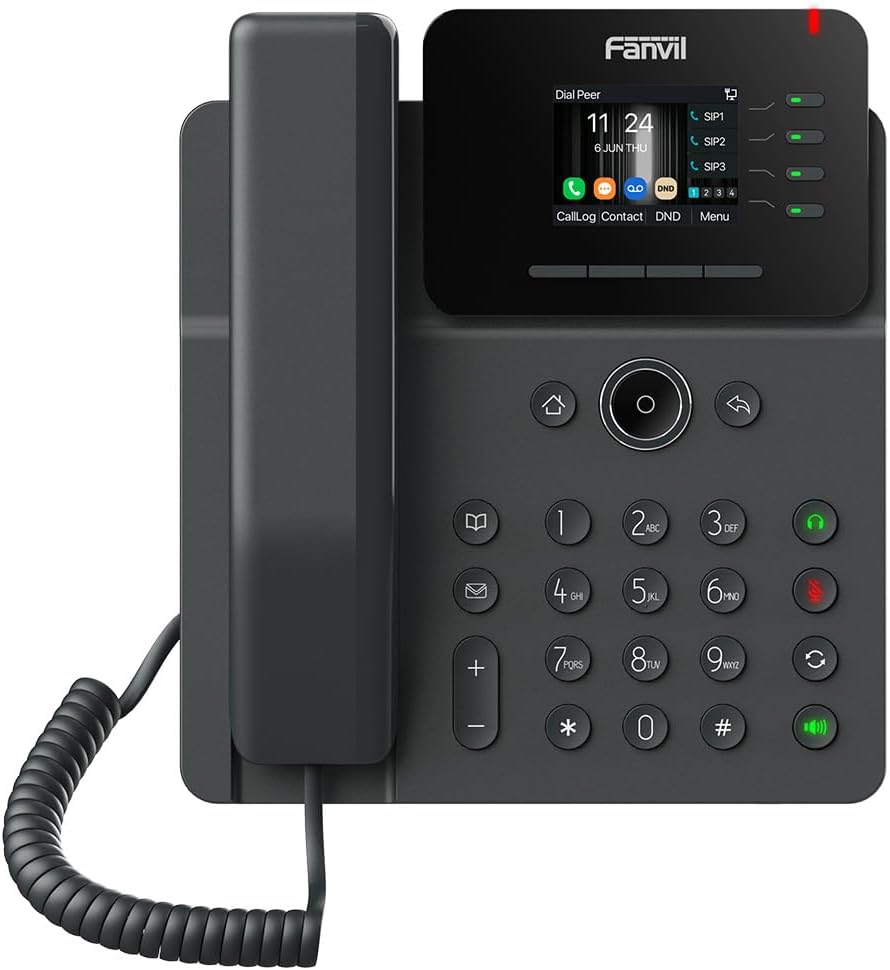
Image: Front view of the Fanvil V61G Prime Business Phone, showcasing its display, keypad, and handset.
Key Features
- 2.4-inch color screen: Provides an intuitive and clear interface for easy navigation.
- Supports four simultaneous SIP lines: Allows for efficient management of multiple calls and accounts.
- Six-way audio conferencing: Enables robust collaboration with multiple participants.
- HD audio with noise reduction and echo cancellation: Ensures crystal-clear conversations.
- Dual Gigabit ports: Offers high-speed and stable network connections for optimal performance.
Setup
1. Unpacking and Package Contents
Carefully unpack all items from the box. Verify that all components are present:
- Fanvil V61G IP Phone Unit
- Handset and Handset Cord
- Ethernet Cable
- Power Adapter (if not using Power over Ethernet - PoE)
- Desk Stand
2. Assembling the Phone
- Attach the Desk Stand: Align the tabs on the desk stand with the slots on the back of the phone unit and slide it into place until it clicks securely.
- Connect the Handset: Plug one end of the coiled handset cord into the handset and the other end into the handset port on the phone unit (marked with a handset icon).
3. Connecting to Network and Power
- Network Connection:
- Connect one end of the Ethernet cable to the LAN port on the phone (marked with a network icon).
- Connect the other end of the Ethernet cable to a network switch or router.
- If your network supports Power over Ethernet (PoE), the phone will power on automatically.
- Power Connection (if no PoE):
- If PoE is not available, connect the power adapter to the DC 12V port on the phone.
- Plug the power adapter into a standard electrical outlet.
4. Initial Boot-up
Once connected, the phone will automatically power on and begin the boot-up sequence. The display will show the Fanvil logo, followed by network configuration and SIP registration status. This process may take a few minutes.
Upon successful boot-up, the main screen will display the date, time, and SIP line status. Ensure that your SIP lines show as registered (typically indicated by a green light or icon next to the SIP line on the display).
Operating Instructions
1. Basic Call Functions
- Making a Call:
- Pick up the handset or press the Speakerphone button.
- Dial the desired phone number using the keypad.
- Press the Dial/Send button (often a green phone icon) or wait a few seconds for automatic dialing.
- Answering a Call:
- When the phone rings, pick up the handset or press the Speakerphone button.
- Ending a Call:
- Place the handset back on the cradle or press the End Call button (often a red phone icon).
2. Call Management
- Volume Adjustment: Use the Volume +/- buttons during a call to adjust the handset, speakerphone, or headset volume.
- Mute: Press the Mute button to mute your microphone during a call. Press again to unmute.
- Hold: Press the Hold button to put an active call on hold. Press the button again or the corresponding line key to resume the call.
- Transfer:
- During an active call, press the Transfer button.
- Dial the number you wish to transfer the call to.
- Press the Transfer button again to complete the transfer (blind transfer) or wait for the other party to answer and then press Transfer (attended transfer).
- 6-Way Audio Conferencing:
- During an active call, press the Conf (Conference) button.
- Dial the number of the next participant and press Dial.
- Once the new participant answers, press the Conf button again to add them to the conference.
- Repeat for up to six participants.
3. Using SIP Lines
The V61G supports up to four SIP lines. Each line key on the display or next to it indicates the status of that line (e.g., green for idle, red for in-use, flashing for incoming call). Press a line key to select it for making a call or to switch between active calls on different lines.
4. Navigation and Menu
- Navigation Keys: Use the directional keys (up, down, left, right) around the central OK button to navigate through menus and options on the display.
- OK Button: Press the central OK button to confirm selections.
- Back/Return: Press the Back button (often an arrow icon) to go back to the previous screen or menu.
- Menu Button: Press the Menu soft key on the display to access phone settings, call history, contacts, and other advanced features.
- Soft Keys: The buttons directly below the display (e.g., CallLog, Contact, DND, Menu) are context-sensitive soft keys. Their function changes depending on the current screen or call status.
Maintenance
1. Cleaning the Phone
To maintain the appearance and functionality of your Fanvil V61G phone:
- Always disconnect the phone from power before cleaning.
- Use a soft, dry, anti-static cloth to wipe the phone's surface.
- For stubborn marks, lightly dampen the cloth with water. Do not use liquid cleaners, aerosol cleaners, or harsh chemicals as they may damage the phone's finish or internal components.
- Avoid getting moisture into any openings.
2. Software Updates
Periodically, Fanvil may release firmware updates to improve performance, add features, or address security vulnerabilities. It is recommended to keep your phone's firmware updated.
- Firmware updates are typically managed by your IT administrator or VoIP service provider.
- If you manage your own phone, refer to the Fanvil official website or the phone's web interface for instructions on checking for and applying updates.
Troubleshooting
This section provides solutions to common issues you might encounter with your Fanvil V61G phone. If the problem persists, contact your IT administrator or Fanvil support.
1. No Power / Phone Does Not Turn On
- Check Power Connection: Ensure the power adapter is securely plugged into the phone and a working electrical outlet.
- Check PoE: If using Power over Ethernet (PoE), ensure the Ethernet cable is connected to a PoE-enabled port on your network switch and that PoE is active. Try connecting to a different PoE port or using the power adapter.
- Test Outlet: Plug another device into the electrical outlet to confirm it is functional.
2. No Dial Tone / Cannot Make or Receive Calls
- Check Network Connection: Ensure the Ethernet cable is securely connected to both the phone's LAN port and the network. The network indicator light on the phone (if present) should be active.
- Check SIP Registration: On the phone's display, verify that your SIP lines are registered (usually indicated by a green icon or text). If not, there might be an issue with your network or SIP server configuration.
- Restart Phone: Disconnect and reconnect the power cable to restart the phone.
- Network Issues: Confirm your network is operational. Try accessing the internet from another device connected to the same network.
3. Poor Audio Quality (Echo, Static, Low Volume)
- Adjust Volume: Use the volume buttons during a call to increase the listening volume.
- Check Handset/Headset Connection: Ensure the handset cord or headset cable is securely plugged into the correct port.
- Network Congestion: Poor audio can be caused by network congestion or insufficient bandwidth. Consult your network administrator.
- Environmental Noise: Ensure you are in a quiet environment, or utilize the phone's noise reduction features.
4. Display Issues
- No Display/Blank Screen: Ensure the phone is powered on. If it is, try restarting the phone.
- Frozen Screen: Restart the phone by disconnecting and reconnecting the power.
Specifications
| Feature | Detail |
|---|---|
| Product Dimensions | 12 x 10 x 3 inches |
| Item Weight | 2 pounds |
| Model Number | V61G |
| Brand | Fanvil |
| Telephone Type | Corded |
| Power Source | Corded Electric (supports PoE) |
| Answering System Type | Digital |
| Display | 2.4-inch (320x240) high-Definition Color Screen |
| SIP Lines | Supports 4 SIP Lines |
| Audio Conferencing | 6-Way Audio Conferencing |
| Network Ports | Dual Gigabit Ports |
| UPC | 889837003848 |
Warranty and Support
Fanvil products are designed for reliability and performance. For specific warranty terms and conditions, please refer to the warranty card included with your product or visit the official Fanvil website.
For technical support, troubleshooting assistance beyond this manual, or service inquiries, please contact your vendor, IT administrator, or Fanvil's official support channels. You can typically find contact information on the Fanvil website or in the product packaging.
Online Resources:
- Official Fanvil Website: www.fanvil.com (for product information, downloads, and support)
Related documentsV61G


Ask a question about this manual
Ask about setup, troubleshooting, compatibility, parts, safety, or missing instructions. Manuals+ will review the question and use this page’s manual context to help answer it.