
RunCam dvr
Mini FPV DVR Digital Video Recorder User Manual
Model: dvr | Brand: RunCam
1. Introduction
The Mini FPV DVR is a compact and versatile digital video recorder designed for capturing and digitizing analog video footage. It supports multiple recording resolutions and is compatible with both NTSC and PAL video formats, making it ideal for converting content from various analog sources such as VHS, Hi8, and Betamax camcorders.
Key Features:
- Multi-Resolution Recording: Selectable video resolutions including VGA (640x480), D1 (720x480), and HD (1280x720) for versatile video capture.
- Wide Compatibility: Supports NTSC and PAL video formats for broad analog source compatibility.
- Built-in Battery & Compact Design: Features a 3.7V/400mAh rechargeable Li-ion polymer battery for up to 2 hours of continuous recording. Ultra-portable at 53mm x 33mm x 9mm and 24.5g.
- Easy AV Connectivity: Equipped with 3.5mm AV input/output interfaces and a micro USB charging port for direct connection to monitors or TVs.
- Convenient File Management: Supports up to 32GB TF cards (Class 10 recommended) with adjustable cyclic recording times (10/20/30 minutes).
Package Contents:
Please verify that all items are present in your package:
- Mini FPV DVR Unit
- AV Cables (3.5mm to RCA)
- USB Charging Cable
- User Manual
- Accessories (e.g., Velcro strap)
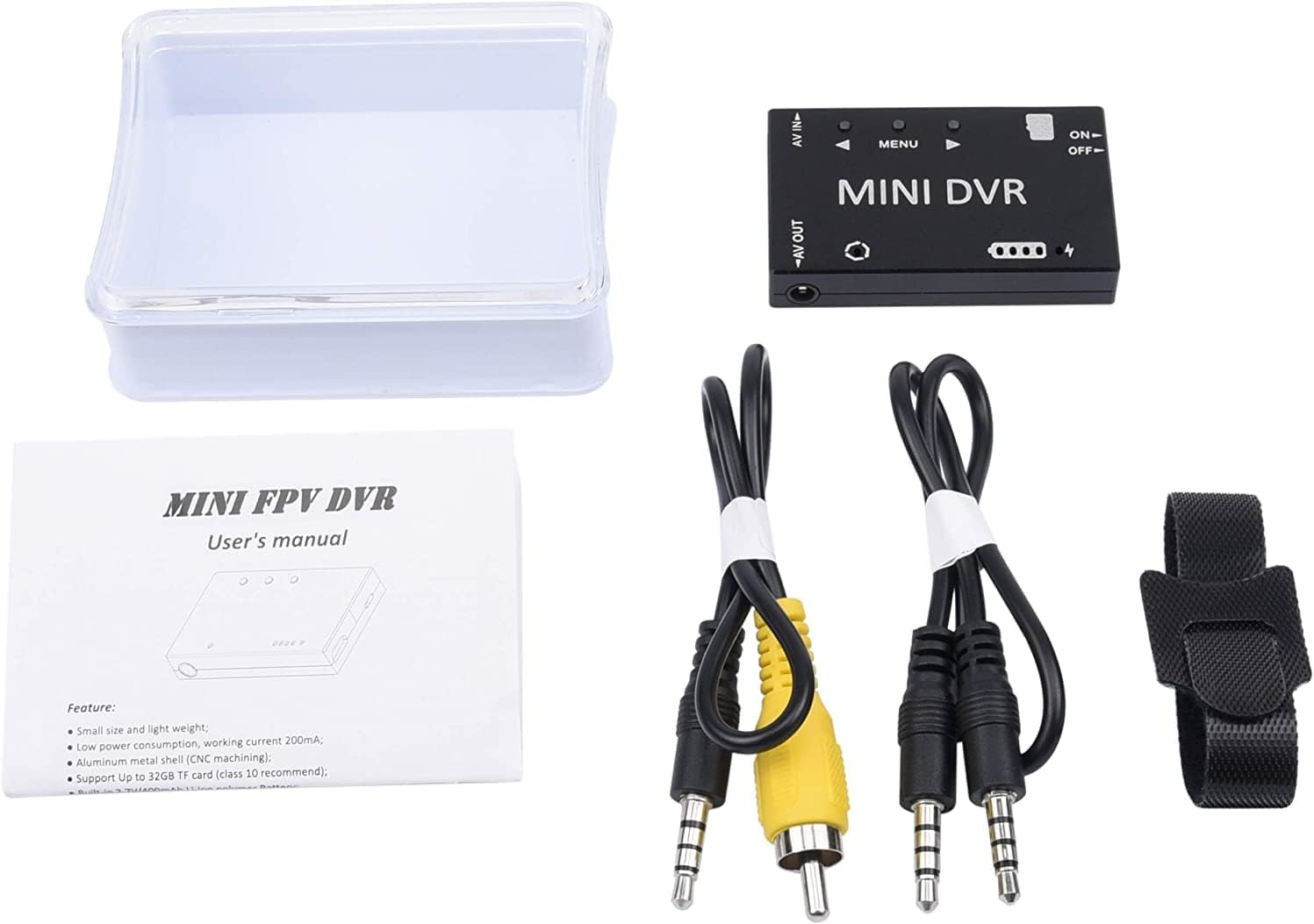
Figure 1.1: Package Contents of the Mini FPV DVR.
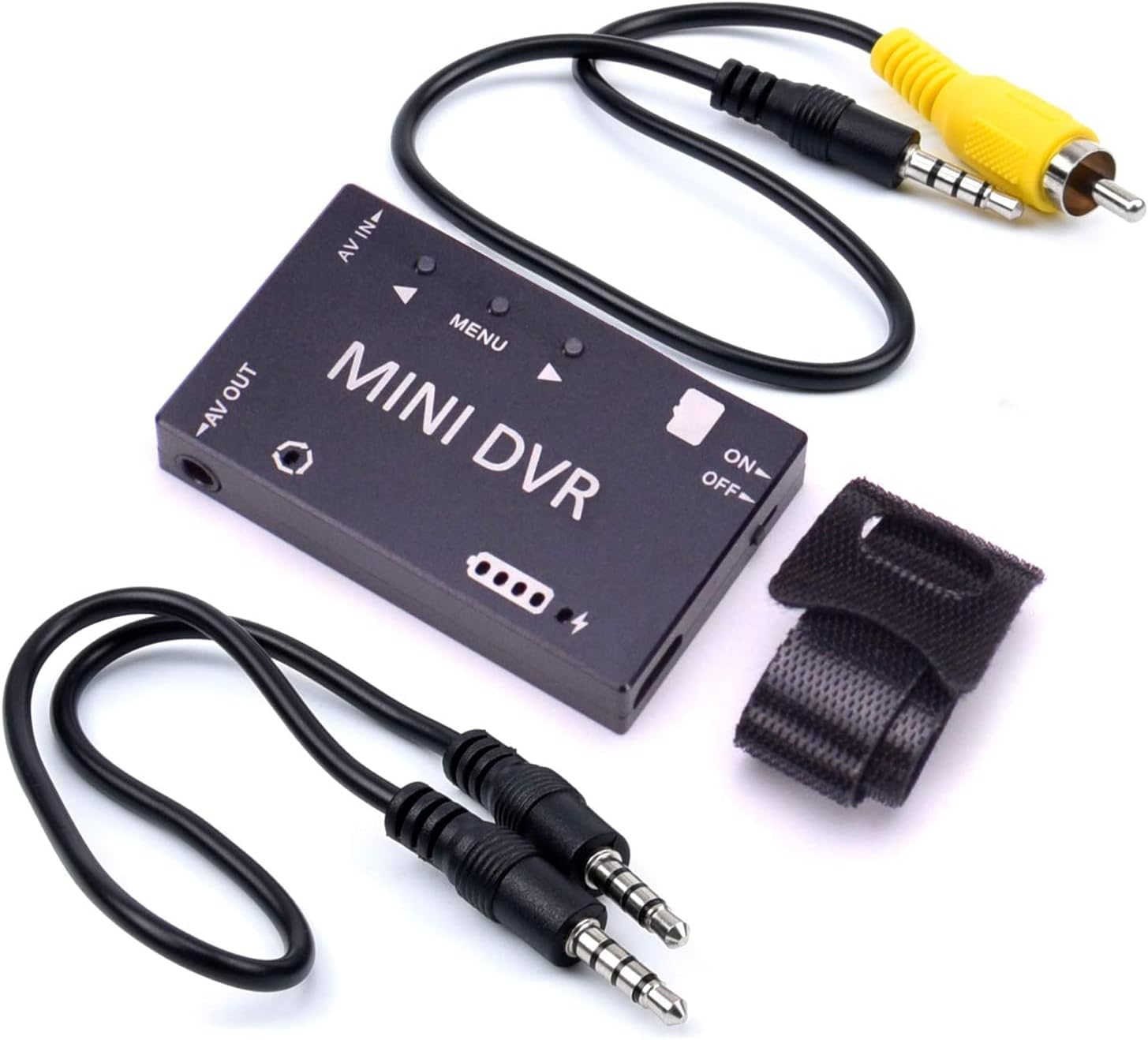
Figure 1.2: Mini FPV DVR with included accessories.

Figure 1.3: The compact size of the Mini FPV DVR.
2. Setup
2.1 Charging the Battery
Before first use, fully charge the built-in 3.7V/400mAh Li-ion polymer battery. Connect the Mini FPV DVR to a 5V DC power source (e.g., a computer USB port or a USB wall adapter) using the provided Micro USB cable. The charging current is 500mA Max. A full charge provides approximately 1.5 to 2 hours of working time.
2.2 Inserting the TF Card
The device supports TF cards up to 32GB (Class 10 recommended). Locate the TF card slot on the side of the DVR. Gently insert the TF card with the gold contacts facing down until it clicks into place. To remove, push the card in slightly until it springs out.
2.3 Connecting to Devices
The Mini FPV DVR features 3.5mm AV input and output interfaces. Use the provided AV cables to connect to your source and display devices.
- AV IN: Connect your analog video source (e.g., camcorder, VCR) to the AV IN port using the appropriate 3.5mm to RCA cable.
- AV OUT: Connect a monitor or TV to the AV OUT port to view live video feed or recorded playback.

Figure 2.1: Mini FPV DVR ports and controls.

Figure 2.2: Example connection of the Mini FPV DVR.
3. Operating Instructions
3.1 Powering On/Off
To power on the device, slide the ON/OFF switch to the 'ON' position. The system startup time is approximately 3 seconds. To power off, slide the switch to the 'OFF' position.
3.2 Menu Navigation
The Mini FPV DVR features a simple button interface for menu navigation:
- MENU Button: Press to enter or exit the menu, and to confirm selections.
- ▲ (Up) Button: Navigate up through menu options or increase values.
- ▼ (Down) Button: Navigate down through menu options or decrease values.

Figure 3.1: Control panel layout.
3.3 Recording Video
Once the device is powered on and an AV input source is connected, you can begin recording:
- Ensure a formatted TF card is inserted.
- Navigate to the 'Record File Resolution' option in the menu to select your desired resolution: VGA (640x480), D1 (720x480), or HD (1280x720).
- Set 'Record Sound' to ON or OFF as desired.
- Adjust 'Cyclic Record Time' (10Min / 20Min / 30Min) if you wish for the DVR to automatically create new files after a set duration.
- Press the appropriate button (refer to on-screen prompts or manual for specific record button) to start recording. Press again to stop. Recorded files are saved in AVI format.
3.4 Video Playback
To play back recorded videos:
- Connect the AV OUT port to a monitor or TV.
- Navigate to the playback mode or file browser within the DVR's menu.
- Select the desired video file from the list on the TF card.
- Press the MENU button to start playback.
4. Maintenance
4.1 Cleaning
Wipe the device with a soft, dry cloth. Do not use liquid cleaners or solvents, as they may damage the surface or internal components.
4.2 Storage
Store the Mini FPV DVR in a cool, dry place away from direct sunlight and extreme temperatures. If storing for extended periods, ensure the battery is partially charged (around 50%) to prolong its lifespan.
4.3 Battery Care
To maximize battery life, avoid fully discharging the battery frequently. Recharge the battery when the low battery indicator appears. Do not expose the device to temperatures below -10°C or above 60°C.
5. Troubleshooting
5.1 Device Does Not Power On
- Ensure the ON/OFF switch is in the 'ON' position.
- Check if the battery is charged. Connect the device to a power source using the USB cable and allow it to charge for at least 30 minutes before attempting to power on again.
5.2 No Video Signal on AV OUT / No Recording from AV IN
- Verify that the AV cables are securely connected to both the DVR and the source/display device.
- Ensure the correct AV input is selected on your monitor/TV.
- Check the video input format setting (NTSC/PAL) on the DVR matches your source device. The DVR supports both, but the setting must correspond.
- Confirm that the source device (e.g., camcorder) is powered on and outputting a video signal.
- If recording, ensure a TF card is inserted and has sufficient free space. Try formatting the TF card through the DVR's menu (this will erase all data).
5.3 Poor Video Quality
- Check the selected recording resolution in the menu. For higher quality, select HD (1280x720).
- Ensure the AV cables are not damaged and are properly connected.
- The quality of the original analog source will affect the recorded digital file.
6. Specifications
The following table outlines the technical specifications for the Mini FPV DVR:

Figure 6.1: Mini FPV DVR Specifications Table.
| Category | Parameter | Value |
|---|---|---|
| Electrical Parameters | System Startup Time | 3 Seconds |
| Video Input Format | NTSC/PAL | |
| Video Input Impedance | 75Ω Typ. | |
| Video Compress Format | MJPEG | |
| Record File Resolution | VGA (640×480) / D1 (720×480) / HD (1280×720) selectable | |
| Record File Format | AVI | |
| Recording Settings | Record Sound | ON/OFF selectable |
| Cyclic Record Time | 10Min / 20Min / 30Min selectable | |
| Frame Rate | 30 Frames | |
| Video Output | Video Output Format | NTSC/PAL switchable |
| Video Output Impedance | 75Ω Typ. | |
| Video Playback | CVBS output (connect to monitor) | |
| Memory & Language | Memory Card | TF-Card, Support Up to 32GB (Class 10 recommended) |
| Menu Language | 11 kinds of language choices | |
| Light Frequency | 50Hz / 60Hz selectable | |
| Interfaces | AV Input Interface | 3.5mm AV Jack |
| AV Output Interface | 3.5mm AV Jack | |
| Charging Interface | Micro USB interface | |
| Compatible Devices | Laptop, Monitor, Personal Computer, Smartphone, Tablet, Television | |
| Power & Battery | Charging Voltage | 5V DC |
| Charging Current | 500mA Max | |
| Battery (not detachable) | Built-in 3.7V/400mAh Li-ion polymer Battery | |
| Battery Life | Each full charge provides around 1.5~2 hours working time | |
| Environment | Operating Temperature | -10~60°C |
| Operating Humidity | 85% RH | |
| Physical Characteristics | Dimension | 53mm * 33mm * 9mm |
| Weight | 24.5g | |
| Color | Black |
7. Warranty and Support
For warranty information, technical support, or service inquiries, please contact the manufacturer, RunCam, or your authorized reseller. Keep your purchase receipt as proof of purchase for any warranty claims.
You can visit the official RunCam store for more information: RunCam Store on Amazon
Related documentsdvr


Ask a question about this manual
Ask about setup, troubleshooting, compatibility, parts, safety, or missing instructions. Manuals+ will review the question and use this page’s manual context to help answer it.