1. Introduction
This manual provides detailed instructions for the setup, operation, and maintenance of your X88 H96 MAX Android 14.0 TV Stick. Please read this manual thoroughly before using the device to ensure proper functionality and to maximize your streaming experience. The H96 MAX TV Stick is designed to transform your television into a smart entertainment hub, offering access to a wide range of applications and media content.
2. Package Contents
Verify that all items listed below are included in your package:
- H96 MAX Android TV Stick
- Power Cable
- Voice Remote Control
- User Guide (this document)

Image: Contents of the H96 MAX TV Stick package, including the TV stick, remote control, power cable, and user manual.
3. Product Overview
The H96 MAX TV Stick is a compact device designed for easy integration with your television. It features an HDMI connector for direct plug-in and a USB port for additional peripherals.
3.1 TV Stick

Image: Side view of the H96 MAX TV Stick, showing the HDMI connector and USB port.
3.2 Voice Remote Control
The included voice remote control allows for intuitive navigation and voice commands, enhancing your user experience.
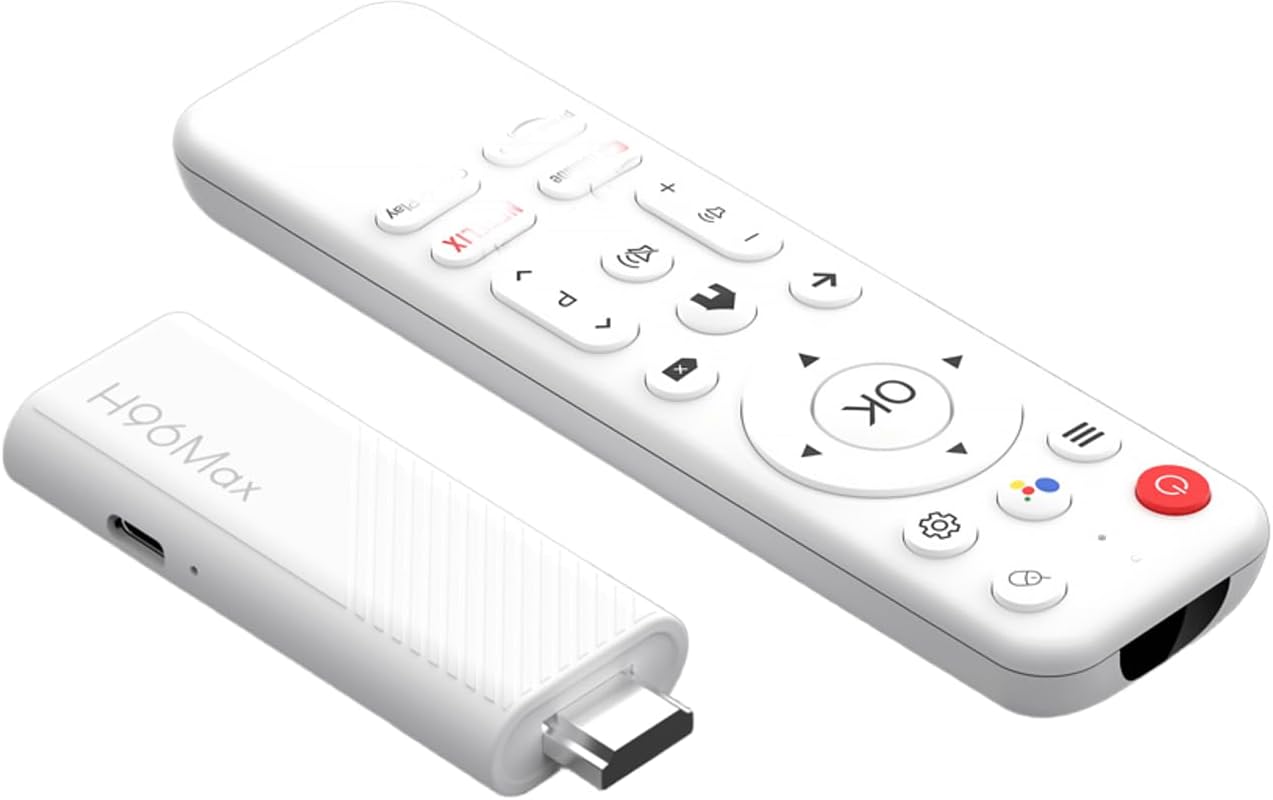
Image: The H96 MAX TV Stick alongside its white voice-enabled remote control.
4. Setup Guide
Follow these steps to set up your H96 MAX Android TV Stick:
- Connect to TV: Plug the H96 MAX TV Stick directly into an available HDMI port on your television.
- Power On: Connect the power cable to the TV Stick and then to a power outlet. The device will automatically power on.
- Select Input: Use your TV remote to select the correct HDMI input source corresponding to where the TV Stick is connected.
- Initial Setup: Follow the on-screen instructions to complete the initial setup, including language selection, Wi-Fi network connection, and Google account login.
- Pair Remote: If the remote is not automatically paired, follow the on-screen prompts or refer to the remote control section for manual pairing instructions.

Image: A visual guide illustrating the three simple steps to set up the TV Stick: connect to TV, connect to internet, and start streaming.
5. Operating Instructions
5.1 Basic Navigation
Use the directional pad (up, down, left, right) and the 'OK' button on the remote control to navigate through menus and select items on the screen. The 'Back' button returns to the previous screen, and the 'Home' button takes you to the main interface.
5.2 Voice Control
The H96 MAX TV Stick supports voice control. Press the dedicated voice button on your remote control and speak clearly into the remote to search for content, open applications, or control playback.
5.3 Casting Functionality (Chromecast Built-in)
The device includes built-in Chromecast functionality, allowing you to cast content from your compatible smartphone or tablet directly to your TV screen. Ensure your mobile device and the TV Stick are connected to the same Wi-Fi network. Look for the Cast icon within supported applications on your mobile device.

Image: A television displaying Google Play Games and Chromecast functionality, with a smartphone casting content to the screen.
6. Key Features
The H96 MAX TV Stick offers advanced features for a superior streaming experience:
- Operating System: Equipped with Android 14.0 OS and ATV OS for a fast, efficient, and stable user experience.
- Processor: Powered by a robust H313 Quad Core Cortex-A53 CPU, ensuring smooth performance.
- Memory & Storage: Features 2GB DDR3 RAM and 8GB eMMC ROM, providing ample space for applications and media. Storage can be expanded via USB or microSD card.
- Wireless Connectivity: Supports dual-band 2.4GHz/5.8GHz WiFi 6 for stable and fast network performance, and Bluetooth 5.0 for connecting compatible multimedia devices (Bluetooth remote control only).
- Video Output: Supports 4K AV1 ultra-high-definition content and 3D video playback, delivering stunning visual quality.
- Audio: Supports Dolby Vision and Dolby Atmos for immersive audio experiences.

Image: A graphic highlighting key features including support for streaming apps, AllWinner H313 chipset, Dolby Vision/Atmos, WiFi 6, BT 5.0, AV1/4K HDR, and Chromecast with Google Assistant.

Image: A display showing the H96 MAX TV Stick's support for 4K video decoding, Android 14.0, Quad Core processor, WiFi-6, and screen mirroring capabilities.
7. Specifications
Detailed technical specifications for the X88 H96 MAX Android 14.0 TV Stick:
| Brand Name | X88 |
| Model Name | H96STICK8GUS |
| Operating System | Android 14.0, ATV OS |
| Processor | H313 Quad Core Cortex-A53 |
| RAM | 2GB DDR3 |
| ROM | 8GB eMMC |
| Connectivity Technology | WIFI6 (2.4G/5.8Ghz), BT5.0, USB |
| Connector Type | HDMI |
| Resolution | 4K Ultra HD |
| Special Features | Chromecast built-in, Voice Control, 3D Support, AV1 Decoding |
| Supported Internet Services | Netflix, Disney+, Play Store, YouTube, etc. |
| Item Weight | 10.4 ounces |
| Product Dimensions | 31 x 1.18 x 0.51 inches |
8. Troubleshooting
If you encounter issues with your H96 MAX TV Stick, refer to the following common solutions:
- No Power: Ensure the power cable is securely connected to both the TV Stick and a working power outlet. Try a different outlet if necessary.
- No Signal on TV: Verify that the TV Stick is fully inserted into the HDMI port and that your TV is set to the correct HDMI input source. Try a different HDMI port.
- Remote Control Not Responding: Check the batteries in the remote control and replace them if needed. Ensure there are no obstructions between the remote and the TV Stick. Re-pair the remote if necessary (refer to device settings).
- Wi-Fi Connection Issues: Confirm your Wi-Fi network is active and the password is correct. Try restarting your router and the TV Stick. Ensure the TV Stick is within range of your Wi-Fi router.
- App Freezing/Crashing: Close and reopen the application. If the issue persists, clear the app's cache and data in the device settings, or uninstall and reinstall the app.
- Poor Video Quality: Ensure your internet connection is stable and fast enough for streaming high-resolution content. Check your TV's display settings and the app's playback quality settings.
For persistent issues, consider performing a factory reset (this will erase all data and settings) or contact customer support.
9. Maintenance
To ensure the longevity and optimal performance of your H96 MAX TV Stick, follow these maintenance guidelines:
- Cleaning: Use a soft, dry cloth to clean the device. Avoid using liquid cleaners or abrasive materials.
- Ventilation: Ensure the TV Stick is placed in a well-ventilated area to prevent overheating. Do not cover the device.
- Storage: When not in use for extended periods, store the device in a cool, dry place away from direct sunlight and extreme temperatures.
- Software Updates: Regularly check for and install system software updates to benefit from improved performance, new features, and security enhancements.
10. Safety Information
Please observe the following safety precautions:
- Do not expose the device to water, moisture, or extreme temperatures.
- Avoid dropping or subjecting the device to strong impacts.
- Do not attempt to disassemble or repair the device yourself. This may void the warranty and cause damage.
- Use only the provided power adapter to prevent damage to the device.
- Keep the device away from heat sources and direct sunlight.
11. Warranty and Support
For warranty information and technical support, please refer to the documentation provided at the time of purchase or contact your retailer. Keep your proof of purchase for warranty claims.


