
1. Introduction
Thank you for choosing the Poounur Smartwatch Y6. This device is designed to enhance your daily life with features such as health monitoring, fitness tracking, and convenient communication. This manual provides essential information for setting up, operating, and maintaining your smartwatch to ensure optimal performance and longevity. Please read this manual thoroughly before using the product.
2. Package Contents
- Poounur Smartwatch Y6
- Charging Cable
- User Manual
3. Setup Guide
3.1 Initial Charging
Before first use, fully charge your smartwatch. Connect the magnetic charging cable to the charging contacts on the back of the watch and plug the USB end into a standard USB power adapter (not included). The watch display will indicate charging status.
3.2 App Installation
To unlock the full potential of your Poounur Smartwatch Y6, download and install the companion application on your smartphone. Search for the app name (usually found in the quick start guide or on the watch screen during initial setup) in your device's app store (App Store for iOS or Google Play Store for Android).
3.3 Device Pairing
- Ensure your smartwatch is charged and powered on.
- Enable Bluetooth on your smartphone.
- Open the companion app on your smartphone and follow the on-screen instructions to add a new device.
- Select 'Y6' or the corresponding device name from the list of available Bluetooth devices.
- Confirm the pairing request on both your smartphone and the smartwatch, if prompted.
Once paired, the watch will synchronize data with your phone, and you can customize settings through the app.
4. Operating Instructions
4.1 Basic Navigation
The Poounur Smartwatch Y6 features a highly sensitive full touch screen for intuitive operation. Swipe left, right, up, or down to navigate through menus and functions. Tap to select an item or confirm an action. Press the side button to return to the home screen or power on/off the device.
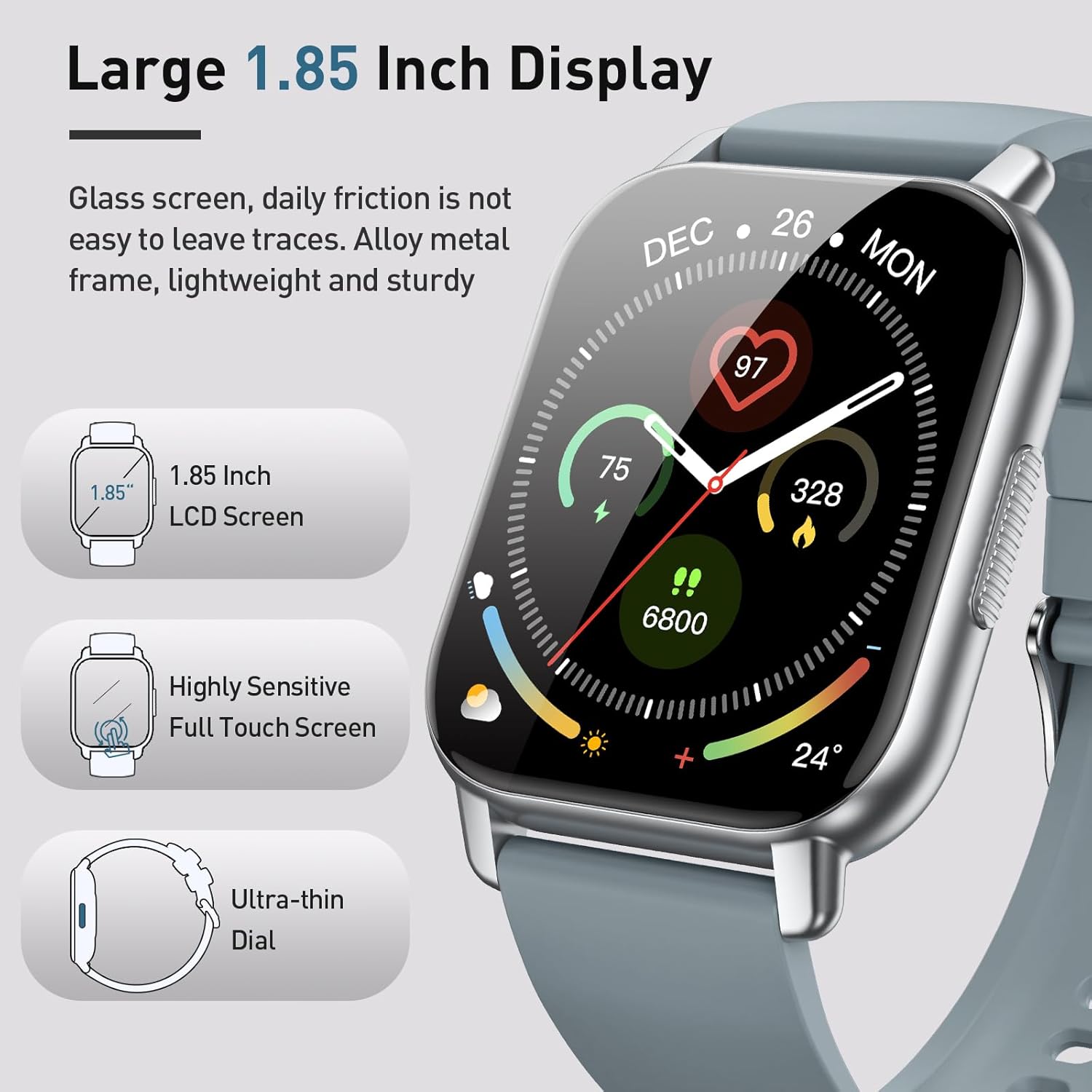
Figure 1: Large 1.85 Inch Display and Design Features
4.2 Bluetooth Call Function
After connecting your smartwatch to your smartphone via Bluetooth, you can make and receive calls directly from your wrist. The watch includes a built-in microphone and speaker for convenient hands-free communication.
- Making a Call: Access the dial pad or contacts list on your watch to initiate a call.
- Receiving a Call: When a call comes in, the watch will display the caller ID. Tap the green icon to answer or the red icon to reject.

Figure 2: Bluetooth Call Features
4.3 Customizing Watch Faces
The Poounur Smartwatch Y6 offers a wide range of online watch faces and supports custom DIY designs. You can select from over 200 online watch faces or upload your favorite image through the companion app to personalize your watch display.

Figure 3: 200+ Online Watch Faces and Customization
4.4 Sports Modes
The smartwatch supports 112 sports modes, allowing you to track various physical activities. It records exercise time, calories burned, and other relevant metrics to help you monitor your fitness progress and maintain a healthy lifestyle.

Figure 4: 112 Sports Modes Tracking
4.5 Health Monitoring
The Poounur Smartwatch Y6 provides 24-hour health monitoring features to help you stay informed about your well-being.
- Heart Rate Monitor: Continuously tracks your heart rate throughout the day.
- SpO2 Monitoring: Measures your blood oxygen saturation levels.
- Sleep Monitor: Analyzes your sleep patterns, including light and deep sleep stages.
- Pedometer: Counts your steps and estimates distance traveled.

Figure 5: 24H Health Monitoring Features
5. Maintenance
5.1 Cleaning
Regularly clean your smartwatch and strap to prevent skin irritation and maintain device hygiene. Use a soft, lint-free cloth. If necessary, slightly dampen the cloth with water. Avoid using harsh chemicals or abrasive materials.
5.2 Storage
When not in use for extended periods, store the smartwatch in a cool, dry place. Avoid extreme temperatures and direct sunlight.
6. Troubleshooting
6.1 Watch Not Turning On/Charging
- Ensure the charging cable is securely connected to both the watch and the power source.
- Check if the power adapter is working correctly.
- Clean the charging contacts on the watch and cable to remove any dust or debris.
6.2 Bluetooth Connection Issues
- Make sure Bluetooth is enabled on your smartphone and the watch.
- Ensure the watch is within the Bluetooth range of your phone.
- Try restarting both your smartwatch and smartphone.
- Unpair the device from your phone's Bluetooth settings and re-pair through the companion app.
6.3 Inaccurate Health Readings
- Ensure the watch is worn snugly on your wrist, but not too tight.
- Keep the sensor area on the back of the watch clean.
- Environmental factors and movement can affect accuracy. For medical concerns, consult a healthcare professional.
7. Specifications
| Feature | Detail |
|---|---|
| Model Name | Y6 |
| Brand | Poounur |
| Screen Size | 1.85 Inches |
| Shape | Round |
| GPS | GPS Via Smartphone |
| Battery Cell Composition | Lithium Polymer |
| Wireless Communication Standard | Bluetooth |
| Connectivity Technology | Bluetooth |
| Special Feature | Camera |
| Operating System | Android Wear 1.1 |
| Item Weight | 2 Grams |
| Manufacturer | Poounur |
8. Support
For further assistance, technical support, or warranty inquiries, please contact Poounur customer service through the contact information provided with your product packaging or on the official Poounur website.


