1. Introduction
This manual provides detailed instructions for the installation, operation, and maintenance of your Bisofice 80mm Thermal Receipt Printer, Model POS-8370. This high-speed direct thermal printer is designed for various business environments, offering reliable performance with an auto-cutter and versatile connectivity options.
2. Package Contents
Please verify that all items listed below are included in your package:
- 1 x Bisofice Thermal Receipt Printer (Model POS-8370)
- 1 x Power Cable
- 1 x USB Cable
- 1 x Paper Roll (80*30mm)
- 1 x User Manual (this document)
3. Product Overview
The Bisofice POS-8370 is an efficient thermal receipt printer featuring a compact design and robust functionality. It utilizes direct thermal printing technology, eliminating the need for ink cartridges or ribbons, which reduces operational costs.

Front view of the Bisofice Thermal Receipt Printer, showing the paper output slot and control panel.
Key Features:
- High-Speed Printing: Up to 220mm/s for efficient transaction processing.
- Auto Cutter: Partial auto-cutter for clean and precise receipt separation.
- Dual Connectivity: USB and LAN interfaces for flexible integration with various systems.
- Wide Compatibility: Supports Win2003/XP/7/8/10, Linux, and MAC OS. Compatible with ESC/POS print commands.
- Large Paper Bin: Accommodates thermal paper rolls up to 83mm in diameter, reducing frequent paper changes.
- Wall Hanging Design: Features two hanging holes on the bottom for convenient wall mounting, saving counter space.
- Clear Printing: 203DPI resolution ensures crisp and readable receipts.

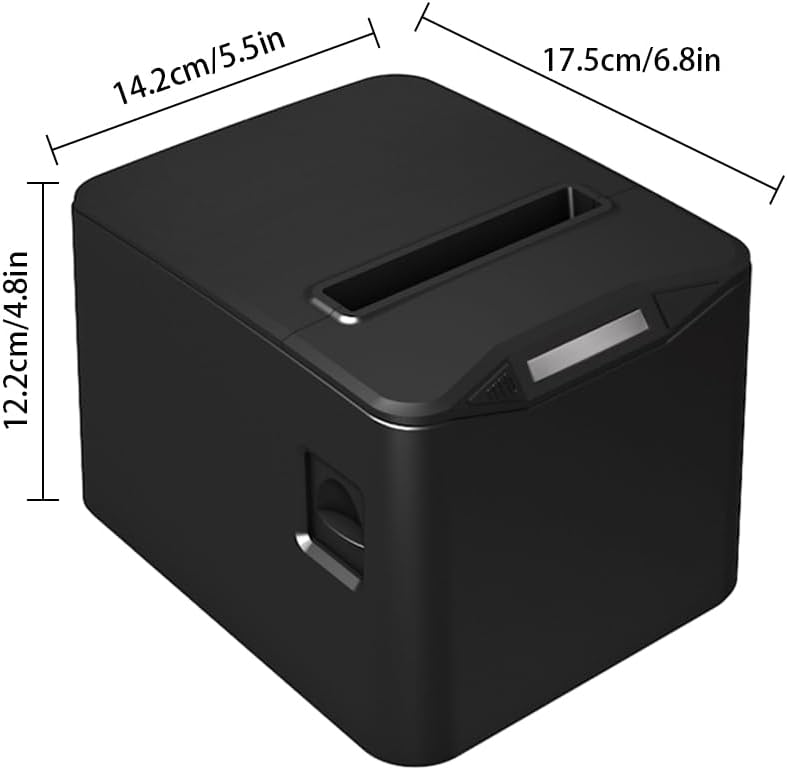
Diagram illustrating the dimensions of the printer: 17.5cm (6.8in) length, 14.2cm (5.5in) width, and 12.2cm (4.8in) height.

The printer operates without ribbons or ink, using only thermal paper rolls, shown alongside the device.

The printer features bottom holes for convenient wall mounting, demonstrated in a kitchen environment.

The printer's internal mechanism, showing its capacity for a large thermal paper roll with a maximum diameter of 83mm.
4. Setup
4.1 Unpacking
Carefully remove the printer and all accessories from the packaging. Retain the packaging for future transport or storage.
4.2 Connecting Power
- Ensure the printer's power switch is in the OFF position.
- Connect the power cable to the printer's power input port.
- Plug the other end of the power cable into a standard electrical outlet.
4.3 Loading Thermal Paper
- Press the cover open button (if available) or gently lift the top cover of the printer.
- Insert the thermal paper roll into the paper bin, ensuring the printing side of the paper faces upwards and feeds out from the top.
- Pull a small length of paper out past the cutter.
- Close the top cover firmly until it clicks into place.

The printer actively printing a receipt, demonstrating proper paper loading and output.
4.4 Connecting to a Computer
The printer supports both USB and LAN connections.
- USB Connection: Connect one end of the provided USB cable to the printer's USB port and the other end to an available USB port on your computer.
- LAN Connection: Connect an Ethernet cable from the printer's LAN port to your network router or switch.
4.5 Driver Installation
Before using the printer, you must install the appropriate driver on your computer. The driver supports Windows, Linux, and MAC OS.
Download the latest driver from the official website: http://www.cnfujun.com/d/33. Follow the on-screen instructions for installation.
5. Operation
5.1 Powering On/Off
- To power on, flip the power switch to the 'ON' position. The indicator light will illuminate.
- To power off, flip the power switch to the 'OFF' position.
5.2 Printing
Once the printer is connected and drivers are installed, you can send print jobs from your application. The printer supports ESC/POS commands and can print various content types, including multi-language text, images, logos, 1D barcodes (UPC-A, UPC-E, JAN13, JAN8, CODE39, ITF, CODABAR, CODE93, CODE128), and 2D barcodes (QR CODE, PDF417).
An example of a clearly printed receipt, highlighting the 203dpi resolution and 100KM print head life.
5.3 Cash Drawer Connection
The printer supports cash drawer driving. Connect your cash drawer to the dedicated port on the printer. The cash drawer will open automatically upon receiving the appropriate print command.
6. Maintenance
6.1 Cleaning the Printer
Regular cleaning helps maintain print quality and extends the printer's lifespan.
- Ensure the printer is powered off and unplugged before cleaning.
- Use a soft, lint-free cloth dampened with isopropyl alcohol to gently wipe the thermal print head. Avoid touching the print head with bare hands.
- Clean the paper path and rollers to remove any paper dust or debris.
- Wipe the exterior of the printer with a soft, dry cloth.
6.2 Paper Roll Replacement
Replace the thermal paper roll when it runs out or when the red line appears, indicating low paper. Refer to section 4.3 for detailed instructions on loading thermal paper.
7. Troubleshooting
If you encounter issues with your printer, refer to the following common problems and solutions:
- Printer not powering on: Check the power cable connection and ensure the power outlet is functional.
- No printing: Verify that the printer is powered on, connected correctly (USB/LAN), and the driver is installed. Check for paper jams or if the paper roll is empty.
- Poor print quality: Ensure you are using thermal paper. Clean the thermal print head as described in section 6.1.
- Paper jam: Power off the printer, open the cover, carefully remove any jammed paper, and then close the cover and power on.
- Auto-cutter not working: Ensure no paper debris is obstructing the cutter. If the issue persists, contact support.
8. Specifications
| Feature | Specification |
|---|---|
| Model | POS-8370 |
| Print Method | Direct Line Thermal |
| Interfaces | USB + LAN |
| Print Command | ESC / POS compatible |
| Print Speed | 220mm/s |
| Resolution | 203DPI (8 dots/mm) |
| TPH Reliability (Print Head Life) | 100km |
| Auto Cutter | Partial |
| Cutter Life | 1 million cuts |
| Paper Types | Thermal Roll Paper |
| Paper Width | 79.5 ± 0.5mm |
| Paper Roll Diameter | Max φ 83mm |
| Print Width | 72mm |
| Paper Thickness | 0.06-0.08 mm |
| Input Buffer | 96K bytes |
| NV Flash | 256K bytes |
| Supported OS Drivers | Win2003 / WinXP / Win7 / WIN8 / WIN10; Linux; MAC; |
| Power Input | AC 110V/220V, 50~60Hz |
| Power Output | DC 24V/2.5A |
| Product Size | 17.5 x 14.2 x 12.2 cm (6.8 x 5.5 x 4.8 in) |
| Product Weight | 0.84 kg (29.6 oz) |
| Supported 1D Codes | UPC-A / UPC-E / JAN13 (EAN13) / JAN8 (EAN8) / CODE39 / ITF / CODABAR / CODE93 / CODE128 |
| Supported 2D Codes | QR CODE, PDF417 |
9. Warranty and Support
Bisofice products are manufactured to high-quality standards. For warranty information, technical support, or service inquiries, please refer to the contact information provided with your purchase or visit the official Bisofice website. Please have your product model (POS-8370) and purchase details ready when contacting support.


