
Newmen GM328
Newmen GM328 Gaming Mechanical Keyboard User Manual
Model: GM328 | Brand: Newmen
Introduction
Welcome to the user manual for the Newmen GM328 Gaming Mechanical Keyboard. This guide provides essential information for setting up, operating, maintaining, and troubleshooting your keyboard to ensure optimal performance and longevity. Please read this manual thoroughly before using the product.
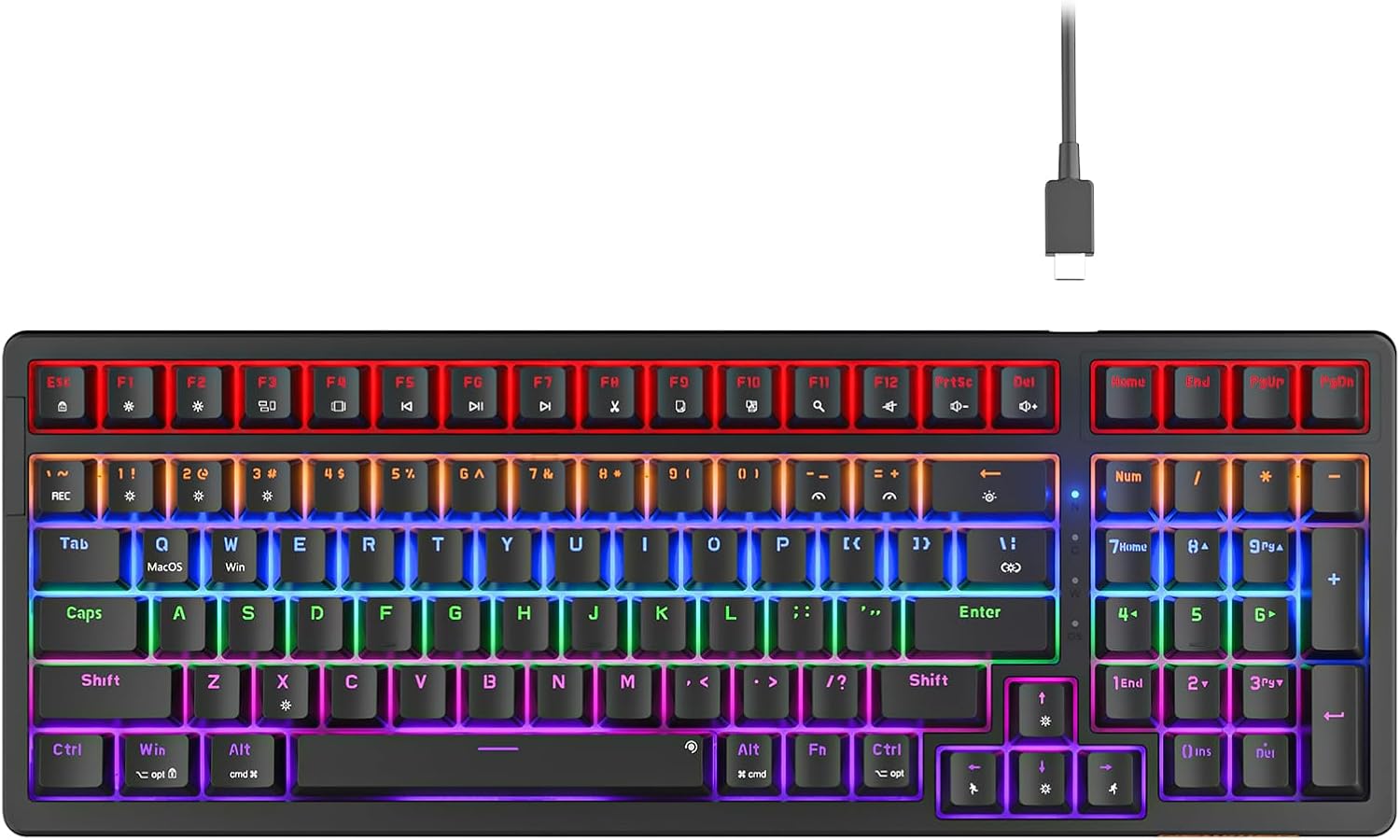
Image: Newmen GM328 Gaming Mechanical Keyboard, showcasing its full layout and vibrant backlighting.
Setup
Package Contents
- Newmen GM328 Gaming Mechanical Keyboard
- Detachable USB-C Cable
- User Manual
Connecting the Keyboard
The Newmen GM328 keyboard utilizes a wired USB-C connection, designed for stable data transmission and reliable performance.
- Locate the USB-C port on the back of the keyboard.
- Connect the detachable USB-C cable to the keyboard's USB-C port.
- Connect the other end of the USB-C cable to an available USB port on your computer (PC).
- The keyboard is plug-and-play and should be automatically recognized by your operating system without requiring additional drivers.

Image: Close-up of the keyboard's USB-C port and cable, demonstrating the wired connection setup.
Adjustable Feet
The keyboard features a two-step adjustable tripod design, allowing you to set the typing angle for improved comfort and ergonomics.

Image: Side view illustrating the two-step adjustable feet for ergonomic customization.
Operating Instructions
Keyboard Layout
The GM328 features a compact 96% layout, which efficiently saves desktop space while retaining full-sized functionality, including a dedicated number pad.

Image: The Newmen GM328 keyboard on a desk, demonstrating its compact form factor.
Backlight Effects
The keyboard offers 18 dynamic rainbow LED backlight modes to enhance your user experience. Use the following key combinations to control the backlighting:
- Fn + [key]: Turn backlight on/off (refer to keyboard for specific key).
- Fn + [key]: Switch between 20 types of backlight effects (refer to keyboard for specific key).
- Fn + [key]: Adjust backlight speed (5 levels) (refer to keyboard for specific key).
- Fn + [key]: Adjust backlight direction (refer to keyboard for specific key).
- Fn + [key]: Adjust backlight brightness (5 levels) (refer to keyboard for specific key).

Image: Visual guide for controlling backlight effects, speed, direction, and brightness.
Multimedia Functions
The GM328 includes dedicated multimedia keys for quick control over various functions. These functions are primarily compatible with Windows systems. For Mac systems, please refer to the specific key combinations outlined in the user manual or on the keyboard itself.
- Fn + F1: Reduce screen brightness
- Fn + F2: Increase screen brightness
- Fn + F3: Multi-windows display
- Fn + F4: Application switching
- Fn + F5: Previous track
- Fn + F6: Play/Stop
- Fn + F7: Next track
- Fn + F8: Cut
- Fn + F9: Copy
- Fn + F10: Paste
- Fn + F11: Search
- Fn + F12: Mute
- Fn + Prtsc: Volume Down
- Fn + Del: Volume Up

Image: Keyboard layout detailing the multimedia function key combinations.
Key Rollover
The Newmen GM328 features full key rollover, ensuring that every keystroke is registered accurately, even when multiple keys are pressed simultaneously. This is particularly beneficial for fast-paced gaming and rapid typing.
Maintenance
Cleaning
To maintain the cleanliness and functionality of your keyboard:
- Always disconnect the keyboard from your computer before cleaning.
- Use a soft, dry, lint-free cloth to gently wipe the keycaps and the keyboard chassis.
- For removing debris or dust from between the keys, use a can of compressed air.
- Avoid using harsh chemicals, abrasive cleaners, or excessive moisture, as these can damage the keyboard's finish or internal components.
Storage
When not in use, store the keyboard in a dry environment, away from direct sunlight, extreme temperatures, and high humidity to prevent damage.
Troubleshooting
If you encounter issues with your Newmen GM328 keyboard, refer to the following common troubleshooting steps:
Keyboard Not Responding
- Ensure the USB-C cable is securely connected to both the keyboard and an active USB port on your computer.
- Try connecting the keyboard to a different USB port on your computer.
- Test the keyboard on another computer to determine if the issue is with the keyboard or your system.
- Restart your computer.
Backlight Not Working
- Verify that the backlight is not turned off using the appropriate Fn key combination (refer to the "Backlight Effects" section).
- Check if the backlight brightness level is set too low. Adjust it using the Fn key combinations.
Keys Not Registering
- Ensure the keyboard is clean and free of any debris that might obstruct key presses.
- If specific keys are consistently failing, and general troubleshooting does not resolve the issue, contact customer support.
Specifications
| Feature | Detail |
|---|---|
| Model Number | GM328 |
| Layout | 96% (100 Keys) |
| Switch Type | Linear Red Mechanical Switches |
| Connectivity | Wired USB-C (Detachable Cable) |
| Backlight | 18 Rainbow LED Effects |
| Key Rollover | Full Key Rollover |
| Compatible Devices | PC |
| Keyboard Description | Mechanical |
| Special Feature | Ergonomic Design |
| Item Weight | 1.96 pounds |
| Package Dimensions | 15.91 x 6.81 x 1.81 inches |

Image: Detailed specifications of the linear red mechanical switches, including travel, actuation force, and lifespan.
Warranty and Support
Warranty Information
Specific warranty details for the Newmen GM328 keyboard are not provided within this manual. For the most current warranty policy, including terms and conditions, please refer to the product packaging or visit the official Newmen website.
Customer Support
For further assistance, technical support, or any product-related inquiries, please visit the official Newmen website or contact their customer service department through the channels provided on their website.
You can also visit the Newmen Store on Amazon for product information and support resources:
Related documentsGM328


Ask a question about this manual
Ask about setup, troubleshooting, compatibility, parts, safety, or missing instructions. Manuals+ will review the question and use this page’s manual context to help answer it.