
Findsmile W3
Findsmile W3 4K Digital Camera Instruction Manual
Model: W3 | Brand: Findsmile
1. Introduction
This manual provides essential information for setting up and operating your Findsmile W3 4K Digital Camera. Please read it thoroughly to ensure proper usage and to maximize your camera's capabilities. This camera is designed for beginners and casual shooting, offering advanced features for capturing high-quality photos and videos.
2. What's in the Box
Your Findsmile W3 4K Digital Camera package includes the following items:
- Findsmile W3 4K Digital Camera
- 32GB SD Card
- 2 x NP-120 Batteries
- Dual Battery Charger
- USB Cable (Type-C)
- Shoulder Belt
- User Manual

Figure 2.1: Findsmile W3 4K Digital Camera with all included accessories.
3. Setup
3.1 Battery Installation & Charging
- Open the battery compartment cover located at the bottom of the camera.
- Insert a fully charged NP-120 battery, ensuring correct polarity.
- Close the battery compartment cover securely.
- To charge batteries, insert them into the dual charger and connect the USB cable to a power source.
3.2 SD Card Installation
- Open the SD card slot cover, usually located near the battery compartment.
- Insert the 32GB SD card into the slot until it clicks into place.
- Close the SD card slot cover.
3.3 Lens Cap Removal & Power On
- Remove the lens cap from the camera lens.
- Press the power button to turn on the camera.
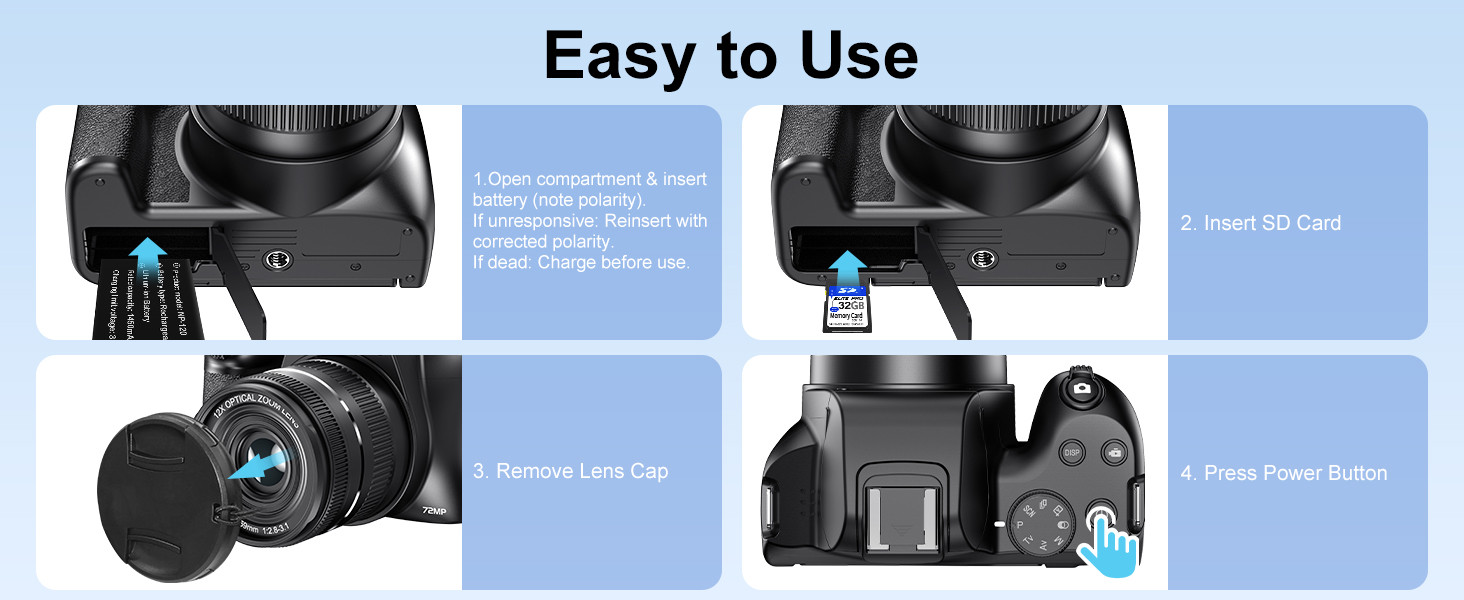
Figure 3.1: Visual guide for battery, SD card, and power-on steps.
3.4 Strap Attachment
Attach the shoulder belt to the designated strap loops on the camera body for secure carrying.
Video 3.1: Findsmile Digital Camera Unboxing and Setup Guide.
4. Basic Operation
4.1 Taking Photos (Autofocus & Resolution)
To take a photo, half-press the shutter button in AF (Autofocus) mode until the indicator turns green, then fully press to capture. For finer control, use MF (Manual Focus). Maximize resolution by setting 72MP in Menu > Resolution.

Figure 4.1: Autofocus feature for sharp images.
4.2 Recording Videos (4K)
The camera records 4K videos. In video mode, press the EV button to pause recording. Set 4K video resolution in Menu > Resolution for optimal quality.
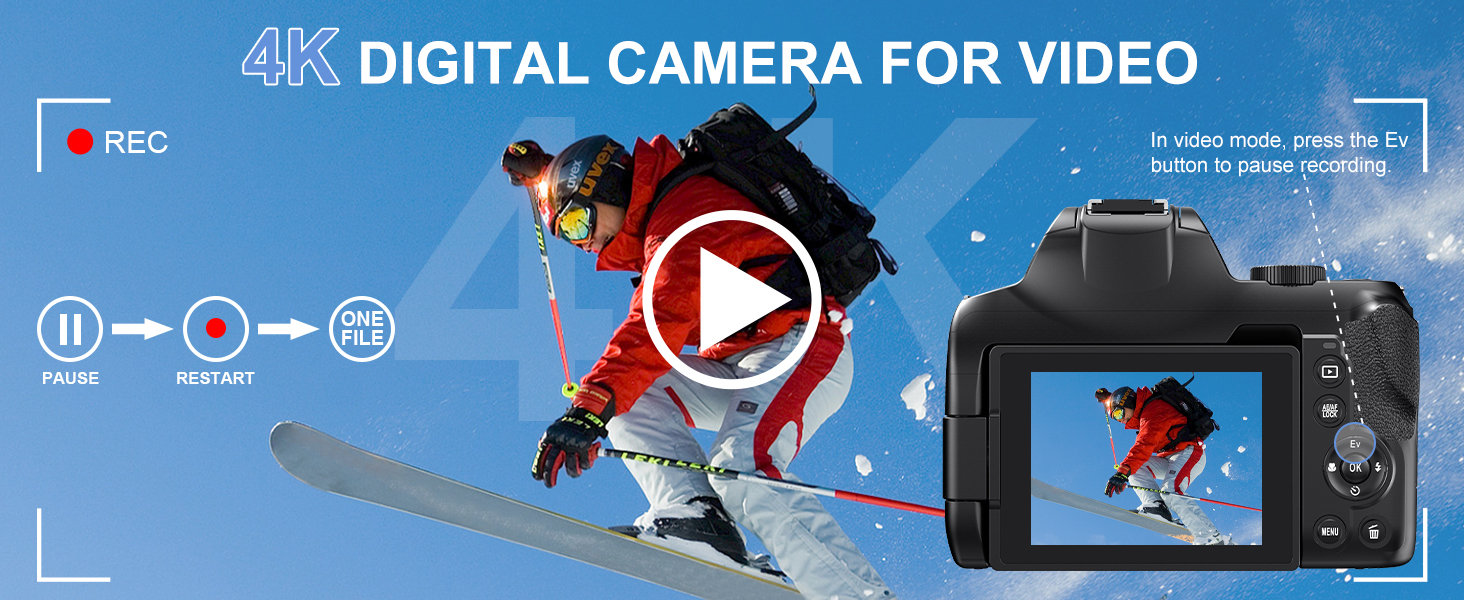
Figure 4.2: Recording 4K video with pause function.
4.3 Zoom Functionality
Switch to AF mode and rotate the 'T/W' dial to zoom in/out. Zoom is not available in MF mode. The camera features 12x optical zoom.

Figure 4.3: Adjusting zoom using the T/W dial.
4.4 Flash Usage
The camera has a built-in pop-up flash. Lift the pop-up flash and press the flash button to adjust intensity or mode.

Figure 4.4: Using the built-in flash.
4.5 Anti-Shake Feature
The camera features optical image stabilization to ensure stable shots and reduce blur, especially useful for videos and handheld photography.

Figure 4.5: Optical image stabilization in action.
4.6 Macro Photography
Utilize the macro mode for detailed close-up shots of small subjects.

Figure 4.6: Capturing intricate details with macro photography.
5. Advanced Features
5.1 Shooting Modes
The camera offers various shooting modes to suit different scenarios:
- Auto Mode: Point-and-shoot simplicity.
- Scene Mode: Optimized settings for specific scenes.
- Continuous Shooting: Capture a rapid sequence of photos.
- Intelligent Scene Recognition: Automatically optimizes settings for night, portrait, or sports shots.
- Filter Mode: Apply 10+ creative filters.
- Manual Exposure Mode: Full control over exposure settings.
- Aperture Priority: Control depth of field.
- Shutter Priority: Control motion blur.
- Timelapse: Capture time-lapse videos.
- Self-Timer: Set a delay before capturing a photo (2s, 5s, 10s).
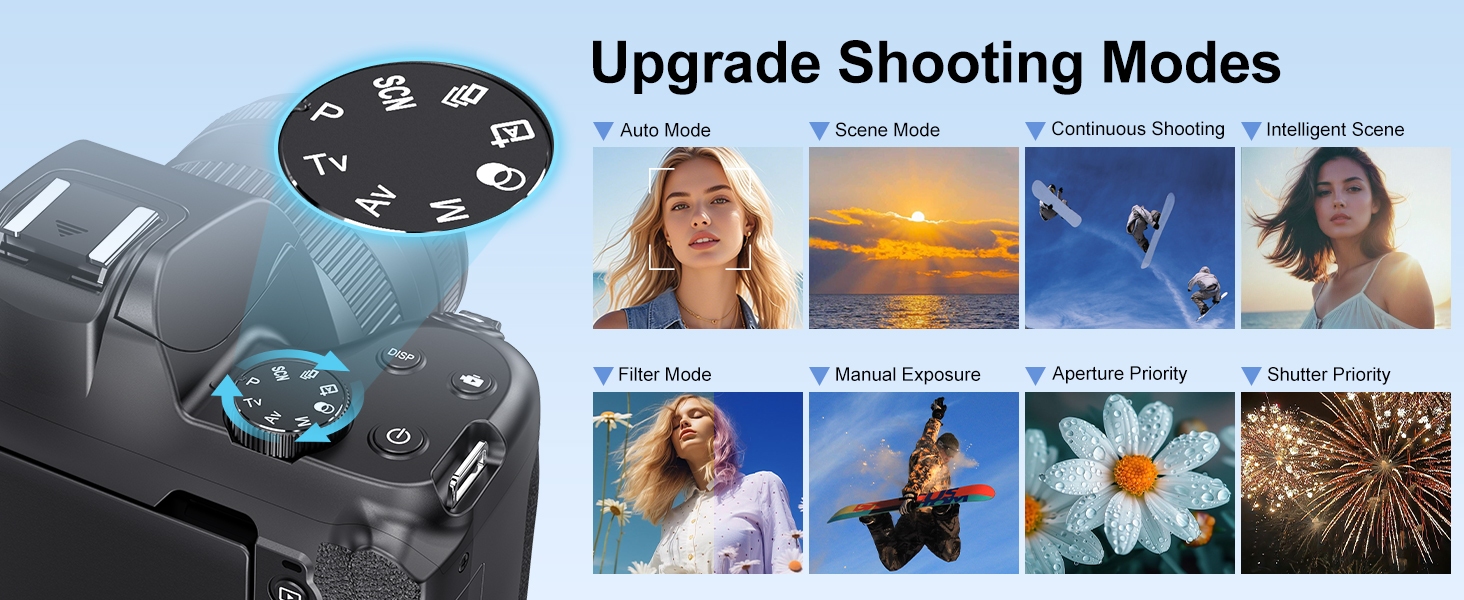
Figure 5.1: Mode dial and examples of shooting modes.
5.2 Wi-Fi & App Control
The camera supports Wi-Fi connectivity for wireless transfer and app control. Scan the QR code in the manual to download the corresponding APP-VD CAM. Turn on Wi-Fi on the camera, connect your smartphone, and you can remotely view, capture images, shoot videos, and transfer files.
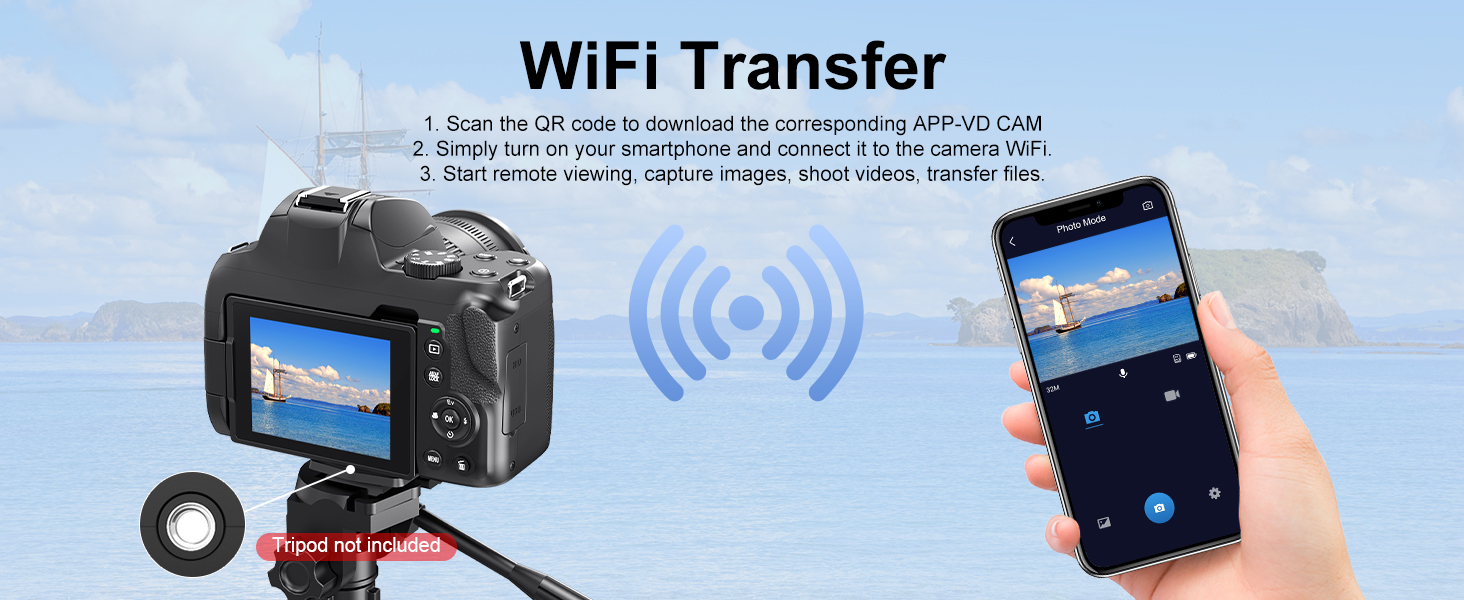
Figure 5.2: Seamless Wi-Fi transfer to your smartphone.
5.3 Webcam Mode & HDMI Output
Connect the camera to your computer via USB to use it as a webcam for HD teaching, live commerce, or video calls. Use an HDMI cable to view photos and videos on your TV for family movie nights or photo slideshows.
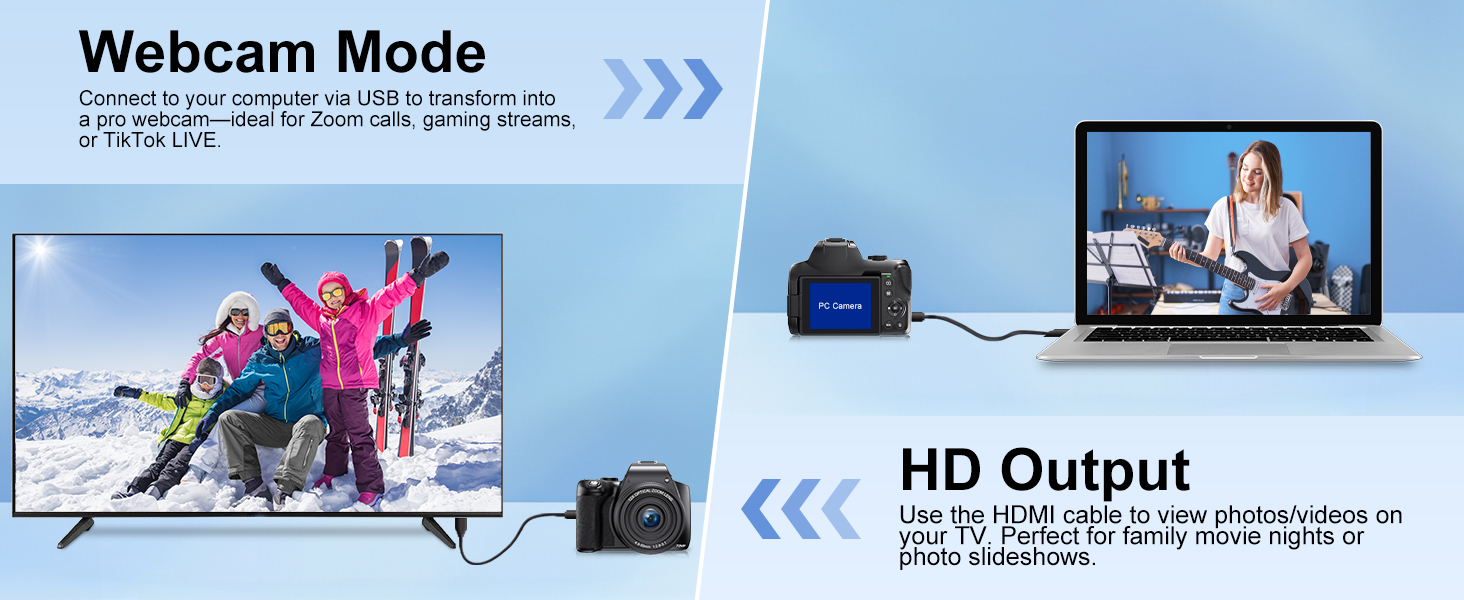
Figure 5.3: Connecting the camera as a webcam or to a TV.
6. Maintenance
To ensure the longevity and optimal performance of your camera, follow these maintenance guidelines:
- Keep the camera clean by wiping it with a soft, dry cloth.
- Use the provided cleaning cloth for the lens. Avoid touching the lens surface with your fingers.
- Store the camera in a cool, dry place away from direct sunlight and extreme temperatures.
- Ensure the lens cap is on when not in use to protect the lens.
- Avoid exposing the camera to water or high humidity as it is not water-resistant.
7. Troubleshooting
Here are solutions to common issues you might encounter:
- Camera Fails to Power On: Verify battery orientation and charge level. Try changing the battery insertion direction. If the screen remains black after powering on, ensure the lens cap is removed.
- Blurry Shots: In AF mode, half-press and hold the shutter button until the indicator turns green to activate quick autofocus. Use MF for finer control, though it requires more time. The intelligent scene mode can help novices take better photos.
- Zoom Not Working: Ensure the camera is in AF mode. Rotate the 'T/W' dial to zoom in/out. Zoom is not available in MF mode.
8. Specifications
| Feature | Specification |
|---|---|
| Model Name | W3 |
| Brand | Findsmile |
| Effective Still Resolution | 72 MP |
| Video Resolution | 2160p (4K) |
| Optical Zoom | 12x |
| Screen Size | 3 Inches |
| Display Type | IPS |
| Special Features | Flip Screen, Autofocus, Anti-shake, Flash light, Wi-Fi, Webcam Function, Pause Function, Continuous shooting, Slow motion, Time-lapse Recording, Self-timer, Smile Detection, Date Stamp |
| Connectivity Technology | HDMI, USB, Wi-Fi |
| Memory Storage Capacity | 32 GB (SD Card included) |
| Battery Type | Lithium Ion (2 included) |
| Image Stabilization | Optical |
| Photo Sensor Technology | CMOS |
| Supported File Format | MP4 |
| Color | Black |
| Item Weight | 0.96 Kilograms |
9. Warranty & Support
The Findsmile W3 4K Digital Camera comes with a 1-year manufacturer warranty. For any issues or inquiries, 24/7 professional support is available. When contacting support, please share videos or photos of the issue to speed up resolution.
Ask a question about this manual
Ask about setup, troubleshooting, compatibility, parts, safety, or missing instructions. Manuals+ will review the question and use this page’s manual context to help answer it.