
1. Introduction
This manual provides essential information for the safe and efficient use of your GIGABYTE AORUS Master 16 Gaming Laptop. Please read these instructions thoroughly before operating the device and retain them for future reference. This laptop is designed for high-performance computing, gaming, and creative tasks, featuring an Intel Core Ultra 9 275HX processor, NVIDIA GeForce RTX 5080 Laptop GPU, and a 16-inch OLED 240Hz display.
2. Product Overview
2.1 Package Contents
- GIGABYTE AORUS Master 16 Gaming Laptop
- Power Adapter and Power Cord
- Quick Start Guide (if included)
2.2 External Components
Familiarize yourself with the various components of your laptop.

Image: Front view of the GIGABYTE AORUS Master 16 Gaming Laptop, showcasing the display and keyboard.
2.3 Port Layout
The AORUS Master 16 features a comprehensive selection of ports for connectivity. Refer to the diagram below for port identification.

Image: Diagram illustrating the various input/output ports on the sides of the AORUS Master 16 laptop.
- Left Side: Audio combo jack, MicroSD card reader, Type-C with Thunderbolt 4 (USB4 / DisplayPort 1.4 / Power Delivery 3.0), USB 3.2 Gen2 (Type A).
- Right Side: Type-C with Thunderbolt 5 (USB4 / DisplayPort 2.1 / Power Delivery 3.0), USB 3.2 Gen2 (Type A), HDMI 2.1, RJ-45 (Ethernet), DC-in (Power).
3. Setup
3.1 Initial Power-On
- Unpack the laptop and all accessories.
- Connect the power adapter to the laptop's DC-in port and then plug the power cord into an electrical outlet.
- Open the laptop lid and press the power button, typically located above the keyboard or on the side.
- Follow the on-screen instructions to complete the Windows 11 Home setup process. This includes selecting your region, language, and setting up your user account.
3.2 Connecting Peripherals
Connect external devices such as a mouse, keyboard, external monitor, or USB drives to the appropriate ports as described in Section 2.3.
4. Operating Instructions
4.1 Power Management
- Power On: Press the power button.
- Sleep Mode: Close the lid or select 'Sleep' from the Windows Start menu.
- Shut Down: Select 'Shut down' from the Windows Start menu.
- Restart: Select 'Restart' from the Windows Start menu.
4.2 Display Settings
Your AORUS Master 16 features a 16-inch OLED display with a 2560x1600 resolution and 240Hz refresh rate. To adjust display settings:
- Right-click on the desktop and select 'Display settings'.
- Under 'Scale & layout', you can adjust text size and resolution.
- Scroll down to 'Advanced display' to change the refresh rate to 240Hz for the smoothest experience.
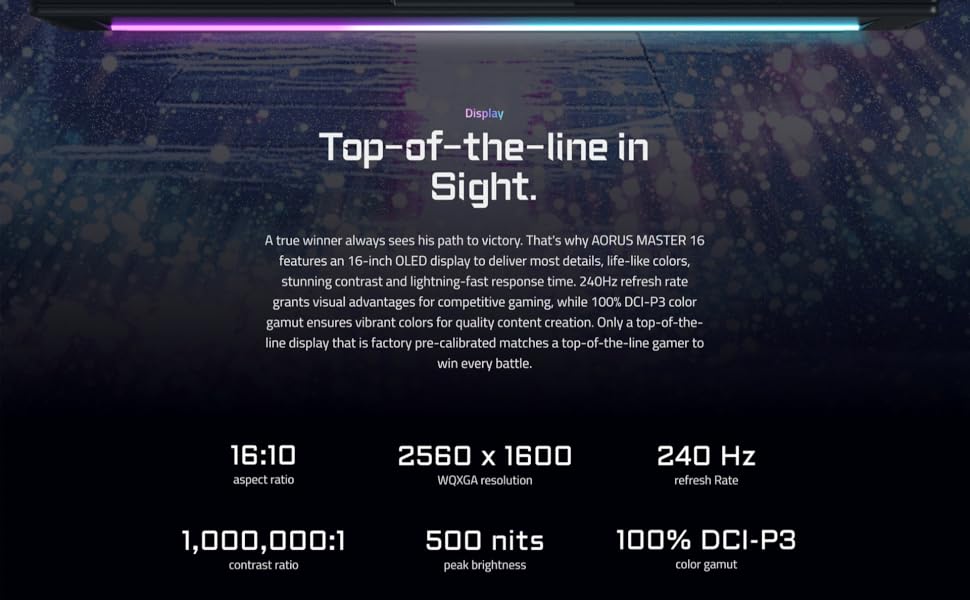
Image: Visual representation of the AORUS Master 16's OLED display features, including 240Hz refresh rate, 2560x1600 resolution, and 100% DCI-P3 color gamut.
4.3 GIGABYTE GiMATE AI Agent
The GIGABYTE GiMATE is an intelligent AI agent designed to optimize system performance based on your usage. Access GiMATE through the pre-installed GIGABYTE Control Center software to customize performance profiles, fan speeds, and RGB lighting effects.
4.4 WINDFORCE Infinity EX Cooling
The WINDFORCE Infinity EX cooling system provides efficient thermal management. The system automatically adjusts fan speeds to maintain optimal temperatures. You can monitor and adjust cooling profiles via the GIGABYTE Control Center for specific workloads.
Image: Diagram illustrating the dual-fan design of the WINDFORCE Infinity EX cooling system.
4.5 NVIDIA Advanced Optimus DDS Technology
This technology allows the laptop to intelligently switch between the integrated GPU and the dedicated NVIDIA GeForce RTX 5080 GPU. This optimizes for either performance or battery life. Settings for this feature can typically be found within the NVIDIA Control Panel.
5. Maintenance
5.1 Cleaning the Laptop
- Use a soft, lint-free cloth dampened with water or a mild screen cleaner for the display.
- For the chassis and keyboard, use a soft cloth. A can of compressed air can help remove dust from keyboard crevices and cooling vents.
- Ensure the laptop is powered off and unplugged before cleaning.
5.2 Battery Care
- Avoid fully discharging the battery frequently.
- Store the laptop in a cool, dry place if not used for extended periods.
- For optimal battery longevity, GIGABYTE recommends keeping the battery charge between 20% and 80% when possible.
5.3 Software Updates
- Regularly update Windows 11 through 'Settings > Windows Update'.
- Keep your graphics drivers updated via the NVIDIA GeForce Experience application or the GIGABYTE support website.
- Check the GIGABYTE support website for BIOS and other driver updates specific to your model.
6. Troubleshooting
6.1 Common Issues and Solutions
| Issue | Possible Solution |
|---|---|
| Laptop does not power on. | Ensure the power adapter is securely connected and the outlet is functional. Try a different power outlet. If the battery is completely drained, allow it to charge for a few minutes before attempting to power on. |
| Display is blank or flickering. | Check external display connections if applicable. Update graphics drivers. Adjust display refresh rate in Windows settings. |
| System performance is slow. | Ensure the laptop is plugged into power for optimal performance. Check for background applications consuming resources. Update drivers and Windows. Adjust power settings to 'High Performance'. |
| Keyboard or trackpad not responding. | Restart the laptop. Check for driver updates for input devices. Ensure no external devices are interfering. |
| Overheating. | Ensure cooling vents are clear and unobstructed. Use the laptop on a hard, flat surface. Adjust fan profiles in GIGABYTE Control Center. |
If you encounter persistent issues not resolved by these steps, please contact GIGABYTE customer support.
7. Specifications
Detailed technical specifications for the GIGABYTE AORUS Master 16 Gaming Laptop (Model: BYHC5USE64SH).
| Component | Specification |
|---|---|
| Model Name | AORUS MASTER 16 BYHC5USE64SH |
| Processor | Intel Core Ultra 9 275HX (5.4 GHz Max Boost Clock) |
| Graphics Card | NVIDIA GeForce RTX 5080 Laptop GPU (16 GB GDDR6) |
| RAM | 32 GB DDR5 5600MHz (2x SO-DIMM slots, expandable up to 64 GB) |
| Storage | 1 TB PCIe NVMe M.2 SSD (1x Gen5, 1x Gen4 slot, expandable up to 4 TB) |
| Display | 16-inch OLED, 2560x1600 (WQXGA), 240Hz Refresh Rate, 1ms GTG, 100% DCI-P3, 500 nits Peak Brightness, Dolby Vision, G-SYNC |
| Operating System | Windows 11 Home |
| Wireless Connectivity | Wi-Fi 7, Bluetooth |
| Ports | 2x USB 3.2 Gen2 Type-A, 1x Thunderbolt 4 (USB4/DP 1.4/PD 3.0), 1x Thunderbolt 5 (USB4/DP 2.1/PD 3.0), 1x HDMI 2.1, 1x RJ-45, 1x Audio Combo Jack, 1x MicroSD Card Reader, 1x DC-in |
| Battery | 99 Wh Lithium Ion |
| Dimensions (LxWxH) | 14.06 x 1.18 x 10 inches |
| Weight | 5.52 pounds |
| Color | Dark Tide |
8. Warranty and Support
8.1 Warranty Information
Your GIGABYTE AORUS Master 16 Gaming Laptop comes with a limited warranty. The specific terms and duration of the warranty may vary by region and retailer. Please refer to the warranty card included with your product or visit the official GIGABYTE website for detailed warranty information.
8.2 Customer Support
For technical assistance, driver downloads, or further inquiries, please visit the official GIGABYTE support website or contact their customer service department. You can find contact information and support resources at www.gigabyte.com/support.