
1. Introduction
This manual provides detailed instructions for the safe and efficient operation of your Tecaki Mini Portable Projector (Model: X3-GY). Please read this manual thoroughly before using the product and retain it for future reference.
The Tecaki Mini Portable Projector is designed for versatile projection, offering 1080P HD clarity, two-way Bluetooth 5.2 connectivity, and automatic keystone correction. Its compact and rotatable design allows for flexible placement and projection in various environments.
2. What's in the Box
Verify that all items listed below are included in your package:
- Tecaki Mini Portable Projector
- HDMI Cable
- Power Cord
- Remote Control
- Cleaning Kit
- User Manual (this document)
- Warranty Card
3. Product Overview
The Tecaki Mini Portable Projector features a compact design with a 180° rotatable stand for flexible projection angles. It supports native 1080P resolution and offers various connectivity options.
3.1 Key Features
- 1080P HD Clarity: Delivers crisp and vibrant images.
- 180° Rotatable Stand: Allows projection on walls, ceilings, or floors.
- Automatic Keystone Correction: Adjusts image distortion automatically.
- Two-way Bluetooth 5.2: Connects to mobile devices, speakers, or headphones.
- Multiple Connectivity: HDMI, USB, and 3.5mm audio jack.
- Compact and Portable: Lightweight design for easy transport.
- Eye-Caring LED Technology: Designed for comfortable viewing.
- Enhanced Cooling System: Prevents overheating and extends lifespan.
3.2 Projector Components
Familiarize yourself with the main components of your projector:
- Projection Lens: Emits the image.
- Focus Wheel: Manual adjustment for image sharpness.
- Power Button: Turns the projector on/off.
- HDMI Port: For connecting devices like laptops, gaming consoles, or streaming sticks.
- USB Port: For connecting USB drives or charging devices.
- 3.5mm Audio Jack: For connecting external audio devices.
- Power Input: Connects to the power cord.
- Ventilation Grilles: For the cooling system.
- 180° Rotatable Stand: Integrated stand for angle adjustment.

Image: The Tecaki Mini Portable Projector demonstrating its compact size and ability to project screen sizes from 30 to 200 inches at various distances.

Image: Diagram illustrating the projector's lens system and light path for enhanced image quality and long lamp life.
4. Setup
4.1 Placement
Position the projector on a stable, flat surface. The 180° rotatable stand allows you to adjust the projection angle to suit your needs, whether projecting on a wall, ceiling, or floor.
- For optimal viewing, a projection size of 80-120 inches is recommended. Exceeding this range may affect image quality.
- Ensure there are no obstructions blocking the projection path or the ventilation grilles.

Image: The projector demonstrating its 180° rotation capability for flexible projection on various surfaces like walls, floors, and ceilings.
4.2 Power Connection
- Connect the power cord to the projector's power input port.
- Plug the other end of the power cord into a suitable electrical outlet.
4.3 Initial Power On
- Press the power button on the projector or the remote control to turn it on.
- Allow a few moments for the projector to start up and display the home screen.
4.4 Focus and Keystone Correction
For a clear and properly aligned image:
- Automatic Keystone Correction: The projector features advanced auto keystone correction to automatically adjust for image distortion when projecting at an angle.
- Manual Focus: Use the focus wheel on the projector to fine-tune the image sharpness until it is crystal clear.
- Zoom Function: Adjust the image size from 75% to 100% using the remote control without moving the projector.

Image: Illustration of the projector's automatic keystone correction (up to ±35° vertical) and zoom function (75%-100%) for perfect image alignment and sizing.
5. Operating Instructions
5.1 Connecting Devices
The projector offers multiple ways to connect your devices:
- HDMI: Connect laptops, gaming consoles, TV sticks (e.g., Fire TV, Roku), or other HDMI-enabled devices using the provided HDMI cable.
- USB: Insert a USB drive into the USB port to play media files directly.
- 3.5mm Audio Jack: Connect external speakers or headphones for enhanced audio.
- Bluetooth 5.2: The two-way Bluetooth 5.2 allows connection to mobile devices, external speakers, or headphones.

Image: The projector connected to various devices, illustrating its universal compatibility with iOS/Android phones, laptops, PS5, Fire TV, USB drives, and external speakers.

Image: Connecting the projector to an iPhone using a USB-to-Lightning or USB-to-Type-C cable. An adapter may be required.
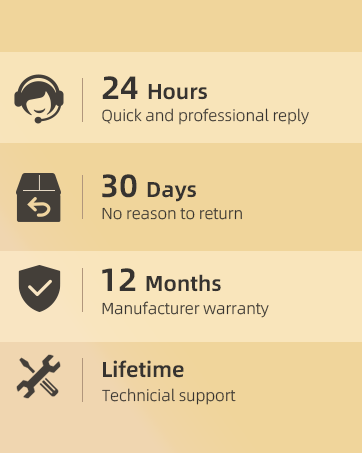
Image: Connecting the projector to a laptop or PC using an HDMI cable. An adapter may be needed for certain devices.
5.2 Screen Mirroring and Content Playback
- Direct Connection: For iPhone screen mirroring, use a USB-to-Lightning or USB-to-Type-C cable. For laptops and PCs, connect via HDMI.
- Streaming Services: Due to HDCP agreements, direct screen mirroring from apps like Prime Video, Netflix, or Hulu is not supported. To display content from these apps, connect a TV stick (e.g., Roku, Fire TV) to the projector's HDMI port.

Image: The projector displaying various movie titles, indicating that a TV stick (sold separately) is required for streaming copyrighted content from certain apps.
5.3 Audio Output
- The projector has a built-in speaker.
- For enhanced audio, connect external Bluetooth speakers or headphones via the two-way Bluetooth 5.2 feature. The projector can also function as a Bluetooth speaker.
- Important: Bluetooth is for audio output only and cannot transmit images or video.

Image: The projector wirelessly connected to external Bluetooth speakers and a mobile device, highlighting its two-way Bluetooth 5.2 capability for audio.

Image: Internal view of the projector's built-in speaker and a representation of its two-way Bluetooth 5.2 connection for audio.
5.4 Timer Shutdown
The projector includes a timer shutdown feature, allowing it to automatically turn off after a set period (up to 4 hours). This feature helps conserve energy and ensures uninterrupted sleep if you fall asleep while watching.

Image: Illustration of the timer shutdown feature, showing a user falling asleep while the projector automatically shuts down after a set duration.
6. Maintenance
6.1 Cleaning
Regular cleaning helps maintain optimal performance and extends the projector's lifespan.
- Use the provided cleaning kit to gently clean the lens. Avoid harsh chemicals or abrasive materials.
- Wipe the exterior of the projector with a soft, dry cloth.
- Ensure the ventilation grilles are free from dust and debris to prevent overheating.
6.2 Cooling System
The projector features an enhanced cooling system. To ensure its effectiveness:
- Always operate the projector in a well-ventilated area.
- Do not block the air intake or exhaust vents.
- If the projector feels excessively hot, turn it off and allow it to cool down before resuming use.

Image: Diagram illustrating the internal airflow and enhanced cooling system of the projector, showing air intake and exhaust paths.
7. Troubleshooting
Refer to the following table for common issues and their solutions:
| Problem | Possible Cause | Solution |
|---|---|---|
| No audio when playing certain videos. | Video contains Dolby Sound, which is not supported by the projector. | Turn off Dolby Sound on the connected device or within the app. |
| Screen mirroring not working for streaming apps (Netflix, Hulu, Prime Video). | HDCP (High-bandwidth Digital Content Protection) restrictions prevent direct mirroring of copyrighted content. | Connect a TV stick (e.g., Roku, Fire TV) or a computer via HDMI to display content from these apps. |
| Image quality appears degraded or blurry. | Projection size is outside the recommended range (80-120 inches) or focus is not adjusted. | Adjust the projection distance to achieve an 80-120 inch screen. Use the manual focus wheel to sharpen the image. Ensure auto keystone correction is active or manually adjust. |
| Projector overheats and shuts down. | Blocked ventilation or prolonged use in a confined space. | Ensure vents are clear. Operate in a well-ventilated area. Allow the projector to cool down. |
| Bluetooth audio connection issues. | Device not in pairing mode, too far, or interference. | Ensure both devices are in pairing mode and within range. Restart Bluetooth on both devices. |
Image: Important note regarding Dolby Sound compatibility, advising to turn off Dolby sound on connected devices if no audio is present.

Image: Information about screen mirroring limitations for certain streaming applications (e.g., Netflix, Hulu) due to HDCP, suggesting the use of a TV stick.
8. Specifications
Below are the technical specifications for the Tecaki Mini Portable Projector X3-GY:
| Feature | Detail |
|---|---|
| Brand | Tecaki |
| Model Number | X3-GY |
| Display Resolution | 1920 x 1080 (1080P HD) |
| Connectivity Technology | 3.5mm Jack, Bluetooth 5.2, HDMI, USB |
| Special Features | Built-In Cooling System, Built-In Speaker, Digital Keystone Correction, Dust-Proof, Portable, 180° Rotatable Stand |
| Item Weight | 2.25 pounds |
| Product Dimensions | 7.28 x 4.72 x 5.2 inches |
| Recommended Uses | Home Cinema, Gaming, Business, Education |
9. Warranty Information
Your Tecaki Mini Portable Projector X3-GY comes with a manufacturer's warranty.
- Standard Warranty: 12 Months Manufacturer Warranty.
- Extended Warranty: Within 36 months from the date of order, if the product has suspected fault issues, Tecaki technicians will assess and replace or repair it. Consult Tecaki service support to activate your product warranty.
- Return Policy: 30 Days, no reason to return.

Image: The projector presented as a gift, highlighting its appeal as a thoughtful present.
10. Customer Support
For any questions, technical assistance, or warranty claims, please contact Tecaki customer support:
- Response Time: 24 Hours (Quick and professional reply).
- Technical Support: Lifetime technical support.
- Contact Information: Please refer to the warranty card or the official Tecaki website for the most up-to-date contact details.
You can also visit the Tecaki Store on Amazon for more product information and support resources.