
1. Introduction
The SKDW GD340 is a sophisticated 4-channel dash camera system designed to provide comprehensive video surveillance for your vehicle. It features a 4K front camera, a rear camera, and two interior cameras, offering a wide field of view. Key functionalities include built-in GPS, 5G WiFi connectivity, voice control, advanced night vision, and 24/7 parking monitoring. This manual provides detailed instructions for the proper installation, operation, and maintenance of your dash cam.
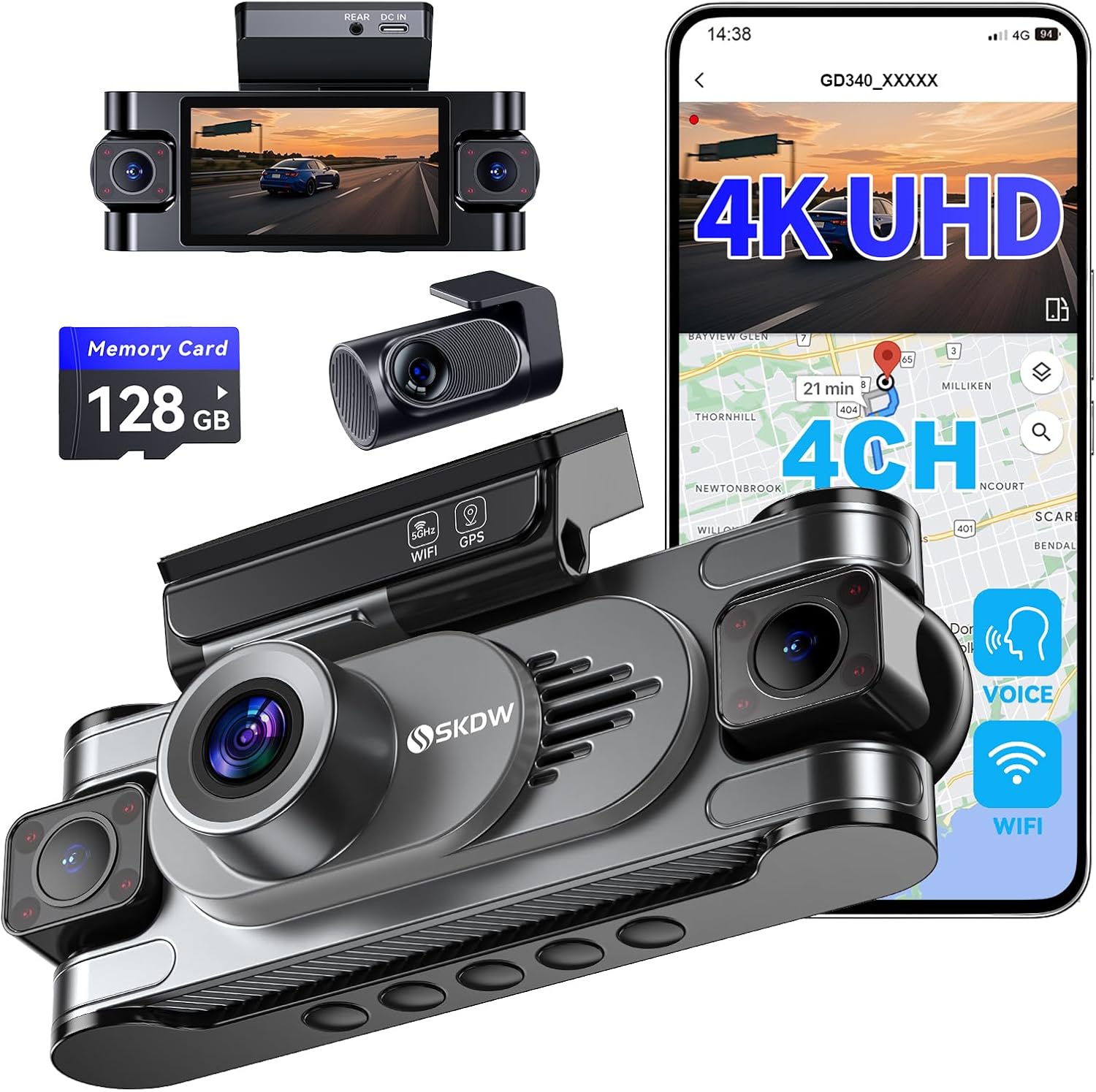
Image 1.1: Overview of the SKDW GD340 4-Channel Dash Cam and its components.
2. What's in the Box
Please verify that all items are present in the package:
- SKDW GD340 Dash Cam (Recorder) x 1
- Rear Camera x 1
- Car Charger Power Cable x 1
- Rear Camera Extension Cable (6.5m/18.04ft) x 1
- Free 128GB MicroSD Card x 1
- Electrostatic Stickers x 2
- 3M Adhesive Stickers x 2
- Guide Card x 1
- Installation Pry Bar x 1
- Instruction Manual x 1

Image 2.1: All included items in the SKDW GD340 package.
3. Product Overview and Features
The SKDW GD340 dash cam offers advanced features for comprehensive vehicle surveillance:
- 4-Channel Recording: Captures video from the front (4K), rear (1080P), and both left and right interior (1080P) simultaneously.
- 360° View: Provides extensive coverage around and within the vehicle.
- Super Night Vision: Equipped with F/1.8 aperture and advanced night vision technology, including hidden IR LEDs for clear interior recordings in low light.
- Intelligent Voice Control: Allows hands-free operation for commands like 'Lock the video' or 'Take picture'.
- 5GHz WiFi & Built-in GPS: Enables faster data transfer to the smartphone app and accurate location/speed tracking.
- 24/7 Parking Monitoring: Requires an optional hardwire kit (ASIN: B0FBVYV3W4) for continuous surveillance, including collision detection, low bitrate, and low frame rate recording.
- Loop Recording & G-Sensor: Automatically overwrites older files (except locked emergency videos) and locks footage upon impact.
- 3-Inch Display: For live view and playback directly on the device.
- Fatigue Alert: Reminds the driver to take a break after continuous driving.

Image 3.1: Key features of the SKDW GD340 Dash Cam.
4. Setup and Installation
4.1 Inserting the MicroSD Card
Insert the provided 128GB MicroSD card into the designated slot on the dash cam. Ensure it is inserted correctly until it clicks into place.
4.2 Mounting the Dash Cam
The main dash cam unit is designed for dashboard mounting. Use the electrostatic stickers and 3M adhesive stickers to securely attach the dash cam to your windshield. Position it to ensure a clear view for the front camera and optimal angles for the interior cameras.

Image 4.1: Example of simple dash cam installation.
4.3 Installing the Rear Camera
Connect the rear camera to the main unit using the provided extension cable. The rear camera is adjustable and can be positioned to monitor the rear of the vehicle or the cabin, depending on your needs. Secure it with the appropriate adhesive.

Image 4.2: Adjustable rear camera installation for rear or cabin view.
4.4 Power Connection
Connect the dash cam to your vehicle's power outlet using the car charger power cable. For 24/7 parking monitoring, an optional hardwire kit (ASIN: B0FBVYV3W4) is required and must be purchased separately.

Image 4.3: Diagram illustrating easy installation and cable routing.
4.5 APP WiFi Connection Guide
To connect your dash cam to the Viidure app on your smartphone, follow these steps:
- Turn on the logger WiFi setting switch on the dash cam.
- Scan the QR code displayed on the dash cam screen to download the Viidure APP.
- Install the Viidure APP on your smartphone.
- Connect to the dash cam's WiFi network (e.g., GD340_XXXXX) from your phone's WiFi settings. The default password is 12345678. Turn off cellular data and VPN for a stable connection.
- Open the Viidure APP and click 'Add Dashcam'.
- Follow the on-screen prompts in the app to complete the connection.
- Once connected, you can start recording and manage your videos through the app.

Image 4.4: APP WiFi connection guide, steps 1 and 2.

Image 4.5: APP WiFi connection guide, steps 3, 4, and 5.

Image 4.6: APP WiFi connection guide, steps 6, 7, and 8.
5. Operating Instructions
5.1 Automatic Recording
The dash cam will automatically begin recording when it receives power upon starting your vehicle. Recording will stop when the power is cut off.
5.2 Voice Control
The GD340 supports intelligent voice commands for hands-free operation. Speak clearly to issue commands such as:
- "Lock the video"
- "Take picture"
- "Open screen"
- "Turn on WiFi"
- "Turn off recording"

Image 5.1: Examples of voice commands for the dash cam.
5.3 WiFi and App Functionality
Utilize the 5GHz WiFi connection and the Viidure smartphone app to:
- View live footage from the cameras.
- Download recorded videos to your smartphone.
- Share videos directly from the app.
- Access GPS tracking data and view your driving route on a map.

Image 5.2: The Viidure App interface for managing dash cam videos and GPS data.
5.4 GPS Tracking
The built-in GPS module records your vehicle's location and speed data, which can be viewed and analyzed through the smartphone app or dedicated PC software.

Image 5.3: GPS tracking displaying route and speed information.
5.5 24/7 Parking Monitoring
When connected with a hardwire kit (ASIN: B0FBVYV3W4, sold separately), the dash cam will automatically switch to parking mode when your car is off. It records suspicious activity triggered by movement or collision, providing evidence for incidents involving your parked vehicle. Parking mode offers:
- Collision Detection: Records when an impact is detected.
- Low Bitrate Recording: Saves storage space by recording at a lower bitrate.
- Low Frame Rate Recording: Records at a reduced frame rate for extended surveillance.

Image 5.4: Illustration of two parking modes and the required hardwire kit.
5.6 G-Sensor and Emergency Video Lock
The built-in G-Sensor detects sudden impacts or collisions and automatically locks the current video segment to prevent it from being overwritten during loop recording. You can also manually lock important footage using voice commands or the device controls.

Image 5.5: Emergency video lock feature for securing crucial footage.
5.7 Loop Recording
When the memory card reaches its maximum capacity, the dash cam will automatically delete the earliest unlocked video files to make space for new recordings, ensuring continuous operation.

Image 5.6: Loop recording functionality and estimated recording times for different card sizes.
5.8 Night Vision
The dash cam's advanced night vision, combined with F/1.8 aperture and hidden infrared (IR) LEDs for the interior cameras, ensures clear video capture in low-light conditions, enhancing detail for license plates and faces.

Image 5.7: Super night vision capabilities for all cameras.
5.9 Fatigue Alert
The dash cam includes a fatigue alert feature that reminds you to take a break after a prolonged period of continuous driving, promoting safer driving habits.

Image 5.8: Driver fatigue reminder for enhanced safety.
6. Maintenance
To ensure optimal performance and longevity of your SKDW GD340 dash cam, follow these maintenance guidelines:
- Cleaning: Gently wipe the camera lenses and screen with a soft, lint-free cloth. Avoid using abrasive cleaners or solvents.
- MicroSD Card: Periodically format the MicroSD card (at least once a month) within the dash cam's settings to prevent data corruption and ensure smooth recording. Back up any important files before formatting.
- Temperature: Avoid exposing the dash cam to extreme temperatures for extended periods. If the vehicle is parked in direct sunlight, consider removing the dash cam or using a sunshade.
- Firmware Updates: Check the official SKDW website or the Viidure app for any available firmware updates to improve performance and add new features.
7. Troubleshooting
If you encounter issues with your dash cam, refer to the following common solutions:
- Dash Cam Not Turning On: Ensure the power cable is securely connected to both the dash cam and the vehicle's power outlet. Check the vehicle's power outlet for functionality.
- Recording Errors: Format the MicroSD card. If the issue persists, try a different high-speed (Class 10 or U3) MicroSD card. Ensure the card is not full of locked files.
- Poor Video Quality: Clean the camera lenses. Ensure the protective film has been removed from the lenses. Check video resolution settings.
- WiFi Connection Issues: Ensure WiFi is enabled on the dash cam and your smartphone. Turn off cellular data and VPN on your phone when connecting to the dash cam's WiFi. Ensure you are within the effective range (approximately 25ft).
- GPS Not Working: Ensure the dash cam has a clear view of the sky. It may take a few minutes to acquire a GPS signal after startup.
- Voice Control Not Responding: Speak clearly and ensure the environment is not excessively noisy. Check if voice control is enabled in the settings.
For further assistance, please contact SKDW customer support.
8. Specifications
| Feature | Detail |
|---|---|
| Model Name | GD340 |
| Video Capture Resolution | Front: 4K (3840*2160P) |
| Field Of View | Front: 166°, Rear: 158°, Inside: 244°*2 |
| Connectivity Technology | 5G Wi-Fi |
| Special Features | 24/7 Recording Parking Mode, Built-In GPS, Free 128GB Card, Voice Control, Super Night Vision, Loop Recording, G-Sensor, Fatigue Alert |
| Mounting Type | Dashboard Mount |
| Product Dimensions | 7.6 x 5.6 x 3.9 inches |
| Item Weight | 2.86 pounds |
| Manufacturer | SKDW |
9. Warranty and Support
The SKDW GD340 dash cam comes with an extendable 12-month warranty. If you encounter any problems with the product or require technical assistance, please contact our professional service team. We are committed to resolving any issues promptly.
For support, please refer to the contact information provided on the guide card included in your package or visit the official SKDW website.


