
1. Introduction
The BIGTREETECH Panda Branch is a power expansion board designed to enhance the capabilities of Bambu-Lab P1P, P1S, X1C, X1E, A1, and A1 Mini 3D printers. It provides additional power output ports for various accessories, including the Panda Touch, Panda Knomi, USB fans, USB light strips, and AMS/AMS Lite systems. This manual provides essential information for the safe and effective use of your Panda Branch.
2. Safety Information
The Panda Branch is equipped with safety features to protect your connected devices and the board itself. Please observe the following:
- Reverse Polarity Protection: All output ports include reverse polarity protection.
- Overcurrent Fuses: Each output port is protected by overcurrent fuses.
- Fault Indicator: A red fault indicator light will illuminate if overcurrent protection is triggered, indicating a potential issue. Address the cause of the overcurrent before continuing operation.

Figure 2.1: Panda Branch safety features including fault indicator and protection mechanisms.
3. Package Contents
Verify that all items are present in your package:
- Panda Branch x1
- Package Box x1
- Power Cable x1
- M3 x 10 Self-tapping Screws x4
- M3 x 35 Socket Head Cap Screws x2
- BTT Duck x1 (Note: The BTT Duck is an accessory and not essential for the board's function.)

Figure 3.1: Included components in the Panda Branch package.
4. Setup
4.1 Physical Installation
The Panda Branch features a slim 20mm profile for efficient cable management. Custom 3D printable housing cases are available for various Bambu-Lab printer series to ensure a perfect fit. These cases need to be printed separately by the user.

Figure 4.1: Example installation of the Panda Branch on different Bambu-Lab printer models.
The Panda Branch connects to your Bambu-Lab printer to provide expanded power options. For specific installation steps, refer to the detailed guides provided by BIGTREETECH, often available on their official wiki or support pages.
Video 4.1: Installation of an LED strip, demonstrating a common accessory powered by the Panda Branch.
4.2 Electrical Connections
The Panda Branch offers multiple output options:
- USB-A 5V Output Ports: Four USB-A ports provide 5V power for devices like the Panda Touch, Panda Knomi, USB fans, and USB light strips.
- 24V Power Ports: Four MX3.0 2x2-Pin connectors are fully compatible with the Bambu-Lab AMS system. These are designed for AMS/AMS Lite connection and should not be used to power other devices. Additional 24V power supply interfaces are available for DIY projects.

Figure 4.2: Overview of Panda Branch connectivity with Bambu-Lab printers and various accessories.
4.3 Adjustable Current Settings
Utilize the onboard DIP switch to select the appropriate current output for your 5V USB-A ports. This ensures precision protection for your connected devices.
- Available settings: 1A, 2A, and 2.7A.
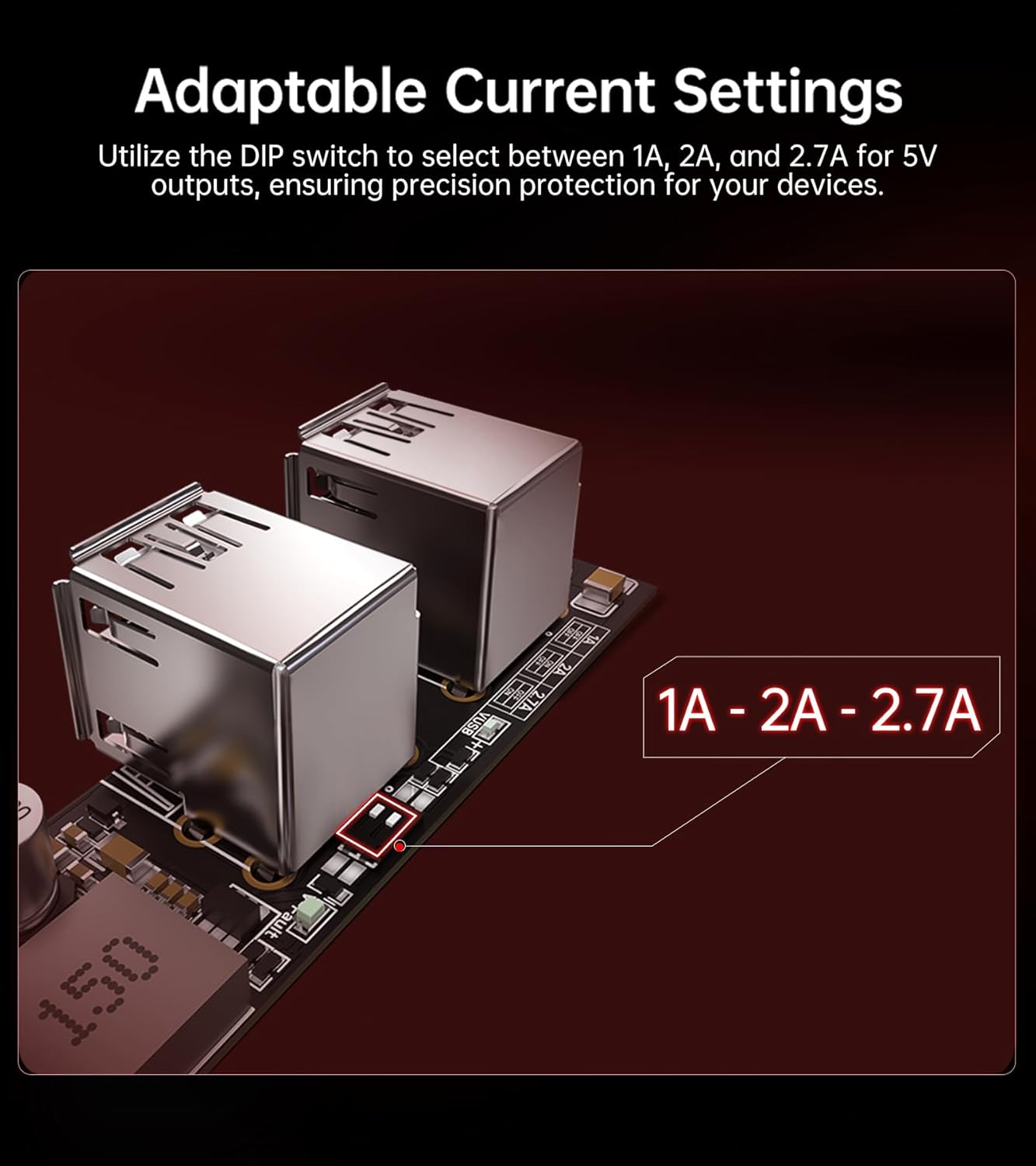
Figure 4.3: Location of the DIP switch for adjusting 5V output current.
5. Operating
Once installed and connected, the Panda Branch operates by providing power to your connected devices. Ensure that the current settings for USB-A ports are correctly configured using the DIP switch (refer to Section 4.3).
The 24V ports are specifically for AMS/AMS Lite systems and should be connected through an AMS Hub if required by your printer model. Do not use these ports to power other devices.
Video 5.1: Demonstration of the Panda Status LED strip, an accessory that can be powered by the Panda Branch, showing various light effects and print status indications.
6. Maintenance
The Panda Branch is designed for reliable operation with minimal maintenance. To ensure longevity and proper function:
- Keep the board clean and free from dust and debris.
- Avoid exposing the board to excessive moisture or extreme temperatures.
- Regularly check all connections to ensure they are secure.
7. Troubleshooting
If you encounter issues with your Panda Branch, consider the following:
- Red Fault Indicator: If the red fault indicator light is on, it signifies an overcurrent condition on one of the output ports. Disconnect devices one by one to identify the faulty device or connection. Ensure the DIP switch current setting is appropriate for the connected devices.
- No Power Output: Verify that the Panda Branch is correctly connected to your 3D printer's power source. Check all cables for secure connections.
- Device Not Recognized/Working: Ensure the connected device is compatible with the Panda Branch's 5V USB-A or 24V AMS ports. For USB devices, confirm the current setting is sufficient.
8. Specifications
Detailed specifications for the BIGTREETECH Panda Branch:

Figure 8.1: Interface diagram and specifications table.
| Feature | Detail |
|---|---|
| Product Name | Panda Branch |
| Input Voltage | DC 24V |
| Output Voltage and Current | 5V 2.7A (Peak) |
| 5V Output Interface | 4x Type-A Female |
| MX3.0 2x2Pin Interface | One for connecting to AMS/AMS Lite, while the other three are redundant designs, designed only for AMS/AMS Lite connection. Do not use them to power other devices. |
| Compatibility | For Bambu-Lab P1/X1/A1 Series Printers |
| Package Dimensions | 6.65 x 2.13 x 1.85 inches |
| Item Weight | 3.52 ounces |
| Material | PCB |
8.1 Product Dimensions

Figure 8.2: Product dimensions of the Panda Branch and its compatible printed mounting case.
9. Warranty and Support
For warranty information, please refer to the terms and conditions provided at the point of purchase or visit the official BIGTREETECH website. For technical support or further assistance, please contact BIGTREETECH customer service through their official channels.
