
Introduction
Thank you for choosing the Fempoin Smart Watch. This manual provides detailed instructions on how to set up, operate, and maintain your new smartwatch. Please read this manual carefully before using the device to ensure proper functionality and to maximize your user experience.
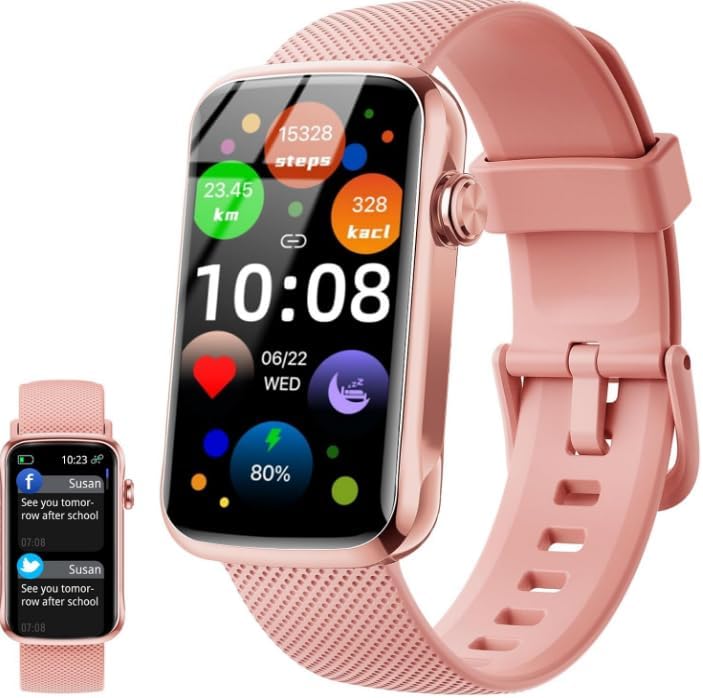
Image: The Fempoin Smart Watch, showcasing its vibrant display with various health and activity metrics.
Setup
1. Charging the Smart Watch
Before first use, fully charge your smartwatch. Connect the magnetic charging cable to the charging points on the back of the watch and plug the USB end into a standard USB power adapter (not included). A full charge typically takes approximately 1.5 hours.

Image: Illustration of the smart watch dimensions and battery life information, including charging time.
2. Downloading the 'Gloryfit' App
Search for and download the 'Gloryfit' app from your smartphone's app store (compatible with iOS 9.0+ and Android 6.0+).
3. Pairing with Your Smartphone
- Ensure Bluetooth is enabled on your smartphone.
- Open the 'Gloryfit' app and follow the on-screen instructions to create an account or log in.
- In the app, navigate to the device pairing section and select your Fempoin Smart Watch from the list of available devices.
- Confirm the pairing request on both your watch and smartphone.
- Once paired, the watch will synchronize data with the app.
Operating Instructions
1. Display and Watch Faces
The smartwatch features a 1.47-inch HD full-touch color screen. You can customize your watch face by long-pressing the screen or by selecting from over 100 free personalized watch faces available in the 'Gloryfit' app.

Image: A visual representation of the diverse watch face options and the 1.47-inch HD touch screen specifications.
2. Message Notifications
After connecting to your smartphone via Bluetooth, the smartwatch can display notifications for calls, SMS, and social media apps such as Facebook, WhatsApp, Instagram, and Twitter. Enable notification permissions in the 'Gloryfit' app for desired alerts.

Image: The smartwatch showing incoming messages from different social media platforms, indicating its notification capabilities.
3. 24/7 Health Monitoring
The watch is equipped with advanced sensors to monitor your health data continuously:
- Heart Rate: Real-time heart rate monitoring.
- SpO2: Blood oxygen saturation monitoring.
- Sleep Monitor: Automatically tracks sleep stages (deep, light, wakeful) and provides comprehensive analysis in the 'Gloryfit' app.
- Menstrual Cycle Tracking: For female users, track and predict menstrual cycles.

Image: A user wearing the smartwatch, with accompanying app screenshots demonstrating heart rate, blood oxygen, sleep, and menstrual period tracking features.
4. Sports Modes and Activity Tracking
The smartwatch supports over 24 sports modes, including running, cycling, walking, basketball, yoga, and football. During exercise, it records data such as steps, distance, and calories burned. This data can be viewed in real-time on the watch and synchronized to the 'Gloryfit' app for detailed analysis.

Image: A person exercising while wearing the smartwatch, with graphics illustrating all-day activity tracking (steps, calories, distance) and a selection of multiple sports modes.
5. Multifunctional Features
The Fempoin Smart Watch offers a variety of practical functions to enhance your daily life:
- Timer & Stopwatch: For precise timing.
- Alarm Clock: Set multiple alarms.
- Find Your Phone: Locate your paired smartphone.
- Sedentary Reminder: Alerts you to move after periods of inactivity.
- Music Control: Control music playback on your smartphone.
- Weather Forecast: Get real-time weather updates.
- Camera Control: Remotely trigger your phone's camera.
- Flashlight: Use the screen as a light source.
- Do Not Disturb Mode: Silence notifications.
- Brightness Adjustment: Adjust screen brightness.

Image: A collage illustrating several practical functions of the smartwatch, including weather display, camera remote, music control, sedentary reminder, stopwatch, alarm clock, and find phone feature.
Maintenance
1. Water Resistance (IP68)
The Fempoin Smart Watch has an IP68 waterproof rating, making it suitable for daily activities such as washing hands, face, and light rain. It can withstand immersion in water up to 1.5 meters for 30 minutes. Important: It is not recommended for use in hot water, saunas, or seawater, as steam and corrosive liquids can damage the device.
2. Cleaning and Care
To maintain your watch, regularly wipe the screen and strap with a soft, dry cloth. Avoid using harsh chemicals or abrasive materials. Ensure the charging contacts are clean and dry before charging.
3. Battery Life
With approximately 1.5 hours of charging, the watch provides 3-5 days of normal use and up to 30 days of standby time. Battery life may vary based on usage patterns and enabled features.
Troubleshooting
| Problem | Possible Solution |
|---|---|
| Watch not turning on/charging. | Ensure the charging cable is securely connected to both the watch and a working USB power source. Clean the charging contacts on the watch and cable. Allow it to charge for at least 10 minutes before attempting to turn it on. |
| Cannot pair with smartphone. | Make sure Bluetooth is enabled on your phone. Restart both the watch and your phone. Ensure the 'Gloryfit' app is updated to the latest version. Try unpairing and re-pairing the device in the app. |
| Notifications not received. | Check notification permissions for the 'Gloryfit' app in your phone's settings. Ensure the app is running in the background. Disable 'Do Not Disturb' mode on the watch. Verify that the watch is properly connected via Bluetooth. |
| Inaccurate activity tracking (steps, heart rate). | Ensure the watch is worn snugly on your wrist, about one finger's width above the wrist bone. Calibrate the watch in the 'Gloryfit' app if available. Ensure your personal information (height, weight) is accurate in the app. |
| Screen unresponsive. | Restart the watch. If the issue persists, ensure the screen is clean and dry. |
For further assistance, please refer to the 'Gloryfit' app's help section or contact customer support.
Specifications
| Feature | Detail |
|---|---|
| Model Number | T31 |
| Screen Size | 1.47 Inches |
| Screen Resolution | 172*320 |
| Waterproof Rating | IP68 |
| Connectivity | Bluetooth |
| Battery Life (Normal Use) | 3-5 days |
| Battery Life (Standby) | Up to 30 days |
| Charging Time | Approx. 1.5 hours |
| Compatible OS | Android 6.0+, iOS 9.0+ |
| Item Weight | 2.89 ounces |
| Dimensions | 6.85 x 3.78 x 0.71 inches (Package) |
| Included Components | Smartwatch, Charging Cable |
Warranty and Support
Warranty Information
Your Fempoin Smart Watch is covered by a manufacturer's warranty. Please refer to the product packaging or the official Fempoin website for specific warranty terms and conditions. Keep your purchase receipt as proof of purchase.
Customer Support
For technical support, troubleshooting assistance, or any inquiries regarding your Fempoin Smart Watch, please contact Fempoin customer service through the contact information provided on their official website or within the 'Gloryfit' app.