
Introduction
This manual provides detailed instructions for the setup, operation, and maintenance of your NIIMBOT B21Pro Bluetooth Label Printer. The B21Pro is a 300DPI thermal label printer designed for various applications, including home organization, office labeling, and retail pricing. It supports inkless printing and offers advanced features like two-color (red/black) printing with special labels, automatic label recognition, and extensive customization options via its dedicated application.
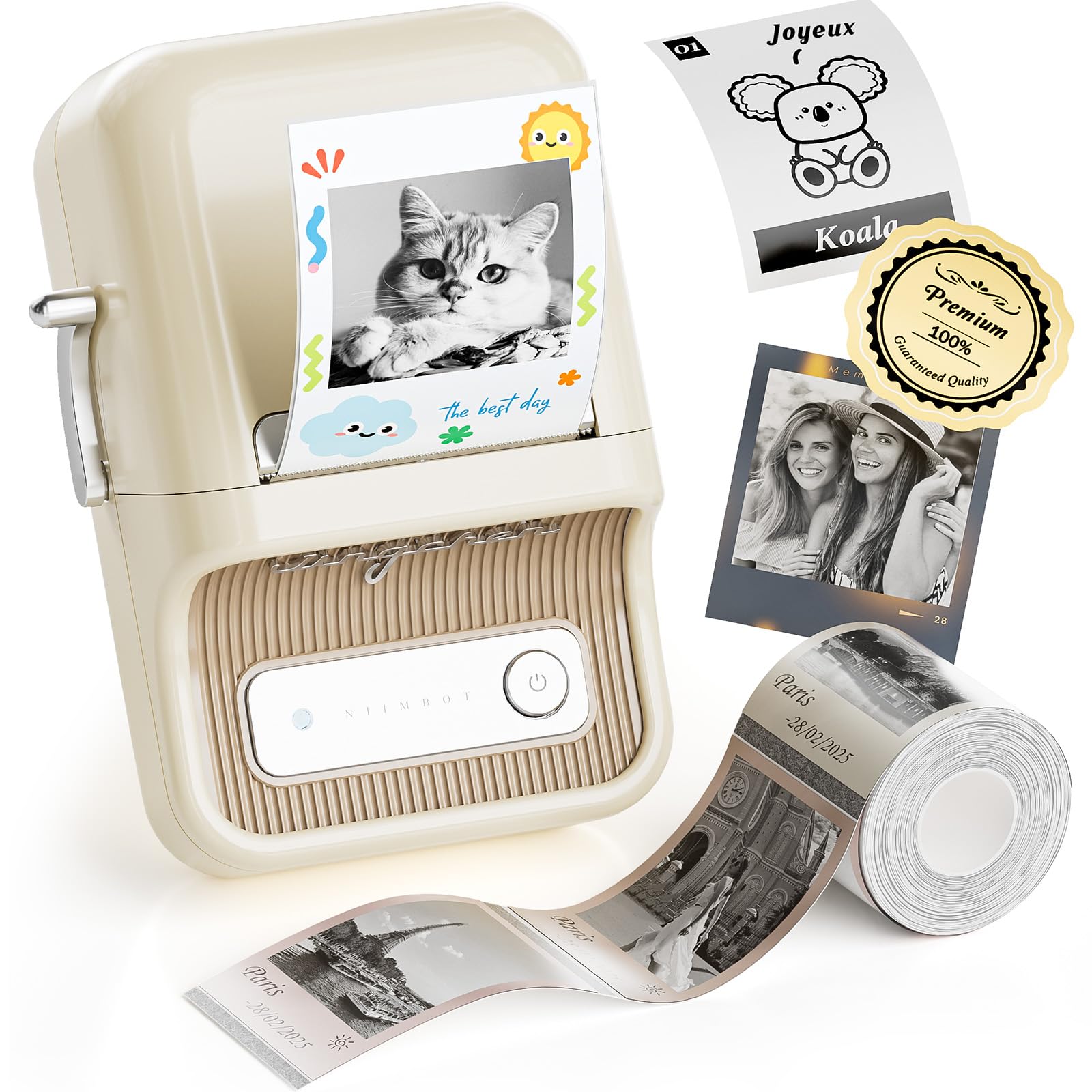
Image: The NIIMBOT B21Pro Bluetooth Label Printer, a compact and portable device.
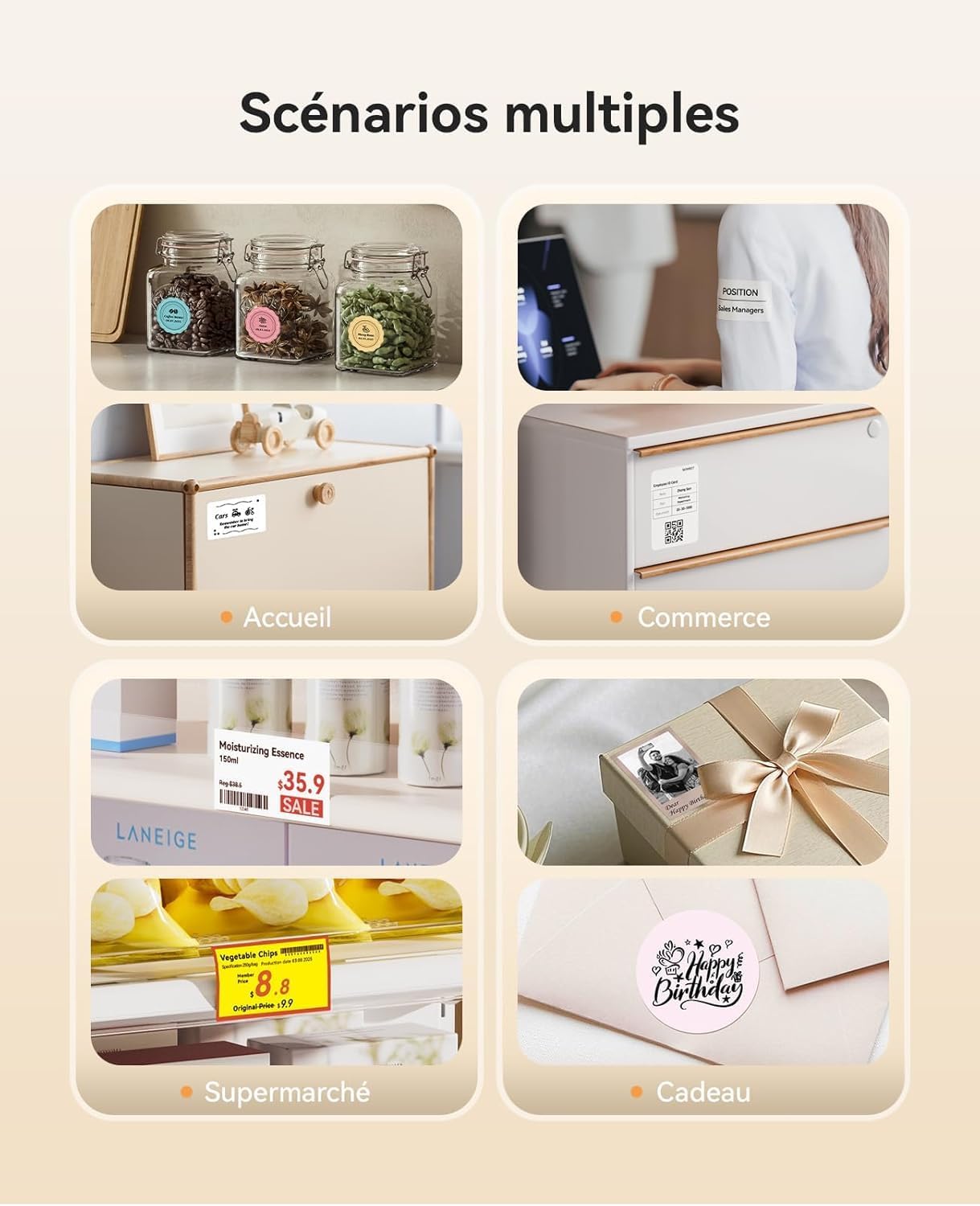
Image: Examples of the B21Pro's versatility in home, retail, and gift labeling scenarios.
Setup
1. Unboxing and Initial Charge
Upon unboxing, ensure all components are present: the NIIMBOT B21Pro printer and one label roll. It is recommended to fully charge the device before first use. Connect the printer to a power source using a USB Type-C cable (not always included, check packaging).
2. Loading Labels
- Open the printer's cover.
- Insert the label roll with the printing surface facing upwards.
- Ensure the label roll is properly seated and the first label extends slightly out of the printing slot.
- Close the cover firmly. The printer will automatically detect the label size and align it.

Image: The B21Pro printer's internal mechanism for loading labels, illustrating support for various label styles and sizes (20-50mm).
3. App Installation and Connection (Smartphone)
- Download the "NIIMBOT" application from your smartphone's app store (available for Android and iOS).
- Enable Bluetooth on your smartphone.
- Open the NIIMBOT app and follow the on-screen instructions to connect to your B21Pro printer via Bluetooth. The app will guide you through the pairing process.
- Once connected, the app will automatically recognize the loaded label type.

Image: Step-by-step guide on a smartphone for downloading the app, enabling Bluetooth, connecting, and printing with the NIIMBOT B21Pro.
4. PC Software Installation and Connection
- Visit the official NIIMBOT website (www.niimbot.net) to download the desktop application for your PC (Windows 32/64-bit).
- Install the software on your computer.
- Connect the B21Pro printer to your PC using a USB cable.
- Open the NIIMBOT PC software. It will detect the printer and allow you to design and print labels.

Image: Step-by-step guide for downloading and using the NIIMBOT desktop application on a PC.
Operating Instructions
1. Basic Label Printing
- Design Your Label: Use the NIIMBOT app or PC software to create your label. You can add text, symbols, borders, images, and barcodes.
- Preview: Always preview your label before printing to ensure accuracy.
- Print: Tap the "Print" button in the app or software. The printer will automatically feed and print the label.

Image: The NIIMBOT app interface demonstrating quick label design, modification, and printing in under a minute.
2. Advanced Printing Features
- 300 DPI Resolution: The B21Pro offers 300 DPI printing for clear and sharp text and images.
- Two-Color Printing (Red/Black): This feature requires special red/black compatible labels. Ensure you are using the correct label type for two-color output.
- Image and Photo Printing: The printer can print images and photos. For best results, use dedicated photo labels.
- Batch Printing: Print multiple copies of the same label efficiently using the batch printing function in the app.
- Label Recognition: The printer automatically detects the size and type of the loaded label, simplifying the setup process.

Image: A visual comparison highlighting the clearer image printing capability of 300 DPI resolution compared to 203 DPI.

Image: The B21Pro printer showcasing its ability to print in red and black simultaneously, requiring special two-color labels.
3. App Customization Options
The NIIMBOT app provides extensive customization:
- Over 60 fonts
- Over 1600 icons
- Over 190 borders
- Over 1800 templates
- Support for 20+ languages
Note: Some advanced features, fonts, icons, and templates may require a VIP subscription within the app.

Image: The NIIMBOT smartphone app displaying a wide range of design elements for label customization, including fonts, icons, and borders.
Maintenance
1. Cleaning the Print Head
To maintain optimal print quality, periodically clean the print head.
- Turn off the printer and disconnect it from power.
- Open the label compartment.
- Gently wipe the print head with a cotton swab lightly dampened with isopropyl alcohol.
- Allow the print head to dry completely before closing the cover and resuming use.
2. Label Storage
Store label rolls in a cool, dry place away from direct sunlight and excessive heat to prevent degradation of the thermal material.
Troubleshooting
| Problem | Possible Cause | Solution |
|---|---|---|
| Printer does not turn on. | Low battery or no power. | Charge the printer using a USB Type-C cable. |
| Cannot connect via Bluetooth. | Bluetooth is off, printer is out of range, or already connected to another device. | Ensure Bluetooth is enabled on your phone, the printer is within range, and not connected to another device. Restart both devices if necessary. |
| Poor print quality (faint, blurry). | Print head is dirty, incorrect label type, or low battery. | Clean the print head. Ensure you are using genuine NIIMBOT thermal labels. Charge the printer. |
| Labels not feeding correctly. | Label roll improperly installed or jammed. | Open the cover and re-install the label roll, ensuring it is seated correctly and not jammed. |
| Red/black two-color printing not working. | Using standard thermal labels instead of special red/black compatible labels. | Ensure you are using NIIMBOT's special red/black two-color labels for this feature. Standard labels will only print in black. |
Specifications
| Feature | Detail |
|---|---|
| Brand | NIIMBOT |
| Model Name | B21 Pro |
| Connectivity Technology | Bluetooth, USB (USB Type C) |
| Printing Technology | Thermal |
| Print Resolution | 300 DPI (300 x 300 dpi) |
| Output Type | Color (black and red via special label), Monochrome |
| Special Features | Two-color (black and red) printing, Label recognition, Multi-connection Bluetooth (7 Android + 3 iOS), 16-level grayscale printing |
| Item Weight | 322 Grams |
| Product Dimensions (L x W x H) | 13P x 9.4l x 6.1H centimeters |
| Maximum Media Size | 50x30 millimeters (supports 20-50mm width) |
| Print Media Type | Thermal paper |
| Duplex Printing | Manual (Not automatic) |
| Ink Color | Red, Black (via thermal process) |
Warranty Information
The NIIMBOT B21Pro Label Printer comes with a 2-year limited warranty. Please retain your proof of purchase for warranty claims. For specific terms and conditions, refer to the warranty card included in your product packaging or contact NIIMBOT customer support.
Support
For further assistance, technical support, or inquiries regarding your NIIMBOT B21Pro printer, please refer to the following resources:
- Official Website: Visit www.niimbot.net for FAQs, software downloads, and product information.
- In-App Support: The NIIMBOT application often includes a support or help section with troubleshooting tips and contact options.
- Customer Service: Contact NIIMBOT customer service directly through their official channels for personalized support.


