
1. Introduction
Welcome to the user manual for your new DOOGEE Tab G6 Android 15 Tablet. This guide provides comprehensive instructions on setting up, operating, maintaining, and troubleshooting your device. Please read this manual carefully to ensure optimal performance and longevity of your tablet.
2. What's in the Box
Your DOOGEE Tab G6 Android 15 Tablet comes with a complete accessory kit to enhance your experience and protect your device. Please verify all items are present upon unboxing.
- 1 x DOOGEE TAB G6 VIP Tablet
- 1 x USB Type-C Cable
- 1 x Charger
- 1 x Stylus (VIP Edition)
- 1 x Pre-applied Protective Film
- 1 x Bluetooth Mouse (VIP Edition)
- 1 x Leather Protective Case (VIP Edition)
- 1 x Bluetooth Keyboard (VIP Edition)
- 1 x SIM Card Tool
- 1 x Packaging Box
- 1 x User Manual
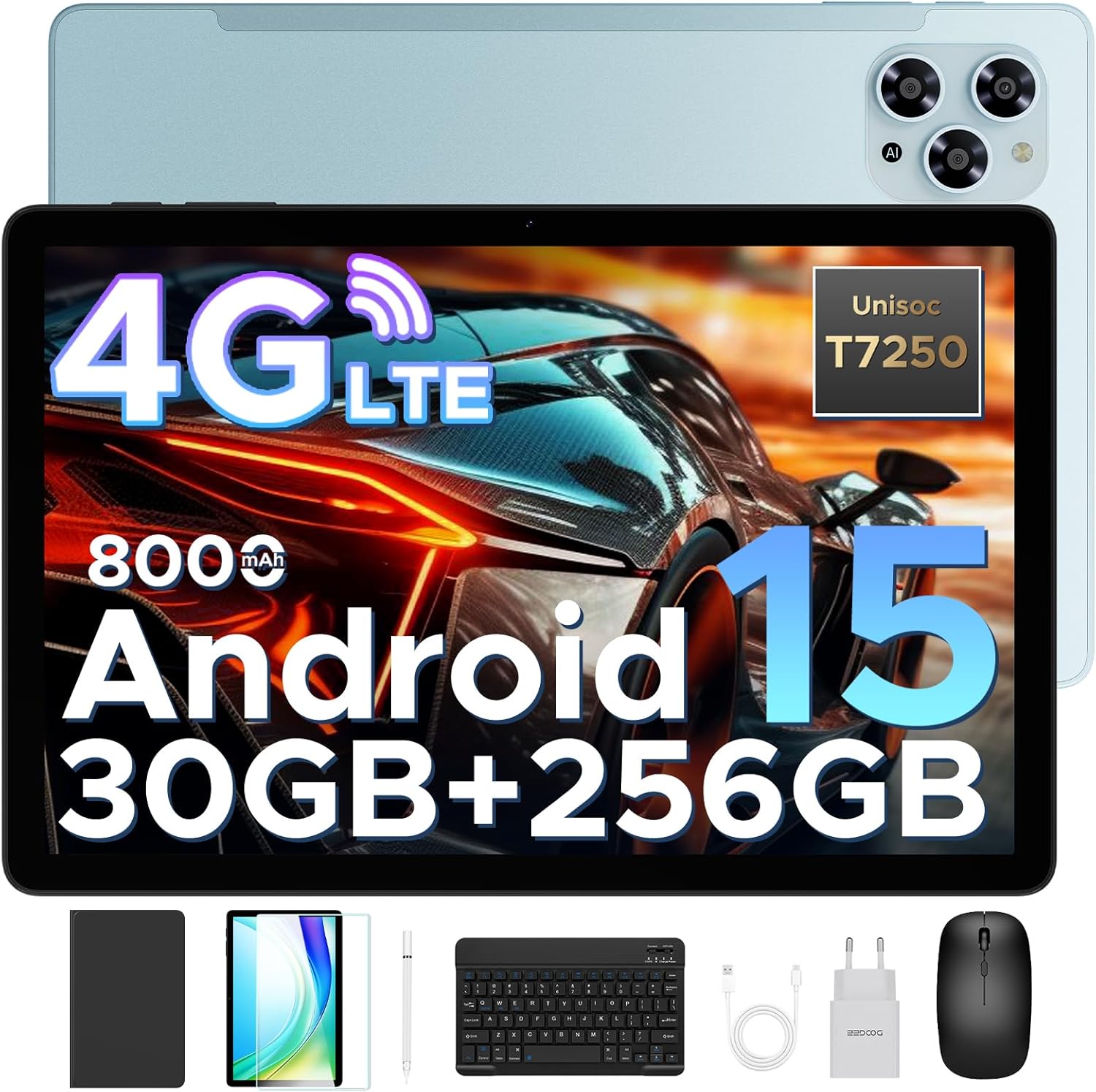
Image: The DOOGEE Tab G6 tablet displayed with all its included accessories, such as the keyboard, mouse, stylus, charger, cables, and protective case.
3. Setup
3.1 Initial Charging
Before first use, fully charge your DOOGEE Tab G6 tablet using the provided USB Type-C cable and charger. Connect the cable to the tablet's charging port and the charger to a power outlet. The battery indicator on the screen will show charging progress.
3.2 Inserting SIM and TF Cards
The DOOGEE Tab G6 supports dual SIM cards and a TF (microSD) card for expandable storage. Use the provided SIM card tool to open the SIM tray.
- Locate the SIM tray on the side of the tablet.
- Insert the SIM card tool into the small hole next to the tray and gently push until the tray ejects.
- Place your Nano-SIM cards and/or TF card into the designated slots on the tray, ensuring correct orientation.
- Carefully push the tray back into the tablet until it clicks into place.

Image: A visual representation of the tablet's dual SIM and TF card slots, illustrating how to insert the cards for 4G LTE connectivity.
3.3 Powering On/Off
- To Power On: Press and hold the Power button until the DOOGEE logo appears on the screen.
- To Power Off: Press and hold the Power button until the power options menu appears, then select "Power off".
- To Restart: Press and hold the Power button until the power options menu appears, then select "Restart".
3.4 Initial Setup Wizard
Upon first power-on, the tablet will guide you through an initial setup process. Follow the on-screen prompts to select your language, connect to Wi-Fi, set up your Google account, and configure basic settings.
4. Operating Instructions
4.1 Basic Navigation
The DOOGEE Tab G6 features an intuitive touchscreen interface. Use the following gestures for navigation:
- Tap: To select an item or open an app.
- Swipe: To scroll through pages or menus.
- Pinch-to-zoom: To zoom in or out on images or web pages.
- Long press: To access contextual menus or move icons.
4.2 Connecting Accessories
Your tablet comes with a Bluetooth keyboard, mouse, and a stylus for enhanced productivity.
- Bluetooth Keyboard/Mouse: Turn on the keyboard/mouse and put it into pairing mode (refer to their respective manuals). On your tablet, go to Settings > Connected devices > Bluetooth, turn on Bluetooth, and select the device from the list to pair.
- Stylus: The stylus is pressure-sensitive and does not require Bluetooth pairing. Simply use it directly on the screen for writing or drawing.
4.3 Android 15 System Features
The DOOGEE Tab G6 runs on the latest Android 15 operating system, offering improved security, smoother performance, and smart multitasking capabilities.
- Multi-User System: Create separate user profiles for different family members, each with their own apps, settings, and data. Access this feature in Settings > System > Multiple users.
- Parental Control: Manage app usage, screen time, and content access for children through Google Family Link, integrated with Android 15.
- Bedtime Mode: Schedule a time for your screen to turn grayscale and silence notifications for a better night's sleep. Configure this in Digital Wellbeing & parental controls.
- Face ID: Unlock your tablet quickly and securely using facial recognition. Set up Face ID in Settings > Security & privacy > Face unlock.
- WPS Office: The tablet comes with built-in WPS Office, allowing you to view and edit documents, spreadsheets, and presentations.

Image: An illustration highlighting the key features of the Android 15 system, including Bedtime Mode, Multi-User System, and Parental Control.
5. Connectivity
5.1 Dual SIM 4G LTE
With dual SIM card slots, the DOOGEE Tab G6 supports common 4G LTE networks, allowing you to make calls and access high-speed internet even without Wi-Fi. This ensures network freedom and faster data transfer.
5.2 Wi-Fi
Connect to available Wi-Fi networks for internet access. Go to Settings > Network & internet > Wi-Fi, turn on Wi-Fi, and select your desired network. Enter the password if prompted.
5.3 Bluetooth
Enable Bluetooth to connect to wireless headphones, speakers, or other Bluetooth-enabled devices. Go to Settings > Connected devices > Bluetooth.
5.4 GPS Navigation
The tablet supports GPS, Glonass, Galileo, and Beidou navigation systems, ensuring accurate positioning for maps and location-based services.

Image: A tablet screen showing a navigation map, with icons representing GPS, Glonass, Galileo, and Beidou navigation systems, indicating precise location tracking.
6. Display Features
The DOOGEE Tab G6 features an 11-inch HD IPS display with a 90Hz refresh rate, providing vibrant colors and smooth visuals for all your content.
- 11-inch HD IPS Display: Enjoy clear and vivid images with a resolution of 1280 x 800 pixels and a 16:10 aspect ratio.
- 90Hz Refresh Rate: Experience fluid scrolling and responsive touch control, ideal for gaming and video playback.
- Widevine L1 Support: Stream 1080p HD content from popular platforms like Netflix, Hulu, and Amazon Prime Video.
- Eye-Caring Mode: Reduces blue light emission to protect your eyes during prolonged use.
- Dark Mode: Provides a darker color scheme for the user interface, reducing eye strain in low-light conditions.
- Split Screen: Multitask efficiently by running two applications side-by-side on the screen.

Image: The tablet's 11-inch HD IPS display with a 90Hz refresh rate, showcasing its visual clarity and smooth performance.
7. Performance
7.1 Processor
The DOOGEE Tab G6 is powered by the Unisoc T7250 Octa-Core processor, ensuring smooth and efficient performance for various tasks, from browsing to gaming.

Image: A detailed diagram of the Unisoc T7250 Octa-Core processor, highlighting its 1.8GHz clock speed and 12nm manufacturing process for enhanced speed and efficiency.
7.2 Memory and Storage
The tablet offers ample memory and storage for all your applications, media, and documents.
- 30GB RAM: Comprising 6GB base RAM and 24GB extended RAM, providing smooth multitasking.
- 256GB ROM: Generous internal storage for your files.
- 2TB TF Card Expansion: Expand storage further with a TF (microSD) card (sold separately) up to 2TB.
- LPDDR4X: Utilizes advanced LPDDR4X memory technology for efficient performance.

Image: The tablet screen displaying numerous app icons, emphasizing the massive storage capacity with 30GB RAM, 256GB ROM, and 2TB expandable storage for videos and music.
8. Battery Management
The DOOGEE Tab G6 is equipped with a large 8000mAh battery for extended usage throughout the day.
- 8000mAh Battery: Provides long-lasting power for work, entertainment, and study.
- 10W Fast Charging: Quickly recharge your tablet to minimize downtime.
- 5W Reverse Charging (OTG): Use your tablet as a power bank to charge other devices in emergencies via an OTG cable (not included).

Image: An internal view of the tablet highlighting the 8000mAh battery, with icons indicating 10W fast charging and 5W reverse charging capabilities.
9. Camera Features
Capture clear photos and videos with the tablet's dual cameras.
- 13MP Main Camera: For capturing high-resolution images.
- 5MP Front Camera: Ideal for video calls and selfies.

Image: A close-up view of the tablet's rear and front cameras, indicating the 13MP main camera and 5MP front camera for capturing vivid moments.
10. Audio Features
- Dual Speakers: Enjoy immersive audio with high-quality dual speakers.
- FM Radio: Connect wired headphones to use the built-in FM radio feature.
11. Maintenance
To ensure the longevity and optimal performance of your DOOGEE Tab G6, follow these maintenance guidelines:
- Cleaning: Use a soft, lint-free cloth to clean the screen and body of the tablet. Avoid using harsh chemicals or abrasive materials.
- Protection: Always use the provided protective case and screen protector to guard against scratches and minor impacts.
- Temperature: Avoid exposing the tablet to extreme temperatures (hot or cold) or direct sunlight for extended periods.
- Water Exposure: The tablet is not waterproof. Keep it away from water and high humidity.
- Software Updates: Regularly check for and install system updates to ensure your tablet has the latest features and security patches. Go to Settings > System > System update.
12. Troubleshooting
If you encounter any issues with your DOOGEE Tab G6, refer to the following common troubleshooting steps:
12.1 Tablet Not Turning On
- Ensure the battery is charged. Connect the charger and wait a few minutes before attempting to power on.
- Press and hold the Power button for at least 10-15 seconds to force a restart.
12.2 Screen Unresponsive
- Restart the tablet.
- Ensure your hands are clean and dry.
- If a screen protector is installed, ensure it is properly applied and not interfering with touch sensitivity.
12.3 Wi-Fi/4G Connectivity Issues
- Toggle Wi-Fi/Mobile Data off and on in Quick Settings or Settings > Network & internet.
- Restart your Wi-Fi router (for Wi-Fi issues).
- Ensure your SIM card is correctly inserted and activated (for 4G issues).
- Check your data plan with your mobile carrier.
12.4 Apps Crashing or Freezing
- Close the app and reopen it.
- Clear the app's cache and data in Settings > Apps > [App Name] > Storage & cache.
- Ensure the app is updated to its latest version from the Google Play Store.
- Free up storage space if your tablet is running low on memory.
12.5 Slow Performance
- Close unnecessary background apps.
- Clear cached data regularly.
- Restart the tablet periodically.
- Ensure sufficient free storage space.
If problems persist, consider performing a factory reset (back up your data first) or contact customer support.
13. Specifications
Detailed technical specifications for your DOOGEE Tab G6 Android 15 Tablet:
| Feature | Specification |
|---|---|
| Brand | DOOGEE |
| Model Name | TABG6 VIP |
| Model Number | DOOGEE TABG6-V |
| Operating System | Android 15 |
| Processor | Unisoc T7250 Octa-Core (1.8 GHz) |
| Graphics Coprocessor | Mali-G57 MC2 |
| RAM | 30 GB (6GB + 24GB extended) |
| Internal Storage (ROM) | 256 GB |
| Expandable Storage | Up to 2 TB (TF Card) |
| Display Size | 11 Inches |
| Display Resolution | 1280 x 800 Pixels |
| Refresh Rate | 90 Hz |
| Battery Capacity | 8000 mAh |
| Charging | 10W Fast Charging, 5W Reverse Charging (OTG) |
| Rear Webcam Resolution | 13 MP |
| Front Webcam Resolution | 5 MP |
| Connectivity | 4G LTE, Wi-Fi (Dual Band 2.4G/5G), Bluetooth |
| Navigation | GPS, Glonass, Galileo, Beidou |
| Audio | Dual Speakers, FM Radio |
| Dimensions | 28.16 x 17.22 x 0.79 cm |
| Item Weight | 500 g |
| Color | TABG6-V(Blue) |
14. Warranty and Support
DOOGEE is committed to providing excellent customer service and product quality.
- 30-Day Money-Back Guarantee: Enjoy a 30-day money-back guarantee and free returns.
- 2-Year Limited Warranty: Your DOOGEE Tab G6 is covered by a 2-year limited warranty from the date of purchase. This warranty covers manufacturing defects and workmanship. Please retain your proof of purchase for warranty claims.
- 24/7 Online Support: For any technical assistance or inquiries, please contact our customer support team available 24/7. Refer to the contact information provided in the packaging or on the official DOOGEE website.