
1. Introduction
Welcome to the ZUOYA GMK61 60% Mechanical Keyboard Kit user manual. This guide provides comprehensive instructions for setting up, operating, customizing, and maintaining your new keyboard kit. The GMK61 is a compact, barebones mechanical keyboard kit designed for enthusiasts who wish to personalize their typing experience. It features triple-mode connectivity, a hot-swappable PCB, RGB backlighting, and a gasket-mounted structure for optimal performance and comfort.
2. Product Overview
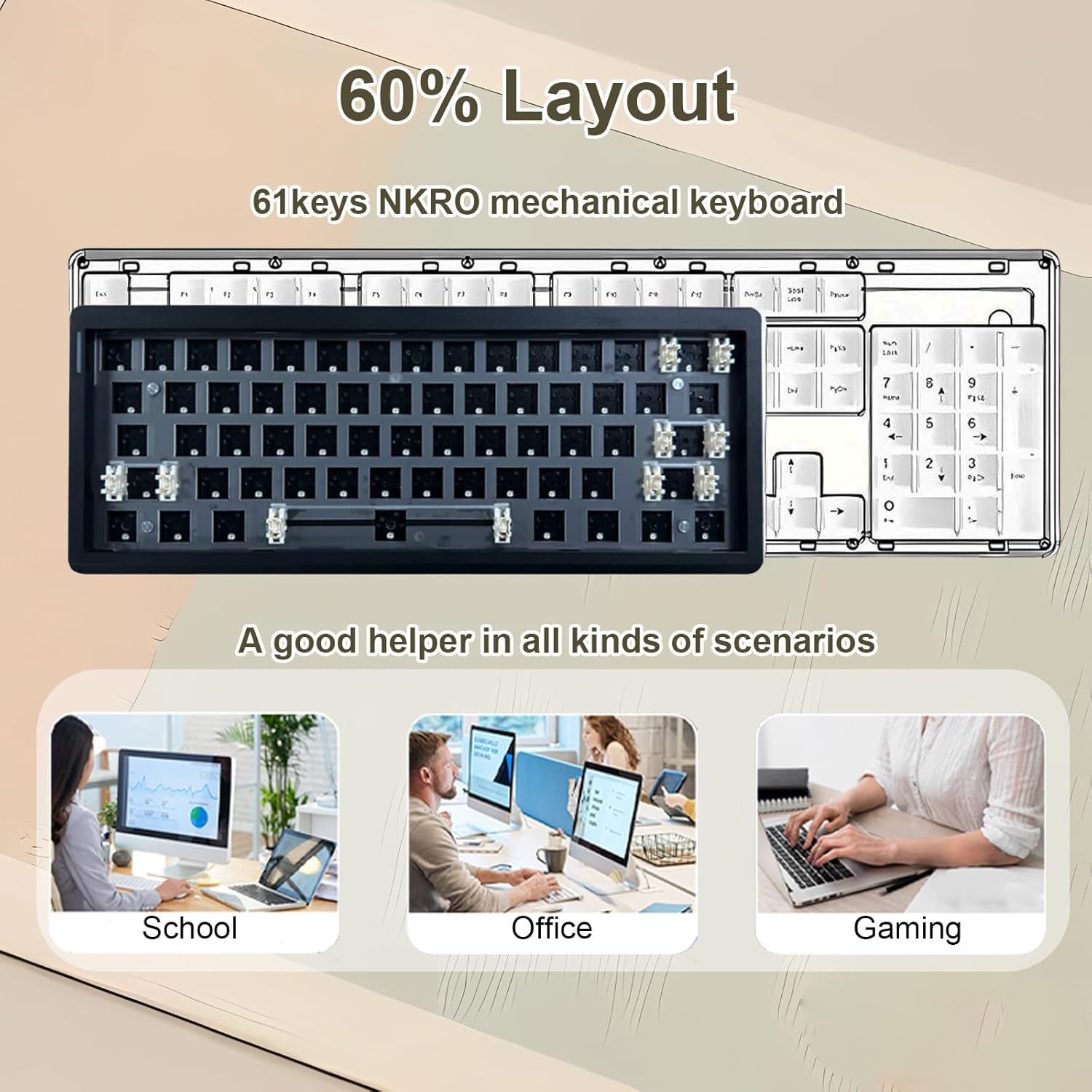
The ZUOYA GMK61 is a 60% layout mechanical keyboard kit, meaning it includes 61 keys in a compact form factor, saving valuable desk space. It is designed to be customized with your preferred mechanical switches and keycaps.



3. Setup
3.1 Unboxing and Initial Inspection
Upon unboxing, ensure all components are present: the GMK61 Keyboard Kit, a keycap puller, a USB cable, and this user manual. Inspect the keyboard for any visible damage.
3.2 Installing Switches and Keycaps
The GMK61 is a barebones kit, meaning switches and keycaps are not pre-installed. The hot-swappable PCB supports both 3-pin and 5-pin mechanical switches without soldering.
- Align the pins of your chosen mechanical switch with the holes on the PCB.
- Gently press the switch into place until it clicks securely.
- Repeat for all desired keys.
- Place your keycaps onto the installed switches, ensuring they are firmly seated.

3.3 Adjusting Keyboard Angle
The keyboard features 2-step adjustable feet on the bottom, allowing you to set it to three different tilt angles for ergonomic comfort.

4. Connectivity Modes
The GMK61 supports three connection modes: Bluetooth 5.0, 2.4GHz Wireless, and Wired USB-C. A switch on the side of the keyboard allows you to select the desired mode.


4.1 Wired Mode (USB-C)
Connect the provided USB-C cable from the keyboard to your computer. The keyboard will automatically switch to wired mode and begin charging. This mode offers the lowest latency and is recommended for competitive gaming.
4.2 2.4GHz Wireless Mode
Locate the 2.4GHz USB dongle, typically stored in a compartment on the keyboard. Plug the dongle into an available USB port on your computer. Switch the keyboard to 2.4GHz mode using the toggle switch. Press FN + R to activate 2.4GHz pairing. The keyboard should connect automatically.
4.3 Bluetooth 5.0 Mode
Switch the keyboard to Bluetooth mode using the toggle switch. The keyboard supports up to three Bluetooth devices. Press FN + Q, FN + W, or FN + E to select a Bluetooth channel. The indicator light will flash, indicating pairing mode. On your device (PC, laptop, tablet, mobile phone), search for Bluetooth devices and select "GMK61" to pair. Once connected, the indicator light will become solid.
4.4 Operating System Compatibility
The keyboard is compatible with both Windows and Mac operating systems. Use the dedicated switch on the side of the keyboard to toggle between Mac and Win modes for optimal key mapping.
5. Operating Instructions
5.1 Basic Usage
Once connected, the keyboard functions as a standard 61-key layout. Familiarize yourself with the compact layout, as some keys may require the use of the Function (FN) key for secondary actions.
5.2 RGB Backlighting Controls
The GMK61 features 16.8 million color RGB backlighting with over 18 preset modes. Use the following FN key combinations to control the lighting:

- FN + \|: Switch Backlight Mode
- FN + ;:: Switch RGB Dynamic Light Directions
- FN + '": Switch RGB Backlight Colors
- FN + Z: Switch Light Bar Effect
- FN + X: Switch Light Bar Color
- FN + BackSpace: Backlight ON / OFF
6. Customization and Software
The ZUOYA GMK61 mechanical keyboard offers extensive customization options through its dedicated driver software. This software allows you to:
- Customize RGB backlight modes.
- DIY key functions, including remapping keys.
- Create complex macros, shortcuts, and key combinations.
Note: The driver software is compatible only with Windows operating systems.
For advanced users, the keyboard is compatible with VIA software for further customization. You may need to locate the appropriate JSON file for VIA compatibility, often found on community forums or the manufacturer's support page.
7. Maintenance
7.1 Cleaning
To clean your keyboard, first disconnect it from all power sources. Use a soft brush or compressed air to remove dust and debris from between the keys. For deeper cleaning, carefully remove keycaps using the provided keycap puller and wipe them with a damp cloth. Ensure all components are dry before reassembling and reconnecting the keyboard.
7.2 Battery Care
The GMK61 is equipped with a 3000mAh rechargeable battery. To prolong battery life, avoid fully discharging the battery frequently. Charge the keyboard using the provided USB-C cable when the battery indicator shows low power.
8. Troubleshooting
If you encounter issues with your ZUOYA GMK61 keyboard, please refer to the following common solutions:
- Connectivity Issues: Ensure the mode switch is set correctly (Wired, 2.4GHz, or BT5.0). For 2.4GHz, ensure the dongle is securely plugged in. For Bluetooth, ensure the keyboard is in pairing mode (flashing indicator) and your device's Bluetooth is enabled. Try re-pairing if necessary.
- RGB Backlight Not Working: Check if the backlight is turned off using FN + BackSpace. Cycle through modes and colors using the FN key combinations mentioned in Section 5.2. Ensure the keyboard is sufficiently charged.
- Keys Not Responding: Verify that switches are properly seated in the hot-swappable sockets. If a specific key is problematic, try swapping its switch with a known working one to diagnose if the issue is with the switch or the PCB.
- Sticky Keys: This can sometimes occur due to over-lubrication of stabilizers or debris. Carefully remove the keycap and inspect the switch and stabilizer for any obstructions or excessive lubricant.
- Driver Software Issues: Ensure you are using the correct driver for your GMK61 model and that your operating system is Windows.
If problems persist, please contact ZUOYA customer support for further assistance.
9. Specifications
| Brand | ZUOYA |
| Model Number | GMK61 |
| Layout | 60% (61 Keys) |
| Connectivity | BT5.0 / USB-C Wired / 2.4GHz Wireless |
| Battery Capacity | 3000mAh |
| Backlighting | RGB (16.8 million colors, 18+ presets) |
| Hot-Swappable | Yes (3-pin/5-pin mechanical switches) |
| Structure | Gasket-Mounted |
| Material | Plastic |
| Dimensions | 11.8 x 4.6 x 1.1 inches |
| Item Weight | 1.5 pounds |
| Included Components | GMK61 Keyboard Kit, Keycap Puller, USB Cable, User Manual |
10. Official Product Videos
Watch these official videos for visual guides and demonstrations of the ZUOYA GMK61 Mechanical Keyboard Kit.
11. Warranty and Support
For warranty information and customer support, please refer to the documentation included with your purchase or visit the official ZUOYA website. Specific warranty terms may vary by region and retailer. For technical assistance or inquiries, please contact ZUOYA customer service directly.
