
1. Product Overview
The DJI Osmo Nano is a compact and powerful camera designed for capturing high-quality video and photos. It features a 1/1.3-inch CMOS sensor, capable of recording 4K/60fps video, and supports 10-bit D-Log M color for detailed footage. Its magnetic design allows for versatile mounting and quick mode switching, making it suitable for various recording scenarios.
This manual provides essential information on setting up, operating, and maintaining your Osmo Nano camera to ensure optimal performance and longevity.

Image: The DJI Osmo Nano camera, showing its main lens and the rear display with recording information.
2. What's in the Box
Verify that all components are present in your package:
- Osmo Nano Camera (128GB) x 1
- Osmo Nano Multifunctional Vision Dock x 1
- Osmo Nano Magnetic Hat Clip x 1
- Osmo Nano Magnetic Lanyard x 1
- Osmo Nano Protective Case x 1
- USB-C to USB-C PD Cable (USB 3.1) x 1
- Osmo Nano Dual-Direction Magnetic Ball-Joint Adapter Mount x 1
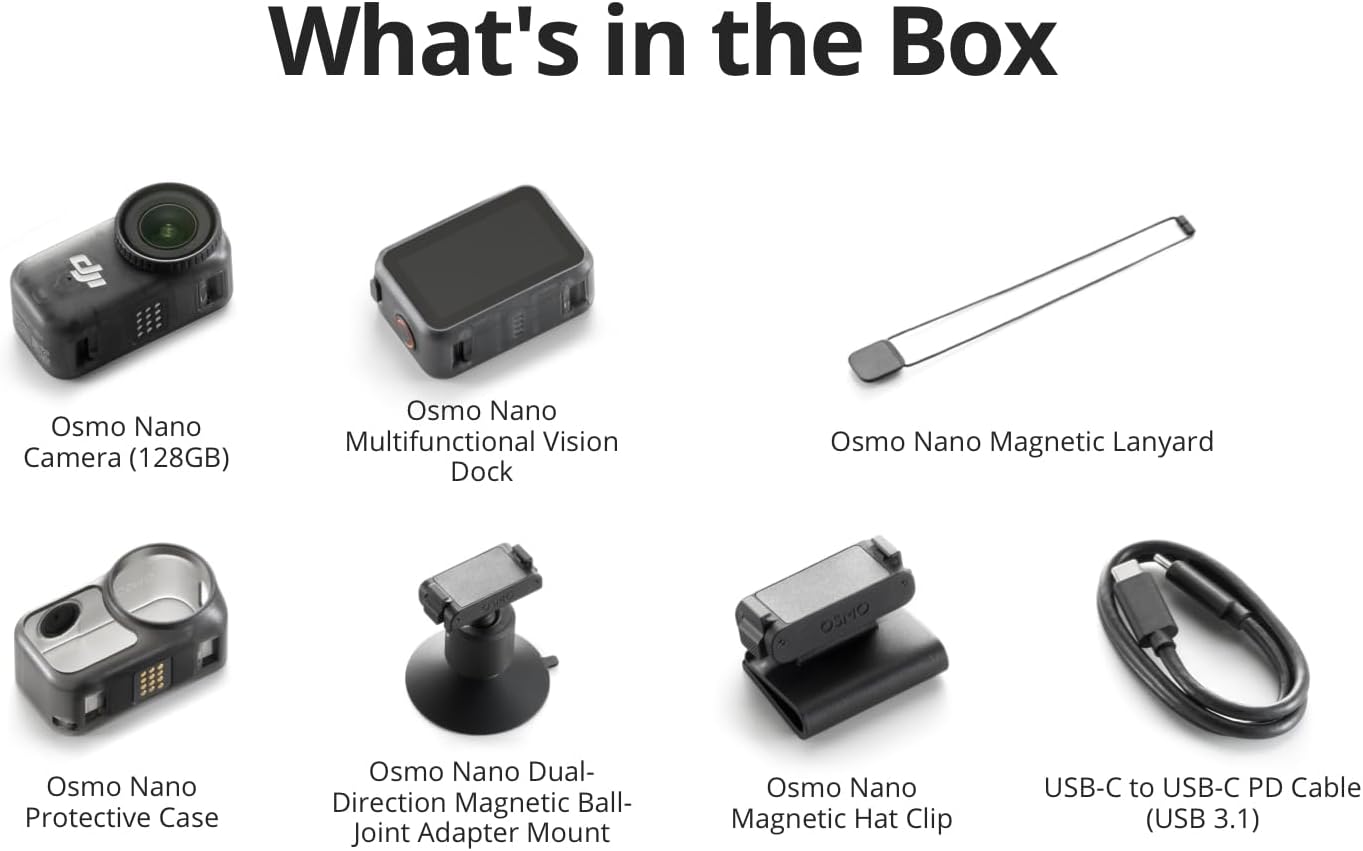
Image: A visual representation of all items included in the Osmo Nano Standard Combo package.
3. Setup Guide
3.1 Charging the Device
Before first use, fully charge the Osmo Nano camera and the Vision Dock. Connect the USB-C to USB-C PD Cable to a compatible USB-C charger (30W or above recommended) and to the device. The camera can be charged directly or via the Vision Dock.
- Camera charging time: Approximately 90 minutes for a full charge.
- Vision Dock + Camera charging time: Provides up to 200 minutes of recording.
- Quick charge: A 20-minute charge can bring the camera to 80% battery.

Image: The Osmo Nano camera and Vision Dock connected to a USB-C charging cable, illustrating the charging process.
3.2 Installing the DJI Mimo App
For full functionality, including live view, remote control, and advanced editing features, download and install the DJI Mimo app. Due to platform compatibility issues, the DJI Mimo app has been removed from Google Play. Please visit the official DJI website to download the latest version of DJI Mimo.
After installation, connect your Osmo Nano to the app via Bluetooth or Wi-Fi for initial activation and firmware updates.
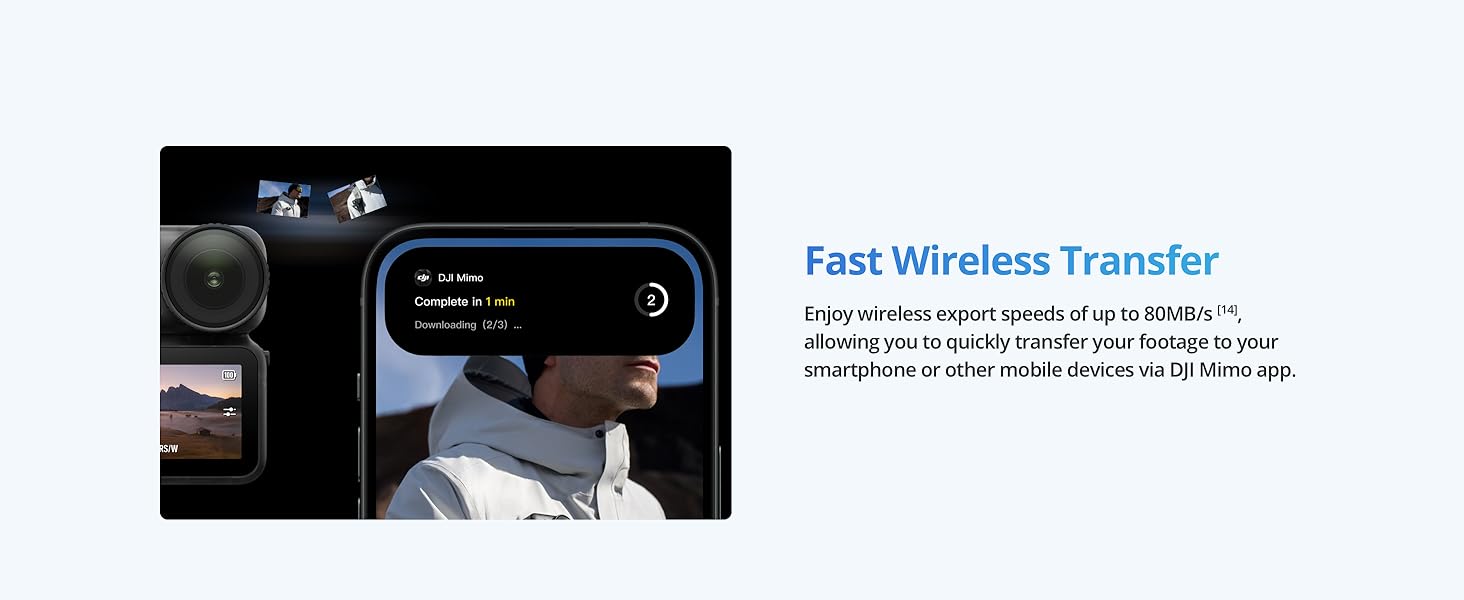
Image: A smartphone displaying the DJI Mimo app interface, indicating fast wireless transfer capabilities from the Osmo Nano.
4. Operating Instructions
4.1 Powering On/Off and Basic Controls
- Power On: Press and hold the Power button for a few seconds.
- Power Off: Press and hold the Power button until the device shuts down.
- Record/Shutter: Press the Shutter button to start/stop recording or take a photo.
- Mode Switch: Use the mode button or the touchscreen on the Vision Dock to switch between video, photo, and other modes.
4.2 Magnetic Mounting and Versatility
The Osmo Nano features a magnetic design for quick attachment and detachment to various surfaces and accessories. This allows for diverse first-person view (POV) shots and creative angles.
- Utilize the Magnetic Hat Clip for hands-free recording.
- The Magnetic Lanyard allows for chest-mounted POV.
- The Dual-Direction Magnetic Ball-Joint Adapter Mount provides flexible positioning.

Image: Examples of the Osmo Nano camera mounted magnetically for different perspectives, including on a hat, clothing, and a dog collar.
4.3 Video and Photo Capture
- 4K/60fps Video: Record smooth, high-resolution video with a 143° ultra-wide field of view.
- 4K/120fps Slow Motion: Capture fast-moving scenes in slow motion for dramatic effects.
- 10-bit D-Log M Color: Provides a wider dynamic range and color depth for post-production flexibility.
- SuperNight Mode: Enhances image quality in low-light conditions using noise reduction algorithms.

Image: A skier on a snowy mountain, illustrating the camera's capability for clear and cinematic 4K video capture.
4.4 Stabilization Features
- RockSteady 3.0: Ensures stable and clear footage even during dynamic activities.
- HorizonBalancing: Automatically locks onto a leveled horizon, keeping your footage smooth.
4.5 Audio Recording
The Osmo Nano supports direct connection to two DJI microphones for clear, high-quality stereo sound. No additional receiver is needed.

Image: A mother and child using DJI microphones, highlighting the camera's dual microphone support for enhanced audio recording.
4.6 Waterproofing
The camera itself is waterproof up to 10 meters without additional housing. When used with the Vision Dock, it offers IPX4 splash resistance, protecting against sweat, rain, and splashes.
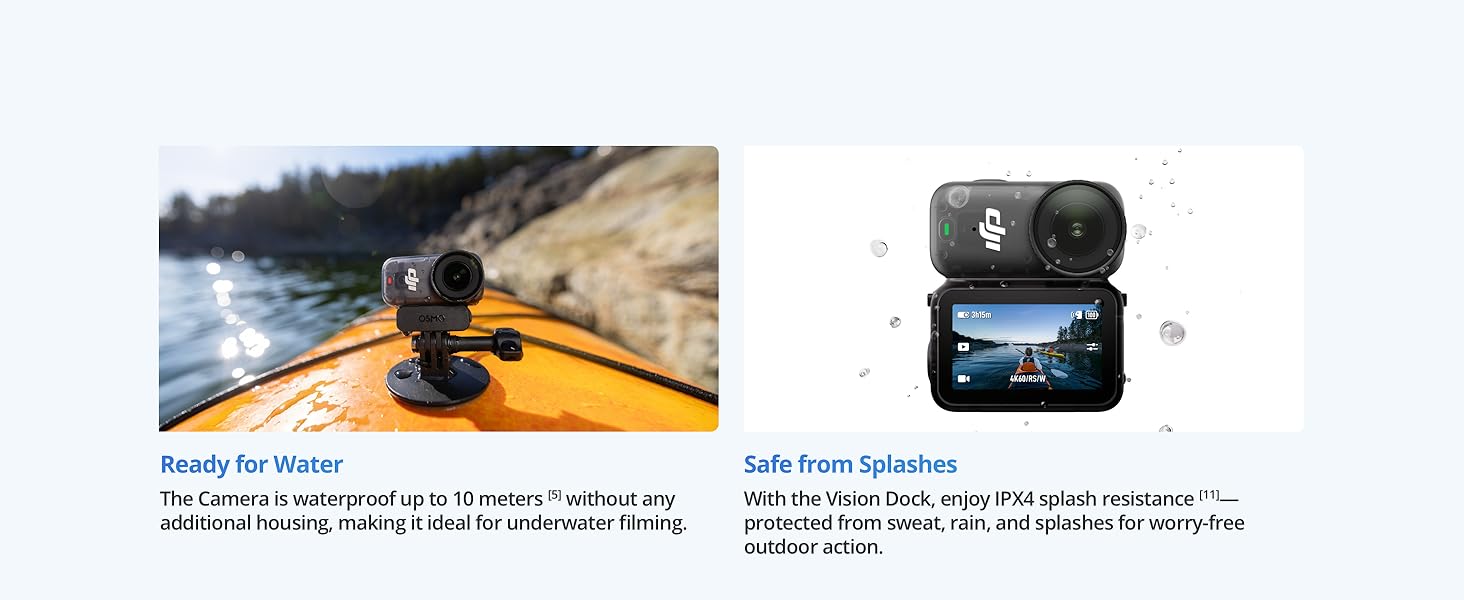
Image: The Osmo Nano camera on a kayak, demonstrating its waterproof design, alongside an image showing its splash resistance.
4.7 Content Transfer
Transfer content quickly using the following methods:
- USB 3.1 Cable: Fast transfers up to 600 MB/s to a device/PC via the included USB-C PD cable.
- MicroSD Card: Built-in microSD card slot for one-tap export from the camera to a microSD card via the Vision Dock (up to 55 MB/s).
- Wireless Transfer: Up to 80 MB/s to your smartphone or other mobile devices via the DJI Mimo app.

Image: The Osmo Nano Vision Dock displaying a live preview, with an accompanying graphic demonstrating instant file transfer capabilities.
5. Maintenance
5.1 Cleaning
- Wipe the camera body and lens with a soft, dry cloth.
- For the lens, use a specialized lens cleaning cloth and solution if necessary.
- Ensure the lens cover is securely fastened when not in use, especially before long-term underwater shooting or in environments with high water impact pressure.
5.2 Storage
Store the Osmo Nano in a cool, dry place away from direct sunlight and extreme temperatures. Use the provided protective case for added safety during transport.
6. Troubleshooting
6.1 Overheating Issues
The Osmo Nano may experience overheating, particularly when recording in 4K/60fps for extended periods or in warm environments. If the camera overheats, it may automatically shut down to prevent damage.
- Reduce recording resolution or frame rate.
- Ensure adequate ventilation around the camera.
- Allow the camera to cool down before resuming use.
- Ensure firmware is updated to the latest version, as updates often include thermal management improvements.
6.2 DJI Mimo App Compatibility
If you encounter issues with the DJI Mimo app, ensure you have downloaded the latest version directly from the official DJI website, as it is no longer available on Google Play.
6.3 Slow Data Transfer
If data transfer speeds are slower than expected:
- Ensure you are using the provided USB 3.1 cable for wired transfers.
- For microSD card transfers, ensure the card is compatible and of sufficient speed (U3 A2 V30 microSDXC recommended).
- For wireless transfers, ensure a stable connection to the DJI Mimo app.
7. Specifications
| Feature | Specification |
|---|---|
| Product Dimensions | 2.33 x 2.72 x 1.09 inches |
| Item Weight | 4.4 ounces |
| ASIN | B0DYD56G2Y |
| Item Model Number | 6937224115453 |
| Batteries | 2 C batteries required (included) |
| Photo Sensor Technology | CMOS |
| Video Capture Resolution | 4K |
| Maximum Focal Length | 17 Millimeters |
| Maximum Aperture | 2.8 f |
| Screen Size | 1.96 Inches |
| Color | Black |
| Optical Zoom | 8 x |
| Minimum Focal Length | 10 Millimeters |
8. Warranty and Support
For detailed warranty information, technical support, and service inquiries, please visit the official DJI website. Ensure you register your product to receive updates and support.
The DJI Mimo app, essential for full camera functionality, should be downloaded directly from the official DJI website for the latest version and compatibility.
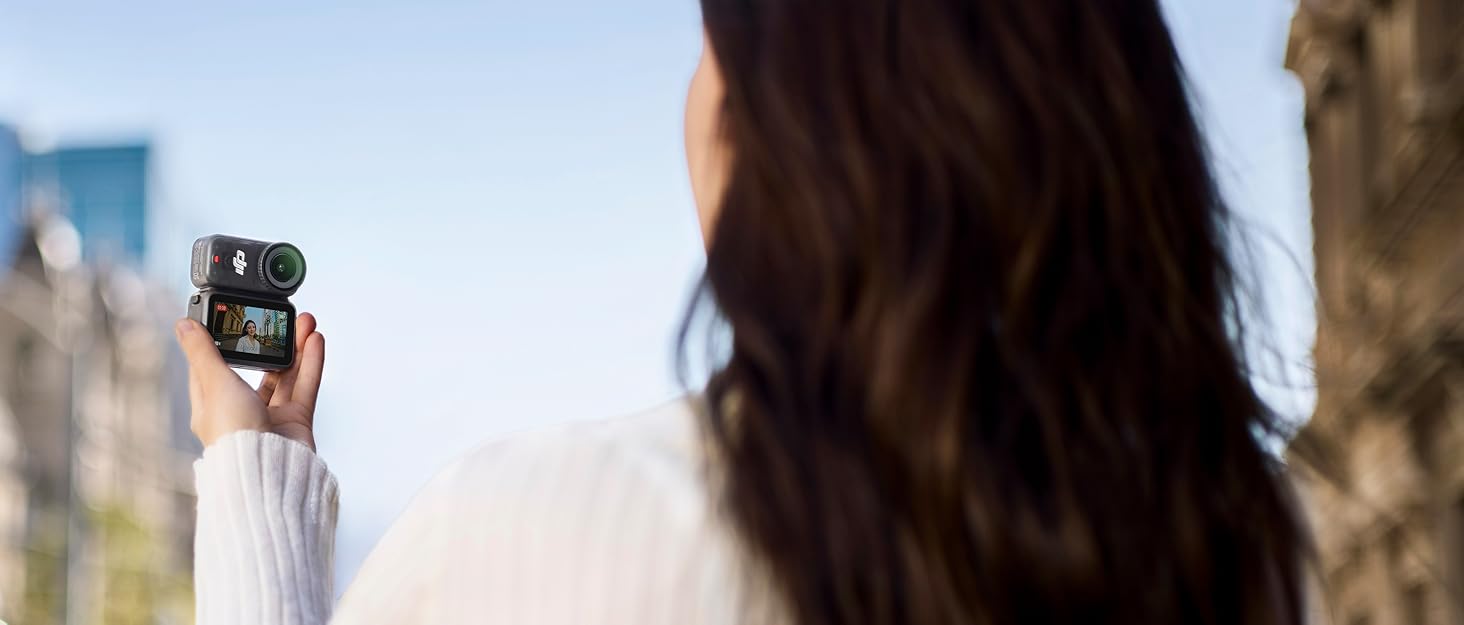
Image: DJI branding emphasizing trust, global leadership, quality assurance, comprehensive product line, and official warranty.


