
xiskt RM
Contents
xiskt Android 13 Tablet User Manual
Model: RM
1. Introduction
Thank you for choosing the xiskt Android 13 Tablet. This manual provides essential information for setting up, operating, and maintaining your device. Please read it carefully before use to ensure optimal performance and longevity of your tablet.

Image: Front and side view of the xiskt Android 13 Tablet, showcasing its 11-inch display and slim profile.
2. What's in the Box
Verify that all items are present in the package:
- 11 inch Android Tablet
- Charging Cable (Type-C)
- Power Adapter (18W Fast Charging)
- User Manual (this document)
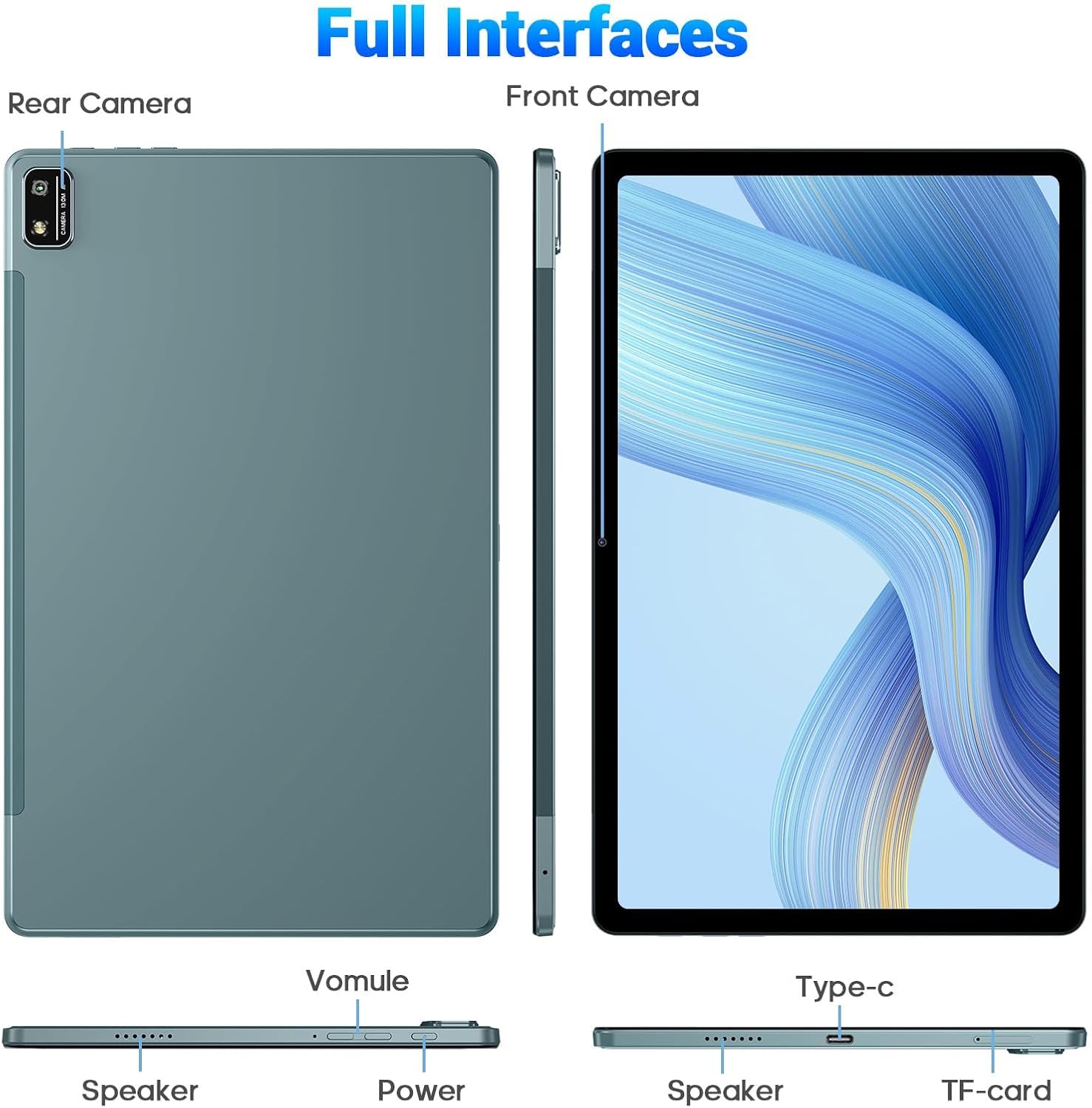
Image: The xiskt Android 13 Tablet alongside its charging cable and power adapter, illustrating the complete package contents.
3. Device Overview and Specifications
3.1. Key Features
- Operating System: Android 13
- Processor: Octa-Core (2.4 GHz)
- RAM: 6GB + 8GB Expansion (Total 14GB)
- Internal Storage: 256GB ROM
- Expandable Storage: Up to 512GB via TF Card
- Display: 11-inch 2K IPS Touchscreen (2000 x 1200 Pixels)
- Cameras: 13MP Rear, 5MP Front
- Battery: 7500mAh (Up to 8-10 hours video playback)
- Charging: 18W Type-C Fast Charging
- Connectivity: WiFi (2.4G/5G), Bluetooth 5.0, 4G LTE, FM Radio
- Audio: Dual Speakers
- Dimensions: 10.13 x 6.37 x 0.28 inches
- Weight: 1.98 pounds

Image: A visual breakdown of the xiskt Android 13 Tablet's key specifications, including RAM, ROM, camera, and battery details.
3.2. Physical Interfaces
Familiarize yourself with the tablet's ports and buttons:
- Power Button: Located on the side, used to turn the tablet on/off or wake/sleep the screen.
- Volume Buttons: Adjust audio volume.
- Type-C Port: For charging and data transfer.
- TF Card Slot: Insert a microSD card for expandable storage.
- Speaker Grilles: Located on the sides for audio output.
- Front Camera: For video calls and selfies.
- Rear Camera: For taking photos and videos.

Image: A detailed diagram showing the location of all ports, buttons, and cameras on the xiskt Android 13 Tablet.
4. Setup
4.1. Initial Charging
Before first use, fully charge the tablet. Connect the Type-C cable to the tablet's charging port and the other end to the 18W power adapter. Plug the adapter into a wall outlet. The battery indicator on the screen will show charging progress. A full charge typically takes approximately 2-3 hours.

Image: The xiskt Android 13 Tablet connected to its charger, illustrating the charging process.
4.2. Powering On/Off
- To Power On: Press and hold the Power button until the xiskt logo appears.
- To Power Off: Press and hold the Power button until the power options menu appears, then select "Power off".
- To Sleep/Wake: Briefly press the Power button.
4.3. Initial Setup Wizard
Upon first power-on, the tablet will guide you through the initial setup process. This includes:
- Selecting your language.
- Connecting to a Wi-Fi network.
- Setting up your Google account (optional, but recommended for app downloads).
- Setting date and time.
- Configuring screen lock (PIN, pattern, password).
4.4. Inserting a TF Card (Optional)
To expand storage, insert a TF (microSD) card into the designated slot. Ensure the tablet is powered off before inserting or removing the card. Gently push the card until it clicks into place.
5. Operating the Tablet
5.1. Navigation Basics
- Touch: Tap an icon to open an app or select an item.
- Swipe: Drag your finger across the screen to scroll through pages or lists.
- Pinch-to-Zoom: Place two fingers on the screen and spread them apart to zoom in, or pinch them together to zoom out.
- Long Press: Press and hold an item for more options.
5.2. Connecting to Wi-Fi
- Go to Settings > Network & internet > Wi-Fi.
- Toggle Wi-Fi On.
- Select your desired Wi-Fi network from the list.
- Enter the password if prompted, then tap Connect.
5.3. Bluetooth Connectivity
To connect Bluetooth devices like headphones or keyboards:
- Go to Settings > Connected devices > Bluetooth.
- Toggle Bluetooth On.
- Ensure your Bluetooth device is in pairing mode.
- Select the device from the "Available devices" list to pair.

Image: The xiskt Android 13 Tablet displaying its connectivity features, including Wi-Fi and Bluetooth icons.
5.4. Camera Usage
The tablet features a 13MP rear camera and a 5MP front camera.
- Open the Camera app.
- Tap the camera switch icon to alternate between front and rear cameras.
- Tap the shutter button to take a photo or start/stop video recording.

Image: A visual representation of the xiskt Android 13 Tablet's camera capabilities, highlighting the front and rear camera resolutions.
6. Maintenance
6.1. Cleaning the Tablet
- Use a soft, lint-free cloth to clean the screen and body.
- Do not use abrasive cleaners, alcohol, or solvents.
- Avoid spraying liquids directly onto the tablet.
6.2. Battery Care
- Avoid extreme temperatures, as they can affect battery life.
- Do not let the battery completely drain frequently.
- Use only the provided charger or a certified compatible charger.
6.3. Software Updates
Periodically check for system updates to ensure your tablet has the latest features and security patches. Go to Settings > System > System update.
7. Troubleshooting
| Problem | Solution |
|---|---|
| Tablet won't turn on. | Ensure the battery is charged. Connect the charger and wait a few minutes before attempting to power on again. If unresponsive, press and hold the power button for 10-15 seconds for a forced restart. |
| Wi-Fi connection issues. | Restart your Wi-Fi router. Go to Settings > Network & internet > Wi-Fi, turn Wi-Fi off and then on again. Forget the network and reconnect. |
| Apps are slow or crashing. | Close background apps. Clear app cache (Settings > Apps > [App Name] > Storage & cache > Clear cache). Restart the tablet. Ensure sufficient free storage space. |
| Battery drains quickly. | Reduce screen brightness. Disable unused features like Bluetooth or GPS. Close background apps. Check battery usage in Settings to identify power-hungry apps. |
| Tablet is unresponsive. | Press and hold the Power button for approximately 10-15 seconds to force a restart. |
8. Warranty and Support
The xiskt Android 13 Tablet comes with a standard manufacturer's warranty. Please refer to the warranty card included in your package for specific terms and conditions.
For technical support, troubleshooting assistance, or warranty claims, please contact xiskt customer service through the following channels:
- Online Support: Visit the official xiskt website (if available, link not provided in input).
- Amazon Store: You can also visit the xiskt Store on Amazon for product information and support options.
Please have your product model number (RM) and purchase details ready when contacting support.
Documents and downloads
Ask a question about this manual
Ask about setup, troubleshooting, compatibility, parts, safety, or missing instructions. Manuals+ will review the question and use this page’s manual context to help answer it.