
Introduction
The X96 Mini Smart Android 10.0 Media Player is a high-performance streaming device designed to transform your television into a smart entertainment hub. Featuring an Amlogic S905W2 Quad-Core processor, Penta-core Mali-450 GPU, 2GB DDR3 RAM, and 16GB eMMC ROM, it ensures fast and stable operation. This device supports 4K Ultimate HD resolution, H.265 video decoding, and offers both 2.4GHz Wi-Fi and Ethernet connectivity for seamless streaming. This manual provides essential information for setting up, operating, maintaining, and troubleshooting your X96 Mini Media Player.
What's in the Box
Carefully unpack your X96 Mini Media Player and ensure all items listed below are present:

Image: The X96 Mini Smart Android TV Box package contents, showing the main unit, remote control, power adapter, HDMI cable, and user manual.
- 1 x X96 Mini Android 11.0 TV Box
- 1 x Power Adapter
- 1 x Remote Control
- 1 x User Manual
Setup Guide
Connecting the Device
Follow these steps to connect your X96 Mini Media Player to your television and power source:
- Connect to TV: Use an HDMI cable to connect the HDMI port on the X96 Mini to an available HDMI input on your television.
- Connect Power: Plug the power adapter into the DC 5V port on the X96 Mini, then plug the adapter into a wall outlet.
- Connect to Network (Optional): For a wired connection, connect an Ethernet cable from your router to the Ethernet port on the X96 Mini. For Wi-Fi, you will configure it after initial power-on.
- Connect USB Devices (Optional): You can connect USB storage devices or peripherals to the USB ports.
- Insert TF Card (Optional): If using a TF card for expanded storage, insert it into the TF CARD slot.

Image: Interface and dimensions of the X96 Mini Media Player, detailing ports for USB, TF Card, DC 5V power, Ethernet, HDMI, AV, and IR receiver.
Initial Power On
After connecting all necessary cables:
- Turn on your television and select the correct HDMI input source.
- The X96 Mini will automatically power on and boot up. The initial boot may take a few moments.
- Follow the on-screen instructions for initial setup, including language selection and network configuration.
Operating Instructions
Basic Navigation
Use the provided remote control to navigate the Android interface. The directional buttons allow you to move between icons and menus, the OK button confirms selections, and the Back button returns to the previous screen. The Home button will take you directly to the main Android home screen.
Network Connection
To access online content, your X96 Mini must be connected to the internet.
- Wired Connection (Ethernet): If you connected an Ethernet cable during setup, the device should automatically detect and connect to the network.
- Wireless Connection (Wi-Fi):
- Go to Settings > Network.
- Select Wi-Fi and turn it on.
- Choose your Wi-Fi network from the list of available networks.
- Enter the password if prompted and select Connect.
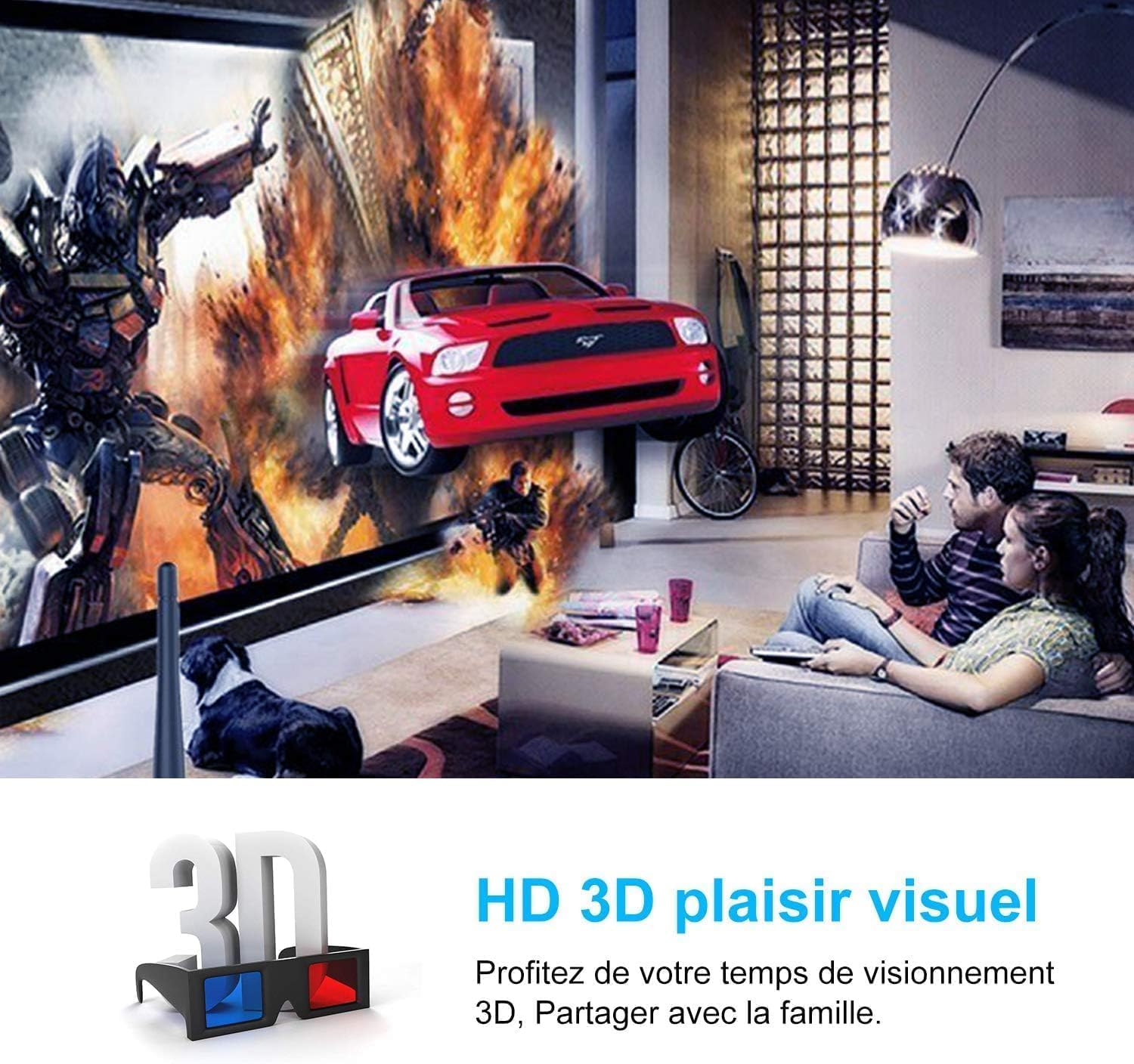
Image: The X96 Mini supports both 2.4GHz and 5GHz Wi-Fi for stable and fast wireless connectivity.
Media Playback & 4K Support
The X96 Mini supports a wide range of video and audio formats, including 4K Ultra HD resolution and H.265 decoding, providing a high-definition viewing experience. You can play media from connected USB drives, TF cards, or stream content from various online services.

Image: The X96 Mini features a Quad-Core CPU, Android 11.0, Mali-450 GPU, 4K Ultra HD support, H.265 decoding, and Wi-Fi for superior media playback.
Enjoy immersive 3D visual experiences by playing compatible 3D content. Connect your device to a 3D-compatible display and wear appropriate 3D glasses for an enhanced viewing pleasure.

Image: Experience HD 3D visual pleasure with the X96 Mini, perfect for family entertainment.
Screen Mirroring & Sharing
The X96 Mini supports various screen mirroring technologies, allowing you to cast content from your mobile devices to your TV.
- AirPlay: For iOS devices, use AirPlay to mirror your screen or stream media.
- DLNA: For Android devices and other compatible devices, use DLNA to share media content.
- Miracast: For Android devices, use Miracast to mirror your screen wirelessly.
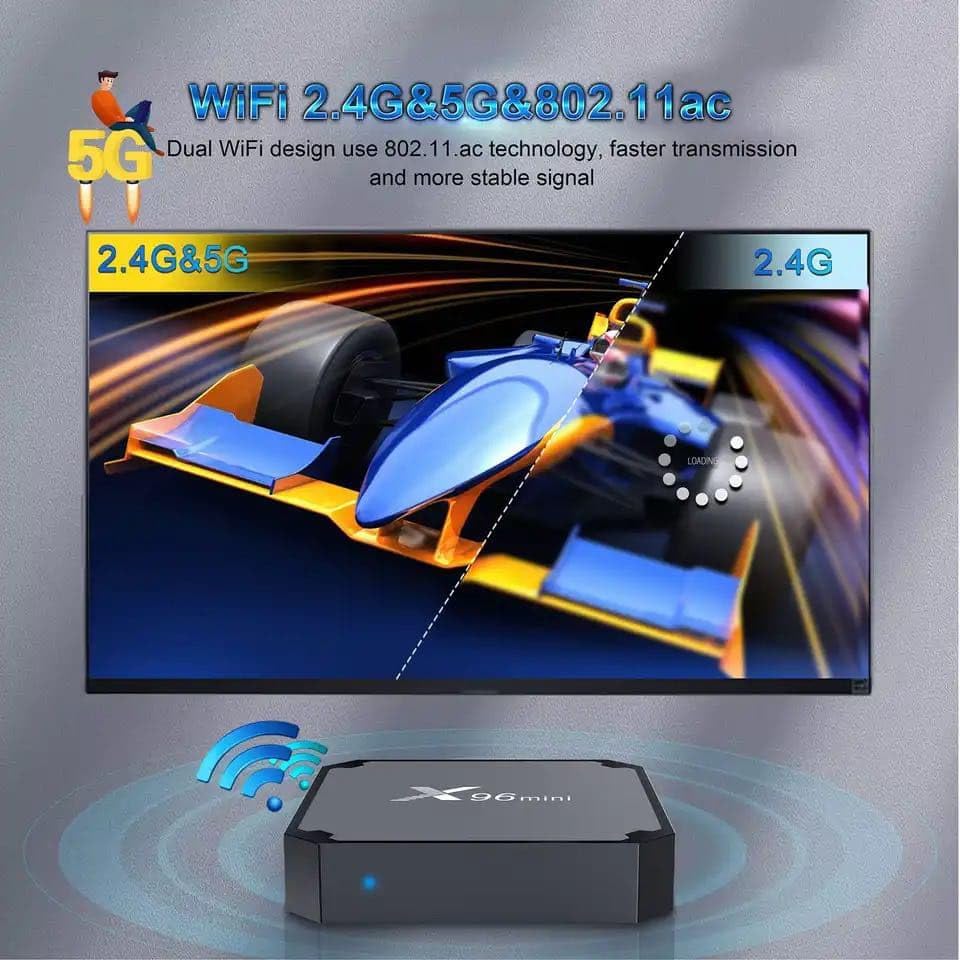
Image: The X96 Mini supports Airplay, DLNA, and Miracast for versatile screen sharing and entertainment.

Image: Enjoy content from your phone or tablet on the big screen using XBMC, DLNA, Miracast, or Airplay with the X96 Mini.
Maintenance
Cleaning
To maintain optimal performance, keep your X96 Mini clean. Use a soft, dry cloth to wipe the exterior. Avoid using liquid cleaners or abrasive materials, as they may damage the device.
Software Updates
Periodically check for software updates to ensure your device has the latest features and security patches. Updates can improve performance and compatibility.
- Go to Settings > About Device > System Update.
- Follow the on-screen prompts to check for and install any available updates.
Factory Reset
If you experience persistent issues or wish to clear all personal data, you can perform a factory reset. Warning: This will erase all data and settings on your device.
- Go to Settings > Backup & Reset > Factory Data Reset.
- Confirm your choice when prompted. The device will restart and restore to its factory settings.
Troubleshooting
This section addresses common issues you might encounter with your X96 Mini Media Player.
| Problem | Solution |
|---|---|
| No power/Device does not turn on. | Ensure the power adapter is securely connected to the device and a working power outlet. Try a different outlet. |
| No picture on TV. | Check HDMI cable connections. Ensure your TV is set to the correct HDMI input source. Try a different HDMI port or cable. |
| Remote control not working. | Ensure batteries are correctly inserted and not depleted. Point the remote directly at the device's IR receiver. Remove any obstacles between the remote and the device. |
| Wi-Fi connection issues. | Check if Wi-Fi is enabled in settings. Ensure you have entered the correct password. Restart your router and the X96 Mini. Move the device closer to the router. |
| Applications are slow or crashing. | Close unused applications. Clear app caches in Settings > Apps. Consider performing a factory reset if issues persist. |
| Video playback is choppy or buffering. | Check your internet connection speed. For streaming, a stable and fast connection is required. Use an Ethernet connection for better stability. Reduce video quality if possible. |
Technical Specifications
Detailed specifications for the X96 Mini Smart Android 10.0 Media Player:
| Feature | Specification |
|---|---|
| Brand | TV BOX |
| Model Name | X96Mini |
| Processor | Amlogic S905W2 Quad-Core Cortex-A53 |
| Graphics Processor | Penta-Core Mali-450 |
| RAM | 2 GB DDR3 |
| Internal Storage | 16 GB eMMC |
| Operating System | Android 11.0 |
| Wi-Fi Connectivity | 2.4G (802.11b/g/n) |
| Ethernet | Standard 10/100M |
| Video Output Resolution | Up to 4K (3840x2160) |
| Video Codec Support | H.265, H.264, Avi, Rm, Rmvb, Ts, Vob, Mkv, Mov, ISO, wmv, asf, flv, dat, mpg, mpeg |
| Audio Format Support | MP3, WMA, AAC, WAV, OGG, AC3, DDP, TrueHD, DTS, DTS HD, FLAC, APE |
| Photo Format Support | HD JPEG, BMP, GIF, PNG, TIFF |
| Internet Services Supported | Netflix, YouTube, Prime Video, Disney+, Chromecast |
| Ports | HDMI, USB (x2), TF Card, AV, IR, DC 5V |
| Dimensions (L x W x H) | 10L x 10W x 10H millimeters |
| Power Supply | DC 5V/2A |
Warranty and Support Information
Warranty
The X96 Mini Smart Android 10.0 Media Player comes with a 2-year warranty from the date of purchase. This warranty covers manufacturing defects and malfunctions under normal use. Please retain your proof of purchase for warranty claims. The warranty does not cover damage caused by misuse, accidents, unauthorized modifications, or improper installation.
Customer Support
If you have any questions, encounter issues not covered in this manual, or require technical assistance, please contact our customer support team. We are committed to providing prompt and helpful support to ensure your satisfaction with the X96 Mini Media Player.
Please refer to your purchase documentation or the seller's website for specific contact details for customer support.


