
1. Introduction
This manual provides essential information for the safe and efficient operation of your ZDK Native 1080P 18000 Lumen 4K Supported Projector. Please read it thoroughly before use and retain it for future reference.
The ZDK projector delivers a native 1920x1080 resolution, supporting 4K input for clear visuals. It features dual-band 5G/2.4G WiFi and Bluetooth 5.1 for versatile connectivity and audio options. Its compact and portable design allows for various installation methods and uses.
2. Product Overview

Figure 1: Front view of the ZDK Native 1080P Projector.
2.1. Components and Ports
The projector features a lens, focus/keystone adjustment, and various input/output ports for connectivity.
- Lens: Projects the image onto the screen.
- Focus/Keystone Adjustment: Manual adjustment for image clarity and shape correction.
- HDMI Ports: Connect to devices like TV sticks, laptops, gaming consoles (PS5, Switch), etc.
- USB Ports: Connect USB drives for media playback.
- AV Port: Connect to older devices using the provided AV cable.
- Audio Out (3.5mm Jack): Connect external headphones or speakers.
- Power Input: Connect the power adapter.
- Control Panel: Buttons on the top for basic navigation and power.
- IR Receiver: For remote control operation.
3. Setup
3.1. Unboxing and Initial Inspection
Carefully remove all components from the packaging. Verify that all items are present:
- ZDK Native 1080P Projector
- Remote Control
- Power Adapter
- HDMI Cable
- AV Cable
- Lens Cleaning Kit (Q-tips)
- User Manual (this document)
Inspect the projector for any visible damage. If any damage is found, do not use the product and contact customer support.
3.2. Powering On
- Connect the power adapter to the projector's power input port.
- Plug the power adapter into a wall outlet.
- Press the power button on the projector or the remote control to turn on the device.
3.3. Placement Options
The ZDK projector offers flexible placement options:
- Desktop/Tabletop Mount: Place the projector on a flat, stable surface.
- Tripod Mount: The projector has a 1/4'' screw hole at the bottom for tripod compatibility.
- Wall Mount: Can be mounted on a wall using a compatible bracket (not included).
- Ceiling Mount: Can be mounted to the ceiling using a compatible bracket (not included).
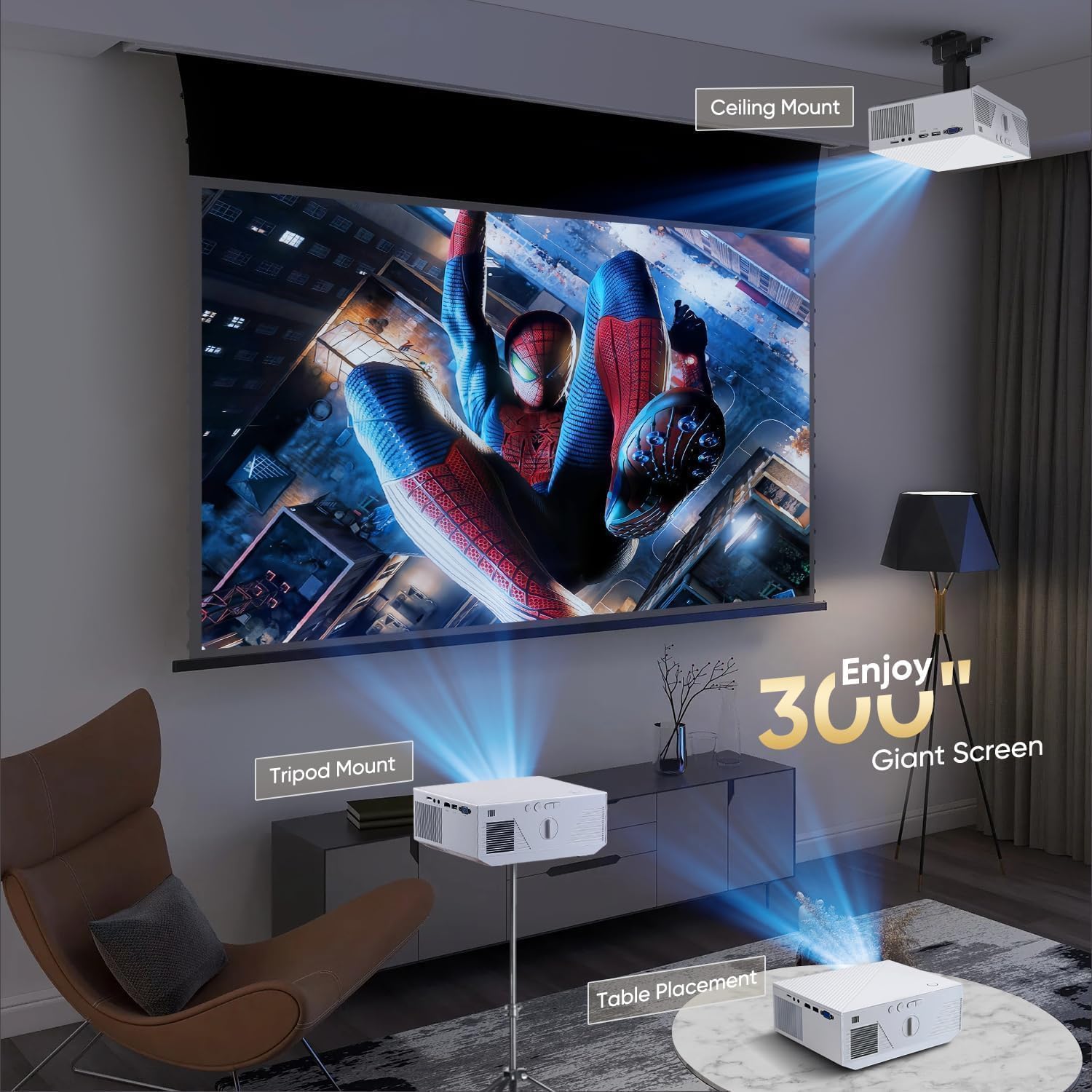
Figure 2: Various placement options for the projector, including ceiling, tripod, and table placement.
3.4. Focus and Keystone Correction
Adjust the focus and keystone correction to achieve a clear and rectangular image.
- Focus: Use the focus ring/slider on the projector or the dedicated focus buttons on the remote control to sharpen the image.
- Keystone Correction: Use the keystone adjustment on the projector or remote to correct distorted images if the projector is not perfectly perpendicular to the screen.
4. Operating Instructions
4.1. Connecting Devices
The projector supports multiple input sources:
- HDMI: Connect your laptop, TV stick, gaming console (PS5, Switch), or other HDMI-enabled devices.
- USB: Insert a USB drive into the USB port for direct media playback.
- AV: Use the provided AV cable to connect to devices with AV output.

Figure 3: The projector's compatibility with various devices including TV sticks, gaming consoles, laptops, and smartphones.
4.2. Wireless Connectivity
The projector features dual-band 5G/2.4G WiFi and Bluetooth 5.1.
- WiFi: Connect to your home network for online streaming and screen mirroring.
- Bluetooth: Pair with external Bluetooth speakers, headphones, or soundbars for enhanced audio.

Figure 4: Demonstrates 5G WiFi screen mirroring from a smartphone to the projector.
4.3. Screen Mirroring
Mirror your smartphone or tablet screen wirelessly to the projector.
- Ensure your projector and mobile device are connected to the same Wi-Fi network.
- Select the 'Screen Mirroring' option on the projector's main menu.
- On your mobile device, activate screen mirroring (e.g., 'Screen Mirroring' on Android, 'AirPlay' on iOS) and select the projector from the list of available devices.
Video 1: Demonstration of the ZDK Projector's WiFi and Bluetooth features, including screen mirroring from a smartphone.
4.4. Using the Remote Control
The remote control provides full functionality for the projector, including navigation, volume, input selection, and settings adjustment.
- Navigation: Use the arrow keys and 'OK' button to navigate menus.
- Mouse Mode: Some remotes feature a mouse/cursor mode for easier navigation on the projected screen.
- Focus Buttons: Dedicated buttons for electronic focus adjustment.
4.5. Adjusting Settings
Access the projector's settings menu to customize your viewing experience.
- Image Mode: Select predefined picture settings (e.g., Standard, Dynamic, User).
- Color Temperature: Adjust the color balance (e.g., Warm, Cool, Standard).
- Sound Mode: Choose audio presets (e.g., Standard, Music, Movie).
- Shutdown Timer: Set a timer for automatic shutdown.
5. Maintenance
5.1. Cleaning the Dust Filter
Regularly clean the dust filter to maintain optimal performance and prevent overheating.
- Locate the dust filter cover on the side or bottom of the projector.
- Carefully open the cover and remove the filter.
- Clean the filter using a soft brush, vacuum cleaner, or by gently tapping it to remove dust.
- Reinsert the clean filter and close the cover securely.
6. Troubleshooting
If you encounter any issues, please refer to the following general troubleshooting tips:
- No Power: Ensure the power adapter is securely connected to both the projector and the power outlet.
- No Image: Check the input source selection and ensure the connected device is powered on and sending a signal.
- Blurred Image: Adjust the focus and keystone correction. Ensure the projection surface is flat.
- No Sound: Check the volume settings on both the projector and the connected device. Ensure external speakers are properly connected or paired via Bluetooth.
- Remote Not Working: Check the remote control batteries and ensure there are no obstructions between the remote and the projector's IR receiver.
For more detailed troubleshooting or persistent issues, please contact customer support.
7. Specifications
- Brand: ZDK
- Model: Native 1080P 18000 Lumen 4K Supported Projector
- Native Resolution: 1920 x 1080 (Full HD)
- Brightness: 18000 Lumens
- 4K Support: Yes
- Connectivity Technology: Wireless (Dual-band 5G/2.4G WiFi, Bluetooth 5.1)
- Input Ports: HDMI, USB, AV
- Output Ports: 3.5mm Audio Out
- Special Feature: Short Throw
- Recommended Uses: Indoor/Outdoor
- Product Dimensions: 7 x 5 x 2 inches
- Item Weight: 3.94 pounds
8. Warranty and Support
ZDK offers a 2-year warranty for this projector. We are committed to 100% customer satisfaction.
If you encounter any problems or have questions regarding your ZDK projector, please do not hesitate to contact our customer support team. We aim to reply within 12 hours.


