1. Product Overview
The ARES WING Dual Monitor Stand is engineered for heavy-duty computer monitors, specifically designed to support both flat and curved ultrawide screens. This robust mount provides an ergonomic solution to optimize your workspace, offering extensive adjustability and integrated features like USB ports and cable management.
It is compatible with monitors ranging from 24 to 57 inches, supporting flat monitors up to 59 lbs and curved monitors up to 48 lbs. The stand features a durable steel and aluminum construction with a gas spring system for smooth and stable positioning.

Figure 1: ARES WING Dual Monitor Stand and included components, including the main stand, monitor arms, VESA plates, and mounting hardware.

Figure 2: The monitor stand supports flat screens up to 59.4 lbs and curved screens up to 48.4 lbs, designed for unmatched strength with ultrawide displays.
2. Package Contents
Before beginning installation, please verify that all components are present and undamaged. If any parts are missing or damaged, please contact customer support.
- Main Pole Assembly
- Dual Monitor Arms (2 units)
- VESA Mounting Plates (2 units)
- C-Clamp Mounting Base
- Grommet Mounting Base
- USB-A and USB-C Cable (integrated into base)
- Hardware Kit (screws, washers, spacers)
- Tools (Allen wrenches)

Figure 3: Detailed view of all components included in the package, ensuring you have everything needed for assembly.
3. Setup and Installation
3.1 Desk Compatibility
The monitor stand offers two mounting options to suit various desk types:
- C-Clamp Mount: Fits desk thickness from 0.47 inches to 1.77 inches (12mm - 45mm).
- Grommet Mount: Fits desk thickness from 0.47 inches to 1.97 inches (12mm - 50mm). Requires an existing hole in the desk.
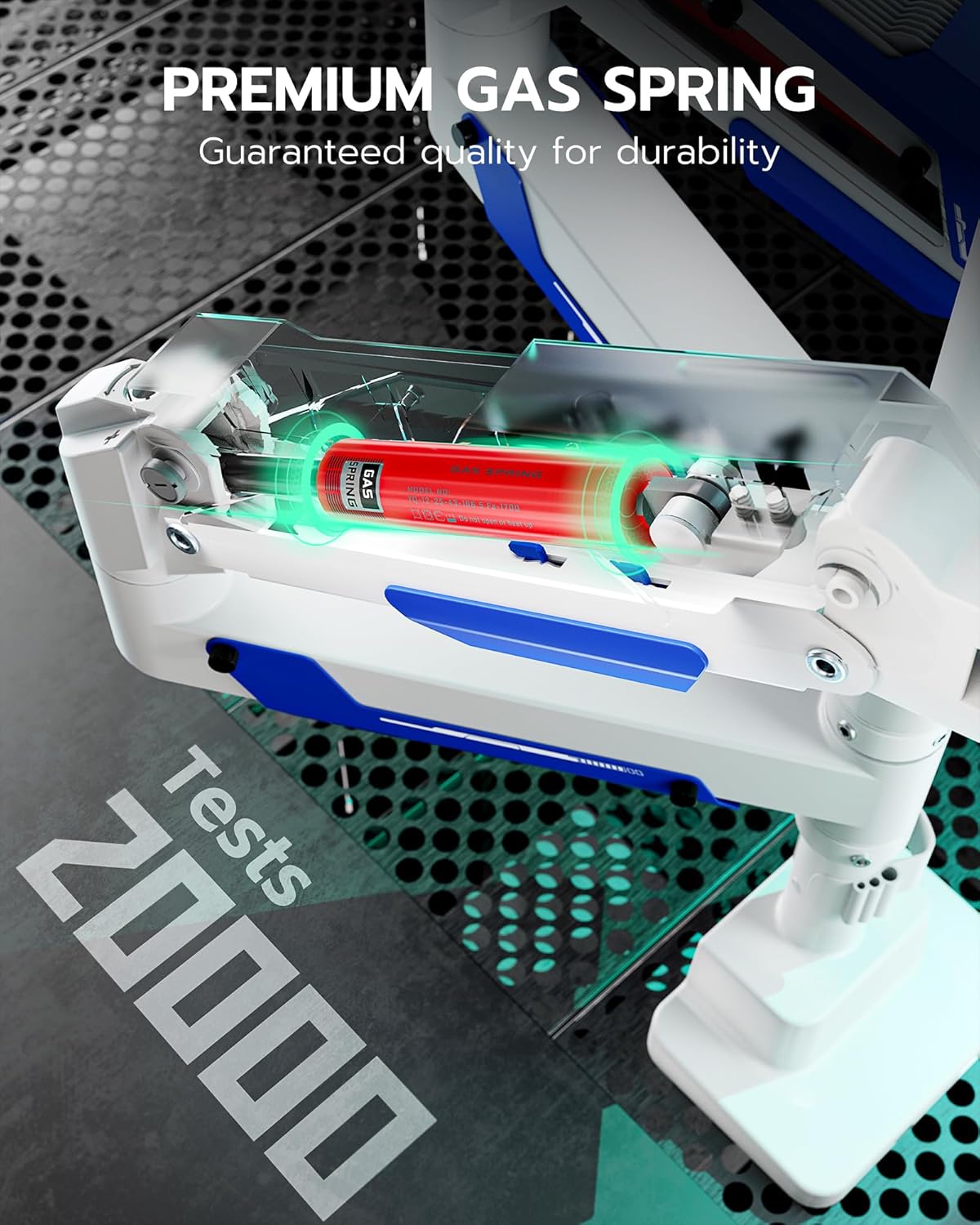
Figure 4: Illustration of the two mounting methods: C-clamp for desk edges and grommet for desks with existing holes, showing compatible desk thicknesses.
3.2 Assembly Steps
- Choose Mounting Method: Decide between C-clamp or grommet mount based on your desk.
- Attach Base to Desk: Secure the chosen mounting base to your desk. For C-clamp, tighten the clamp. For grommet, insert the bolt through the desk hole and secure with the nut from underneath.
- Install Main Pole: Insert the main pole into the secured base and tighten any retaining screws.
- Attach Monitor Arms: Slide the monitor arms onto the main pole at your desired height and secure them.
- Attach VESA Plates to Monitors: Secure the VESA mounting plates to the back of your monitors using the provided screws. The stand supports VESA patterns of 75x75mm, 100x100mm, 100x200mm, 200x100mm, and 200x200mm.
- Mount Monitors to Arms: Carefully lift each monitor and slide its VESA plate onto the corresponding arm's mounting head until it clicks into place. Ensure it is securely seated.
- Connect USB Cables: Connect the integrated USB-A and USB-C cables from the stand's base to your computer's USB ports to enable the charging and data passthrough functionality.
4. Operating and Adjustments
4.1 Monitor Positioning
The ARES WING monitor stand offers extensive flexibility for optimal ergonomic positioning:
- Height Adjustment: The arms can be moved up and down the main pole. The maximum height is 25.8 inches (65.5 cm) from the desk surface.
- Arm Extension: Each arm can extend up to 29.7 inches (75.4 cm) from the pole.
- Tilt: Adjust the monitor tilt from +70° to -45° to reduce glare and find your preferred viewing angle.
- Swivel: Swivel the monitor +90° to -90° horizontally.
- Rotation: Rotate the monitor 360° for portrait or landscape orientation.

Figure 5: The stand is designed to elevate ultrawide screens up to a maximum of 57 inches, providing ample space and flexibility for large displays.

Figure 6: The monitor stand offers a wider height range, allowing for up to 19 inches of vertical adjustment to tailor the monitor position for ultimate flexibility.

Figure 7: The stand provides flexible adjustment capabilities including +70° to -45° tilt, +90° to -90° swivel, and 360° rotation for perfect viewing angles.
4.2 Gas Spring Tension Adjustment
The gas spring mechanism allows for smooth and stable monitor movement. If your monitor is too heavy and sags, or too light and floats up, you may need to adjust the gas spring tension. Use the provided Allen wrench to turn the adjustment screw located on the arm. Turn clockwise to increase tension for heavier monitors, and counter-clockwise to decrease tension for lighter monitors.

Figure 8: The premium gas spring inside the arm ensures smooth and durable operation, having undergone over 20,000 fatigue tests for reliability.
4.3 USB Ports and Cable Management
The stand features integrated USB-A 3.0 and USB-C ports in the base, providing convenient access for charging and data transfer. These ports offer 5Gbps data transmission and 10W charging. Utilize the built-in cable management system along the arms and pole to route and conceal your monitor and power cables, maintaining a clean and organized workspace.

Figure 9: The stand includes convenient USB-A 3.0 and USB-C ports for 5Gbps data transmission and 10W charging, compatible with various devices.
5. Maintenance
To ensure the longevity and optimal performance of your ARES WING Dual Monitor Stand, follow these simple maintenance guidelines:
- Cleaning: Wipe the stand surfaces with a soft, damp cloth. Avoid using abrasive cleaners or solvents, as they may damage the finish.
- Periodic Checks: Periodically check all screws and connections to ensure they remain tight. Re-tighten if necessary.
- Gas Spring: The gas spring is designed for long-term durability. If you notice a change in the arm's movement or stability, re-adjust the tension as described in Section 4.2.
6. Troubleshooting
- Monitor Sags or Floats:
This indicates incorrect gas spring tension. Adjust the gas spring screw on the arm. Turn clockwise to increase tension for heavier monitors, counter-clockwise for lighter monitors. Make small adjustments and test.
- Stand Wobbles:
Ensure the mounting base (C-clamp or grommet) is securely tightened to the desk. Check that the main pole is firmly seated in the base and its retaining screws are tight.
- USB Ports Not Working:
Verify that the integrated USB-A and USB-C cables from the stand's base are properly connected to active USB ports on your computer or power source.
- Difficulty Adjusting Monitor Position:
Ensure all adjustment points (tilt, swivel, rotation) are not overly tightened. If the gas spring tension is too high or low, it can also affect ease of movement. Refer to Section 4.2 for gas spring adjustment.
7. Specifications
| Brand | ARES WING |
| Model Number | GDT1006UCP-2WH |
| Compatible Devices | Monitors (24-57 inches) |
| Maximum Flat Screen Weight | 59 lbs (26.7 kg) per arm |
| Maximum Curved Screen Weight | 48 lbs (21.7 kg) per arm |
| VESA Compatibility | 75x75mm, 100x100mm, 100x200mm, 200x100mm, 200x200mm |
| Mounting Type | Tabletop Mount (C-Clamp & Grommet) |
| Desk Thickness (C-Clamp) | 0.47" - 1.77" (12mm - 45mm) |
| Desk Thickness (Grommet) | 0.47" - 1.97" (12mm - 50mm) |
| Material | Premium-grade Steel and Aluminum |
| Movement Type | Tilt (+70° to -45°), Swivel (+90° to -90°), Rotation (360°) |
| Product Dimensions | 43.18 x 33.02 x 15.24 cm (packaged) |
| Item Weight | 10.91 kg (24.05 lbs) |
8. Warranty and Support
For warranty information and customer support, please refer to the documentation included with your purchase or visit the official ARES WING website. You can also contact the seller directly for assistance with product inquiries or technical support.
Online Resources:
- ARES WING Official Website: www.areswing.com
- Amazon Product Page: https://www.amazon.ca/ARES-WING-Adjustable-Monitors-Ultrawide/dp/B0DY7R7L83


