
1. Introduction
The Bakon BK601S Intelligent Soldering Station is a professional-grade soldering tool designed for precision electronic work. Featuring an LCD screen, precise temperature control, and a digital display, it offers reliable performance for various soldering and desoldering tasks. Its versatile design makes it suitable for working with QFP, SOP, PLCC, SOJ, and other SMD components. The compact and ergonomic design ensures efficient use of your workspace.
2. Safety Instructions
- Always operate the soldering station in a well-ventilated area to avoid inhaling fumes.
- The soldering iron tip can reach very high temperatures. Avoid direct contact with skin or flammable materials.
- Use appropriate personal protective equipment, such as safety glasses, to protect against solder splashes.
- Ensure the power cord is securely connected and free from damage.
- The station features ESD protection (Antistatic Design) to safely solder and desolder electronic components. Always follow proper ESD procedures when handling sensitive electronics.
- Never leave the soldering iron unattended when powered on. Always place it in its designated stand.
- Disconnect the power supply before cleaning or performing maintenance.
3. Package Contents
Please check the package for the following components:
- Bakon BK601S Soldering Station Unit
- Soldering Iron
- Soldering Iron Stand
- Power Cable
4. Setup
- Unpacking: Carefully remove all components from the packaging.
- Placement: Place the soldering station on a stable, heat-resistant, and non-flammable surface. Ensure adequate ventilation.
- Connect Soldering Iron: Connect the soldering iron cable to the designated port on the soldering station.
- Place Soldering Iron Stand: Position the soldering iron stand securely next to the station.
- Connect Power: Insert the power cable into the power input port on the back of the station, then plug the other end into a suitable power outlet.
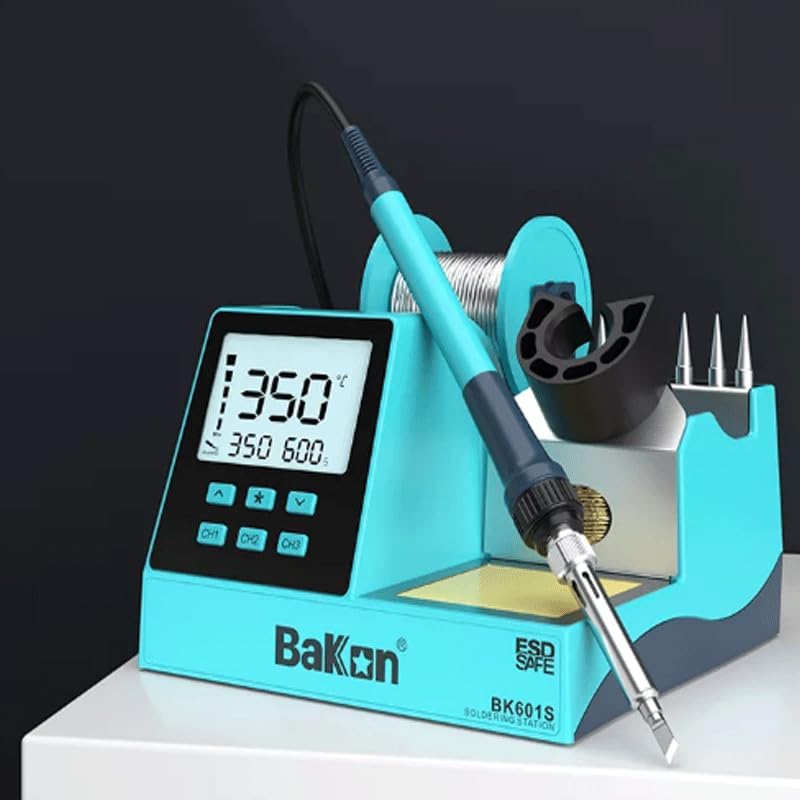
Figure 4.1: Back view of the soldering station, highlighting the power cord connection and mains switch.

Figure 4.2: Front view of the assembled soldering station, ready for use.
5. Operating Instructions
5.1 Power On/Off
To power on the station, flip the mains switch located on the back of the unit. The LCD display will illuminate. To power off, flip the switch back to the off position.
5.2 Temperature Setting
The Bakon BK601S features precise temperature control and a digital display. Use the up and down arrow buttons on the front panel to adjust the desired temperature. The LCD will show both the set temperature and the actual temperature of the soldering iron tip.

Figure 5.1: LCD display showing temperature settings and current temperature.
5.3 Quick Temperature Presets (CH1, CH2, CH3)
The station includes three customizable quick temperature preset buttons (CH1, CH2, CH3). You can program these buttons to store frequently used temperatures for quick recall during operation. Refer to the full manual for detailed instructions on programming these presets.
5.4 Automatic Sleep Function
The BK601S is equipped with an automatic sleep function to conserve energy and prolong tip life. When the soldering iron is placed in its stand and remains idle for a set period, the station will automatically enter an energy-saving sleep mode, reducing the tip temperature. Moving the soldering iron will reactivate it to the set temperature.
5.5 Password Lock
To prevent unauthorized changes to settings, the station includes a password lock feature. You can set a 3-digit password (000-999) to protect temperature and other operational settings. You will need to enter the correct password to modify the settings once locked.

Figure 5.2: Setting the password for station settings.
5.6 Soldering Process
Ensure the soldering iron tip is clean and properly tinned before starting. Apply the heated tip to the component lead and PCB pad simultaneously, then feed solder wire onto the joint. The station's stable temperature ensures rapid tinning and efficient soldering.

Figure 5.3: Soldering in progress on a circuit board.
5.7 Product Demonstration Video
Video 5.1: A demonstration of the Bakon BK601S Soldering Station's features, including temperature control, quick presets, and automatic sleep function, along with soldering and desoldering examples.
6. Maintenance
6.1 Soldering Tip Cleaning
Regularly clean the soldering iron tip to ensure optimal performance and longevity. Use the included cleaning sponge (dampened with water) or brass wool to wipe off excess solder and oxidation. This should be done frequently during operation.
6.2 General Cleaning
Ensure the station is powered off and cooled down before cleaning. Wipe the exterior of the station with a soft, damp cloth. Do not use abrasive cleaners or solvents. Keep the ventilation slots clear of dust and debris.
7. Troubleshooting
- No Power: Check if the power cable is securely connected to both the station and the power outlet. Ensure the mains switch is in the 'ON' position.
- Iron Not Heating: Verify that the soldering iron is properly connected to the station. Check the temperature setting on the LCD display. If the issue persists, the heating element or tip may need replacement.
- Temperature Unstable: Ensure the soldering tip is clean and properly seated. Fluctuations can occur if the tip is loose or heavily oxidized.
- Display Not Working: If the station powers on but the LCD display is blank or faulty, power off the unit, wait a few minutes, and power it back on. If the problem continues, contact customer support.
- Password Forgotten: If you have forgotten your password, refer to the full product manual for instructions on how to reset it or contact customer support.
8. Specifications
| Feature | Specification |
|---|---|
| Brand | BAKON |
| Wattage | 90 watt |
| Display Type | LCD |
| EU Spare Part Availability | 5 Years |
9. Warranty and Support
The Bakon BK601S Soldering Station is designed for durability and performance. Spare parts are available for a period of 5 years within the EU. For warranty claims, technical support, or further assistance, please contact your retailer or the official Bakon customer service. Please retain your proof of purchase for warranty purposes.


