
AOCHUAN Smart V8 AI White
Contents
AOCHUAN Smart V8 AI Gimbal Stabilizer User Manual
Model: ACGL-V8AI WT
Introduction
The AOCHUAN Smart V8 AI Gimbal Stabilizer is designed to provide unparalleled stability and smooth footage for smartphone video recording. Featuring advanced Smart 8.0 stability technology and built-in AI tracking, this 3-axis gimbal is ideal for vloggers, content creators, and anyone seeking professional-quality video with ease. Its integrated extension rod, intuitive controls, and long-lasting battery make it a versatile tool for various shooting scenarios.
This manual provides detailed instructions on setting up, operating, maintaining, and troubleshooting your Smart V8 AI Gimbal Stabilizer to ensure optimal performance and longevity.
Package Contents
Upon opening the package, verify that all components are present:
- Smart V8 Gimbal x1
- AI Tracking Assistant x1
- Tripod x1
- Type-C Charging Cable x1
- User Manual x1

Image: The package contents include the Smart V8 gimbal, an AI tracking assistant, a tripod, a Type-C charging cable, and the user manual.
Setup
1. Charging the Gimbal and AI Tracking Assistant
Before first use, fully charge the gimbal and the AI Tracking Assistant. Connect the provided Type-C charging cable to the charging port on each device and a USB power source. The charging indicator on the AI Tracking Assistant will show a red light when charging and a green light when fully charged.

Image: A diagram illustrating the components of the AI Tracking Assistant, including the power button, charging port, and charging indicator light.
2. Unfolding the Gimbal
Carefully unfold the gimbal from its compact, folded state. Ensure all joints click into place securely.
3. Mounting Your Smartphone
Extend the phone clip and securely place your smartphone in the holder. Ensure the phone is centered and balanced. The phone clip width supports devices from 2.16 to 3.54 inches.

Image: The AOCHUAN Smart V8 AI Gimbal Stabilizer with a smartphone attached, demonstrating how the phone is mounted.
4. Attaching the AI Tracking Assistant
The AI Tracking Assistant can be magnetically attached to the top of the phone clip. This enables app-free AI tracking functionality.
5. Powering On
Press and hold the power button on the gimbal handle to turn it on. The gimbal will self-calibrate and stabilize.
Operating the Gimbal
Basic Controls
- Power Button: Press and hold to power on/off.
- Trigger Button:
- Double-tap: Quickly re-center the smartphone.
- Press and hold: Activate Sport Mode (S Mode).
- Smooth Control Wheel:
- Press once: Switch between zoom and focus control.
- Click twice quickly: Initiate 280° Auto Spin Shot (Panoramic Shot).
- M Button (Mode Button): Cycle through different operating modes.

Image: An illustration of the gimbal's OLED screen displaying different operational modes and their corresponding icons.
Operating Modes
The Smart V8 AI Gimbal offers several modes for diverse shooting needs, displayed on the OLED screen:
- PF (Pan-Follow Mode): The gimbal pans horizontally following your movement while keeping the tilt and roll axes locked.
- F (Common Mode): All three axes (pan, tilt, roll) follow your movement smoothly.
- L (Lock Mode): All three axes are locked, keeping the camera pointing in a fixed direction regardless of gimbal movement.
- POV (Cool Mode): Provides a first-person perspective, allowing all three axes to follow your movement.
- DM (Rotation Mode): Triple-click the mode button to enter Inception mode and shoot 180° rotated video.
- S (Sport Mode): Press and hold the trigger button to activate. This mode increases the gimbal's responsiveness for fast-moving subjects and quick transitions.

Image: A visual representation of the gimbal's OLED display, highlighting the different modes and their abbreviations.
AI Tracking Technology (No App Needed)
The built-in AI of the Smart V8 AI Gimbal can track subjects without requiring a smartphone app. Simply power on the AI Tracking Assistant, and it will automatically lock onto your subject, keeping them in focus and centered. This is ideal for hands-free filming of children, pets, or sports.
- "OK" Gesture: Initiate tracking.
- "Palm" Gesture: Stop tracking.

Image: A user demonstrating the "OK" gesture to activate AI tracking, with the gimbal and smartphone set up for recording.
Built-in Extension Rod
The gimbal features a built-in 7.87-inch (200mm) extension rod, allowing you to capture unique low-angle shots, high-angle shots, and group selfies effortlessly. Simply pull the rod to extend it to your desired length.

Image: The gimbal with its integrated extension rod fully extended, illustrating its use for wider shots or selfies.
Switching Between Landscape and Portrait
The gimbal allows for quick switching between horizontal (landscape) and vertical (portrait) shooting modes to adapt to different content formats.

Image: A visual demonstration of the gimbal's ability to seamlessly switch between landscape and portrait orientations for smartphone filming.
Panoramic and Surround Shooting
- Panoramic Shot (280° Auto Spin Shot): Double-click the Smooth Control Wheel to initiate a 280-degree panoramic rotation, capturing a wide-angle scene.
- Magic Surround Shooting: Double-click the Smooth Control Wheel to enable surround shooting mode, capturing your entire environment effortlessly.
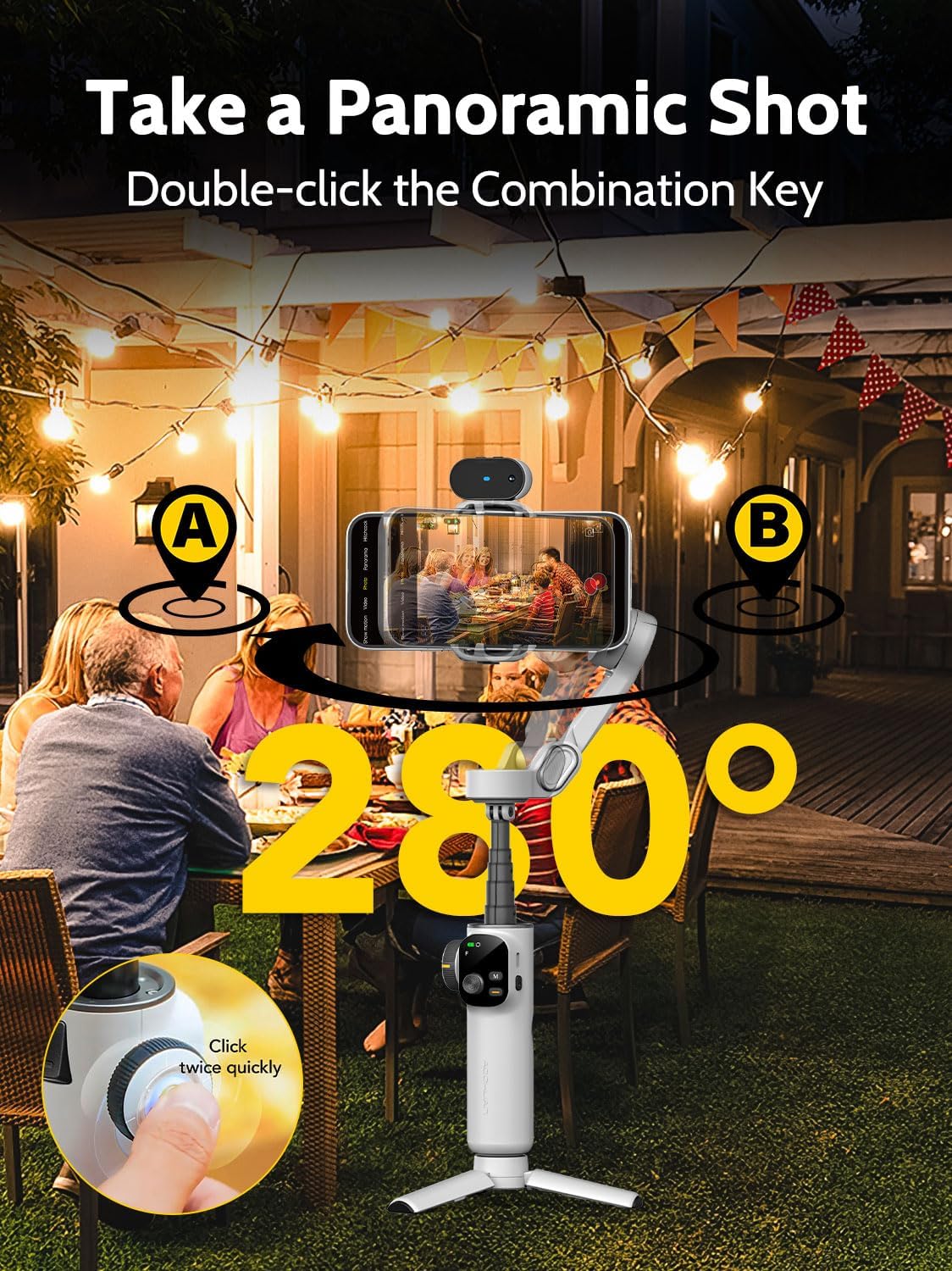
Image: The gimbal capturing a 280-degree panoramic shot of an outdoor party, illustrating its wide-angle capabilities.
AOCHUAN App (Optional)
For enhanced features and creative control, download the AOCHUAN app from the App Store or Google Play. The app unlocks additional functionalities such as:
- Face Tracking
- Gesture Control (beyond basic AI tracking)
- Hitchcock Mode (Dolly Zoom effect)
- Widescreen Movie Mode
- Pre-designed Shooting Templates

Image: A promotional image for the AOCHUAN app, showcasing advanced features like face tracking, gesture control, and cinematic effects.
Maintenance
- Cleaning: Use a soft, dry cloth to clean the gimbal. Avoid using liquid cleaners or solvents.
- Storage: Store the gimbal in a cool, dry place, away from direct sunlight and extreme temperatures. Ensure it is folded properly to prevent damage.
- Battery Care: For long-term storage, charge the battery to approximately 50-60% every three months to maintain battery health.
- Avoid Overloading: Do not mount devices heavier than the maximum payload capacity (0.66 lbs / 0.3 kg) to prevent motor strain and damage.
Troubleshooting
| Problem | Possible Cause | Solution |
|---|---|---|
| Gimbal not powering on. | Low battery. | Charge the gimbal fully using the provided Type-C cable. |
| Gimbal vibrates or does not stabilize properly. | Phone not balanced; gimbal overloaded; firmware issue. | Ensure the smartphone is centered and balanced in the clip. Check phone weight against payload limit. Try recalibrating the gimbal (refer to app or manufacturer website for specific steps). |
| AI Tracking Assistant not tracking. | Not powered on; incorrect gesture; environmental factors. | Ensure the AI Tracking Assistant is powered on. Use clear "OK" gesture to initiate tracking. Ensure sufficient lighting and clear view of the subject. |
| Cannot connect to the AOCHUAN app or app features not working. | Bluetooth not enabled; app not updated; compatibility issue. | Ensure Bluetooth is enabled on your phone and the gimbal is discoverable. Update the AOCHUAN app to the latest version. Check the manufacturer's website for phone compatibility lists, especially for folding screen phones which are not applicable. |
| Buttons or control wheel unresponsive. | Gimbal frozen; low battery. | Power off and restart the gimbal. Ensure the battery is sufficiently charged. |
Specifications
| Feature | Detail |
|---|---|
| Model Number | ACGL-V8AI WT |
| Brand | AOCHUAN |
| Color | White |
| Package Dimensions | 7.68 x 6.1 x 3.03 inches |
| Item Weight | 13 ounces (0.37 Kilograms) |
| Maximum Weight Recommendation (Payload) | 0.66 Pounds (approx. 0.3 kg) |
| Folded Size | 4.3 x 6.5 x 2 inches |
| Batteries | 1 Lithium Ion battery required |
| Extension Rod Length | 7.87 inches (200mm) |
| Compatible Devices | Cellphone (Not applicable for folding screen) |
Warranty and Support
AOCHUAN products are manufactured to high quality standards. For specific warranty details, please refer to the warranty card included in your product packaging or visit the official AOCHUAN website. Keep your proof of purchase for warranty claims.
For technical support, troubleshooting assistance, or inquiries regarding your product, please contact AOCHUAN customer service through their official website or the contact information provided in the product packaging.
Official AOCHUAN Store: AOCHUAN Amazon Store
Ask a question about this manual
Ask about setup, troubleshooting, compatibility, parts, safety, or missing instructions. Manuals+ will review the question and use this page’s manual context to help answer it.