
NIIMBOT B21-Pro-G
Contents
NIIMBOT B21 Pro Sticker Printer
User Manual
1. Setup
This section guides you through the initial setup of your NIIMBOT B21 Pro Sticker Printer.
1.1. Unboxing and Package Contents
Carefully remove all items from the packaging. Verify that all components are present:
- 1 x NIIMBOT B21 Pro Label Maker
- 1 x User Manual
- 1 x Type-C Cable
- 1 x Roll Label Tape (50x30mm - 230pcs)

Image: Contents of the NIIMBOT B21 Pro package, showing the printer, USB-C cable, user manual, and a roll of labels.
1.2. Charging the Printer
Before first use, fully charge the printer using the provided Type-C cable. Connect the cable to the printer's Type-C port and the other end to a standard USB power adapter (not included). The charging indicator light will provide status.
1.3. Loading Labels
The NIIMBOT B21 Pro features a sliding paper bin design for easy label installation.
- Open the printer's lid by gently lifting it.
- Place the label roll into the paper bin, ensuring the labels feed out correctly. The printer supports label widths from 20mm to 50mm.
- Close the lid firmly until it clicks into place. The printer will automatically identify the label type and size.
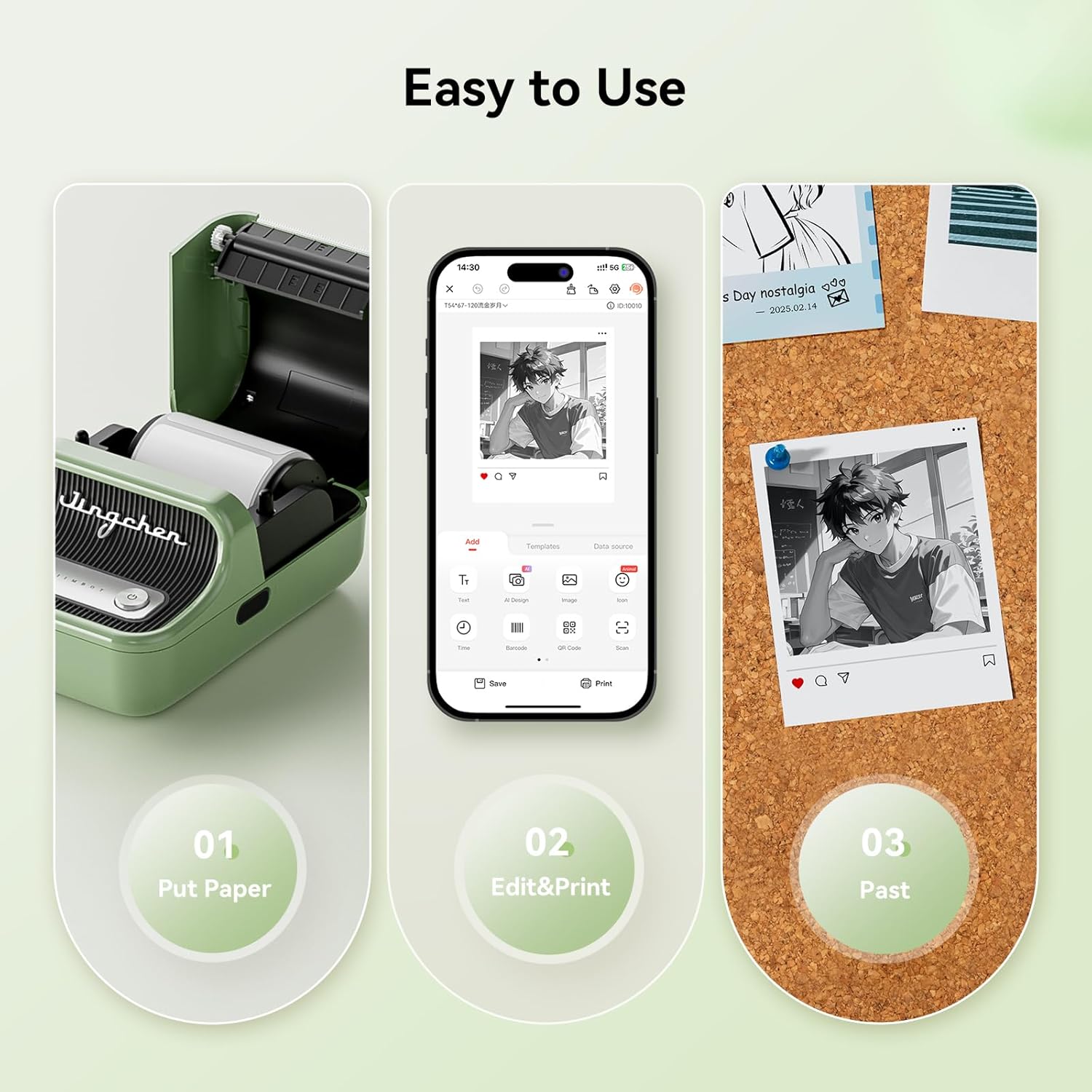
Image: A visual guide demonstrating the three simple steps to use the printer: loading paper, editing and printing via the app, and then applying the printed label.
1.4. App Installation and Connection
The NIIMBOT B21 Pro connects via Bluetooth to your mobile device or PC.
- For iOS & Android: Download the 'NIIMBOT' App from the Apple App Store or Google Play Store. Once installed, open the app and connect to the printer via Bluetooth.
- For PC: Download the necessary driver from the official NIIMBOT brand website.
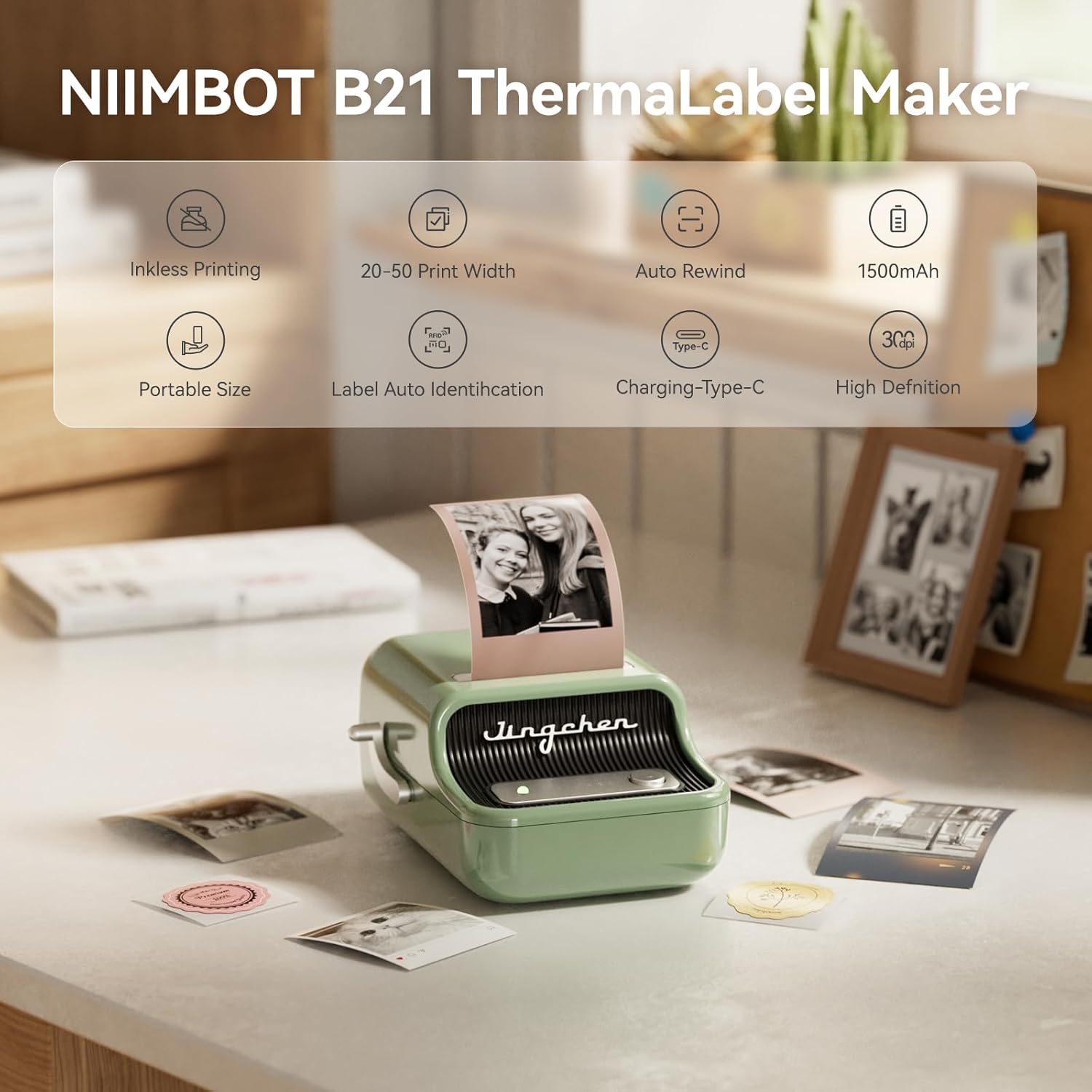
Image: An overview of the NIIMBOT B21 Thermal Label Maker's key features, including inkless printing, adjustable print width, automatic rewinding, 1500mAh battery, portability, automatic label identification, Type-C charging, and 300DPI high definition.
2. Operating Instructions
Learn how to effectively use your NIIMBOT B21 Pro for various labeling needs.
2.1. Using the NIIMBOT App
The NIIMBOT App provides extensive features for designing and printing labels:
- Design Resources: Access over 1500 icons and border materials, 249 free creative fonts, and more than 100 VIP exclusive fonts.
- Templates: Utilize over 1,000 design inspiration templates that can be used directly.
- Multi-language Support: The app supports multiple languages for a comprehensive design experience.
2.2. Printing Process
Once connected and your label roll is loaded, follow these steps to print:
- Design: Use the NIIMBOT App to create your desired label.
- Preview: Review the label design on your screen to ensure accuracy.
- Print: Send the print command from the app to the printer.
2.3. Label Types and Applications
The B21 Pro supports various label styles for diverse applications:
- Ordinary Thermal Labels: Standard white, color, and clear labels for general use.
- Photo Style Labels: Can be used as stickers for scrapbooks, cards, or bookmarks.
- Red & Black Dual Color Labels: Allows highlighting important information in red.

Image: A display of the different label styles compatible with the NIIMBOT B21 Pro, showcasing various sizes and designs for ordinary thermal, photo, and red/black dual-color labels.
Common uses include:
- Home Organization: Kitchen food jars, spice containers, storage boxes, return addresses.
- Small Business: Price tags, product information, QR codes, barcodes, brand logos, advertisements.
- School: Name tags, teacher feedback labels, clothes labels, cup labels.

Image: A collage showing various practical applications of the ink-free thermal label printer, such as creating QR codes, address labels, logos, labels for medication, file organization, and storage containers.
2.4. Print Quality
The B21 Pro features 300DPI (dots per inch) high-resolution printing, allowing for smaller, finer text and clearer images compared to lower DPI models.
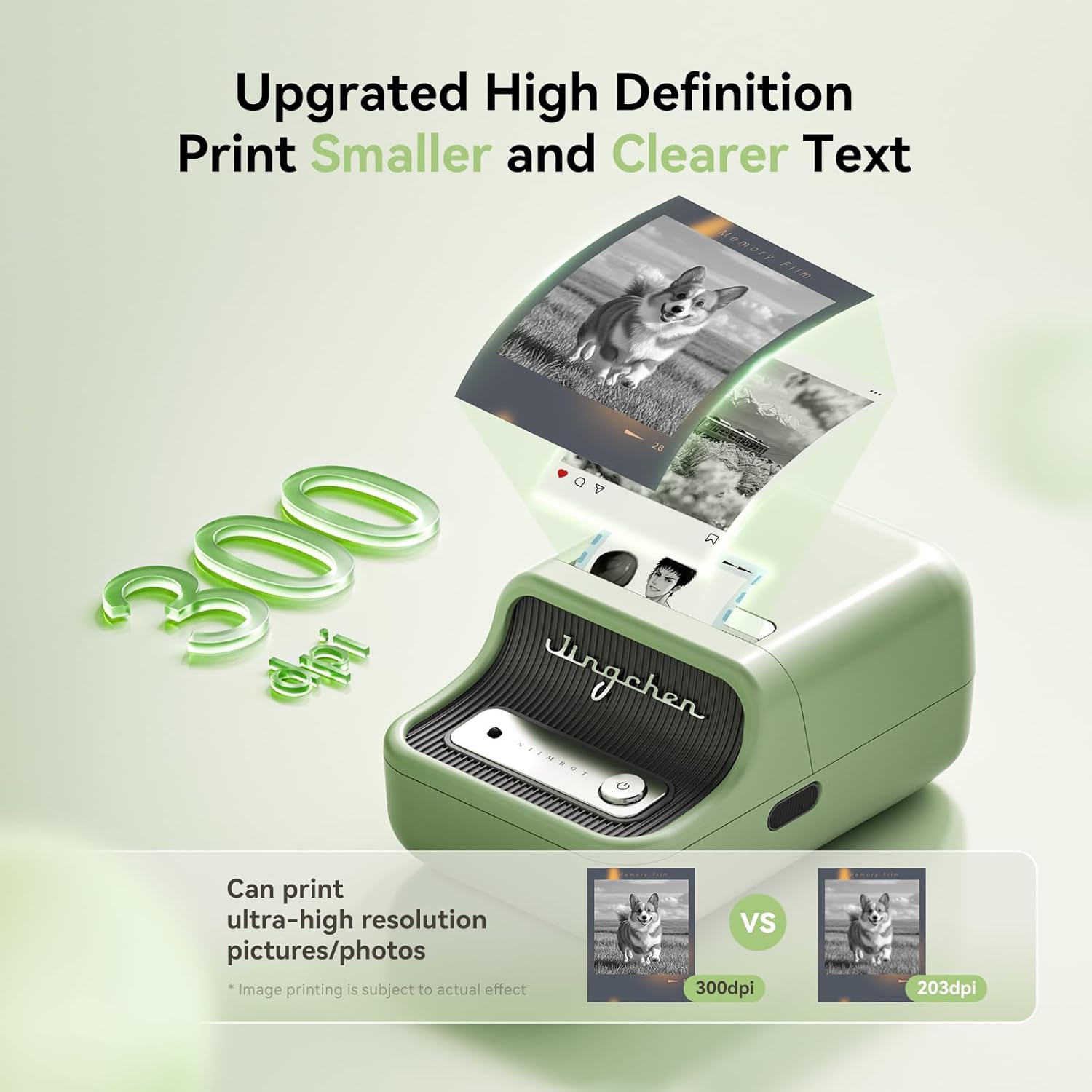
Image: A visual comparison illustrating the superior clarity and detail of 300DPI printing versus 203DPI, emphasizing the ability to print smaller and clearer text.
3. Maintenance
Proper maintenance ensures the longevity and optimal performance of your NIIMBOT B21 Pro printer.
3.1. Cleaning the Printer
Regularly clean the print head and paper path to prevent print quality issues.
- Turn off the printer and disconnect the power cable.
- Use a soft, lint-free cloth lightly dampened with isopropyl alcohol to gently wipe the print head.
- Clean any dust or debris from the paper path.
- Allow to dry completely before closing the lid and resuming use.
3.2. Label Storage
Store label rolls in a cool, dry place away from direct sunlight and extreme temperatures to preserve their quality and adhesive properties.
3.3. Battery Care
To maximize battery life:
- Avoid fully discharging the battery frequently.
- If storing the printer for an extended period, charge it to about 50% before storage.
- Recharge the battery every few months if not in use.
4. Troubleshooting
This section addresses common issues you might encounter with your NIIMBOT B21 Pro printer.
4.1. Connectivity Issues
- Printer not connecting via Bluetooth: Ensure Bluetooth is enabled on your device and the printer is powered on. Try restarting both the printer and your device.
- App not recognizing printer: Close and reopen the NIIMBOT App. Ensure the app has Bluetooth permissions enabled on your device.
4.2. Print Quality Issues
- Faint or incomplete prints: Check if the label roll is inserted correctly. Clean the print head as described in the Maintenance section. Ensure the battery is sufficiently charged.
- Blank labels: Verify that the label roll is loaded with the printable side facing the print head.
4.3. Paper Jam or Feeding Issues
- Labels not feeding: Open the lid and ensure the label roll is properly seated and not tangled. Remove any torn or stuck labels.
- Printer not detecting labels: Ensure you are using genuine NIIMBOT labels, as the printing system utilizes patented label detection technology that only recognizes authentic NIIMBOT labels. Third-party labels lack the required RFID.
4.4. App-Related Questions
For questions regarding app features or content:
- Do I need to subscribe to VIP? The free fonts, images, and icons provided by the App are sufficient for daily use. A membership service is not necessarily required, and the print quality and design choices are excellent even without a membership.
5. Specifications
Detailed technical specifications for the NIIMBOT B21 Pro Sticker Printer.
| Feature | Specification |
|---|---|
| Brand | NIIMBOT |
| Model Name | B21Pro (Item model number: B21-Pro-G) |
| Printing Technology | Thermal |
| Printer Output | Monochrome |
| Resolution | 300DPI |
| Connectivity Technology | Bluetooth |
| Max Print Speed Monochrome | 50 mm/s |
| Maximum Media Size | 50*80mm |
| Supported Label Width | 20 to 50mm |
| Product Dimensions | 5 x 2.4 x 4 inches (12.7 x 6.1 x 10.2 cm) |
| Item Weight | 1.28 pounds (0.58 kg) |
| Color | Green |
| Manufacturer | NIIMBOT |
| Country of Origin | China |
6. Warranty and Support
For warranty information and customer support, please refer to the official NIIMBOT website or contact the seller directly. Protection plans may be available for purchase separately to extend coverage beyond the standard manufacturer's warranty.
Official NIIMBOT Store: Visit the NIIMBOT Store on Amazon
Documents and downloads
Ask a question about this manual
Ask about setup, troubleshooting, compatibility, parts, safety, or missing instructions. Manuals+ will review the question and use this page’s manual context to help answer it.