
1. Setup Guide
1.1 Unboxing and Package Contents
Carefully unpack your GenMachine Ren Pro Mini PC and verify all contents. The package should include the following items:
- GenMachine Ren Pro Mini PC
- User Manual
- Power Adapter
- HD Line (HDMI Cable)
- Mounting Bracket with Screws
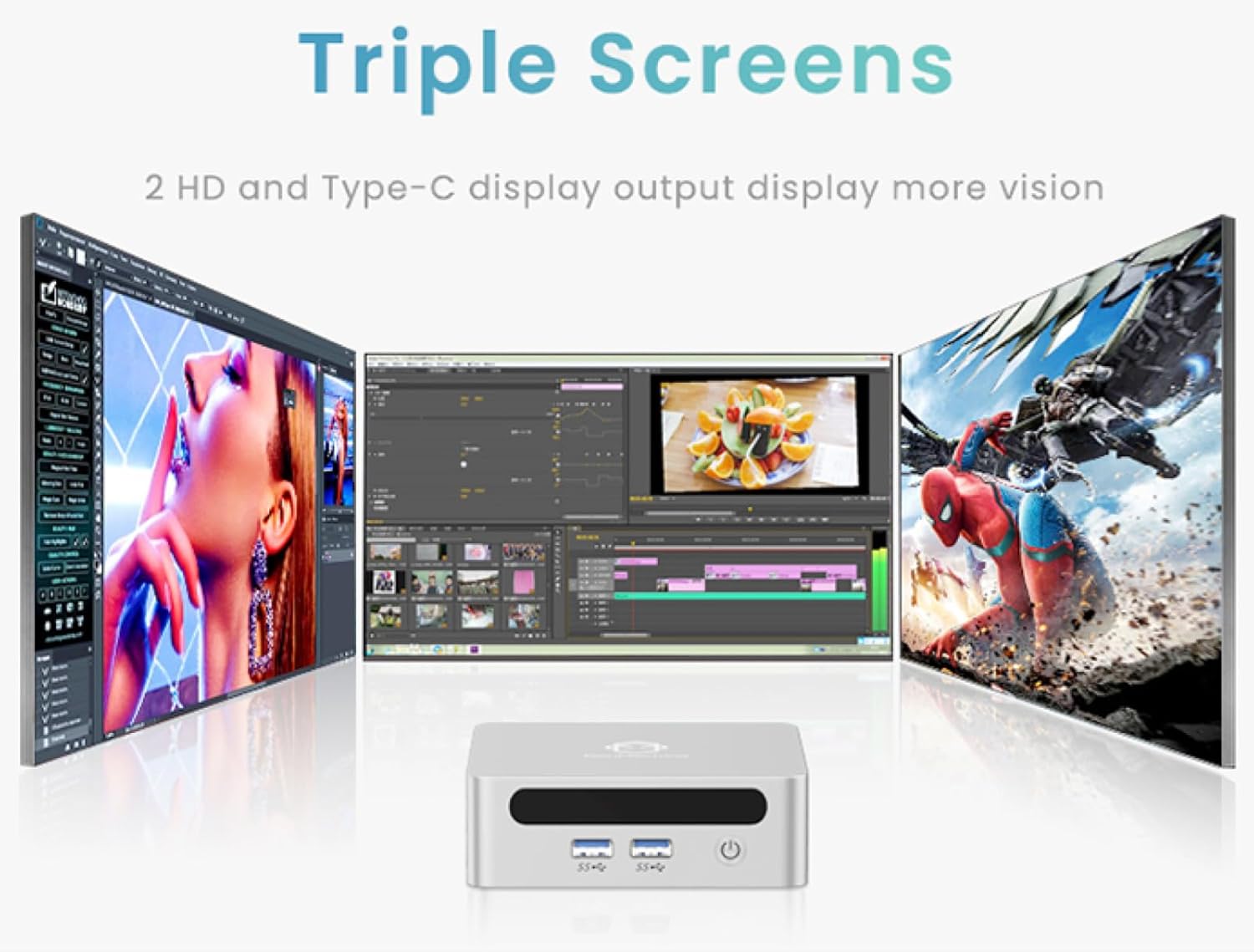
Image: The GenMachine Ren Pro Mini PC and its included accessories, neatly arranged in the packaging. This includes the Mini PC unit, user manual, power adapter, HDMI cable, and a mounting bracket with screws.
1.2 Physical Connections
Before powering on your Mini PC, connect all necessary peripherals.
Front Panel Ports:
- Power Button: Used to turn the device on/off.
- Audio Jack: For connecting headphones or external speakers.
- USB 3.0 Ports (x2): For connecting USB devices like keyboards, mice, or external storage.
- USB Type-C Port: Supports data transfer and display output.
Rear Panel Ports:
- DC Power Input: Connect the included power adapter here.
- LAN Ports (x2): For wired network connections (Ethernet).
- HDMI Port: For connecting to a display (up to 4K resolution).
- DisplayPort (DP): For connecting to another display (up to 4K resolution).
- USB 3.0 Ports (x2): Additional USB ports for peripherals.

Image: Detailed view of the GenMachine Ren Pro Mini PC's front and rear panels, highlighting the various input/output ports including USB, audio, LAN, HDMI, DisplayPort, and DC power input.
1.3 Mounting the Mini PC
The GenMachine Ren Pro Mini PC comes with a VESA mounting bracket, allowing you to attach it to the back of a compatible monitor or TV for a clutter-free workspace.
- Attach the VESA bracket to the back of your monitor using the provided screws.
- Slide the Mini PC onto the mounted bracket until it clicks securely into place.

Image: The compact size of the GenMachine Ren Pro Mini PC is shown alongside an illustration of how it can be mounted to the back of a monitor using the VESA bracket, saving desk space.
1.4 Initial Power On
After connecting all peripherals and the power adapter, press the power button on the front panel to turn on the Mini PC. The system will boot up, and you may be prompted to complete the initial Windows setup if it's the first use.
2. Operating Instructions
2.1 Basic Usage
The GenMachine Ren Pro Mini PC runs on a pre-installed operating system (OS). Once booted, you can navigate the desktop environment using your connected mouse and keyboard. It is designed for various tasks including office work, creative design, and gaming.
2.2 Multi-Display Support
The Mini PC supports up to three displays simultaneously, allowing for enhanced productivity. You can connect displays via the HDMI, DisplayPort, and the front USB Type-C port.

Image: A visual representation of the GenMachine Ren Pro Mini PC connected to and driving three separate monitors, demonstrating its multi-display capability for various applications like video editing and gaming.
2.3 Network and Wireless Connectivity
The Mini PC offers robust connectivity options:
- Wi-Fi 6: For fast and stable wireless internet access.
- Bluetooth 5.2: For connecting wireless peripherals such as headphones, speakers, and game controllers.
- 2.5G Ethernet: Two LAN ports provide high-speed wired network connections, offering 2.5 times the speed of traditional gigabit ports.
Image: The GenMachine Ren Pro Mini PC highlighting its advanced connectivity features, including Wi-Fi 6 for fast wireless networking and USB4 ports for high-speed data transfer and display output.
2.4 Performance Overview
The Mini PC is equipped with an AMD Ryzen 7 6800H processor, 16GB of LPDDR5 RAM, and a 512GB SSD, providing powerful performance for demanding applications and smooth multitasking.
Image: A visual breakdown of the GenMachine Ren Pro Mini PC's internal components, emphasizing the AMD Ryzen 7 6800H processor and LPDDR5 memory for efficient performance.
3. Maintenance
3.1 Cleaning
To ensure optimal performance and longevity, regularly clean your Mini PC:
- Use a soft, dry cloth to wipe the exterior.
- Use compressed air to clear dust from ventilation grilles and ports.
- Avoid using liquid cleaners directly on the device.
3.2 Software Updates
Keep your operating system and drivers updated to ensure security, stability, and optimal performance. Regularly check for updates through your OS settings.
3.3 Storage Management
Periodically review and manage your storage to free up space. Uninstall unused applications and delete unnecessary files to maintain system speed.
4. Troubleshooting
4.1 No Power
- Ensure the power adapter is securely connected to both the Mini PC and a working power outlet.
- Verify the power outlet is functional by plugging in another device.
4.2 No Display Output
- Check that the HDMI or DisplayPort cable is firmly connected to both the Mini PC and the monitor.
- Ensure the monitor is powered on and set to the correct input source.
- Try a different display cable or monitor if available.
4.3 Network Connectivity Issues
- For Wi-Fi, ensure the Mini PC is within range of your wireless router and the correct password is entered.
- For wired connections, check the Ethernet cable and ensure your router is functioning correctly.
- Restart your router and the Mini PC.
4.4 System Slowdown
- Close unnecessary applications running in the background.
- Check for and install any pending operating system or driver updates.
- Ensure sufficient free storage space on the SSD.
5. Specifications
| Feature | Detail |
|---|---|
| Processor | AMD Ryzen 7 6800H (3.2 GHz, up to 4.7GHz) |
| RAM | 16GB LPDDR5 6400MHz |
| Storage | 512GB 2280 SSD |
| Graphics | Integrated AMD Radeon Graphics |
| Max Screen Resolution | 3840x2160 (4K) |
| Connectivity | Wi-Fi 6, Bluetooth 5.2, 2x 2.5G LAN |
| Ports (Front) | Power Button, Audio Jack, 2x USB 3.0, 1x USB Type-C |
| Ports (Rear) | DC Power, 2x LAN, HDMI, DisplayPort, 2x USB 3.0 |
| Dimensions (LxWxH) | 5 x 5 x 1.45 inches |
| Weight | 1.7 pounds |
| Operating System | OS (Pre-installed) |
6. Warranty and Support
6.1 Warranty Information
This GenMachine Ren Pro Mini PC typically comes with a manufacturer's warranty. Please refer to the warranty card included in your package or visit the official GenMachine website for detailed warranty terms and conditions.
6.2 Customer Support
For technical assistance, troubleshooting, or any product-related inquiries, please contact GenMachine customer support through the following channels:
- Online Support: Visit the GenMachine Store on Amazon for FAQs and contact options.
- Email: Refer to your product packaging or the official website for the support email address.
7. Product Videos
7.1 GenMachine Mini PC Gaming PC Desktop Overview
Video: An official seller video providing an overview of the GenMachine Mini PC, showcasing its design, features, and potential uses for gaming and desktop applications. This video highlights the compact form factor and connectivity options.


