
1. Introduction
Thank you for choosing the Genérico KA-9007 USB RGB Gaming Headset. This headset is designed to provide a high-quality audio experience for gaming, communication, and multimedia. Featuring an adjustable microphone with noise reduction, comfortable earcups, and vibrant RGB LED lighting, it offers immersive sound and clear communication. Please read this manual carefully to ensure proper setup and optimal use of your new headset.
2. Safety Information
- Avoid prolonged listening at high volumes to prevent hearing damage.
- Do not expose the headset to extreme temperatures, humidity, or direct sunlight.
- Keep the headset away from water or other liquids.
- Do not attempt to disassemble or modify the headset. This will void the warranty.
- Clean the headset with a soft, dry cloth only.
3. Package Contents
- Genérico KA-9007 USB RGB Gaming Headset
- User Manual
4. Product Overview
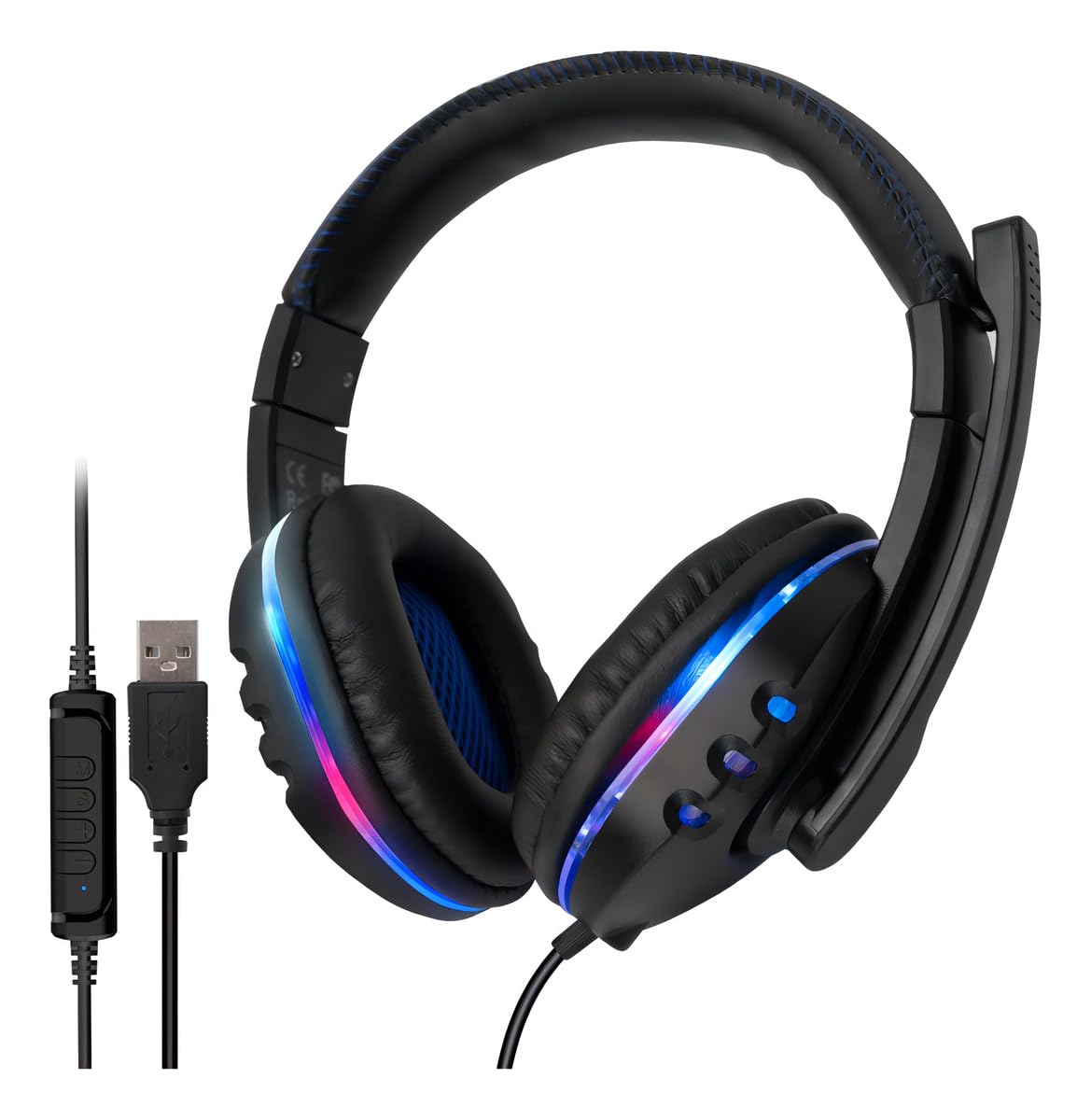
Figure 1: Genérico KA-9007 USB RGB Gaming Headset with its distinctive design and RGB lighting.
Key Components:
- Adjustable Headband: For a comfortable fit.
- Padded Earcups: Designed for extended wear and passive noise isolation.
- Flexible Microphone: Adjustable for optimal voice capture and features noise reduction.
- In-line Control Unit: For volume adjustment and microphone mute.
- USB Connector: Powers the RGB LED lighting.
- 3.5mm Audio Jack (P2): For audio input/output.

Figure 2: Close-up of the in-line control unit and USB connector for the headset.

Figure 3: Side view of the headset, highlighting the flexible and adjustable microphone.

Figure 4: The headset showcasing its dynamic RGB LED lighting on the earcups.
5. Setup Instructions
Connecting to your Device:
- Identify Connectors: The headset has two main connectors: a 3.5mm audio jack (P2) for sound and a USB connector for powering the RGB LED lights.
- Audio Connection: Plug the 3.5mm audio jack into the corresponding audio port on your PC, Notebook, PS4, PS5, Xbox (an adapter may be required for some Xbox models), Smartphone, or Tablet.
- LED Power (Optional): Plug the USB connector into an available USB port on your device to activate the RGB LED lighting. The headset will function for audio even without the USB connected, but the lights will not illuminate.
- System Settings: After connecting, ensure your device's audio settings are configured to use the headset as the primary input and output device.
6. Operating Instructions
Adjusting the Headset:
- Headband Adjustment: Extend or retract the headband to fit comfortably on your head.
- Microphone Positioning: Adjust the flexible microphone boom to bring the microphone close to your mouth for clear voice capture. The microphone can be positioned on either the right or left side.
Using the In-line Control Unit:
- Volume Control: Use the scroll wheel or buttons on the in-line control unit to increase or decrease the audio volume.
- Microphone Mute: Press the microphone mute button to quickly turn the microphone on or off. An indicator light may show the microphone status.
7. Maintenance
- Cleaning: Use a soft, dry, lint-free cloth to clean the headset. Do not use abrasive cleaners or solvents.
- Storage: Store the headset in a cool, dry place when not in use. Avoid tangling the cable.
- Cable Care: Do not pull on the cable to disconnect the headset. Always grasp the plug.
8. Troubleshooting
No Sound:
- Ensure the 3.5mm audio jack is fully inserted into the correct port on your device.
- Check the volume level on the in-line control unit and on your device.
- Verify that the headset is selected as the default audio output device in your operating system's sound settings.
- Test the headset on another device to rule out a device-specific issue.
Microphone Not Working:
- Ensure the microphone mute button on the in-line control unit is not activated.
- Check that the microphone is properly positioned and not obstructed.
- Verify that the headset microphone is selected as the default input device in your operating system's sound settings.
- Test the microphone on another device or application.
RGB Lights Not Working:
- Ensure the USB connector is securely plugged into a powered USB port.
- Try plugging the USB into a different port.
9. Specifications
| Feature | Description |
|---|---|
| Model | KA-9007 |
| Connectivity | Wired (3.5mm P2 + USB for LED) |
| Impedance | 32Ω ± 15% |
| Frequency Response | 20Hz - 20kHz |
| Sensitivity | 105dB ± 3dB |
| Cable Length | Approximately 2 meters |
| Microphone | Built-in, adjustable, with noise reduction |
| LED Lighting | RGB (USB powered) |
| Compatibility | PC, Notebook, PS4, PS5, Xbox (adapter may be necessary), Smartphones, Tablets with P2 input |
| Material | Plastic |
| Weight | 0.45 g |
10. Official Product Videos
Video 1: Headset Overview
This video provides an overview of the headset, showcasing its features and design. It highlights the adjustable microphone and comfortable earcups.
Video 2: Detailed Features
A closer look at the headset's details, including its build quality and various components.
Video 3: USB and P2 Connections
This video demonstrates the headset's P2 and USB connections, showing how to connect it to different devices.
Video 4: Headset for PC Use
A video focusing on the headset's use with PCs, highlighting its features for gaming and communication.
11. Warranty and Support
This product comes with a manufacturer's warranty of 30 days from the date of purchase. Please retain your proof of purchase for warranty claims.
For technical support or warranty inquiries, please contact your retailer or the manufacturer directly. Refer to the product packaging for contact information.