
1. Product Overview
The trenzu 4G LTE Mobile WiFi Hotspot is a portable wireless device designed to provide high-speed internet access on the go. It supports 4G and 5G SIM cards, allowing you to create a personal Wi-Fi hotspot for multiple devices.
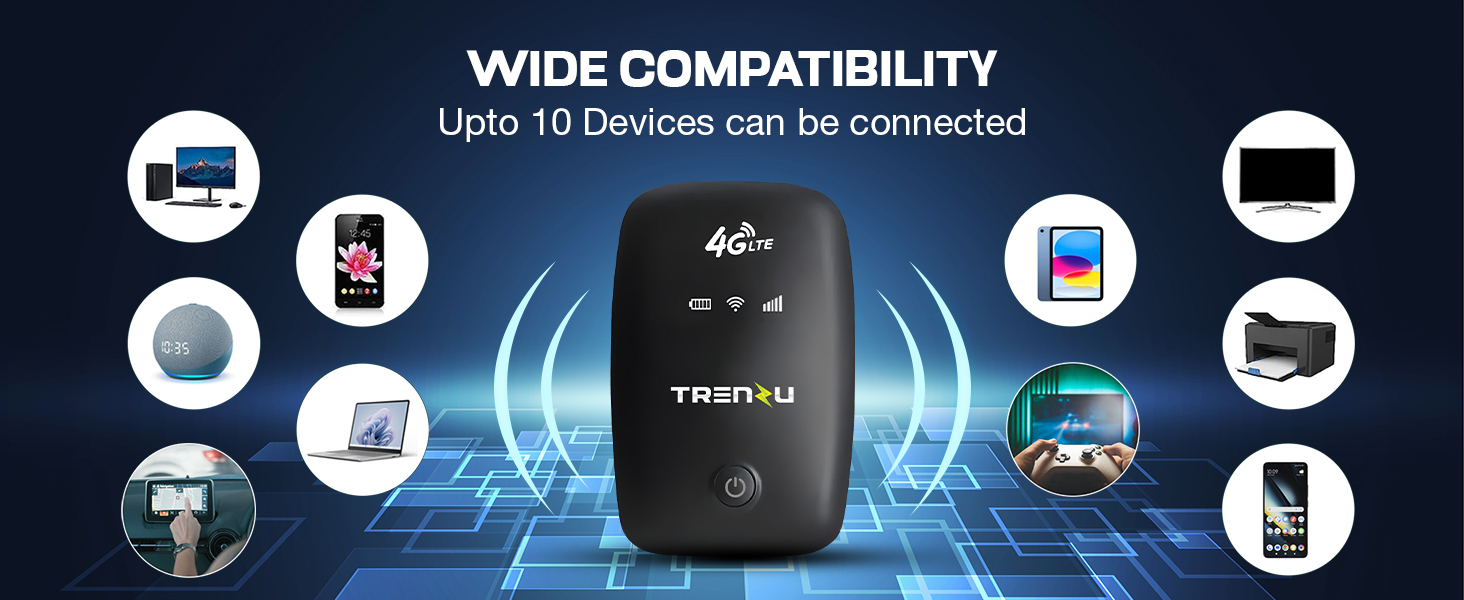
Image: The trenzu 4G LTE Mobile WiFi Hotspot, a compact and portable device.
Key Features:
- Fast 4G LTE Speed: Up to 150Mbps download and 50Mbps upload speeds.
- Universal SIM Support: Compatible with all major 4G/5G Micro SIM cards (Jio, Airtel, VI, Vodafone & Idea, BSNL).
- Multi-Device Connectivity: Connect up to 10 devices simultaneously.
- Long Battery Life: 2100mAh battery provides up to 12 hours of continuous usage and 30 hours standby.
- Smart Indicators: LED indicators for battery, signal strength, and Wi-Fi status.
- Advanced Chipset: Powered by Qualcomm MSM8916 chipset for stable connectivity.
- Auto Sleep Mode: Battery-saving feature activates when not in use.
- Ultra-Portable Design: Lightweight and compact for easy travel.
What's in the Box:
- trenzu 4G LTE WiFi Dongle
- Charging Cable
- User Manual
- Warranty Card
Video: An overview of the trenzu 4G LTE Mobile WiFi Hotspot's features and benefits.
2. Setup Guide
2.1 Inserting the SIM Card
- Ensure the device is powered off.
- Locate the SIM card slot, usually on the side or under the battery cover.
- Insert a Micro SIM card into the slot with the gold contacts facing down, ensuring it clicks into place.
- If applicable, replace the battery cover.
2.2 Charging the Device
- Connect the provided charging cable to the device's charging port.
- Connect the other end of the cable to a compatible USB power adapter (not included) or a computer's USB port.
- The battery indicator LED will show charging status. Charge the device fully before first use.
2.3 Powering On/Off
- To Power On: Press and hold the power button for a few seconds until the indicator lights illuminate.
- To Power Off: Press and hold the power button for a few seconds until the indicator lights turn off.

Image: The trenzu hotspot highlighting features like power saver mode and ease of use.
3. Operating Instructions
3.1 Connecting Devices to Wi-Fi
- Ensure the trenzu hotspot is powered on and has an active SIM card with a data plan.
- On your device (laptop, smartphone, tablet), search for available Wi-Fi networks.
- Select the network name (SSID) of your trenzu hotspot. The default SSID and password are usually found on a sticker inside the battery compartment or on the device packaging.
- Enter the Wi-Fi password when prompted.
- Once connected, your device will have internet access through the hotspot.

Image: The trenzu hotspot demonstrating wide compatibility, connecting up to 10 devices simultaneously.
3.2 Understanding LED Indicators
- Battery Indicator: Shows the current battery level.
- Signal Strength Indicator: Displays the strength of the 4G/5G network signal. More bars indicate a stronger signal.
- Wi-Fi Status Indicator: Indicates if the Wi-Fi hotspot is active and broadcasting.
3.3 Admin Panel Access
For advanced settings such as changing SSID, password, or viewing data usage, access the device's web-based admin panel. Refer to the device's default IP address (e.g., 192.168.0.1 or 192.168.1.1) and login credentials provided in the packaging or on the device itself.
4. Maintenance
4.1 Battery Care
- To maximize battery life, avoid extreme temperatures.
- Utilize the Auto Sleep Mode to conserve power when the device is idle.
- Charge the device regularly, but avoid overcharging for extended periods.
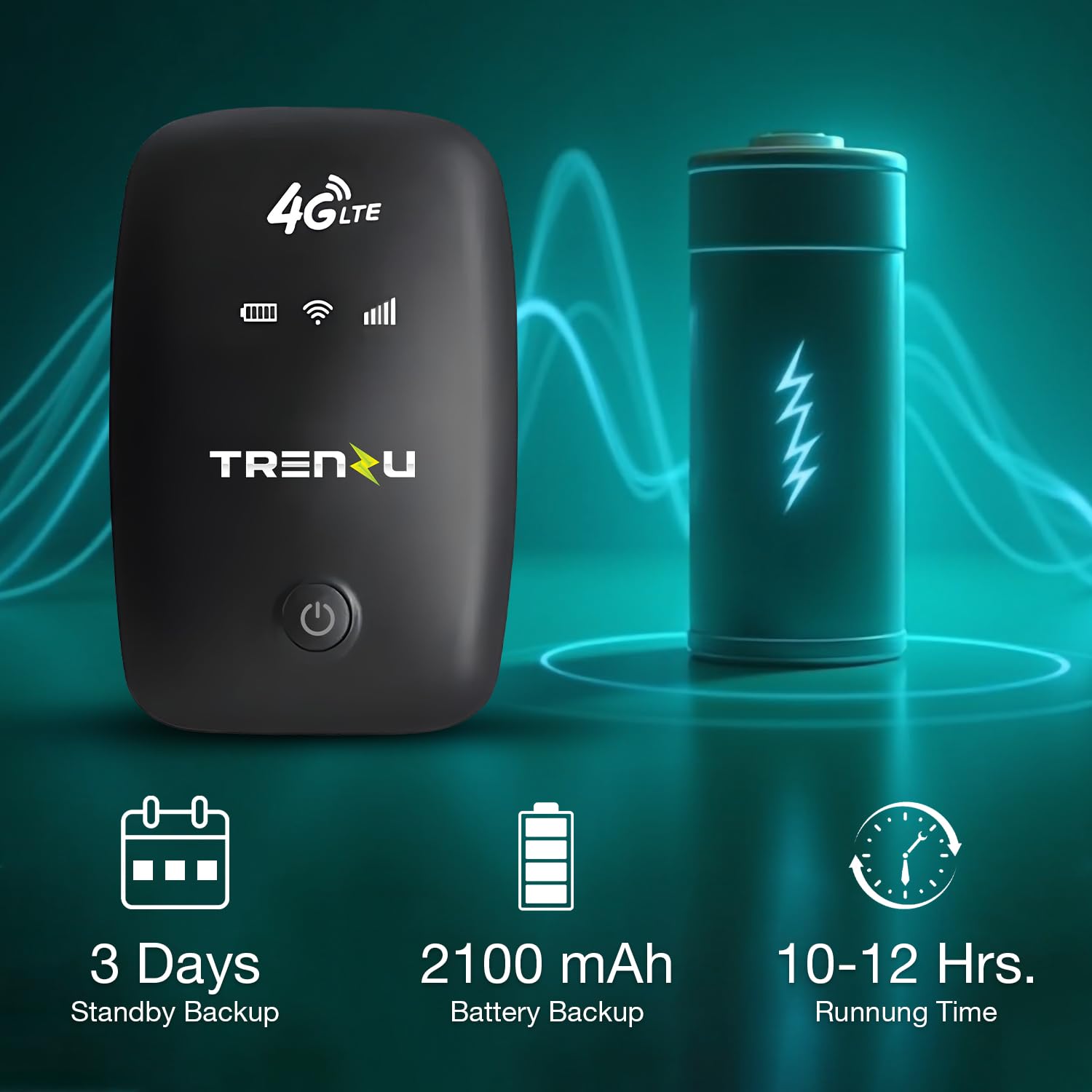
Image: The trenzu hotspot highlighting its 2100 mAh battery for extended usage.
4.2 General Care
- Keep the device clean and free from dust. Use a soft, dry cloth for cleaning.
- Avoid dropping the device or exposing it to water or excessive moisture.
- Store the device in a cool, dry place when not in use.
5. Troubleshooting
- No Signal/Poor Signal:
Ensure the SIM card is correctly inserted and active. Check the signal strength indicator. Move to an area with better network coverage. Restart the device. - Slow Internet Speed:
Network strength may vary by location. Ensure you have a valid data plan. Reduce the number of connected devices. Try restarting the device. - Cannot Connect to Wi-Fi:
Verify the Wi-Fi password. Ensure the hotspot is powered on and broadcasting. Restart both the hotspot and the connecting device. - Device Not Powering On:
Ensure the battery is charged. Connect the device to a charger and try again. If the issue persists, contact customer support.
6. Specifications

Image: The trenzu hotspot highlighting its connectivity features.
| Feature | Detail |
|---|---|
| Brand | trenzu |
| Model Name | 4g Lte Mobile Wifi Hotspot |
| Connectivity Technology | LTE |
| Wireless Communication Standard | 802.11b (Wi-Fi 4) |
| Frequency Band Class | Single-Band (2.4 GHz) |
| Data Transfer Rate | Up to 150 Mbps (Download), 50 Mbps (Upload) |
| Battery Capacity | 2100 mAh |
| Usage Time | Up to 12 hours |
| Standby Time | Up to 30 hours |
| Device Support | Up to 10 devices |
| SIM Type | Micro SIM |
| Chipset | Qualcomm MSM8916 |
| Dimensions (L x W x H) | 98 x 66 x 15 mm |
| Item Weight | 90 Grams |
| Color | Black |

Image: The trenzu hotspot featuring an Advanced Qualcomm Chipset for reliable performance.
7. Warranty and Support
7.1 Warranty Information
This trenzu 4G LTE Mobile WiFi Hotspot comes with a 6-month warranty from the date of purchase. Please retain your purchase receipt for warranty claims. The warranty covers manufacturing defects but does not cover damage caused by misuse, accidents, or unauthorized repairs.
7.2 Customer Support
For any technical assistance, troubleshooting, or warranty-related inquiries, please contact trenzu customer support. Refer to the contact information provided on your warranty card or the official trenzu website.
Manufacturer: Swankiz Limited, Unit 1603, 16th Floor, The L. Plaza 367 – 375, Queen's Road, Central Sheung Wan Hong Kong 999077
Importer/Packer: SEKYO INNOVATIONS PRIVATE LIMITED