
1. Introduction
This manual provides detailed instructions for the installation, operation, and maintenance of your MONTECH HyperFlow Silent 360 Black AIO Liquid CPU Cooler. Designed for superior heat dissipation with ultra-quiet performance, this cooler ensures optimal system stability for high-performance computing environments. Please read this manual thoroughly before installation and use to ensure proper function and longevity of your product.
2. Package Contents
Verify that all components are present before beginning installation. If any items are missing or damaged, please contact customer support.
- MONTECH HyperFlow Silent 360 Radiator with Integrated Pump and Cold Plate
- Three (3) MONTECH Metal Pro 12 Silent 120mm Fans (pre-installed)
- Intel Mounting Bracket Kit (LGA1700/1200/115X/20XX)
- AMD Mounting Bracket Kit (AM5/AM4)
- Radiator Mounting Screws
- Fan Screws
- PWM Fan Splitter Cable
- Thermal Paste (pre-applied on cold plate)
- User Manual
3. Key Features
- Ultra-Quiet Cooling: Three Metal Pro 12 Silent fans operate at 24.8dBA for distraction-free performance.
- High-Efficiency Radiator: A 3100RPM pump and 27mm slim radiator deliver superior heat dissipation.
- Sleek & Minimalist Design: ARGB-free design with a premium mirror-metal finish for a clean, modern aesthetic.
- Effortless Installation: Pre-installed fans and pre-applied thermal paste ensure a hassle-free setup.
- Reliable & Protected: Backed by a 6-year warranty with built-in leakage protection.
4. Installation Guide
Before proceeding, ensure your system is powered off and disconnected from the power source. Refer to your motherboard and PC case manuals for specific instructions regarding component installation and clearance.
4.1 Prepare the CPU Socket
The cooler comes with pre-applied thermal paste. Do not apply additional thermal paste unless you intend to replace the pre-applied layer. If replacing, clean the CPU surface thoroughly with isopropyl alcohol.
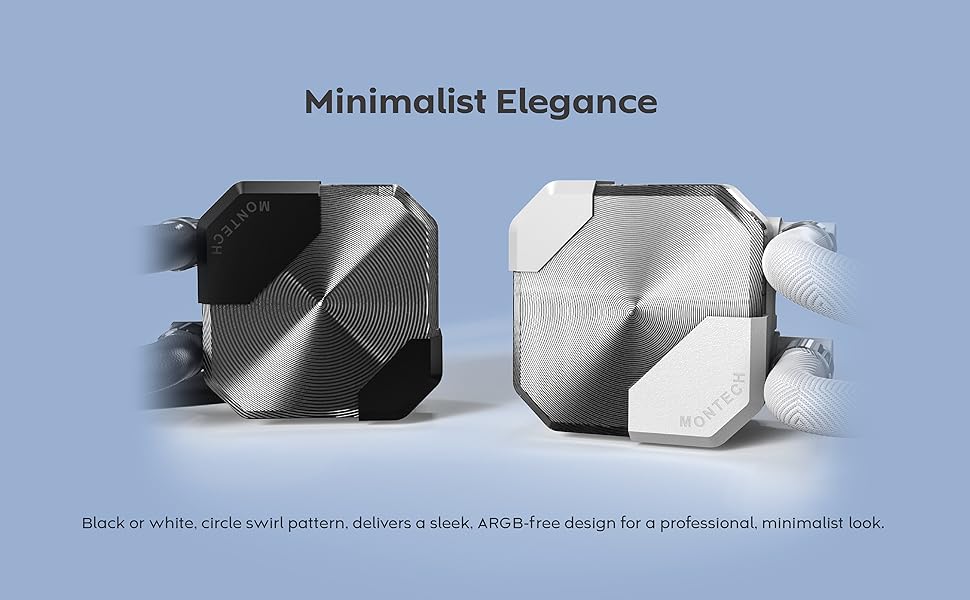
Figure 4.1: Broad Compatibility - Mounting hardware for Intel and AMD CPUs.
This image illustrates the different mounting brackets required for Intel and AMD CPU sockets, ensuring broad compatibility with modern systems.
4.2 Install the Backplate (Intel Only)
For Intel sockets, attach the appropriate backplate to the rear of your motherboard. Ensure the standoffs align with the motherboard's mounting holes. AMD AM4/AM5 sockets typically use the stock backplate.
4.3 Attach Mounting Standoffs
Screw the correct standoffs for your CPU socket type into the motherboard's mounting holes. For Intel, these go through the backplate. For AMD, they screw directly into the stock backplate.
4.4 Mount the Radiator and Fans
The fans are pre-installed on the radiator. Determine the optimal mounting location in your PC case (top, front, or side) for the 360mm radiator. Secure the radiator to the case using the provided radiator screws. Ensure proper airflow direction (intake or exhaust) based on your case's cooling design.

Figure 4.2: Effortless Cooling - Radiator design.
This image highlights the 27mm slim radiator with a 20FPI fin stack, engineered for efficient heat transfer from high-performance CPUs.
4.5 Install the Pump/Cold Plate
Carefully place the pump/cold plate assembly onto the CPU, aligning the mounting holes with the standoffs. Secure it with the provided thumb screws or nuts, tightening them in a cross pattern until snug. Do not overtighten.
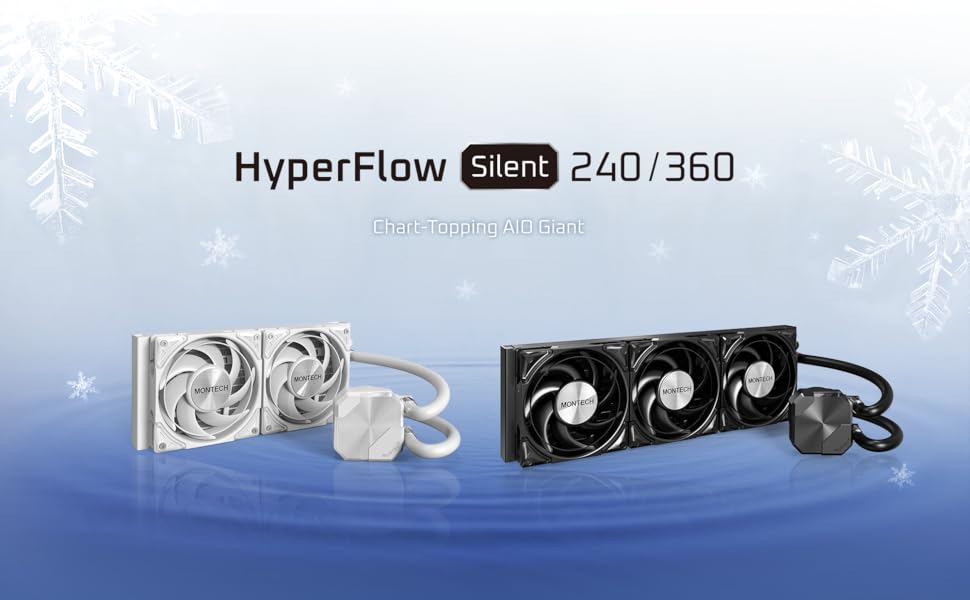
Figure 4.3: Whisper-Quiet Innovation - Pump mechanism.
This image provides an exploded view of the pump, illustrating its internal design and highlighting its 3100RPM operating speed and 28dBA noise level for efficient and quiet cooling.
4.6 Connect Cables
- Pump Power: Connect the pump's 3-pin or 4-pin connector to the dedicated AIO_PUMP or CPU_OPT header on your motherboard. If no dedicated header is available, use a standard fan header and ensure it is set to run at full speed in the BIOS.
- Fan Power: Connect the pre-installed fans to the provided PWM fan splitter cable, then connect the splitter to a CPU_FAN or SYS_FAN header on your motherboard.

Figure 4.4: Metal PRO 12 Silent Fan.
This image details the Metal PRO 12 Silent fan, showcasing its design and specifying its 2200RPM speed, 24.8dBA noise level, and 72.3CFM airflow for quiet and effective cooling.
5. Operation
Once installed and connected, the MONTECH HyperFlow Silent 360 Black AIO Liquid CPU Cooler operates automatically. The pump maintains a constant speed of 3100 RPM for consistent coolant circulation, while the fans adjust their speed based on CPU temperature, controlled by your motherboard's PWM settings.
- Initial Startup: Upon first power-on, you may hear some gurgling sounds as air bubbles are purged from the loop. This is normal and should subside within a few minutes.
- Monitoring: Use motherboard monitoring software to check CPU temperatures and ensure the cooler is functioning optimally.
- Noise Levels: The pump operates at approximately 28.8dBA, and the fans at 24.8dBA, ensuring a quiet computing experience.
6. Maintenance
Regular maintenance helps ensure the longevity and optimal performance of your AIO cooler.
- Dust Removal: Periodically clean dust from the radiator fins and fan blades using compressed air or a soft brush. Ensure fans are not spinning during cleaning.
- Tube Inspection: Check the coolant tubes for any signs of kinks, leaks, or damage.
- Pump Block: Wipe down the pump block with a soft, dry cloth to remove any dust buildup.
The AIO is a closed-loop system and does not require coolant refills or maintenance of the liquid itself.
7. Troubleshooting
| Problem | Possible Cause | Solution |
|---|---|---|
| High CPU Temperatures |
|
|
| Unusual Noise (Gurgling/Buzzing) |
|
|
| Fans Not Spinning |
|
|
8. Specifications
| Feature | Detail |
|---|---|
| Model | HyperFlow Silent 360 Black |
| Radiator Dimensions (L x W x H) | 15.63" x 4.72" x 1.06" (397mm x 120mm x 27mm) |
| Material | Aluminum, Metal, Plastic |
| Cooling Method | Liquid (Water) |
| Pump Speed | 3100 RPM |
| Pump Noise Level | 28.8 dBA |
| Fan Model | Metal Pro 12 Silent |
| Fan Quantity | 3 x 120mm |
| Fan Air Flow Capacity | 72.3 CFM (per fan) |
| Fan Noise Level | 24.8 dBA (per fan) |
| Power Connector Type | 4-Pin PWM (Fans), 3-Pin/4-Pin (Pump) |
| Voltage | 12 Volts (DC) |
| Compatible CPU Sockets | Intel: LGA1700/1200/115X/20XX, AMD: AM5/AM4 |
| Item Weight | 4.05 Pounds (1.84 kg) |
9. Warranty and Support
The MONTECH HyperFlow Silent 360 Black AIO Liquid CPU Cooler is backed by a 6-year warranty, providing long-term reliability and peace of mind. This warranty covers defects in materials and workmanship under normal use.
For technical support, warranty claims, or missing parts, please contact Montech customer service through their official website or the retailer where the product was purchased. Please have your product model and purchase information ready when contacting support.
Note: Built-in leakage protection is designed to minimize damage in the unlikely event of a leak. Refer to warranty terms for full details.

