
Product Overview
The hOmeLabs 32 Pint Wi-Fi Dehumidifier is designed for superior moisture removal in spaces up to 4,500 sq ft. It effectively extracts up to 32 pints of moisture per day (80 pints MAX at 95°F, 90% RH), ensuring a comfortably dry environment. This unit combines high efficiency with smart control features for optimal performance and user convenience.

Figure 1: hOmeLabs 32 Pint Wi-Fi Dehumidifier
Its compact dimensions (19.6"H x 12.2"W x 8.2"D) and quiet operation (49 dB) make it suitable for various residential settings, including basements, living rooms, and bedrooms. The unit is equipped with a 4.9 ft power cord for flexible placement.

Figure 2: Product Dimensions and Performance Overview

Figure 3: Compact Design and Quiet Operation
Setup
Before initial use, ensure the unit is placed on a flat, stable surface. Remove all packaging materials and check for any damage. The dehumidifier is designed for easy setup and immediate use.
Power Connection
Connect the power cord to a grounded electrical outlet. The unit's power cord is approximately 4.9 feet long, allowing for flexible placement within your desired area.

Figure 4: Power Cord Connection
Wi-Fi Setup
This dehumidifier features Wi-Fi smart control, allowing you to manage settings remotely. Download the hOmeLabs app on your smartphone and follow the in-app instructions to connect your device to your home Wi-Fi network. The unit is compatible with Google Home and Alexa for voice control.

Figure 5: Wi-Fi Functionality and App Control
Operating Instructions
The control panel on top of the unit provides easy access to all functions. The digital display shows the current humidity level.
Control Panel Features
- Power Button: Turns the unit on or off.
- Comfort Mode: Automatically sets the humidity level for optimal comfort.
- Filter Indicator: Lights up when the filter needs cleaning.
- Continuous Mode: Allows the unit to run continuously, ideal for use with a drain hose.
- Turbo Mode: Increases fan speed for maximum moisture removal.
- Timer: Set a 1-24 hour timer for unattended operation.
- Humidity Adjustment: Use the up/down arrows to set your desired humidity level.
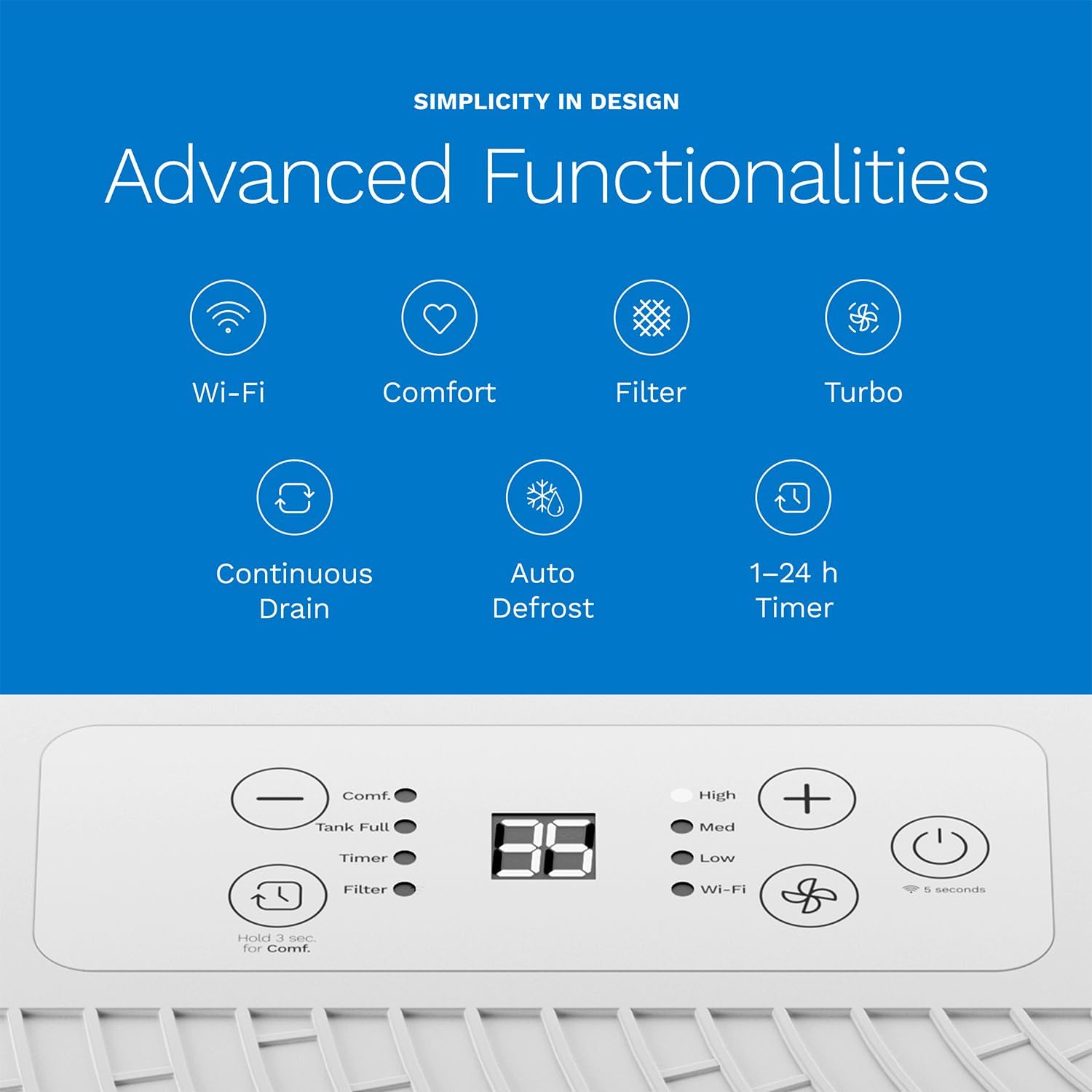
Figure 6: Control Panel and Advanced Functionalities
Drainage Options
The dehumidifier offers two drainage methods:
- Built-in Tank: The 1-gallon water tank collects condensed moisture. The unit will automatically shut off when the tank is full, and the 'Full' indicator light will illuminate.
- Continuous Drainage: For extended operation without manual emptying, connect the included drain hose to the outlet on the back of the unit and direct it to a suitable drain.

Figure 7: Dual-Option Drainage System
Maintenance
Regular maintenance ensures optimal performance and longevity of your dehumidifier.
Filter Cleaning
The washable filter should be cleaned regularly, especially when the 'Filter' indicator light is on. To clean:
- Turn off and unplug the dehumidifier.
- Remove the filter from the back of the unit.
- Rinse the filter under running water or use a vacuum cleaner to remove dust and debris.
- Allow the filter to air dry completely before reinserting it into the unit.

Figure 8: Washable Filter for Easy Maintenance
Water Tank Cleaning
Clean the water tank periodically to prevent mold and mildew growth. Remove the tank, rinse it with clean water, and if necessary, use a mild detergent. Ensure the tank is thoroughly dry before placing it back into the unit.
Troubleshooting
If you encounter issues with your dehumidifier, refer to the following common troubleshooting steps:
- Unit Not Turning On: Ensure the power cord is securely plugged into a working outlet. Check if the water tank is full or improperly seated.
- No Moisture Removal: Verify that the humidity setting is lower than the current room humidity. Ensure the air filter is clean and not obstructed. Check for any blockages in the air intake or exhaust vents.
- Unit is Loud: Ensure the unit is placed on a flat, stable surface. Check if the air filter is clean, as a clogged filter can cause increased noise.
- 'Full' Indicator Light On but Tank is Not Full: This may indicate an issue with the float switch. Ensure the tank is correctly inserted and the float mechanism is not obstructed.
For persistent issues, please contact hOmeLabs customer support.
Specifications
| Feature | Description |
|---|---|
| Brand | hOmeLabs |
| Model Name | hOmelabs - Dehumidifier - 32 Pint - WIFI |
| Item Model Number | HME0089 |
| Floor Area Coverage | 4500 Square Feet |
| Dehumidification Capacity | 32 Pints per Day |
| Maximum Capacity | 80 Pints |
| Tank Volume | 1 Gallons |
| Product Dimensions | 8.2"D x 12.2"W x 19.6"H |
| Item Weight | 28.3 Pounds |
| Color | White |
| Operation Mode | Automatic |
| Special Features | Adjustable Humidity Control, Automatic Defrost, Automatic Moisture Removal, Automatic Shutoff, Bucket Storage, Digital Display, Portable, Quiet Operation, Removable Tank, Timer, Washable Filter |
| Recommended Uses | Residential |
| Included Components | User Manual |
| UPC | 810049721800 |
| Date First Available | February 21, 2025 |
Warranty and Support
Your hOmeLabs dehumidifier comes with a standard manufacturer's warranty. Please refer to the warranty card included in your product packaging for specific terms and conditions. For technical support, troubleshooting assistance, or warranty claims, please contact hOmeLabs customer service through their official website or the contact information provided in your product manual.