
Introduction
The TELE System UP1 is an advanced Android TV 4K Ultra HD decoder designed to enhance your television viewing experience. It combines the capabilities of a DVB-T2 HEVC terrestrial digital decoder with the smart features of Android TV, offering access to a wide range of streaming services and applications. This manual provides essential information for setting up, operating, maintaining, and troubleshooting your UP1 decoder.
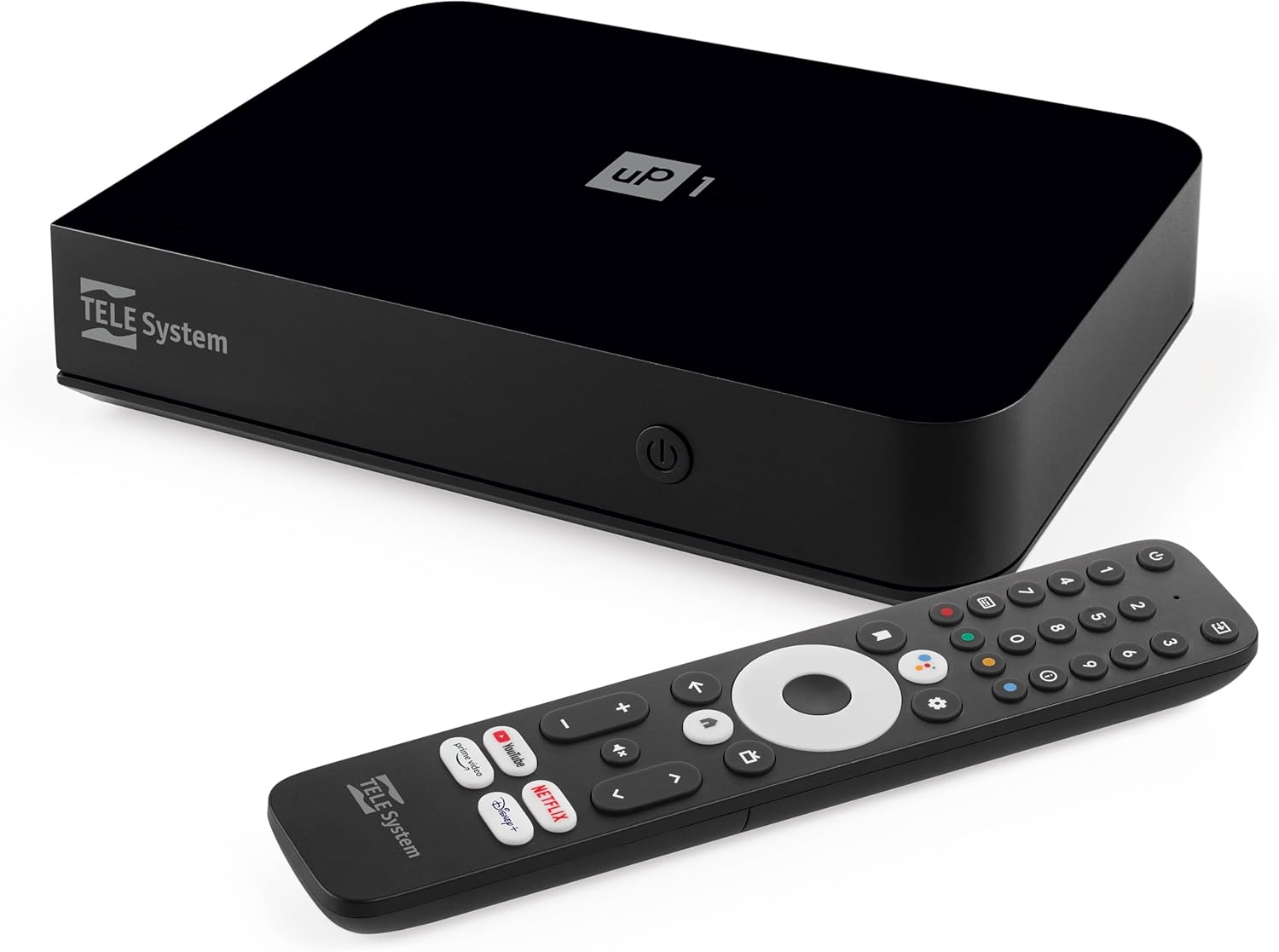
Image: Front view of the TELE System UP1 decoder, showcasing its compact design and branding.
What's in the Box
Please check the package contents to ensure all items are present:
- TELE System UP1 Decoder
- External Power Supply
- Remote Control
- 2x AAA Batteries
- HDMI Cable
- AV Jack-RCA Cable
Product Overview
The TELE System UP1 decoder features a compact design with various ports for connectivity and an intuitive interface for smart TV functionalities.
Front Panel
The front panel typically includes the power indicator and possibly an IR receiver.
Rear Panel Connections
The rear panel provides all necessary ports for connecting the decoder to your TV and other devices.

Image: Rear view of the TELE System UP1 decoder, showing the various input and output ports including RF IN, AV, HDMI, Ethernet, USB, and DC IN.
- RF IN: For connecting your terrestrial antenna.
- MINI AV / SCART: For connecting to older TVs using the provided AV Jack-RCA cable.
- HDMI: For connecting to modern TVs for high-definition video and audio.
- ETHERNET: For a wired internet connection.
- USB: For connecting external storage devices.
- DC IN 12V: For connecting the external power supply.
Setup Guide
Follow these steps to set up your TELE System UP1 decoder:
- Connect the Antenna: Connect your terrestrial antenna cable to the RF IN port on the rear of the decoder.
- Connect to TV:
- For modern TVs, use the provided HDMI cable to connect the decoder's HDMI port to an HDMI input on your TV.
- For older TVs, use the provided AV Jack-RCA cable to connect the decoder's MINI AV port to the corresponding AV inputs on your TV.
- Connect to Internet (Optional but Recommended):
- For a wired connection, connect an Ethernet cable from your router to the ETHERNET port on the decoder.
- For a wireless connection, you will configure Wi-Fi during the initial setup process.
- Connect Power: Insert the external power supply cable into the DC IN 12V port on the decoder, then plug the power adapter into a wall outlet.
- Insert Batteries into Remote: Open the battery compartment on the remote control and insert the two AAA batteries, observing polarity.
- Initial Setup Wizard:
- Turn on your TV and select the correct HDMI or AV input source.
- The decoder will power on and display an initial setup wizard. Follow the on-screen instructions to select your language, connect to Wi-Fi (if not using Ethernet), log in with your Google account, and perform channel scanning for DVB-T2.
- The system may perform an automatic software update during this process, potentially upgrading from Android 10 to Android 12.
- Pair Remote Control: During the initial setup, you will be prompted to pair the Bluetooth remote control. Follow the on-screen instructions. The remote also supports IR for basic TV functions.
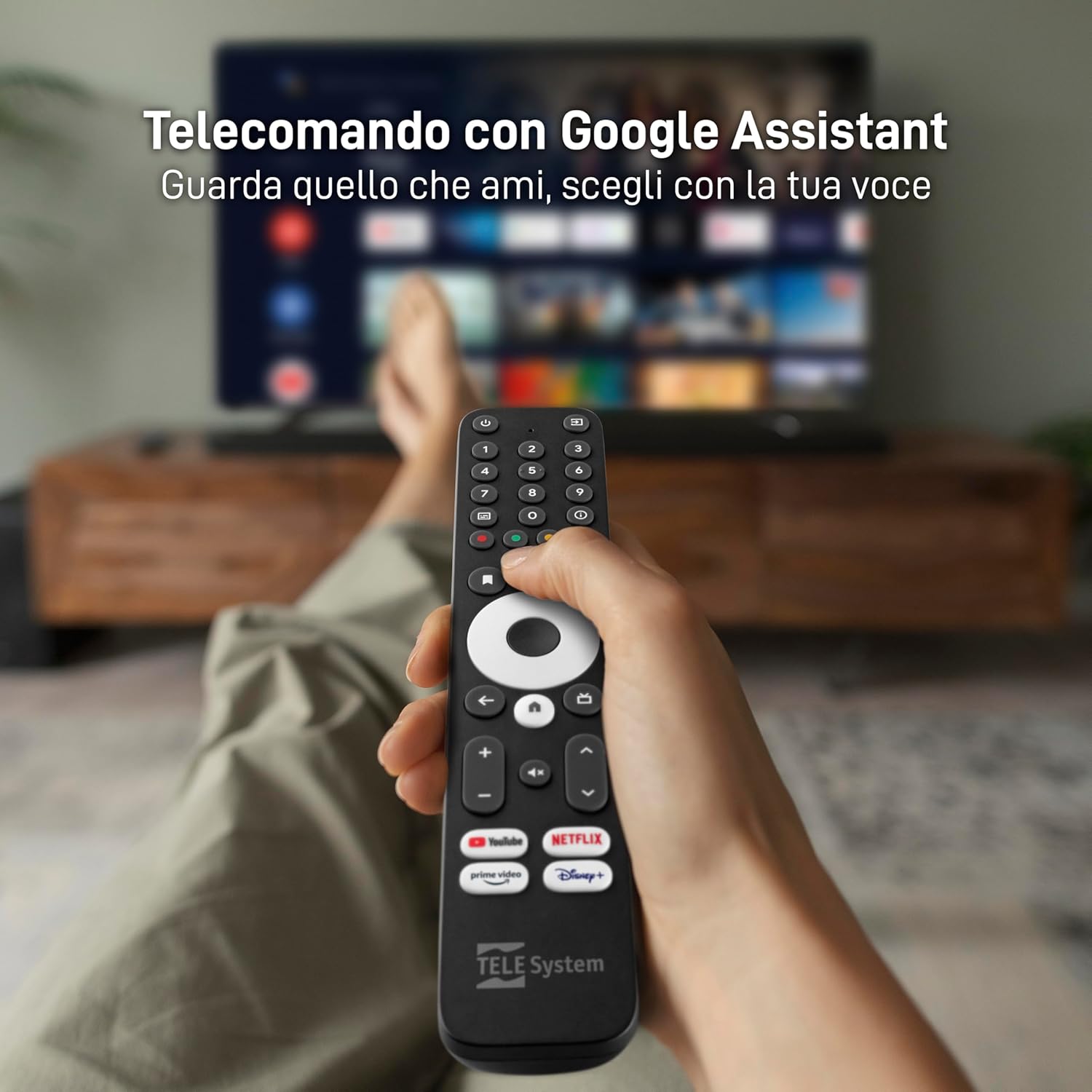
Image: The TELE System UP1 remote control, highlighting its dedicated buttons for streaming services and the Google Assistant button.
Operating Instructions
The TELE System UP1 offers a seamless experience for both terrestrial TV and smart streaming.
Using the Remote Control
- Google Assistant: Press the Google Assistant button to use voice commands for searching content, controlling playback, or asking questions.
- Dedicated App Buttons: Use the dedicated buttons for Netflix, YouTube, Prime Video, and Disney+ for quick access to these streaming services.
- Navigation: Use the directional pad and OK button to navigate menus and select options.
- TV/Smart Mode Switch: A dedicated button allows you to switch between the DVB-T2 terrestrial TV interface and the Android TV smart interface.
- TV Control: The remote can be programmed to control basic functions of your TV (power, volume, input) using IR. Refer to the official TELE System website for detailed instructions on programming these buttons.
Accessing Streaming Services and Apps
Once connected to the internet and logged into your Google account, you can access a vast library of content.

Image: Screenshot of the Android TV home screen, displaying popular streaming applications like Netflix, YouTube, Prime Video, and Disney+.
- Google Play Store: Download and install additional applications from the Google Play Store.
- Pre-installed Apps: Many popular apps like Netflix, Prime Video, Disney+, YouTube, RaiPlay, Apple TV Plus, and Mediaset Infinity are often pre-installed or easily accessible.
Chromecast Built-in
The integrated Chromecast functionality allows you to cast content directly from your smartphone or tablet to your TV.
- Ensure your smartphone/tablet and the UP1 decoder are connected to the same Wi-Fi network.
- Open a Chromecast-enabled app on your mobile device (e.g., YouTube, Netflix).
- Tap the Cast icon
 and select your TELE System UP1 device.
Maintenance
To ensure optimal performance and longevity of your TELE System UP1 decoder, follow these maintenance guidelines:
- Cleaning: Use a soft, dry cloth to clean the exterior of the decoder. Do not use liquid cleaners or abrasive materials.
- Ventilation: Ensure the decoder is placed in a well-ventilated area to prevent overheating. Do not block ventilation openings.
- Software Updates: Regularly check for and install software updates. These updates often include performance improvements, new features, and security patches. You can usually find this option in the Android TV settings menu.
- Power Cycle: If the device becomes unresponsive, disconnect the power adapter from the wall outlet, wait for 10-15 seconds, and then reconnect it.
Troubleshooting
If you encounter issues with your TELE System UP1 decoder, refer to the following common problems and solutions:
| Problem | Possible Cause / Solution |
|---|---|
| No Power / Device Not Turning On |
|
| No Signal / Black Screen on TV |
|
| No Internet Connection |
|
| Remote Control Not Responding |
|
| Green Colors on Screen (Older TVs) |
|
| Applications Crashing or Freezing |
|
Specifications
Key technical specifications for the TELE System UP1 decoder:
- Model Number: 21005356
- Brand: TELE System
- Connectivity Technology: HDMI, Wi-Fi, Ethernet, Bluetooth
- Controller Type: Button (Remote Control)
- Special Feature: Compact Design, Google Assistant, Chromecast Built-in
- Compatible Devices: Smartphones, Tablets, Televisions, HDMI devices, SCART devices
- Total HDMI Ports: 3
- Audio Output Mode: Stereo, Surround
- Surround Sound Channel Configuration: 5.1
- Video Encoding: HEVC, AV1
- Color: Black
- Dimensions: 20.8 x 13.2 x 8 cm; 620 grams
- Operating System: Android TV (upgradable to Android 12)
- DVB-T2: Yes, with HEVC Main10 support
Warranty and Support
For warranty information and technical support, please refer to the following:
- Warranty: This product is covered by the standard manufacturer's warranty. For specific details regarding warranty duration and terms, please consult the documentation included with your purchase or visit the official TELE System website.
- Returns: Purchases made through Amazon typically include a 14-day return policy. Please check your Amazon order details for specific return eligibility and procedures.
- Technical Support: For further assistance, troubleshooting not covered in this manual, or inquiries about product functionality, please visit the official TELE System support website or contact their customer service. An online manual in PDF format may also be available on their website.


