
GALAYOU JP-R1
GALAYOU 2K Security Cameras Wireless Outdoor Instruction Manual
Model: JP-R1 | Brand: GALAYOU
1. Introduction
This manual provides comprehensive instructions for the installation, operation, and maintenance of your GALAYOU 2K Security Cameras. These wireless outdoor cameras feature 360° PTZ capabilities, solar panel/battery power, night vision, two-way audio, and PIR motion detection for enhanced home security.

Figure 1.1: GALAYOU 2K Security Cameras (4-pack)
2. What's in the Box
- Camera body (x4)
- Type-C Power Cord
- Installation guide
- Mounting screws
- Bracket
- Solar Panel
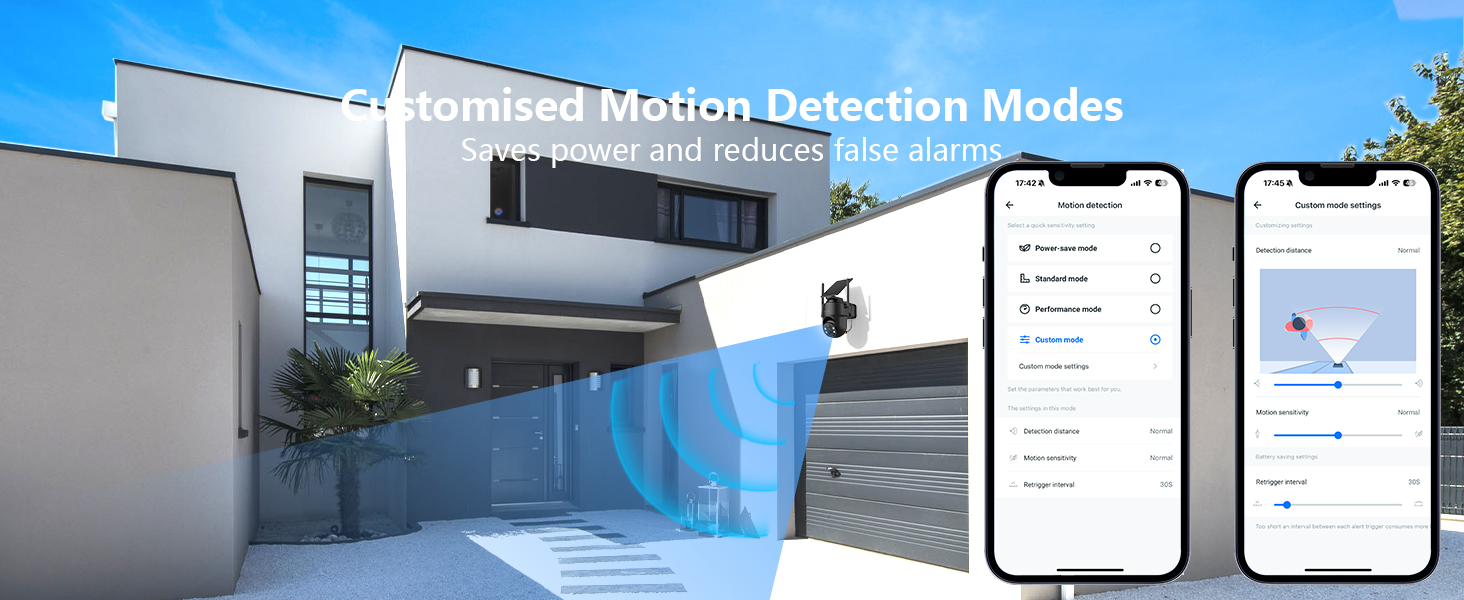
Figure 2.1: Package Contents
3. Setup
3.1 Physical Installation
The cameras are designed for easy, truly wireless setup. They are powered by built-in lithium batteries and come with solar panels for continuous power. Ensure the camera is placed in an area with sufficient sunlight for optimal charging.
- Remove the bracket from the camera.
- Drill holes and screw the bracket onto the wall using the provided mounting screws.
- Reattach the camera to the wall mount, ensuring it clicks securely into place.
- Connect the solar panel to the camera via the USB-C cable. The solar panel can be attached directly to the camera or mounted in a separate location that receives ample sunlight.

Figure 3.1: Camera Mounting Steps
3.2 App Installation & Pairing
The camera connects to a 2.4GHz Wi-Fi network only. For optimal performance, ensure your Wi-Fi is configured correctly.
- Download the Wansview Cloud App from your device's app store (App Store for iOS, Google Play for Android).
- Open the app and follow the on-screen instructions to add your new camera. The app can often automatically recognize nearby devices for easy pairing.
- Alternatively, you can scan the QR code on the camera using the app to initiate pairing.
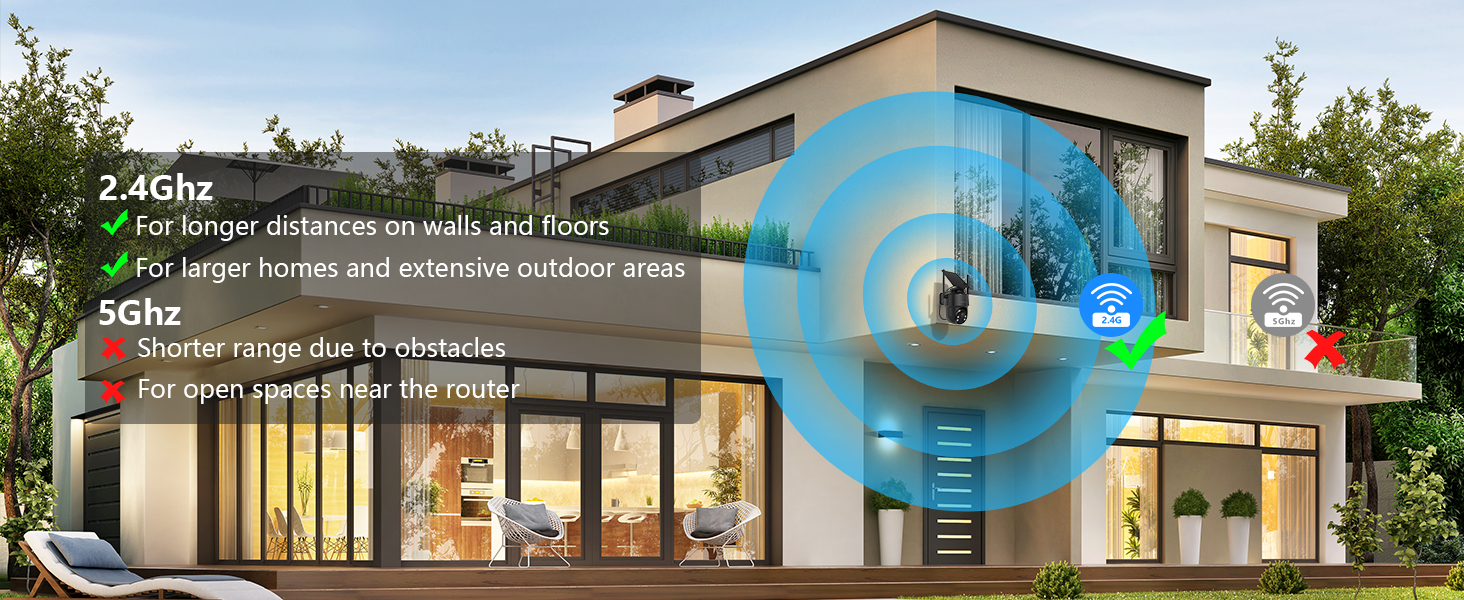
Figure 3.2: App Setup and Pairing
4. Operating the Camera
4.1 Live View and Controls
Access the live feed through the Wansview Cloud App. The camera offers 2K FHD live streaming. You can switch between 2K and SD resolution within the app.
The camera features 355° pan and 90° tilt capabilities, controllable via the app's console feature. This allows for comprehensive coverage of your outdoor areas.

Figure 4.1: 360° Pan and Tilt Functionality
Two-Way Audio: The built-in microphone and speaker enable seamless two-way communication. You can speak through the app and hear responses from the camera's location.
Light & Siren: The camera is equipped with LED lights for color night vision and a siren that can be activated manually or triggered by motion.
Recording & Screenshots: The app allows you to take screenshots and record video directly from the live view.
Video 4.1: How to Use the Console Feature (Seller Video)
This video demonstrates how to use the console feature within the app to control the camera's pan and tilt, as well as activate two-way audio, lights, and siren.
4.2 Motion Detection & Night Vision
The integrated PIR motion sensor accurately detects human activity, reducing false alarms. You can customize sensitivity settings and receive push notifications when motion is detected.
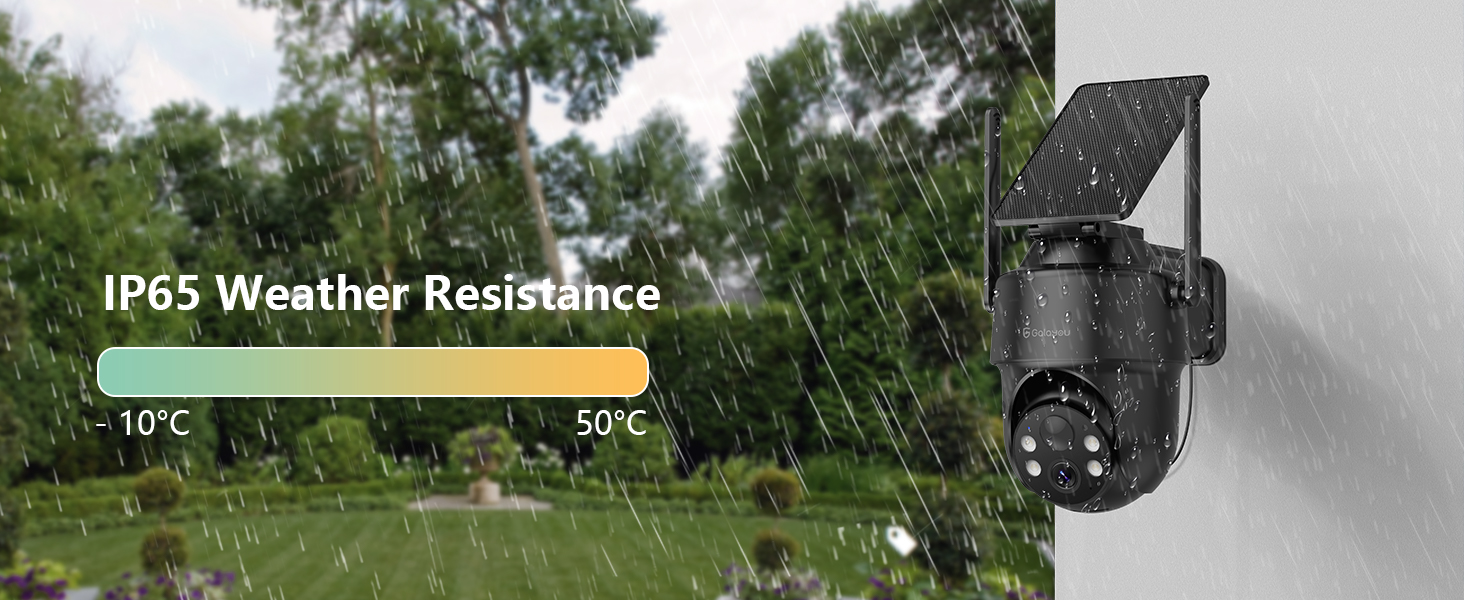
Figure 4.2: PIR Human Detection
The camera offers advanced night vision with 4 LED lights and 4 infrared lights, providing vibrant color views even in low-light conditions. The motion-activated spotlight can also be configured for clear color night vision.

Figure 4.3: Full-Color Night Vision
4.3 Storage Options
The camera supports both local storage via a TF card (up to 128GB, not included) and optional cloud storage. New users can enjoy a 30-day trial of cloud storage.

Figure 4.4: Flexible Storage Options
5. Maintenance
The camera is IP65 waterproof, ensuring reliable performance in harsh weather conditions like rain and snow. The solar panel continuously charges the built-in battery, minimizing the need for manual charging.

Figure 5.1: IP65 Weather Resistance
6. Troubleshooting
6.1 Resetting the Camera
If you encounter issues or need to re-pair the camera, you may need to reset it. The reset button is located under a cover on the camera body.
Video 6.1: How to Reset the Cameras (Seller Video)
This video provides a step-by-step guide on how to reset your GALAYOU camera.
7. Specifications
| Feature | Value |
|---|---|
| Brand | GALAYOU |
| Model Name | R1 |
| Connectivity Technology | Wireless (2.4GHz Wi-Fi Only) |
| Power Source | Battery Powered, Solar Powered |
| Video Capture Resolution | 3 MP (2K FHD) |
| Viewing Angle | 95 Degrees |
| Pan/Tilt Range | 355° Pan, 90° Tilt |
| Night Vision Range | 30 Feet (Color Night Vision) |
| International Protection Rating | IP65 |
| Special Features | Easy to Install, AI human detection, Solar/Battery Powered, Two-Way Audio |
| Item Dimensions L x W x H | 5.87 x 4.62 x 5.34 inches |
| Item Weight | 6.97 pounds |
8. Warranty and Support
For product support, troubleshooting, or warranty inquiries, please refer to the contact information provided in your Quick Start Guide or visit the official GALAYOU website. The product comes with standard manufacturer's warranty terms. Additional protection plans may be available for purchase.
Ask a question about this manual
Ask about setup, troubleshooting, compatibility, parts, safety, or missing instructions. Manuals+ will review the question and use this page’s manual context to help answer it.