
WOLFBOX G900 Tripro
Contents
WOLFBOX G900 Tripro Bumper Version 3 Channel 4K Mirror Dash Cam User Manual
Introduction
This manual provides comprehensive instructions for the WOLFBOX G900 Tripro Bumper Version 3 Channel 4K Mirror Dash Cam. This advanced recording system features a 4K front camera with STARVIS 2 IMX678 sensor, a 2.5K rear camera, and a 1080P bumper-mounted camera, offering extensive coverage and enhanced clarity in various lighting conditions. Key features include 5.8GHz WiFi connectivity, voice control, and GPS tracking. Please read this manual thoroughly before installation and operation to ensure proper use and optimal performance of your device.

Image: The WOLFBOX G900 Tripro Mirror Dash Cam system, including the main mirror unit, two external cameras, GPS module, and a 256GB SD card.
What's in the Box
Verify that all components listed below are included in your package:
- 1 x G900 Tripro Bumper Version 4K Mirror Dash Cam (Main Unit)
- 1 x 2.5K Rear Camera with Screws and Adhesive Mount
- 1 x 1080P Bumper Camera
- 1 x 11.5FT Car Charger
- 1 x 32.8FT Rear Camera Cable
- 1 x 21.3FT Bumper Camera Cable
- 1 x External GPS Antenna
- 1 x 256GB MicroSD Card
- 1 x User Manual
- 5 x Cable Clips
- 4 x Straps
- 10 x Nylon Zip Ties
- 1 x License Plate Bracket
- 8 x Screws

Image: A visual representation of all items included in the WOLFBOX G900 Tripro package, such as the main mirror unit, cameras, cables, and accessories.
Setup
Follow these steps for proper installation of your dash cam system:
- Install the Main Mirror Unit: Secure the G900 Tripro mirror dash cam over your existing rearview mirror using the provided straps. Ensure it is firmly attached and does not obstruct your view.
- Connect the Front Camera: The front camera is integrated into the main mirror unit. Adjust its angle to capture the desired forward view.
- Install the Rear Camera: Mount the 2.5K rear camera on the rear windshield or license plate area. Route the 32.8FT rear camera cable discreetly along the vehicle's interior trim to the main unit. Connect the cable to the designated port on the main unit.
- Install the Bumper Camera: Mount the 1080P bumper camera on the front bumper using the license plate bracket and screws. Route the 21.3FT bumper camera cable to the main unit, ensuring it is secured and protected from external elements. Connect the cable to its dedicated port.
- Connect the GPS Antenna: Attach the external GPS antenna to the main unit and place it on the dashboard where it has a clear view of the sky for optimal signal reception.
- Power Connection: Plug the 11.5FT car charger into your vehicle's 12V power outlet and connect the other end to the main mirror unit. For parking monitoring functionality, a hardwire kit (sold separately, ASIN: B0DY1DZDN6) is required to provide continuous power.
- Insert MicroSD Card: The 256GB MicroSD card is pre-installed. If replacing, ensure the card is inserted correctly into the slot on the main unit.

Image: An overview of the installation process, showing the placement of the mirror dash cam, rear camera, bumper camera, and cable routing.
Operating Instructions
Power On/Off
The dash cam will automatically power on and begin recording when your vehicle starts, and power off when the ignition is turned off (unless a hardwire kit is installed for parking monitoring).
Recording Modes
The system records simultaneously from three channels:
- Front Camera: 4K (3840*2160P) resolution at 30FPS, utilizing the STARVIS 2 IMX678 sensor for enhanced low-light performance and dynamic range.
- Rear Camera: 2.5K (2560*1440P) resolution at 30FPS, featuring a 1/1.88-inch sensor with Purecel Plus Technology for superior night vision.
- Bumper Camera: 1080P resolution, providing a unique perspective for off-road monitoring.
Voice Control
Utilize voice commands for hands-free operation of basic functions, allowing you to maintain focus on driving. Common commands include "turn on recording" or "take picture." Refer to the on-screen prompts for available commands.
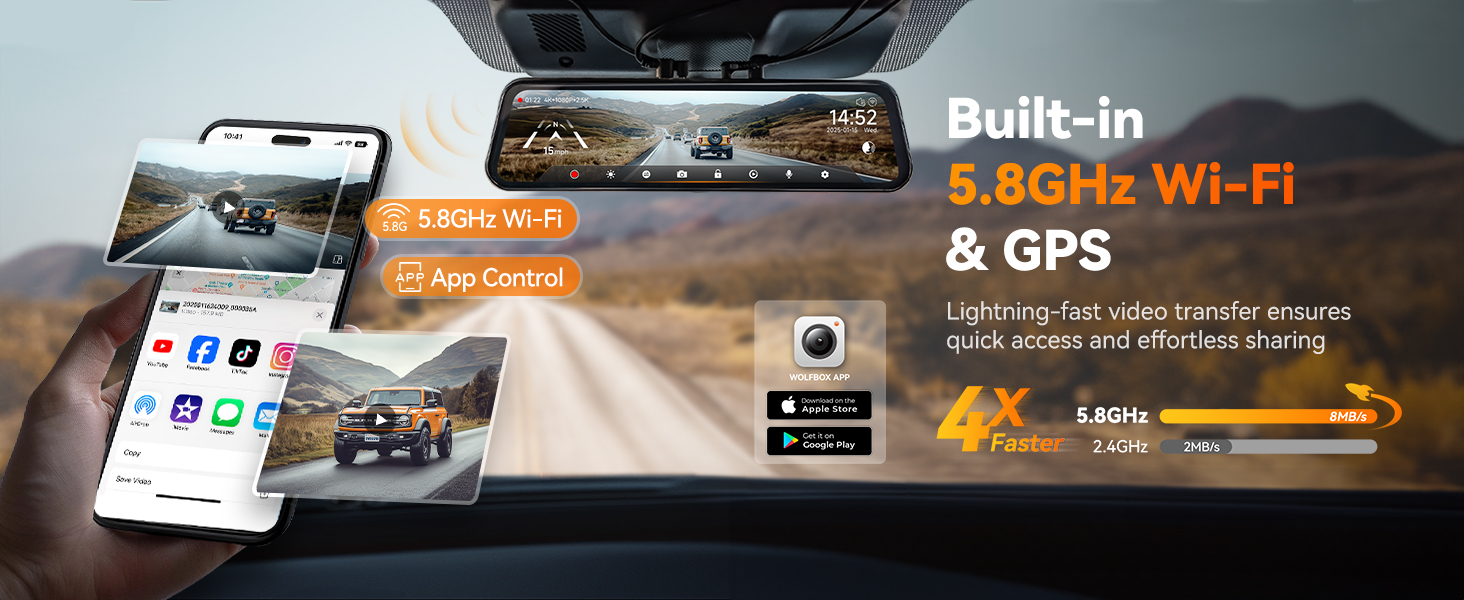
Image: A visual guide to using voice commands like 'turn on wifi', 'turn on recording', and 'take picture' with the dash cam.
5.8GHz WiFi & App Control
Connect your smartphone to the dash cam via 5.8GHz WiFi for fast and reliable data transfer. The WOLFBOX app allows you to:
- Access live video feeds from all cameras.
- Review and download past recordings.
- Share video files directly from your phone.
- Adjust device settings.
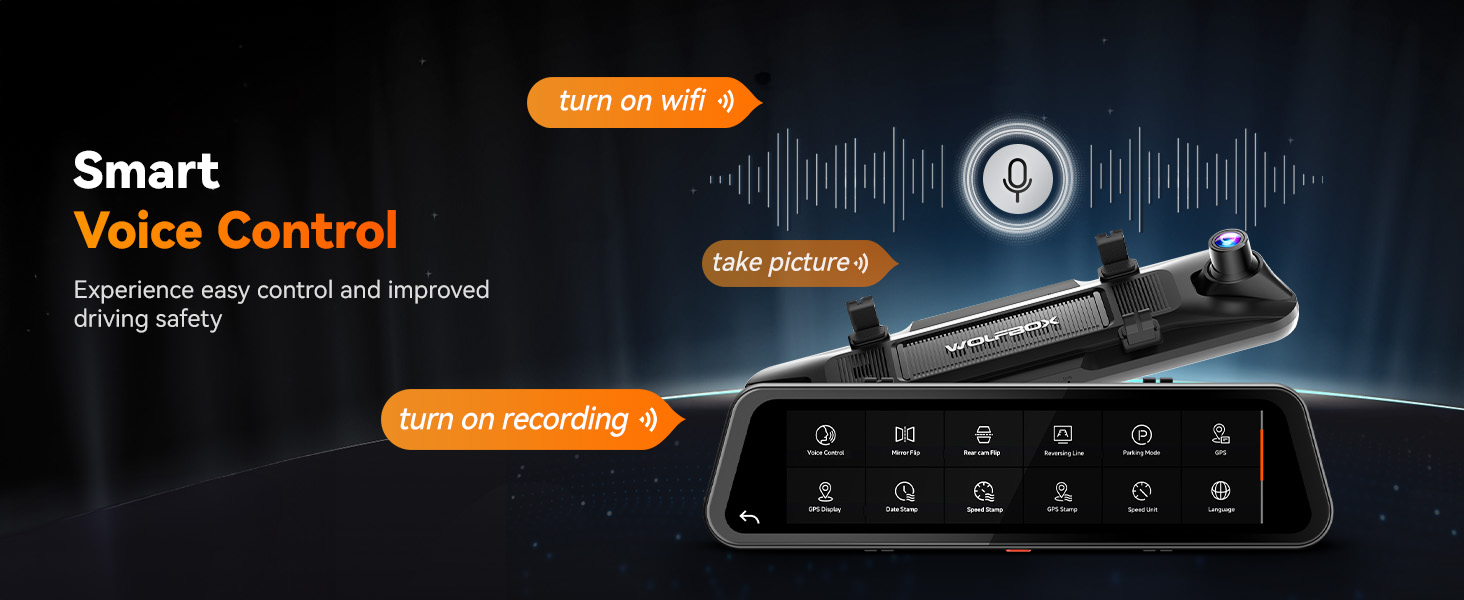
Image: A smartphone screen showing the WOLFBOX app, demonstrating how to access and manage dash cam footage via 5.8GHz Wi-Fi.
Loop Recording & G-Sensor
The dash cam continuously records, overwriting the oldest footage when the memory card is full. The built-in G-sensor detects sudden impacts or collisions, automatically locking the current video segment to prevent it from being overwritten, ensuring critical event footage is preserved.
Parking Monitoring
With a separately purchased hardwire kit, the dash cam can provide 24/7 parking surveillance. This feature includes collision detection and time-lapse recording to monitor your vehicle while parked.

Image: A visual explanation of the 24/7 parking monitoring features, showing collision detection and time-lapse recording capabilities.
GPS Tracking
The external GPS antenna records your driving route, speed, and location data. This information can be reviewed using the WOLFBOX app or dedicated PC player, allowing for route replay and precise location tracking.
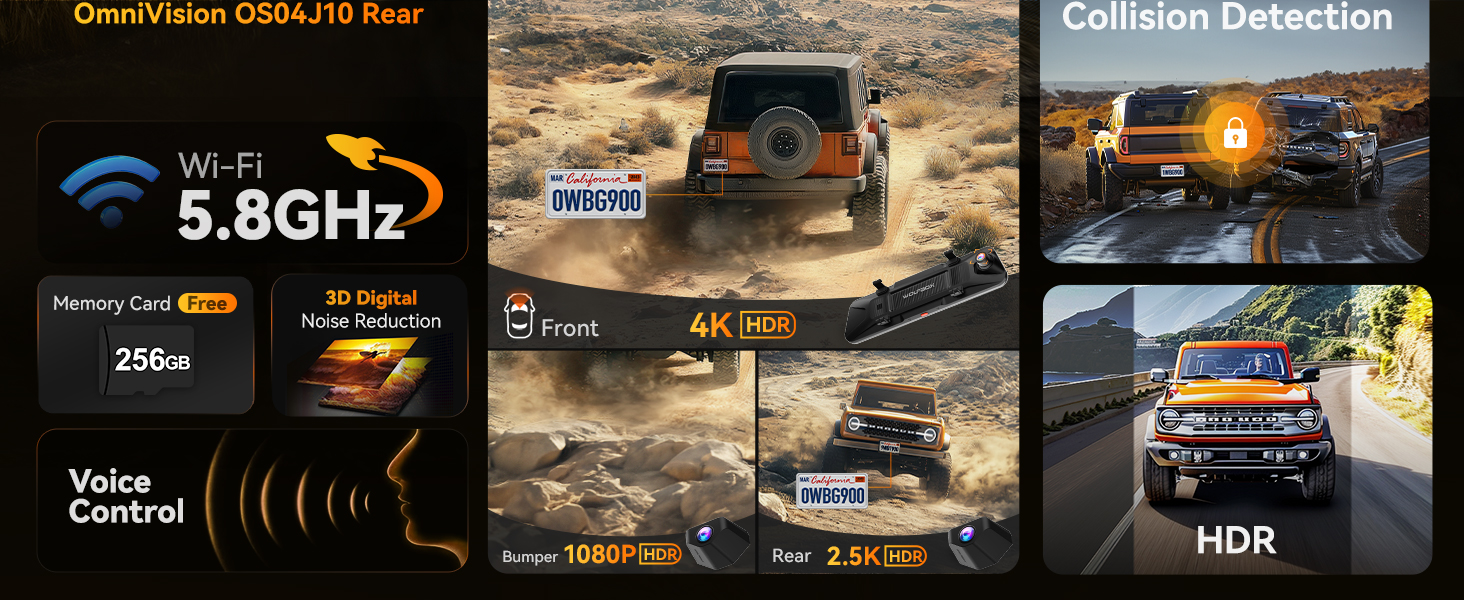
Image: A visual representation of the GPS tracking feature, showing route playback on both a smartphone and a computer interface.
Maintenance
Regular maintenance ensures the longevity and optimal performance of your dash cam:
- MicroSD Card: Format the MicroSD card regularly (e.g., once a month) to prevent data corruption and ensure smooth recording. Back up any important footage before formatting.
- Lens Cleaning: Gently clean the camera lenses and the mirror screen with a soft, lint-free cloth. Avoid abrasive materials or harsh chemicals that could scratch the surfaces.
- Temperature Management: The dash cam is equipped with a supercapacitor for stable performance in extreme temperatures (-4°F to 158°F). However, avoid prolonged exposure to direct sunlight in extremely hot conditions when the vehicle is parked, if possible, to extend product life.

Image: A graphic highlighting the upgraded supercapacitor, demonstrating its ability to withstand extreme temperatures from -4°F to 158°F.
Troubleshooting
If you encounter issues with your WOLFBOX G900 Tripro, refer to the following common problems and solutions:
| Problem | Possible Cause | Solution |
|---|---|---|
| Dash cam does not power on. | No power supply; faulty car charger; loose connection. | Check car charger connection and vehicle's 12V outlet. Ensure the car charger is functional. |
| Recording stops or freezes. | MicroSD card error; full MicroSD card; incompatible MicroSD card. | Format the MicroSD card. Replace with a high-speed (Class 10 or U3) MicroSD card if issues persist. |
| Poor video quality. | Dirty lens; protective film still on lens; low light conditions. | Clean the camera lenses. Remove any protective film. Ensure HDR is enabled for challenging lighting. |
| GPS signal not found. | GPS antenna obstructed; loose connection. | Ensure the GPS antenna is placed on the dashboard with a clear view of the sky and is securely connected. |
| WiFi connection issues. | Incorrect password; interference; app issues. | Verify WiFi password. Try restarting the dash cam and your smartphone. Reinstall the WOLFBOX app if necessary. |
Specifications
| Feature | Detail |
|---|---|
| Model Name | G900 Tripro Bumper Version |
| Front Camera Sensor | STARVIS 2 IMX678 |
| Video Capture Resolution | Front: 4K (3840*2160P), Rear: 2.5K (2560*1440P), Bumper: 1080P |
| Field of View | 170 Degrees (Front) |
| Connectivity Technology | USB, 5.8GHz Wi-Fi |
| Special Features | App Control, Built-In Display, G-Sensor, Built-In GPS, Loop Recording, Parking Monitor, Night Vision, Built-In Supercapacitor, Reverse Assist, Touch Screen, Voice Control |
| Mounting Type | Rearview Mirror Mount |
| Included Storage | 256GB MicroSD Card |
| Power Source | 12V Car Charger (Hardwire kit for parking monitor sold separately) |
| Operating Temperature | -4°F to 158°F |
| Product Dimensions | 1.5 x 12 x 3 inches |
| Item Weight | 3 pounds |
Warranty and Support
WOLFBOX provides dedicated customer support to assist with any questions or issues you may encounter.
- Warranty: The WOLFBOX G900 Tripro comes with a 12-month guarantee from the date of purchase, ensuring consistent performance.
- Return Policy: A 7-day return policy is available for the product.
- Contact Support:
Email: service@wolfbox.com
Phone: +1 888 296 8399
For further assistance, please refer to the official WOLFBOX website or contact customer service directly.
Ask a question about this manual
Ask about setup, troubleshooting, compatibility, parts, safety, or missing instructions. Manuals+ will review the question and use this page’s manual context to help answer it.