
1. Introduction
This manual provides essential information for the proper installation, operation, and maintenance of your aboutBit Single Din Car Stereo Bluetooth Receiver, Model CA-10BT. Please read this manual thoroughly before using the product to ensure optimal performance and safety. Keep this manual for future reference.
2. Important Safety Information
- Driving Safety: Do not operate the unit in a manner that distracts you from driving safely. Always keep your attention on the road.
- Volume Control: Keep the volume at a level where you can still hear outside traffic sounds. Excessive volume can impair hearing and create a driving hazard.
- Installation: Ensure proper installation by a qualified technician to prevent damage to the unit or vehicle. Incorrect wiring can cause fire or malfunction.
- Power Supply: Connect the unit only to a 12V DC power supply with a negative ground.
- Avoid Moisture: Do not expose the unit to rain or moisture to prevent electric shock or fire.
3. Package Contents
Verify that all items are present in the package:
- Single Din Bluetooth Radio
- Harness & Mounting Kits
- User Manual
4. Product Overview
The aboutBit Single Din Car Stereo (Model CA-10BT) is designed to provide a versatile audio experience in your vehicle. It features Bluetooth connectivity for hands-free calling and music streaming, multiple media inputs, and an AM/FM radio tuner.

Figure 4.1: Front view of the aboutBit Single Din Car Stereo, showing the LCD display, rotary knob, and control buttons.
4.1 Key Features
- Bluetooth Connectivity: Seamless hands-free calling with a built-in microphone and wireless music streaming.
- Multimedia Inputs: USB port (2.1A for fast charging), SD card slot, and Auxiliary (AUX) input for various audio sources.
- HD LCD Display: Clear display with 7-color illumination options for enhanced visibility day or night.
- AM/FM Radio Tuner: Digital tuner with preset stations for music, news, and sports.
- Audio Outputs: 4-channel RCA audio outputs for connecting aftermarket speakers, amplifiers, and subwoofers.
- Physical Rotary Knob: For intuitive volume control and menu navigation.
5. Installation
Proper installation is crucial for the functionality and safety of your car stereo. If you are unsure about any steps, consult a professional installer.
5.1 Wiring Diagram

Figure 5.1: Wiring diagram showing power, ground, ignition, antenna, and speaker connections.
Power Cable (A):
- Yellow wire: +12V Constant Power Supply (B+)
- Red wire: +12V Ignition Switch (ACC)
- Black wire: Ground Wire (B-)
Speaker Cable (B):
- Connect speaker wires according to the diagram for Front Left, Front Right, Rear Left, and Rear Right speakers. Ensure correct polarity (+/-).
5.2 Mounting the Unit

Figure 5.2: Visual guide for installing the single din unit into the car's console.
- Insert the two bracket keys into the left and right sides of the chassis, and separate it from the sleeve.
- Place the short sleeve into the car's center console opening.
- Press the iron piece on the sleeve with a mounting tool to secure it firmly.
- Carefully slide the single din unit into the mounting sleeve until it clicks into place.
6. Basic Operation
6.1 Power On/Off
- Press the SRC button (Source) to turn the unit on.
- Press and hold the SRC button to turn the unit off.
6.2 Volume Control
- Rotate the central knob clockwise to increase volume and counter-clockwise to decrease volume.
6.3 Source Selection
- Press the SRC button repeatedly to cycle through available sources: FM, AM, Bluetooth, USB, SD, AUX.
6.4 Audio Settings
- Press the central knob briefly to access audio settings such as Bass, Treble, Balance, Fader, and Equalizer (EQ) presets. Rotate the knob to adjust values.
- The XBASS button activates or deactivates the extra bass feature.
7. Bluetooth Operation
The unit supports Bluetooth for hands-free calling and audio streaming.

Figure 7.1: Illustration of seamless Bluetooth calling with built-in microphone.
7.1 Pairing a Bluetooth Device
- Ensure Bluetooth is enabled on your mobile device.
- Select the Bluetooth source on the car stereo by pressing the SRC button. The display will show "BT".
- On your mobile device, search for available Bluetooth devices and select "aboutBit" (or similar name).
- Confirm pairing on your mobile device if prompted. Once paired, the unit will display "CONNECTED".
7.2 Hands-Free Calling
- Answering/Ending Calls: Press the CALL button (usually the green phone icon) to answer an incoming call. Press it again to end a call.
- Dialing: Use your phone to dial numbers. The audio will automatically transfer to the car stereo.
- Microphone: The built-in microphone ensures clear communication during calls.
7.3 Bluetooth Audio Streaming

Figure 7.2: The car stereo displaying music streaming from a smartphone.
- Once paired, select the Bluetooth source. Play music from your mobile device, and the audio will stream wirelessly to the car stereo.
- Use the PLAY/PAUSE and SKIP buttons on the stereo to control playback.
8. AM/FM Radio Operation
The unit features a digital AM/FM tuner with preset station memory.
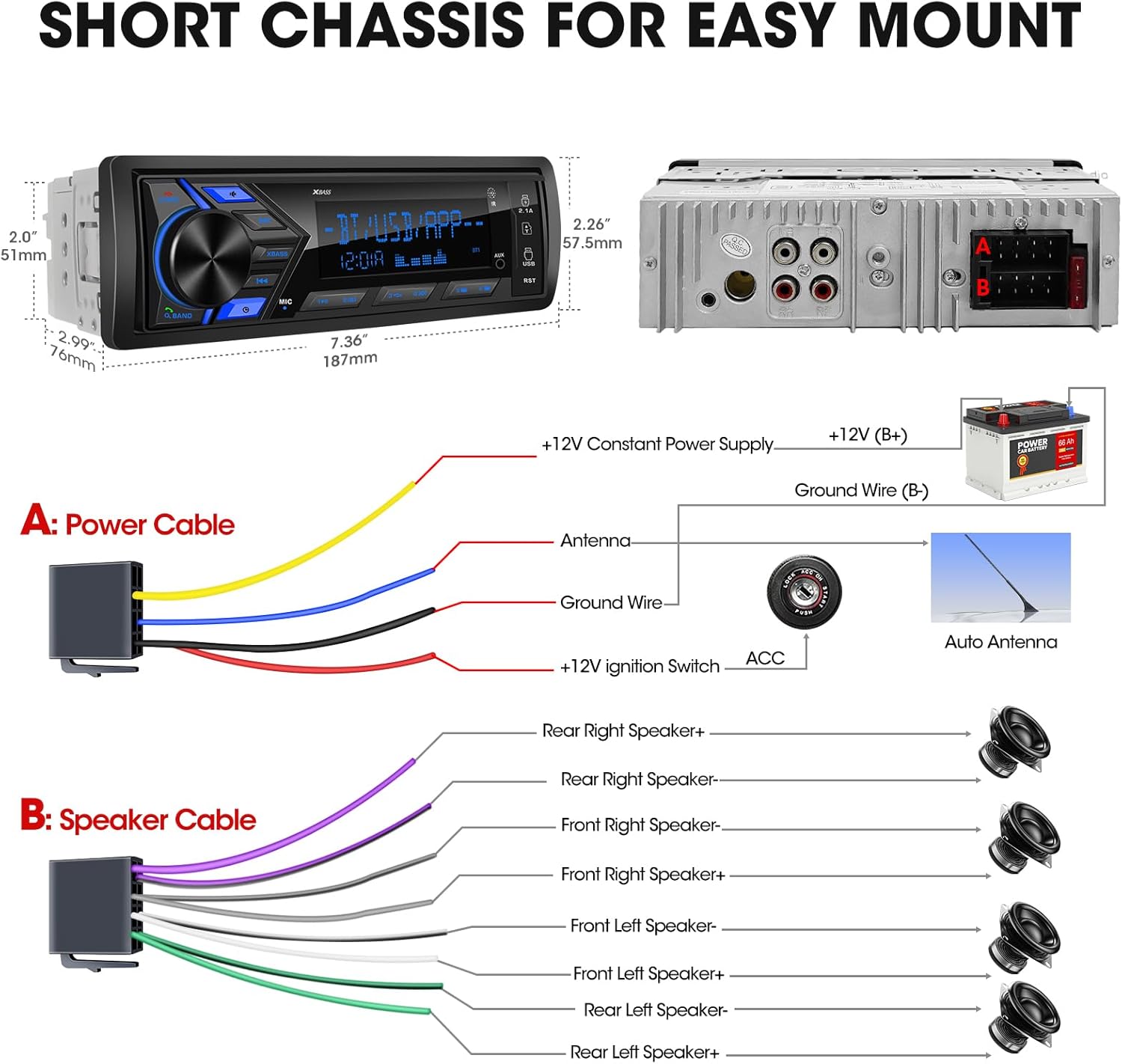
Figure 8.1: Display showing various AM and FM frequencies.
8.1 Selecting Radio Band
- Press the BAND button to switch between FM1, FM2, FM3, AM1, and AM2 bands.
8.2 Tuning Stations
- Automatic Search: Press and hold the SEEK UP or SEEK DOWN buttons to automatically search for the next strong station.
- Manual Search: Briefly press the SEEK UP or SEEK DOWN buttons to tune step-by-step.
8.3 Storing and Recalling Presets
- Storing: Tune to your desired station. Press and hold one of the preset buttons (1-6) until you hear a beep. The station is now saved to that preset number.
- Recalling: Briefly press a preset button (1-6) to recall the saved station.
9. Media Playback (USB, SD, AUX)
The unit supports playback from USB drives, SD cards, and external devices via the AUX input.

Figure 9.1: The car stereo with USB, Micro SD, and Aux input ports highlighted, and a phone charging via USB.
9.1 USB/SD Playback
- Insert a USB drive into the USB port or an SD card into the SD card slot.
- The unit will automatically switch to the USB/SD source and begin playback. If not, press the SRC button to select the correct source.
- Use the PLAY/PAUSE and SKIP buttons to control playback.
- The USB port also provides 2.1A fast charging for compatible devices.
9.2 AUX Input
- Connect an external audio device (e.g., MP3 player, smartphone) to the AUX input jack using a 3.5mm audio cable.
- Press the SRC button to select the AUX source.
- Control playback directly from your connected external device.
10. Maintenance
10.1 Cleaning the Unit
- Use a soft, dry cloth to clean the front panel and display.
- Do not use abrasive cleaners, waxes, or solvents.
10.2 General Care
- Avoid exposing the unit to extreme temperatures or direct sunlight for extended periods.
- Ensure proper ventilation around the unit to prevent overheating.
11. Troubleshooting
If you encounter issues with your car stereo, refer to the following common problems and solutions:
| Problem | Possible Cause | Solution |
|---|---|---|
| No power | Incorrect wiring; Blown fuse; Vehicle battery issue | Check power and ground connections. Verify the fuse. Ensure vehicle battery is charged. |
| No sound | Volume too low; Mute activated; Incorrect speaker wiring; Incorrect source selected | Increase volume. Check if mute is on. Verify speaker connections and polarity. Select the correct audio source. |
| Bluetooth not connecting | Bluetooth not enabled on device; Unit not in pairing mode; Interference | Ensure Bluetooth is on your phone. Select Bluetooth source on stereo. Try unpairing and re-pairing. Move closer to the unit. |
| USB/SD not playing | Unsupported file format; Corrupted media; Incorrect source selected; USB drive not recognized | Ensure audio files are in a supported format (e.g., MP3). Try a different USB drive/SD card. Select USB/SD source. |
| Display color cycling uncontrollably | Automatic color change mode activated; Software glitch | Consult the manual for display settings. Try pressing the central knob (or a dedicated color button if available) to access color options. A factory reset might be necessary if the issue persists. |
| Poor radio reception | Antenna not connected; Weak signal area; Interference | Ensure the antenna is properly connected. Try tuning in a different location. Check for external interference. |
11.1 Resetting the Unit
If the unit malfunctions or behaves unexpectedly, locate the RST (Reset) button (usually a small pinhole on the front panel). Use a thin, pointed object (like a paperclip) to press the button. This will restore the unit to its factory default settings.
12. Specifications
| Feature | Specification |
|---|---|
| Product Dimensions | 3.7 x 7.4 x 2.2 inches (9.4 x 18.8 x 5.6 cm) |
| Item Weight | 1.12 pounds (0.51 kg) |
| Connectivity Technology | Auxiliary, Bluetooth, USB |
| Special Features | Built-In Bluetooth, USB, SD, AUX-Input, ID3 Tag, Digital LCD Display, 7-Color Illumination, Rotary Knob, FM/AM Tuner, Extra Bass, Equalizer, Subwoofer/Amplifier Output, 300W Max Power |
| Compatible Devices | Amplifier, Smartphone, Speaker, Tablet |
| Connector Type | 3.5mm Jack, RCA |
| Audio Output Mode | Stereo |
| Surround Sound Channel Configuration | 4-channel |
| Max Power Output | 300W |
13. Warranty and Support
For warranty information, please refer to the documentation included with your purchase or contact aboutBit customer support. If you require technical assistance or have questions not covered in this manual, please reach out to our support team.
Customer Support: For assistance, please contact aboutBit customer service via the contact information provided on the official product page or your purchase receipt. When contacting support, please have your product model (CA-10BT) and purchase details ready.


