
Introduction
Thank you for choosing the UGREEN Revodok Pro 8-in-1 USB-C Hub. This instruction manual provides essential information for setting up, operating, and maintaining your device. This hub is designed to expand the connectivity of your USB-C enabled devices, offering a versatile solution for various peripherals and display needs.

A silver UGREEN Revodok Pro 8-in-1 USB-C Hub, showcasing its compact design and the attached USB-C cable.
Product Features
- 8-in-1 Connectivity: The UGREEN Revodok Pro 8-in-1 USB-C Hub provides comprehensive connectivity with a 4K@60Hz HDMI video output, one USB-A 3.2 port, two USB-C 3.2 ports, one USB-A 2.0 port, an SD/TF card slot, and a 100W USB-C Power Delivery input port.
- Rapid 10Gbps Data Transfer: Experience rapid data transfer speeds of up to 10Gbps via the USB-A 3.2 and two USB-C 3.2 data ports. This allows for quick transfer of large files, including HD videos. Note: The 10Gbps USB-C data ports do not support video transmission or charging functions.
- Ultra 4K@60Hz HD Resolution: The HDMI port supports 4K resolution at 60Hz, providing a clear and stable image for external displays. This allows you to mirror or extend your laptop or mobile device screen to a TV, monitor, or projector for enhanced viewing, video editing, gaming, or business presentations.
- Professional Storage Solution: The integrated SD/TF card reader offers data transfer speeds up to 170MB/s, enabling quick access to photos and videos from your camera's memory cards. Simultaneous reading and writing are supported.
- Fast and Secure 100W PD Charging: The 100W Power Delivery (PD) port allows you to charge your laptop or other compatible devices while using the hub. It supports up to 85W pass-through charging for your host device, with 15W reserved for hub operations. Built-in protections against over-voltage, over-current, and short-circuit ensure safe charging.
- Wide Compatibility: This hub is compatible with most USB-C enabled devices, including MacBook Pro/Air (M1, M2, M3, M4), iMac, iPad Pro, iPhone 16 Pro/Pro Max, Chromebooks, Surface devices, Nintendo Switch, Steam Deck, and Rog Ally.
Product Layout
Familiarize yourself with the various ports and their functions on your UGREEN Revodok Pro 8-in-1 USB-C Hub:

Diagram illustrating the UGREEN Revodok Pro 8-in-1 USB-C Hub with labels for each port: SD/TF card reader (170 MB/s), HDMI (4K@60Hz), USB-C PD (100W for charging only), two USB-C 3.2 (10Gbps for data only), USB-A 3.2 (10Gbps), and USB-A 2.0 (480Mbps).
- 1. USB-C Host Connector: Connects to your laptop, tablet, or smartphone's USB-C port.
- 2. SD/TF Card Reader: Supports SD and Micro SD cards for data transfer up to 170 MB/s.
- 3. HDMI Port: Connects to an external display for 4K@60Hz video output.
- 4. USB-C PD (Power Delivery) Port: For connecting a USB-C power adapter to charge your host device (up to 100W input, 85W pass-through).
- 5. USB-C 3.2 Data Ports (x2): For connecting USB-C peripherals and transferring data at up to 10Gbps. These ports do not support video output or charging.
- 6. USB-A 3.2 Port: For connecting USB-A peripherals and transferring data at up to 10Gbps.
- 7. USB-A 2.0 Port: For connecting USB-A peripherals, ideal for mouse, keyboard, or other low-bandwidth devices, with data transfer up to 480Mbps.
Setup Instructions
- Connect the Hub to Your Device: Plug the integrated USB-C cable of the UGREEN Revodok Pro hub into a full-function USB-C port on your laptop, tablet, or smartphone. Ensure the USB-C port on your host device supports data transfer, video output (DisplayPort Alternate Mode), and Power Delivery for full functionality.
- Connect Power (Optional): If your host device requires charging or if you are connecting power-intensive peripherals, connect your USB-C power adapter (not included) to the USB-C PD port on the hub.
- Connect Peripherals: Plug your desired peripherals (e.g., external monitor, USB drives, mouse, keyboard, SD/TF cards) into the corresponding ports on the hub.

An example setup showing the UGREEN Revodok Pro USB-C Hub connected to a Mac Mini, expanding its connectivity options.
Operating Instructions
Using the HDMI Port
Connect an HDMI cable from the hub's HDMI port to your external monitor, TV, or projector. Your host device should automatically detect the external display. You can then configure display settings (mirror or extend) through your operating system's display preferences.

Two individuals collaborating, with a laptop connected to an external 4K@60Hz monitor via the UGREEN Revodok Pro USB-C Hub, demonstrating its display extension capability.
Using USB Data Ports (USB-A 3.2, USB-C 3.2, USB-A 2.0)
Plug your USB devices (e.g., flash drives, external hard drives, keyboards, mice) into the available USB-A or USB-C data ports. The 10Gbps ports (USB-A 3.2 and USB-C 3.2) are suitable for high-speed data transfer, while the USB-A 2.0 port is ideal for standard peripherals.

Close-up of the UGREEN Revodok Pro USB-C Hub highlighting the USB 3.2 ports with 10Gbps transfer speeds, indicating fast data transfer for files.
Using the SD/TF Card Reader
Insert your SD or Micro SD card into the corresponding slot. The card will appear as a removable drive on your host device, allowing you to access and transfer files.
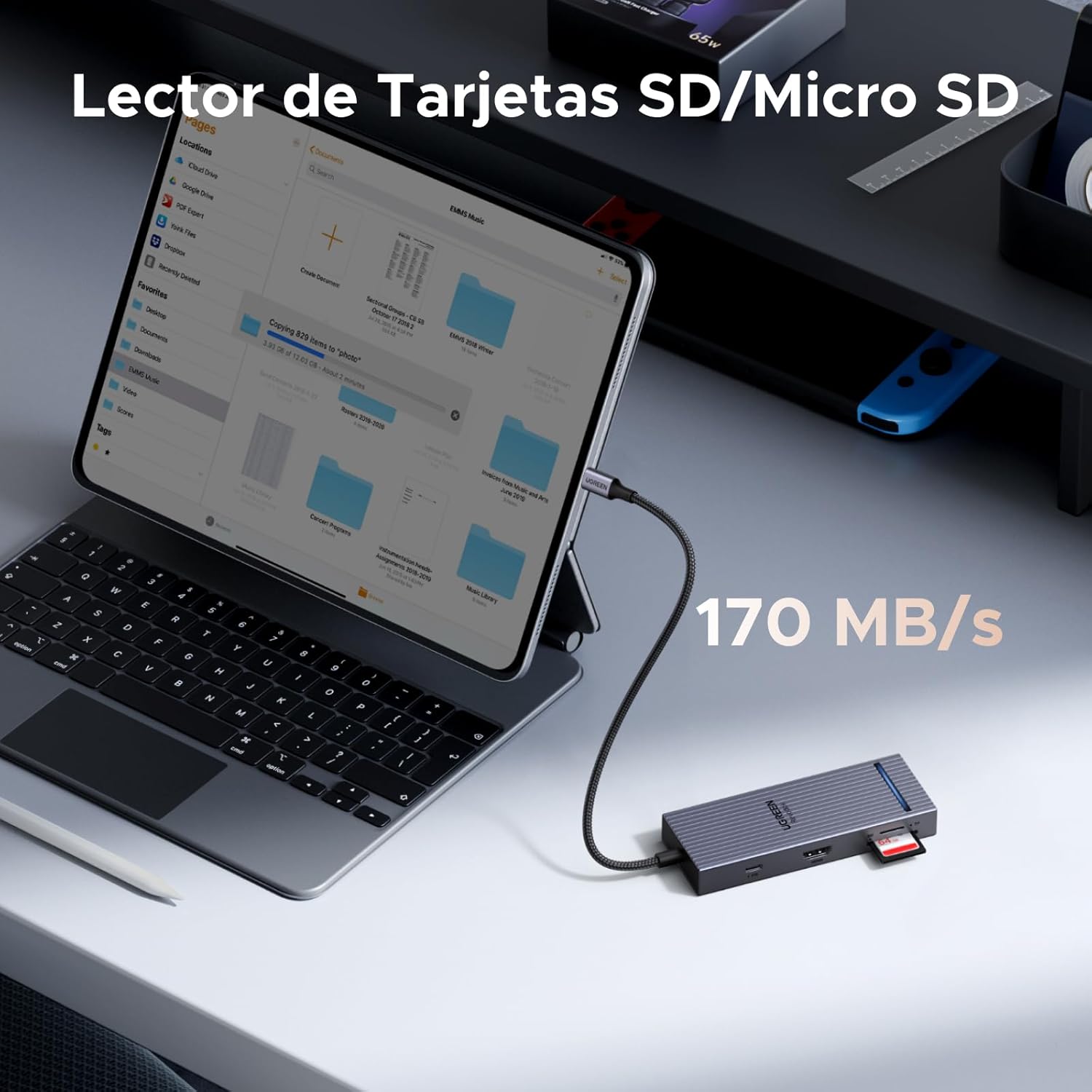
A tablet connected to the UGREEN Revodok Pro USB-C Hub, with an SD card inserted into the card reader slot, illustrating its use for accessing memory card data at 170 MB/s.
Power Delivery (PD) Charging
To charge your host device through the hub, connect a USB-C power adapter (e.g., your laptop's original charger) to the USB-C PD port on the hub. The hub supports up to 100W input, providing up to 85W pass-through charging to your host device.

A MacBook Pro M4 being charged via the UGREEN Revodok Pro USB-C Hub's 100W PD port, showing 85W output to the laptop from a 100W input power adapter.
Compatibility
The UGREEN Revodok Pro 8-in-1 USB-C Hub is designed for broad compatibility with devices featuring a full-function USB-C port that supports data, video (DisplayPort Alternate Mode), and Power Delivery. Compatibility includes:
- Host Devices: MacBook Pro/Air (M1, M2, M3, M4), iMac, iPad Pro, iPhone 16 Pro/Pro Max, Chromebooks, Surface devices, Nintendo Switch, Steam Deck, Rog Ally, and other laptops/tablets with a full-function USB-C port.
- Operating Systems: Windows, macOS, Linux, Android.

A chart detailing the universal compatibility of the UGREEN Revodok Pro USB-C Hub with various host devices (MacBook, Mac mini, PC, Tablet, iPhone, Gaming Console) and operating systems (Windows, macOS, Linux, Android), emphasizing the requirement for a full-function USB-C port.
Specifications
| Brand | UGREEN |
| Model | 75027 |
| Color | Silver |
| Hardware Interface | HDMI, MiniSD, USB 2.0 Type-A, USB 3.2 Gen 2, USB-C |
| Compatible Devices | MacBook Air, MacBook Pro, Thinkpad, XPS, iPad Pro, etc. |
| Total USB Ports | 4 (1x USB-A 3.2, 1x USB-A 2.0, 2x USB-C 3.2 Data) |
| Number of Total Ports | 8 (including HDMI, SD/TF, USB-C PD) |
| HDMI Ports | 1 (4K@60Hz) |
| Power Delivery | 100W (Input), 85W (Pass-through to host) |
| Item Dimensions (LxWxH) | 11.9 x 4.5 x 1.6 cm |
| Item Weight | 80 Grams |
Maintenance
To ensure the longevity and optimal performance of your UGREEN Revodok Pro USB-C Hub, follow these maintenance guidelines:
- Cleaning: Use a soft, dry cloth to clean the hub. Avoid liquid cleaners or aerosols.
- Storage: Store the hub in a cool, dry place away from direct sunlight and extreme temperatures.
- Handling: Avoid dropping the hub or subjecting it to strong impacts. Do not bend or pull the integrated USB-C cable excessively.
- Heat Dissipation: The hub features an aluminum alloy casing for efficient heat dissipation. Ensure it is placed in a well-ventilated area during prolonged use.
- Safety: The hub includes built-in protections against overcurrent, overvoltage, overtemperature, and short-circuit. Do not attempt to disassemble or modify the device.

An image showcasing the UGREEN Revodok Pro's aluminum alloy casing for heat dissipation, a luminous indicator for operational status, and a shield icon representing 4-level safety protection against overcurrent, overvoltage, overtemperature, and short-circuit.
Troubleshooting
If you encounter issues with your UGREEN Revodok Pro USB-C Hub, refer to the following common solutions:
- No Display Output via HDMI:
- Ensure your host device's USB-C port supports DisplayPort Alternate Mode (video output).
- Check the HDMI cable connection between the hub and the monitor. Try a different HDMI cable.
- Verify the monitor input source is set correctly to HDMI.
- Restart your host device.
- Peripherals Not Recognized:
- Ensure the hub is securely connected to your host device.
- Try connecting the peripheral directly to your host device to confirm it functions independently.
- For power-intensive devices (e.g., external hard drives), ensure the hub is connected to a power adapter via its PD port.
- Try connecting the peripheral to a different port on the hub.
- Slow Data Transfer Speed:
- Ensure you are using the USB 3.2 ports for high-speed devices.
- Verify your host device's USB-C port supports USB 3.2 speeds.
- Avoid connecting too many power-intensive devices simultaneously without external power to the hub.
- Host Device Not Charging:
- Ensure your USB-C power adapter is connected to the hub's USB-C PD port.
- Verify your power adapter and USB-C cable are functional and support Power Delivery.
- Confirm your host device's USB-C port supports Power Delivery input.
Warranty and Support
The UGREEN Revodok Pro 8-in-1 USB-C Hub comes with an 18-month warranty from the date of purchase. This warranty covers manufacturing defects and ensures the product meets its specified performance standards under normal use.
For technical support, warranty claims, or any inquiries regarding your product, please contact UGREEN customer service through the official UGREEN website or your point of purchase. Please have your model number (75027) and proof of purchase ready when contacting support.


