
1. Introduction
Thank you for choosing the GMK Solar Security Camera Model CG6. This manual provides essential information for the proper setup, operation, and maintenance of your wireless outdoor security camera. The camera features 2K live video, full-color night vision, motion detection, two-way talk, and is powered by a solar panel and internal battery for continuous operation. It is designed for both indoor and outdoor use with IP65 weatherproofing.

Image: Two GMK Solar Security Cameras with accompanying solar panels, illustrating the complete system.
2. What's in the Box
- GMK Solar Security Camera(s)
- Solar Panel(s)
- Mounting Bracket(s) for Camera
- Mounting Bracket(s) for Solar Panel
- USB-C Charging Cable
- Mounting Screws and Wall Anchors
- Installation Template Sticker(s)
- Instruction Manual
3. Product Overview
The GMK CG6 camera features a durable, weatherproof design suitable for various environments. Key components include the camera lens, LED white lights for color night vision, infrared lights for black and white night vision, a PIR motion sensor, microphone, speaker, and dual Wi-Fi antennas for stable connectivity. The camera also includes a USB-C port for charging and connecting the solar panel, and a microSD card slot for local storage.

Image: An indoor view showing the camera detecting motion, with icons indicating flashlight alarm, siren alert, and motion detection notification push.
4. Setup Instructions
4.1 Initial Charge
Before installation, fully charge the camera using the provided USB-C charging cable. Connect the USB-C end to the camera's charging port (located under the silicone cover) and the USB-A end to a standard USB power adapter (not included). A full charge ensures optimal performance from the start.
4.2 App Installation & Pairing
- Download the 'Vicohome' app from the App Store (iOS) or Google Play Store (Android).
- Register for a new account or log in if you already have one.
- Follow the in-app instructions to add your camera. This typically involves powering on the camera and scanning a QR code generated by the app using the camera's lens.
- Ensure your Wi-Fi network is 2.4GHz. This camera does not support 5GHz Wi-Fi.
Video: A step-by-step guide on how to pair your phone with the GMK security camera using the mobile application.
4.3 Physical Installation
Choose a mounting location that provides a clear view of the area you wish to monitor and receives adequate sunlight for the solar panel. Use the provided mounting brackets, screws, and template stickers to securely install the camera and solar panel. The solar panel can be mounted separately from the camera to optimize sun exposure.
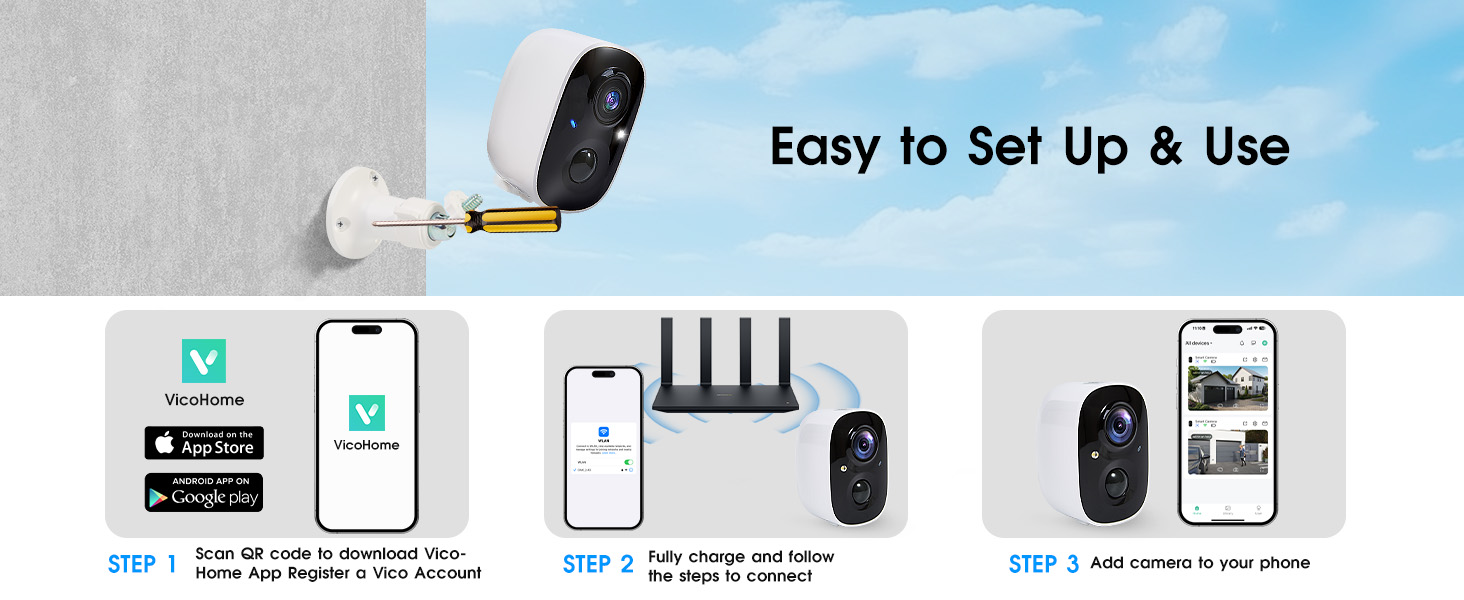
Image: Visual guide showing three steps: 1) Scan QR code to download VicoHome App, 2) Fully charge and connect, 3) Add camera to phone.
5. Operating Instructions
5.1 Live View & Two-Way Talk
Open the Vicohome app and select your camera to view the live feed. Use the two-way talk feature to communicate with visitors or deter unwanted guests directly through the app.

Image: A person speaking into their phone, with a speech bubble indicating two-way voice intercom with someone at the door.
5.2 Motion Detection & Alerts
The camera features smart PIR motion detection. You can customize detection zones and sensitivity levels within the app to minimize false alarms. When motion is detected, the camera can send instant alerts to your phone, activate a siren, or turn on its LED white lights.
Video: Tutorial on how to enable motion alerts and adjust sensitivity settings within the camera's mobile application.
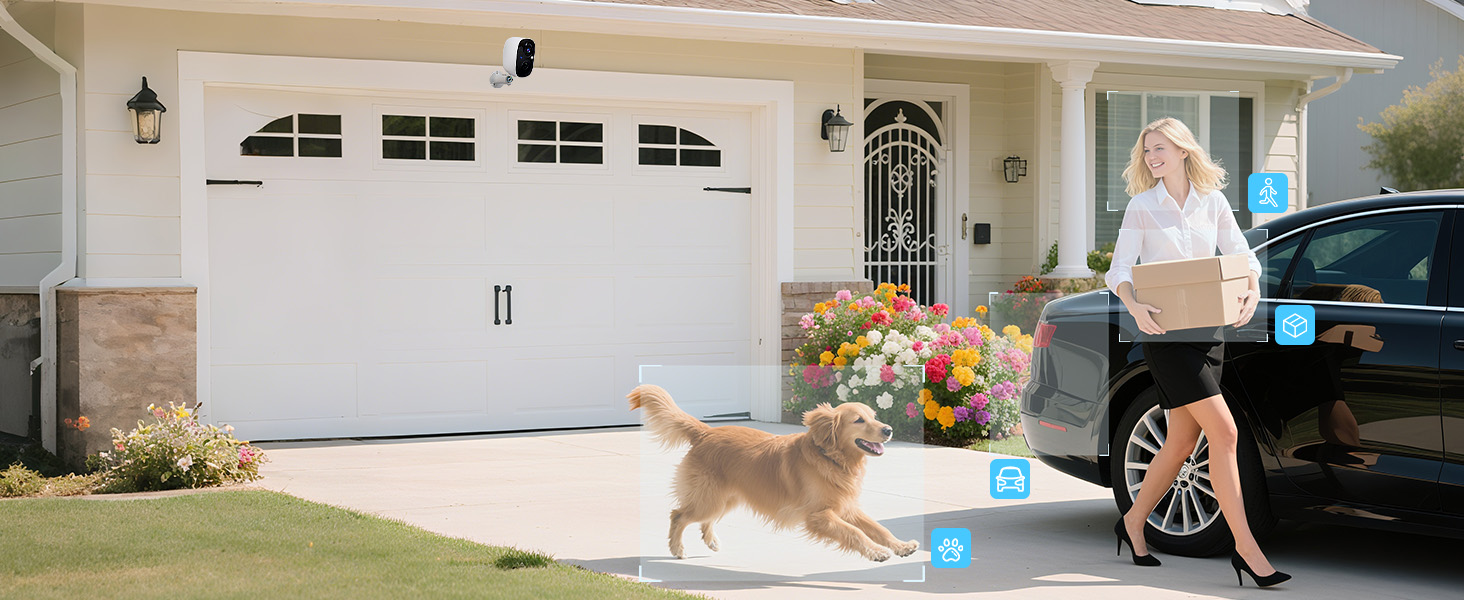
Image: Icons illustrating AI Motion Detection Identification for humans, pets, vehicles, and packages, with a phone screen showing detected events.
5.3 Night Vision
The camera offers dual light source night vision, providing both full-color night vision (with LED white lights) and infrared night vision (black and white). You can configure the night vision mode in the app.
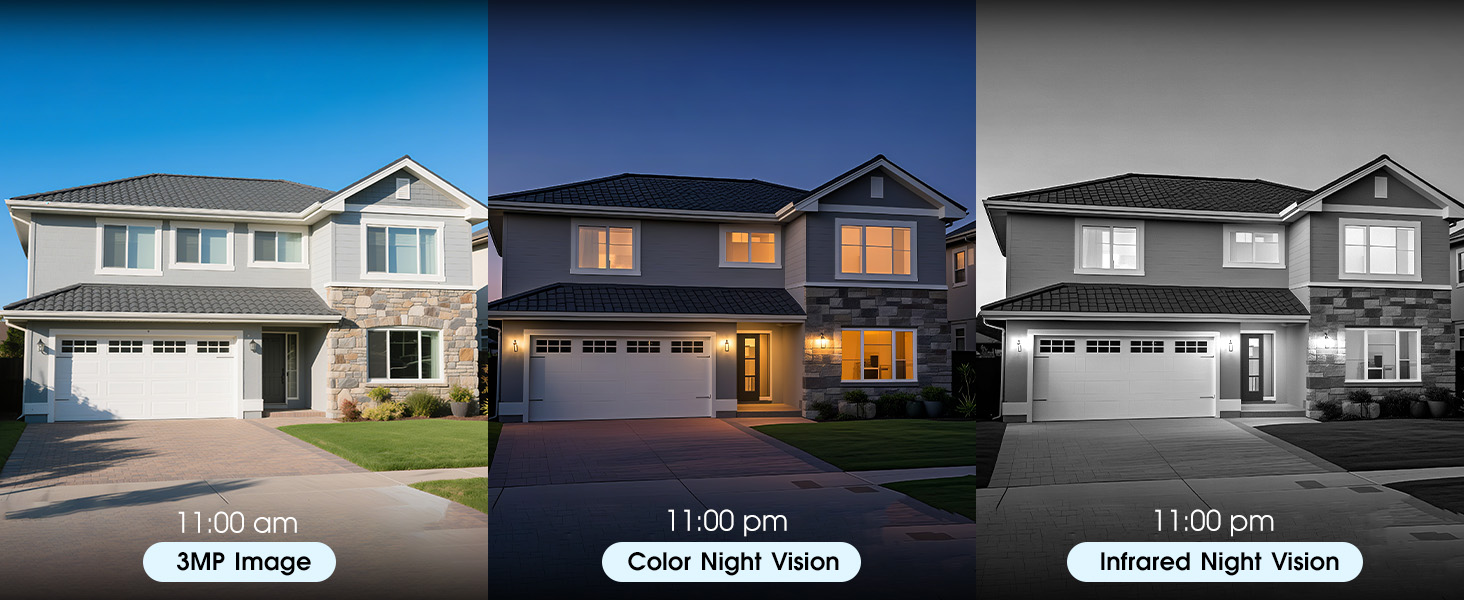
Image: A three-panel comparison showing a house in daylight (3MP Image), with color night vision, and with infrared night vision.
5.4 Sharing Device Access
You can share access to your camera's live view and recorded videos with other users through the app, allowing multiple family members or trusted individuals to monitor the property simultaneously.
Video: Instructions on how to share your camera's access with another person using the mobile application.
5.5 Sleep Mode & Scheduling
To conserve battery life or for privacy, you can activate a sleep mode for the camera or set up a schedule for its operation within the app.
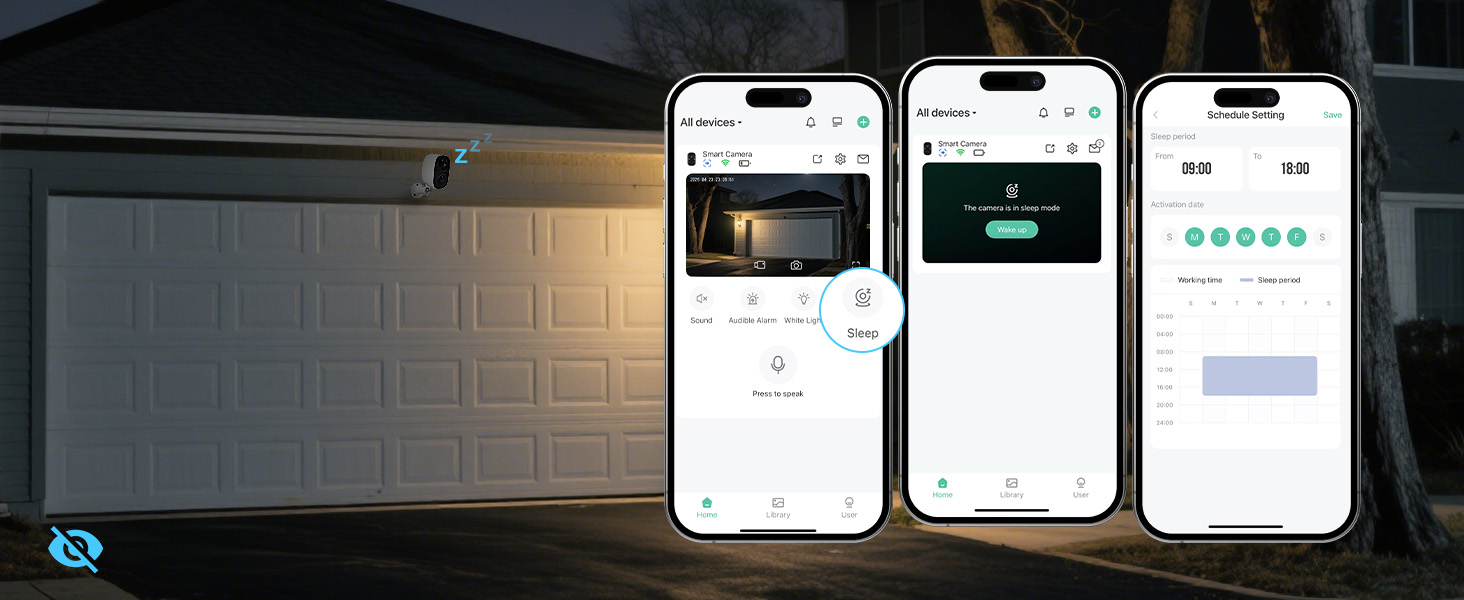
Image: App screenshots demonstrating how to activate sleep mode and set up a schedule for camera operation.
6. Power Management & Storage
6.1 Solar & Battery Power
The camera is equipped with a built-in rechargeable battery (4500 mAh) and a solar panel. The solar panel continuously charges the battery, providing wire-free and non-stop operation. Ensure the solar panel is positioned to receive sufficient sunlight (at least a couple of hours a day) to maintain battery charge.

Image: An exploded view of the camera highlighting its built-in premium energy battery, emphasizing its true wireless capability.
6.2 Storage Options
The camera supports dual storage modes: microSD card (up to 128GB, not included) and cloud storage. Free rolling 3-day cloud storage is available, with a 30-day free trial of advanced cloud features and AI recognition. Local storage on an SD card provides a reliable backup without ongoing subscription costs.

Image: The camera positioned next to icons representing free 3-day video history cloud storage and microSD card storage (up to 128GB).
7. Specifications
| Feature | Specification |
|---|---|
| Model Name | CG6 |
| Video Capture Resolution | 1296p (2K) |
| Effective Still Resolution | 3 MP |
| Connectivity Technology | Wireless (2.4GHz Wi-Fi only) |
| Power Source | Solar Powered and Battery Powered (4500 mAh) |
| Indoor/Outdoor Usage | Indoor, Outdoor |
| Water Resistance Level | IP65 Weatherproof |
| Special Features | 2-Way Audio, HD Resolution, Motion Sensor, Night Vision (Color & IR), Portable |
| Viewing Angle | 110 Degrees |
| Storage | MicroSD (up to 128GB), Cloud Storage |
| Item Dimensions L x W x H | 8.07 x 6.45 x 3.54 inches |
| Item Weight | 2.2 pounds |
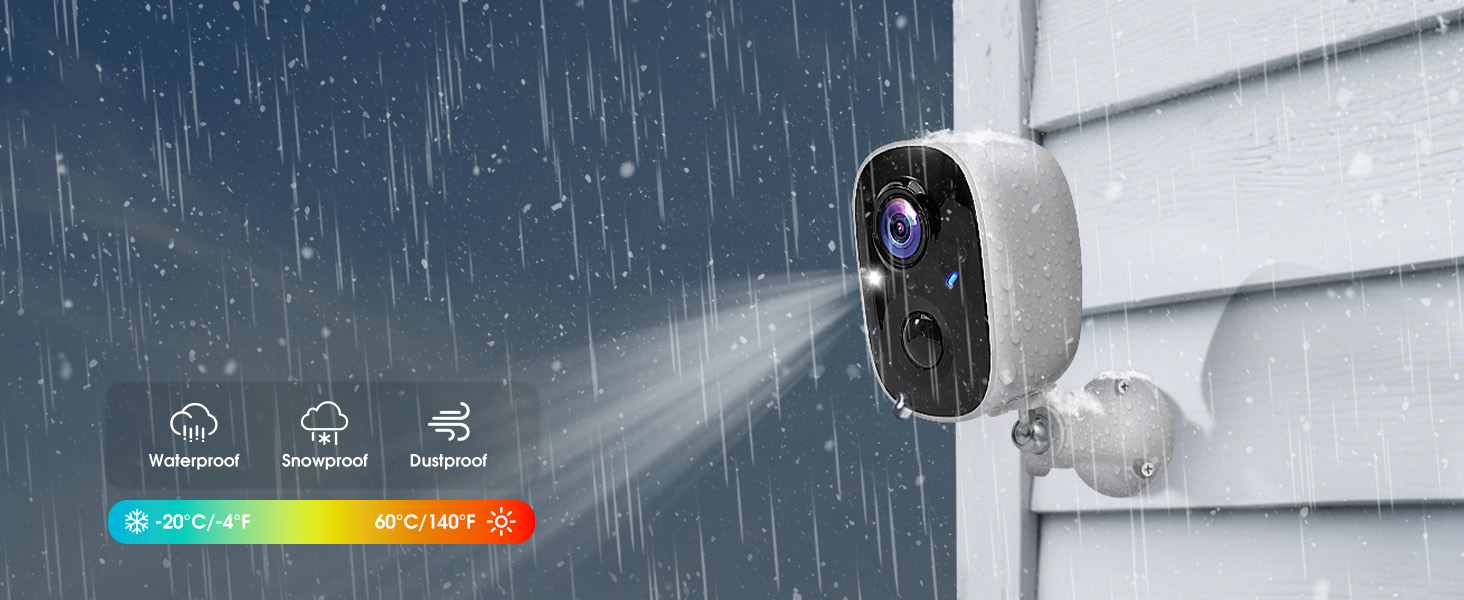
Image: The camera shown enduring rain, snow, and dust, highlighting its IP65 weatherproof rating and wide operating temperature range.
8. Maintenance
- Cleaning: Regularly wipe the camera lens and solar panel with a soft, damp cloth to ensure clear image quality and efficient solar charging.
- Battery Check: Monitor the battery level through the app. While the solar panel provides continuous charging, extreme weather or prolonged periods without sunlight may affect performance.
- Firmware Updates: Check the app periodically for firmware updates to ensure your camera has the latest features and security enhancements.
9. Troubleshooting
- Connectivity Issues: Ensure your Wi-Fi network is 2.4GHz and the camera is within range of your router. Restarting your router or camera may resolve temporary connection problems.
- Motion Detection Not Triggering: Adjust the detection area and sensitivity level in the app. Ensure there are no obstructions blocking the PIR sensor.
- Poor Night Vision: Check if the camera lens is clean. Ensure there are no strong light sources directly facing the camera at night, which can interfere with night vision.
- Battery Draining Quickly: Verify the solar panel is receiving adequate direct sunlight. Reduce the frequency of motion alerts or live view access if not critical.
10. Warranty and Support
GMK is committed to providing reliable, high-quality security cameras. For any questions, assistance, or warranty inquiries, please contact GMK customer support. Our team of experts is available to provide support when you need it.
Contact Information:
- Email: Support@getgmk.com
- Phone: +1 (313) 380-6888 (7:00 - 17:00 Business Day)


