
SABLUTE MA22 Plus
SABLUTE MA22 Plus Wireless Keyboard and Mouse Combo User Manual
Model: MA22 Plus
Brand: SABLUTE
1. Introduction
This user manual provides detailed instructions for the setup, operation, maintenance, and troubleshooting of your SABLUTE MA22 Plus Wireless Keyboard and Mouse Combo. Designed for ergonomic comfort and efficiency, this combo offers seamless connectivity for both Windows and Mac operating systems. Please read this manual thoroughly to ensure optimal performance and longevity of your device.
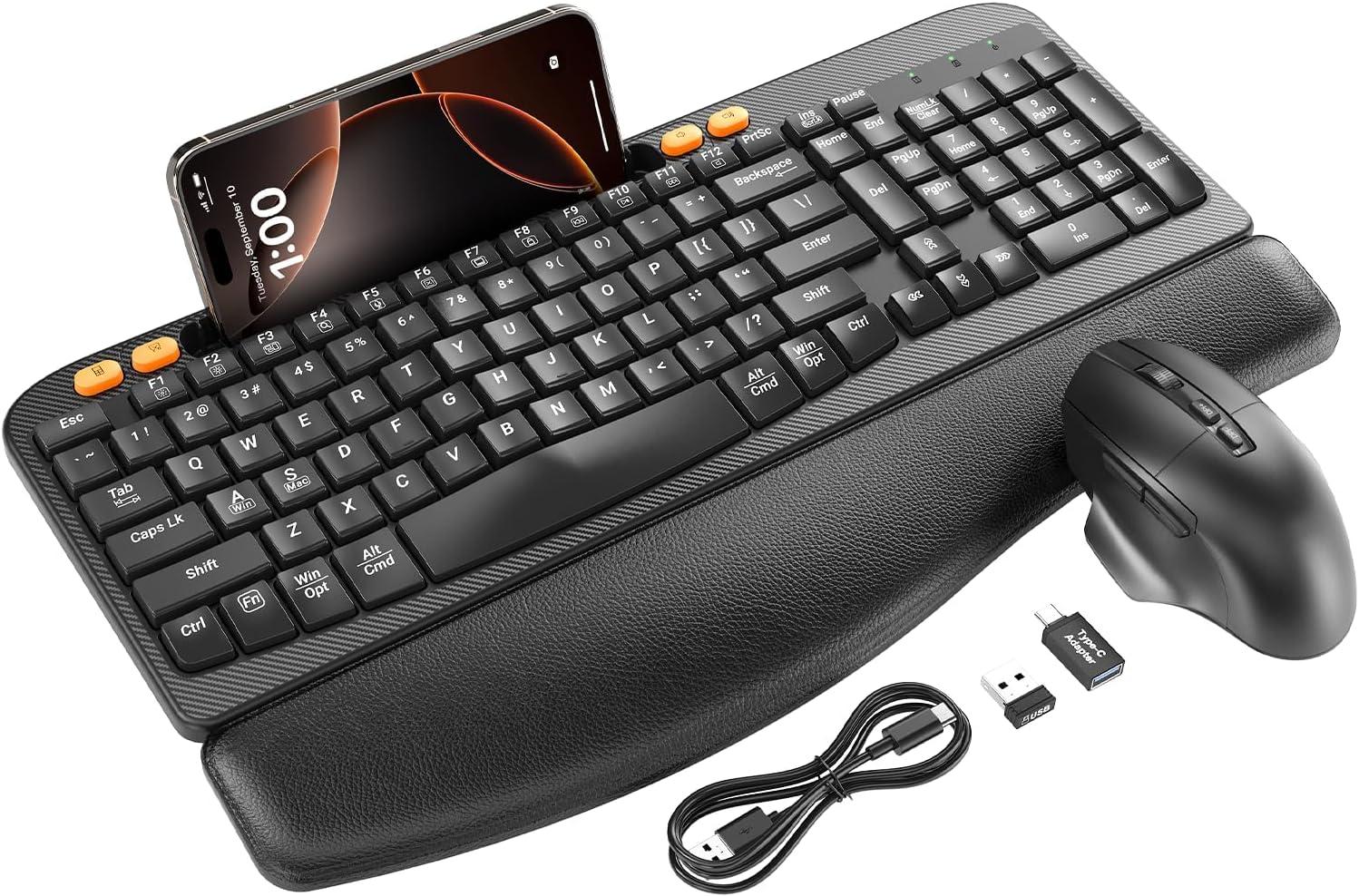
Figure 1.1: The SABLUTE MA22 Plus Wireless Keyboard and Mouse Combo, featuring the ergonomic keyboard with integrated palm rest, a multi-function mouse, USB-A dongle, USB-C adapter, and charging cable.
2. Package Contents
Please verify that all items are present in your package:
- Ergonomic Wireless Keyboard x 1
- Multi-Function Wireless Mouse x 1
- USB-A Dongle x 1
- USB-C Converter x 1
- USB-C Charging Cable x 1
- User Manual x 1
3. Setup Instructions
3.1. Connecting the Device
The SABLUTE MA22 Plus uses 2.4G wireless technology for a stable and lag-free connection. Both the keyboard and mouse connect via a single USB dongle.
- Locate the USB-A dongle. It may be stored in the mouse's battery compartment for safekeeping.
- Plug the USB-A dongle into an available USB-A port on your computer. If your computer only has USB-C ports, use the provided USB-C converter by plugging the USB-A dongle into the converter, then plugging the converter into your computer's USB-C port.
- Ensure both the keyboard and mouse are powered on. The devices are plug-and-play and should connect automatically within a few seconds.

Figure 3.1: The included USB-A dongle and USB-C converter, allowing versatile connectivity options for various computer ports.
3.2. Charging the Devices
Both the keyboard and mouse are equipped with built-in rechargeable batteries, eliminating the need for frequent battery replacement.
- Connect the provided USB-C charging cable to the charging port on the keyboard and mouse.
- Plug the other end of the cable into a USB power source (e.g., computer USB port, USB wall adapter).
- A full charge typically takes 2-3 hours. The charging indicator light will change to indicate a full charge.
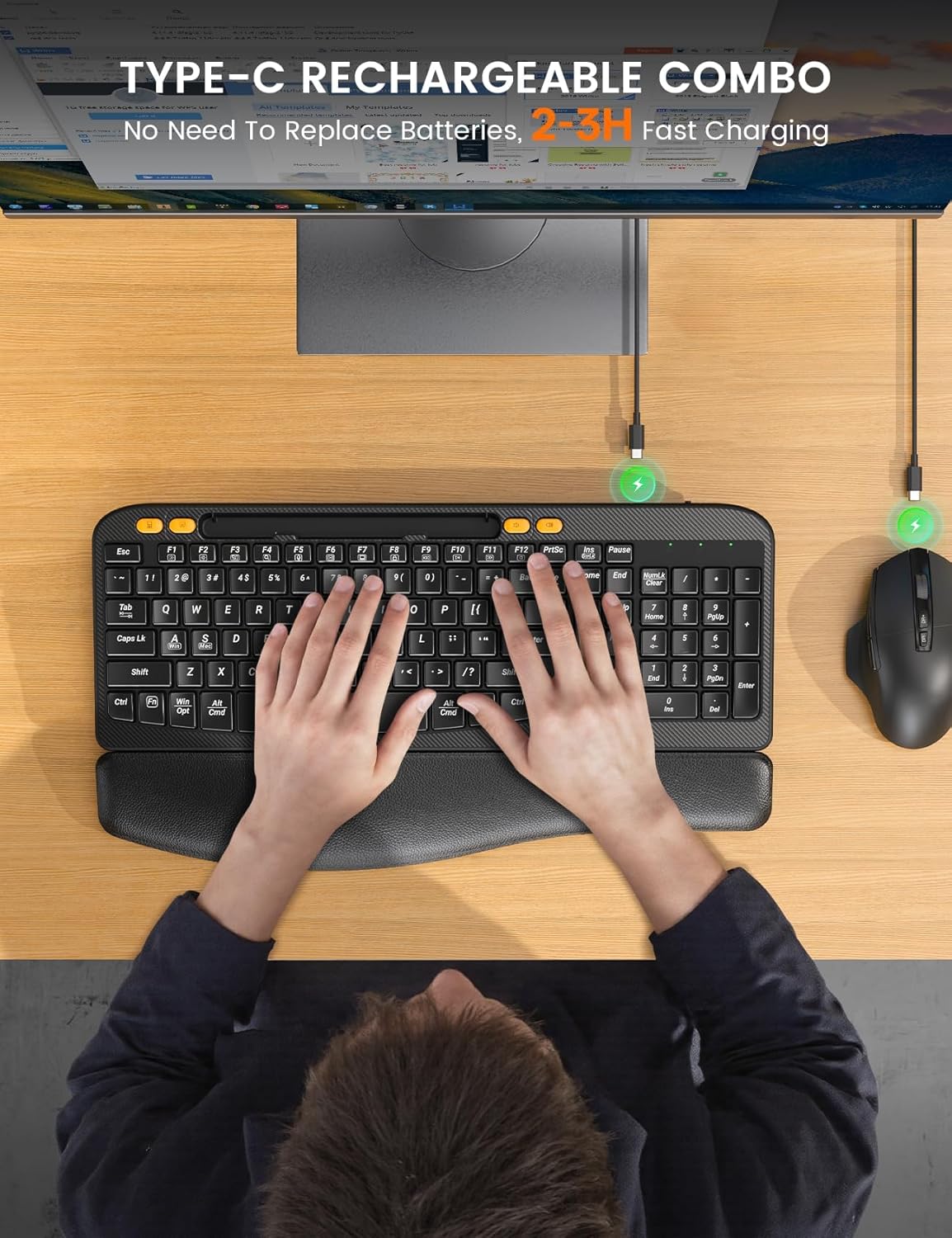
Figure 3.2: The keyboard and mouse being charged via their respective Type-C ports, illustrating the convenience of rechargeable batteries.
4. Operating Instructions
4.1. Keyboard Features
- Ergonomic Curved Design: The keyboard features an ergonomic arc design that naturally fits the curve of the palm, reducing wrist pressure and promoting a neutral typing posture.
- Soft Leather Wrist Rest: An integrated, sponge-filled leather wrist rest provides soft support, dispersing pressure and relieving fatigue during long typing sessions.
- Operating System Switching: Quickly switch between Windows and Mac operating systems by pressing the FN + A (for Windows) or FN + S (for Mac) keys.
- One-Touch Shortcut Keys: The keyboard includes 4 dedicated one-touch hotkeys for enhanced efficiency:
- Calculator
- Screenshot
- Volume Down
- Volume Up
- Integrated Phone Holder: A 7.28-inch holder is built into the keyboard, allowing you to conveniently place your mobile phone or small tablet for multitasking.

Figure 4.1: The ergonomic wave key design of the keyboard, illustrating the natural and comfortable typing experience it provides.
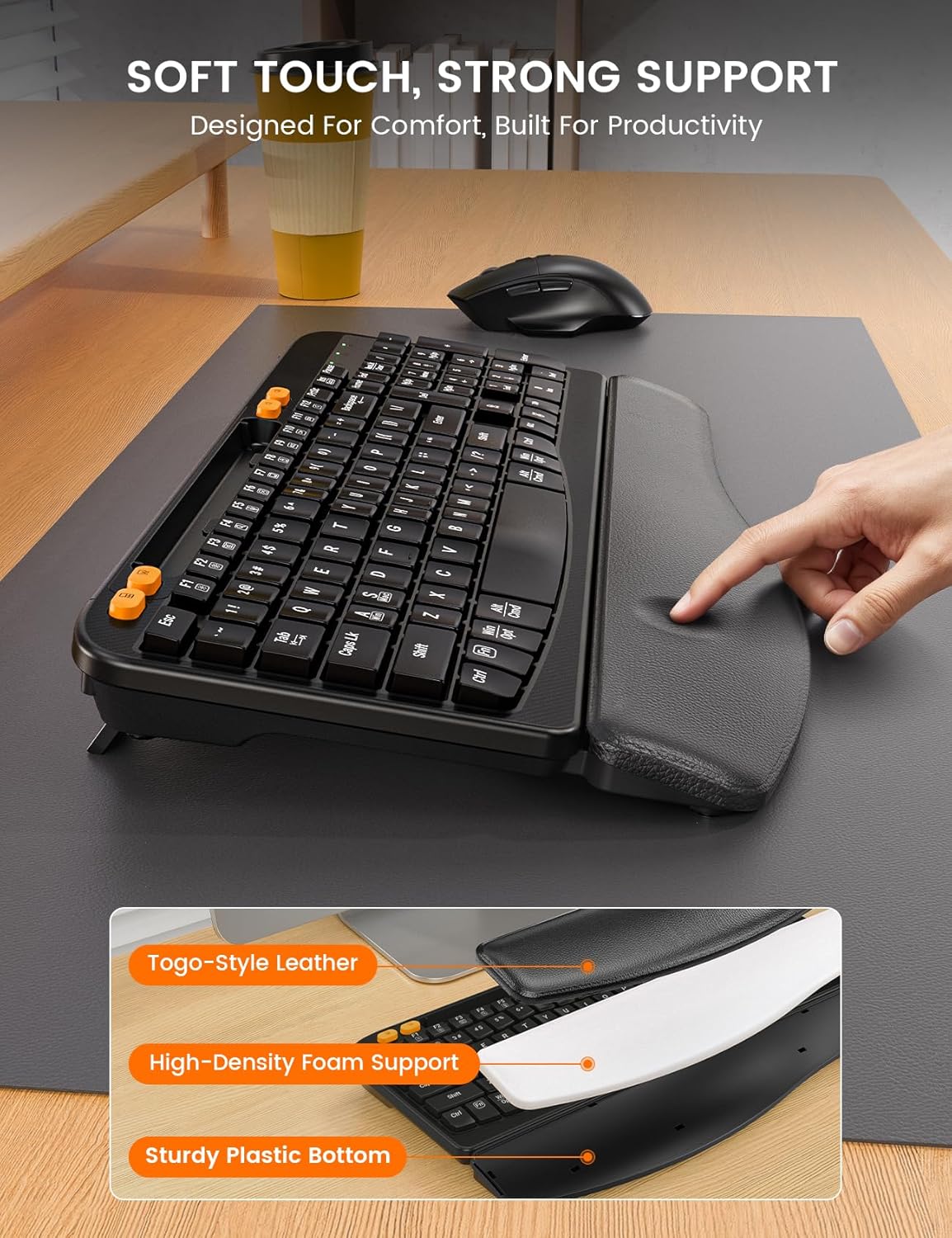
Figure 4.2: A close-up view of the soft leather wrist rest, highlighting its construction with Togo-style leather and high-density foam support for enhanced comfort.

Figure 4.3: The dedicated one-touch shortcut keys located on the keyboard, providing quick access to common functions like calculator, screenshot, and volume control.
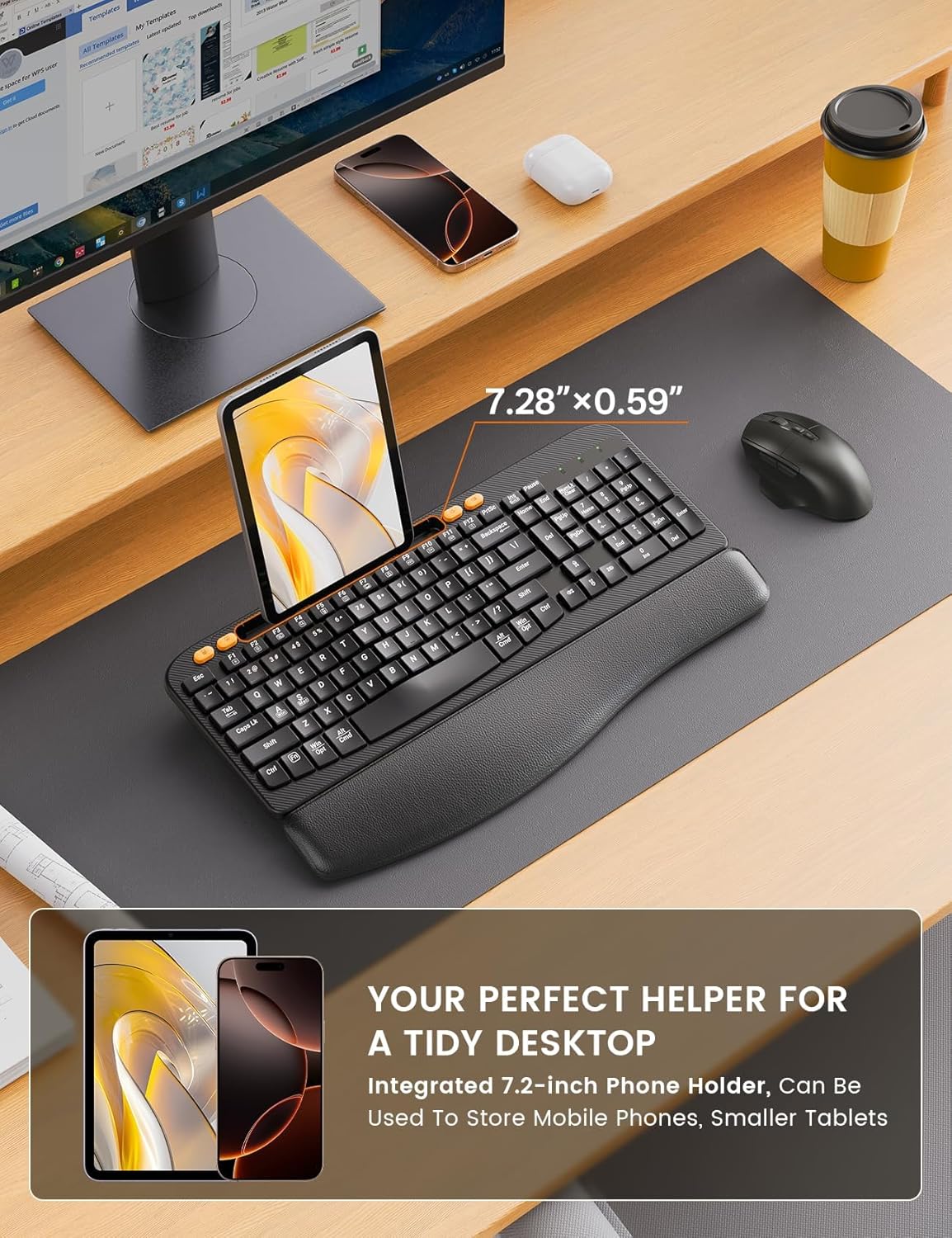
Figure 4.4: The integrated 7.28-inch phone holder on the keyboard, designed to keep your mobile device upright and accessible while you work.
4.2. Mouse Features
- Silent Switch Technology: The mouse features Silent Switch technology and a rubber scroll wheel, reducing click noise by 90% for a quieter working environment.
- Adjustable DPI: Customize the mouse's tracking speed with 3 adjustable DPI levels (800, 1200, 1600, 2000 DPI) to suit your preference and task requirements.
- Forward/Backward Buttons: Convenient side buttons allow for quick navigation (forward/backward) in web browsers and file explorers.
- Ergonomic Design: The mouse is shaped to fit comfortably in your hand, with a dedicated finger rest for prolonged use.
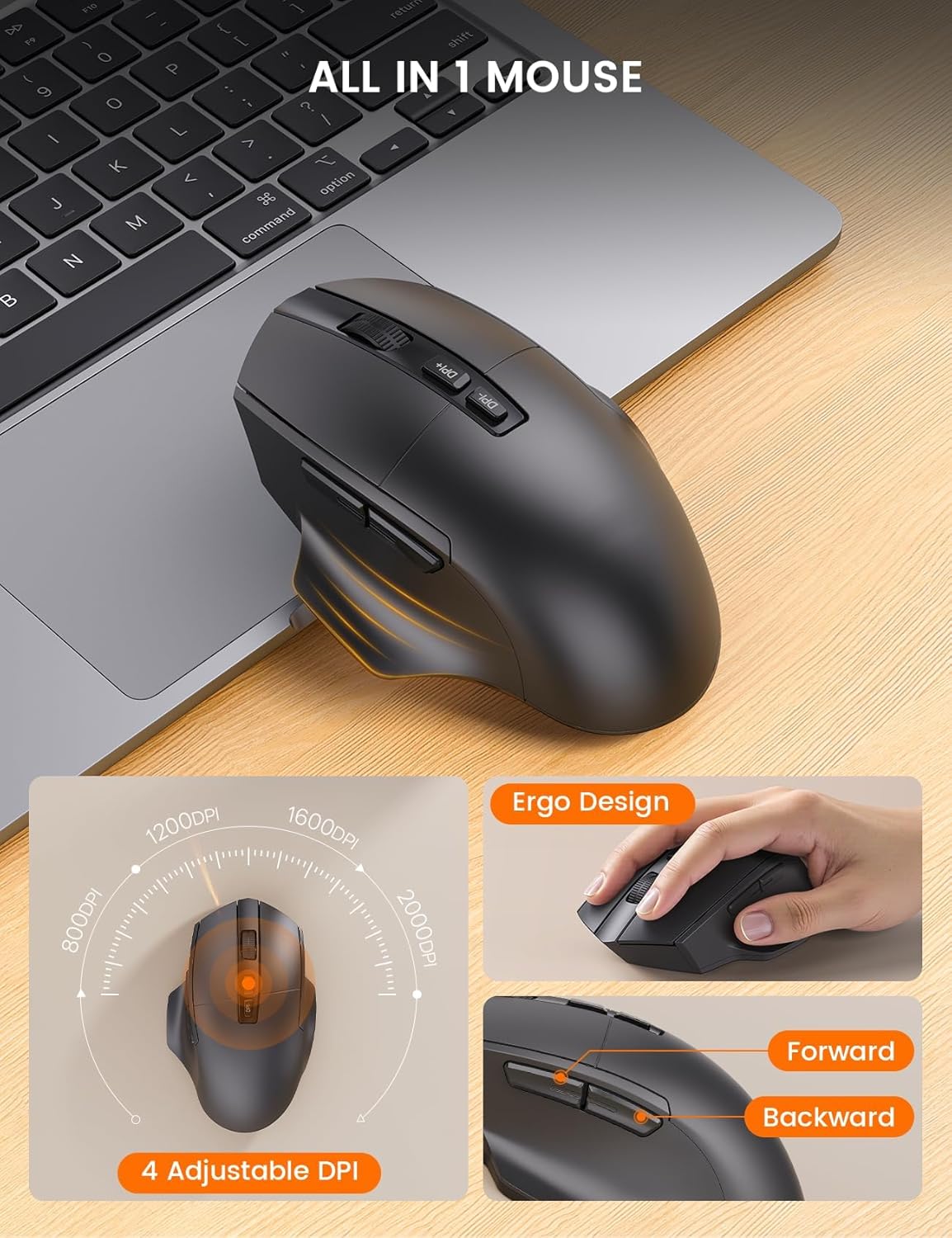
Figure 4.5: The multi-function wireless mouse, showcasing its ergonomic design, adjustable DPI settings, and convenient forward/backward buttons.
5. Maintenance
To ensure the longevity and optimal performance of your SABLUTE MA22 Plus combo, follow these maintenance guidelines:
- Cleaning: Use a soft, dry cloth to wipe down the keyboard and mouse. For stubborn dirt, slightly dampen the cloth with water or a mild, non-abrasive cleaner. Avoid excessive moisture.
- Storage: When not in use for extended periods, store the devices in a cool, dry place away from direct sunlight and extreme temperatures.
- Charging: Avoid overcharging the batteries. Disconnect the charging cable once the devices are fully charged.
6. Troubleshooting
If you encounter any issues with your SABLUTE MA22 Plus, please refer to the following common solutions:
- No Connection/Lag:
- Ensure the USB dongle is securely plugged into your computer's USB port (or via the USB-C converter).
- Verify that both the keyboard and mouse are powered on.
- Move the devices closer to the USB dongle to reduce interference.
- Try plugging the USB dongle into a different USB port on your computer.
- Recharge the keyboard and mouse to ensure they have sufficient battery power.
- Keys Not Responding/Mouse Not Moving:
- Check battery levels and recharge if necessary.
- Turn the devices off and then on again.
- Ensure the correct operating system mode (Windows/Mac) is selected on the keyboard using FN+A/S.
- For the mouse, ensure the optical sensor on the bottom is clean and unobstructed.
- Charging Issues:
- Ensure the USB-C charging cable is properly connected to both the device and the power source.
- Try a different USB-C cable or power source.
If the issue persists after trying these steps, please contact SABLUTE customer support.
7. Specifications
| Feature | Description |
|---|---|
| Model Number | MA22 Plus |
| Brand | SABLUTE |
| Connectivity Technology | 2.4G USB Wireless |
| Keyboard Dimensions (L x W x H) | 16.5 x 9.15 x 1.89 inches |
| Mouse Dimensions (L x W x H) | 5.12 x 3.15 x 1.50 inches |
| Item Weight | 2.77 pounds |
| Power Source | Type-C Rechargeable Batteries (650mAh) |
| Charging Time | 2-3 hours |
| Compatible Devices | Laptop, Personal Computer, Television |
| Operating System Compatibility | Windows, Mac OS |
| Mouse DPI Levels | 800, 1200, 1600, 2000 |
| Keyboard Hotkeys | Calculator, Screenshot, Volume Down, Volume Up |
| Phone Holder Size | 7.28 inches |

Figure 7.1: Detailed dimensions of the SABLUTE MA22 Plus keyboard and mouse for reference.
8. Warranty and Support
SABLUTE is committed to providing high-quality products and excellent customer service. Your SABLUTE MA22 Plus Wireless Keyboard and Mouse Combo comes with a standard manufacturer's warranty. For specific warranty terms and conditions, please refer to the warranty card included in your package or contact customer support.
Customer Support:
- Email Support: sabluteservices@outlook.com
- Phone Support (US): +1-213-296-1273
- Operating Hours: Mon-Fri 9am-1pm, 2pm-6pm (PST)
Related documentsMA22 Plus


Ask a question about this manual
Ask about setup, troubleshooting, compatibility, parts, safety, or missing instructions. Manuals+ will review the question and use this page’s manual context to help answer it.