
1. Introduction
This manual provides detailed instructions for the operation and maintenance of your NOENNULL Digital Camera, model NOENNULLzrs14dqph0-12. Please read this manual thoroughly before using the camera to ensure proper function and to maximize your photographic experience.

Figure 1: NOENNULL Digital Camera, Model NOENNULLzrs14dqph0-12. This image displays the front view of the pinkish digital camera along with its included accessories: a USB cable, a wrist strap, and a storage pouch.
2. Setup
2.1 Battery Installation and Charging
- Locate the battery compartment on the bottom of the camera.
- Open the compartment cover and insert the provided 800mAh lithium battery, ensuring correct polarity.
- Close the battery compartment cover securely.
- Connect the camera to a power source using the supplied USB cable to charge the battery. The camera supports continuous operation while charging.
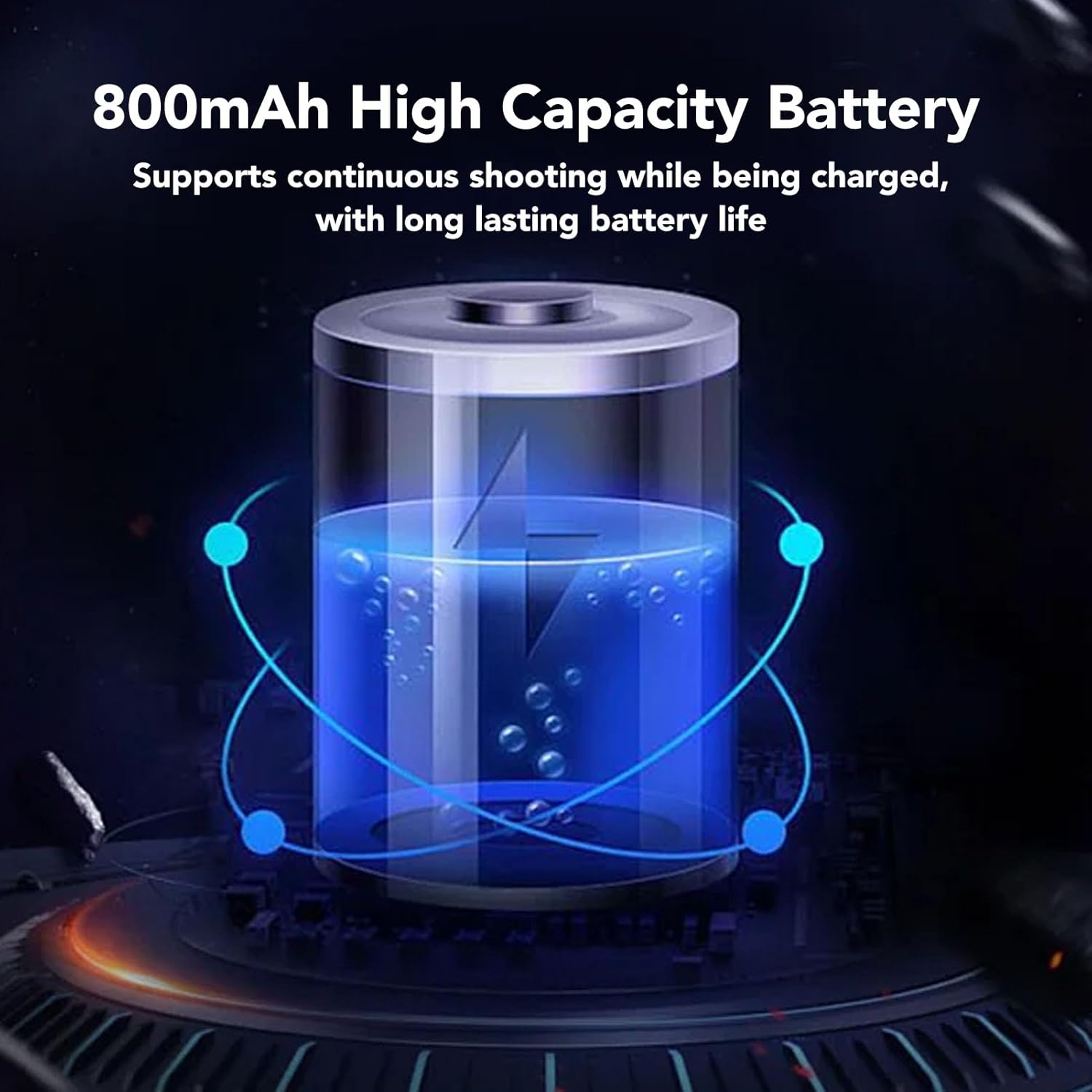
Figure 2: Illustration of an 800mAh high-capacity battery. This graphic represents the camera's internal battery, highlighting its capacity for extended use and ability to function while charging.
2.2 Memory Card Installation
The camera requires a small memory card (up to 128GB, not included) for storing photos and videos.
- Locate the memory card slot, typically near the battery compartment or on the side of the camera.
- Insert the memory card with the gold contacts facing the correct direction until it clicks into place.
- To remove, gently press the card until it springs out.
2.3 Attaching the Wrist Strap and Tripod
- Thread the included wrist strap through the strap mount on the camera to prevent accidental drops.
- The camera features a tripod screw mount on its base, allowing for stable photography with a tripod or selfie stick (not included).

Figure 3: Close-up view of the camera's bottom, showing the tripod screw port. This port allows for secure attachment to tripods and selfie sticks, enhancing stability for various shooting scenarios.
3. Operating the Camera
3.1 Power On/Off
Press and hold the power button (usually located on the top or side) to turn the camera on or off.
3.2 Taking Still Pictures
- Hold the camera firmly and frame your subject on the 2.88-inch TFT screen.
- Adjust settings such as flash mode (Automatic, forced flashing, flashing off) or scene modes using the dedicated buttons or menu.
- Use the zoom controls (T for telephoto, W for wide-angle) to adjust your focal length. The camera features 16X digital zoom.
- Press the shutter button halfway to focus, then press fully to capture the photo.

Figure 4: Camera display showing a zoomed-in image of an airplane. This illustrates the 16X digital zoom capability, allowing users to bring distant subjects closer for detailed capture.
3.3 Video Recording
To record video, switch the camera to video mode (if applicable) or press the dedicated video record button. The camera supports video resolutions up to 4K, 2.7K, 1080P, and 720P at 30fps.
3.4 Playback and Review
The 2.88-inch TFT screen allows for easy playback and review of captured photos and videos. Navigate through your media using the directional buttons.

Figure 5: Camera displaying an image of a rabbit. This highlights the clarity of the 2.88-inch TFT screen for viewing photos and videos, supporting up to 58MP images and 4K video playback.
3.5 Special Features
The camera includes several advanced functions:
- Timed Photography (Selfie): Set a delay of 2, 5, or 10 seconds before the shutter fires.
- Beauty Mode: Enhances facial features in portraits.
- Smile Recognition: Automatically captures a photo when a smile is detected.
- Face Recognition: Optimizes focus and exposure for detected faces.
- Anti-Shaking: Helps reduce blur from camera movement.

Figure 6: Graphic illustrating various camera functions. This image highlights features such as timed photography, beauty mode, smile recognition, and face recognition, demonstrating the camera's versatile capabilities.
4. Maintenance
4.1 Cleaning the Camera
- Use a soft, lint-free cloth to clean the camera body and screen.
- For the lens, use a specialized lens cleaning cloth and solution. Avoid touching the lens surface directly.
- Do not use harsh chemicals or abrasive materials.
4.2 Battery Care
- Charge the battery fully before first use.
- Avoid exposing the battery to extreme temperatures.
- If storing the camera for an extended period, remove the battery.
4.3 Storage
Store the camera in a cool, dry place, away from direct sunlight and excessive humidity. Use the provided storage bag for protection.
5. Troubleshooting
- Camera not turning on: Ensure the battery is charged and correctly inserted.
- Memory card error: Check if the memory card is inserted correctly and is not full or corrupted. Try reformatting the card (this will erase all data).
- Blurry images: Ensure the lens is clean. Check lighting conditions. Use the anti-shaking feature or a tripod if necessary.
- Flash not working: Verify flash settings are not set to 'flashing off'.
6. Specifications
| Feature | Specification |
|---|---|
| Image Resolution | 58M, 48M, 30M, 24M, 20M, 16M, 12M, 10M, 8M, 5M |
| Image Format | JPEG |
| Video Resolution | 4K, 2.7K, 1080P, 720P |
| Frame Rate | 30fps |
| Video Format | AVI |
| Screen Size | 2.88 Inch TFT |
| Zoom | 16X Digital Zoom |
| Exposure | EV-3 to EV+3 |
| Shutter | Electronic |
| Storage | Supports up to 128GB small memory card (not included) |
| Battery | 1800mAh Lithium battery (included) |
| Anti-Shaking | Supported |
| Selfie Timer | 2s, 5s, 10s |
| Flash Modes | Automatic, Forced Flashing, Flashing Off |
| Product Dimensions | 14 x 11 x 4 cm |
| Weight | 263 g |
7. Warranty and Support
For warranty information and technical support, please refer to the documentation provided with your purchase or contact NOENNULL customer service. Keep your proof of purchase for any warranty claims.
Included in the package:
- 1 x Digital Camera
- 1 x USB Cable
- 1 x Storage Bag
- 1 x Strap
- 1 x User Manual (this document)