1. Introduction
Thank you for choosing the Diecallan 5-in-1 Wireless Charging Station T20S. This manual provides essential information for the safe and efficient operation of your device. Please read these instructions thoroughly before use and retain them for future reference.
2. Product Overview
The Diecallan T20S is a versatile wireless charging station designed to charge multiple compatible devices simultaneously. It features dedicated charging areas for smartphones, wireless earbuds, and smartwatches, along with integrated atmosphere lighting.
2.1 Package Contents
- Diecallan 5-in-1 Wireless Charging Station (Model T20S)
- USB Type-C Cable
- User Manual
2.2 Key Features
- 5-in-1 Charging: Simultaneously charges compatible iPhone models, AirPods, and Apple Watch.
- Fast Wireless Charging: Supports efficient power delivery for quick charging.
- Atmosphere Lighting: Integrated adjustable lighting feature.
- Safety Protections: Includes short-circuit, over-current, and over-temperature protection.
- Durable Design: Constructed from fireproof ABS material with cooling holes and a non-slip base.
2.3 Product Diagram

Image: Overview of the Diecallan T20S Wireless Charging Station, highlighting the dedicated charging zones for an iPhone, AirPods, and Apple Watch.
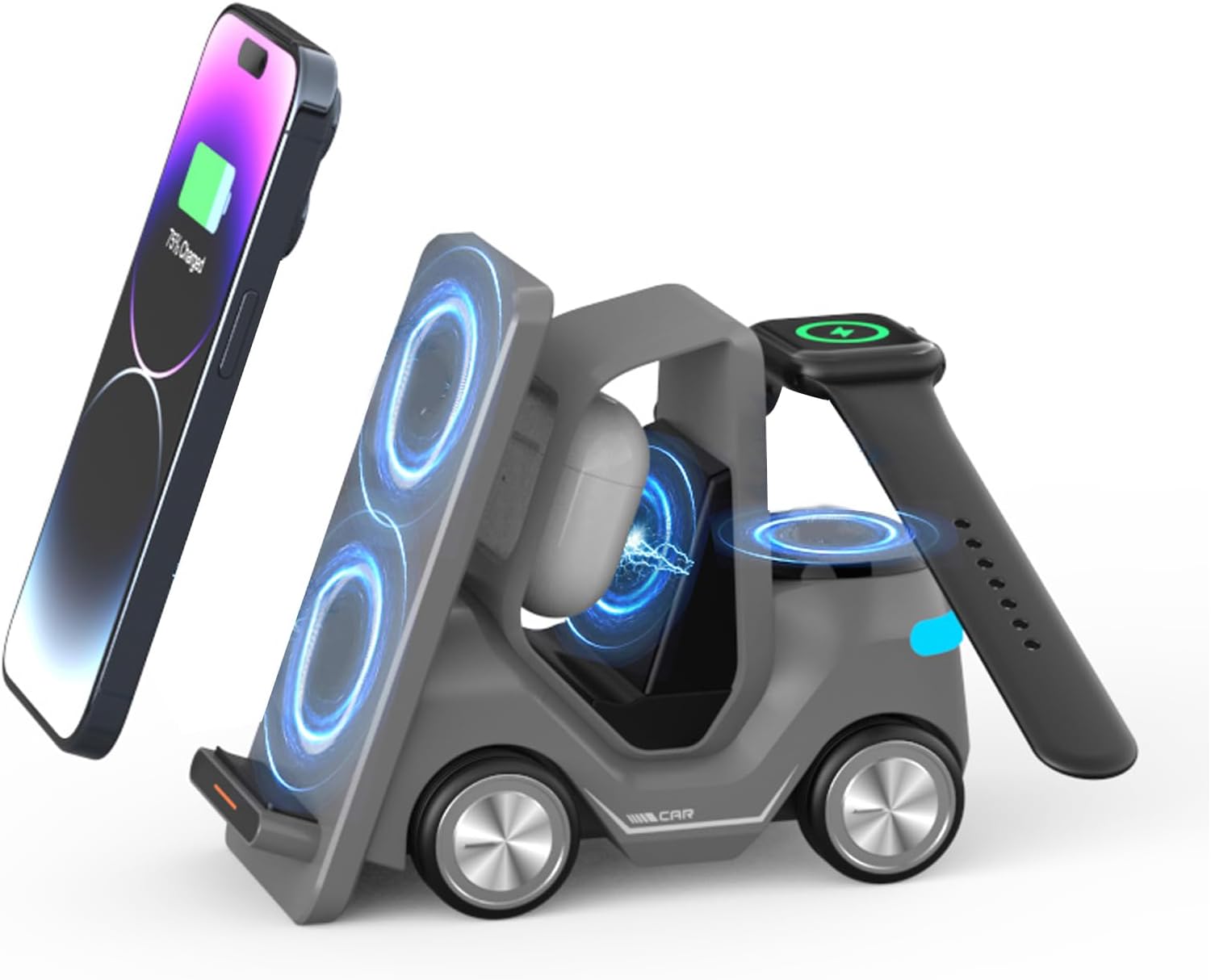
Image: The Diecallan T20S charging station in use, demonstrating simultaneous charging of a smartphone, earbuds, and smartwatch.
3. Setup Instructions
3.1 Unboxing
- Carefully remove all components from the packaging.
- Verify that all items listed in the 'Package Contents' section are present.
3.2 Connecting to Power
- Connect the provided USB Type-C cable to the input port on the back of the charging station.
- Plug the other end of the USB Type-C cable into a compatible power adapter (not included) with a minimum output of 9V/3A.
- Ensure the power adapter is plugged into a functional wall outlet.
3.3 Placement
Place the charging station on a stable, flat surface away from direct sunlight, heat sources, and liquids. Ensure adequate ventilation around the device.

Image: The Diecallan T20S charging station integrated into a desk setup, demonstrating its compact and organized placement.
4. Operating Instructions
4.1 Charging a Smartphone
- Place your compatible smartphone (e.g., iPhone 16/15/14/13/12 Series) onto the designated phone charging pad.
- The phone can be placed vertically or horizontally. The charging station features two coils for automatic identification, allowing for flexible placement and convenient viewing during charging.
- Ensure the phone is centered on the charging pad for optimal performance. A charging indicator on your phone screen will confirm charging has begun.

Image: A smartphone charging horizontally on the station, illustrating the dual-coil design that supports both vertical and horizontal device orientation.
4.2 Charging Wireless Earbuds
- Place your compatible wireless earbuds (e.g., AirPods Pro/3/2) into the central charging slot.
- Ensure the earbuds case is properly seated in the slot. The charging indicator on your earbuds case will illuminate to confirm charging.
4.3 Charging an Apple Watch
- Place your compatible Apple Watch (e.g., Apple Watch 8/7/6/5/4/3/2/SE) onto the dedicated magnetic charging module on the side of the station.
- Ensure the watch is securely attached to the magnetic charger. The watch display will show a charging icon.
4.4 Using Atmosphere Lights
- The charging station features integrated atmosphere lights.
- Locate the 'Switching light' button, typically found near the rear of the device.
- Press the button to cycle through different light colors or to turn the lights on/off.

Image: The rear of the charging station displaying the atmosphere lights in different colors and indicating the location of the light control button.
5. Safety Information
The Diecallan T20S Wireless Charging Station is designed with multiple safety features to protect your devices and ensure safe operation.
- Over-current Protection: Prevents damage from excessive current.
- Over-voltage Protection: Safeguards against voltage fluctuations.
- Over-temperature Protection: Monitors and regulates internal temperature to prevent overheating.
- Short-circuit Protection: Automatically cuts off power in case of a short circuit.
- Foreign Object Detection (FOD): Detects metallic objects on the charging surface and prevents charging to avoid heat buildup.
The device is constructed from fireproof ABS material and features cooling holes on the back and bottom to dissipate heat effectively. A non-slip pad on the base ensures stability.

Image: A graphic representation of the charging station with a shield overlay, illustrating the integrated safety protection mechanisms.
6. Troubleshooting
If you encounter issues with your charging station, please refer to the following common problems and solutions:
| Problem | Possible Cause | Solution |
|---|---|---|
| Device not charging | Not properly connected to power; device not correctly placed; protective case too thick; foreign object detected. | Ensure power adapter is 9V/3A or higher and properly connected. Reposition device on the charging pad. Remove thick phone cases. Remove any metallic objects. |
| Slow charging | Underpowered adapter; device misalignment; background apps consuming power. | Use a compatible 9V/3A or higher power adapter. Ensure device is centered. Close unnecessary background applications. |
| Atmosphere lights not working | Not powered on; button not pressed correctly. | Ensure the charging station is powered. Press the 'Switching light' button firmly. |
| Apple Watch not charging | Incorrect placement; watch band interfering. | Ensure the Apple Watch is correctly aligned and securely attached to the magnetic module. Adjust the watch band to prevent interference. |

Image: Visual guide demonstrating the correct orientation and placement for charging an Apple Watch on the station, contrasting with an incorrect placement.
7. Specifications
| Model Number | T20S |
| Product Dimensions | 6.06 x 2.95 x 4.96 inches |
| Item Weight | 1.76 ounces |
| Input Voltage | 9 Volts |
| Amperage | 3 Amps |
| Wattage | 15 Watt-hours |
| Connector Type | USB Type C |
| Compatible Devices | Cellular Phones, Headphones, Smartwatches |
| Compatible Phone Models | iPhone 16/15/14/13/12 Series, AirPods Pro/3/2, Apple Watch, For Samsung Charging Station |
| Special Feature | Multi Device Charging |
8. Maintenance
To ensure the longevity and optimal performance of your charging station, follow these maintenance guidelines:
- Cleaning: Disconnect the power before cleaning. Use a soft, dry cloth to wipe the surface. Do not use abrasive cleaners, solvents, or immerse the device in water.
- Storage: When not in use for extended periods, store the charging station in a cool, dry place away from direct sunlight and extreme temperatures.
- Handling: Avoid dropping or subjecting the device to strong impacts. Do not attempt to disassemble or repair the unit yourself.
9. Warranty and Support
For warranty information, please refer to the documentation provided at the time of purchase or contact Diecallan customer support directly. Keep your proof of purchase for warranty claims.
If you require further assistance or have questions not covered in this manual, please contact Diecallan customer service through their official website or the retailer where the product was purchased.