1. Introduction
Thank you for purchasing the KeeKit Astronaut Wake Up Light. This device combines a sunrise simulation alarm clock, a multi-color night light, a sleep sound machine, and a Bluetooth speaker into a single unit. It is designed to assist with natural waking and provide a calming environment for sleep. Please read this manual thoroughly before use to ensure proper operation and to maintain the product's longevity.

The KeeKit Astronaut Wake Up Light positioned on a bedside table, emitting a gentle, warm light from its helmet, with the digital clock display visible on its chest.
2. Package Contents
Verify that all items listed below are present in your package:
- 1 x KeeKit Astronaut Wake Up Light
- 1 x USB-A to USB-C Charging Cable
- 1 x User Manual

Image showing the KeeKit Astronaut Wake Up Light, its USB-C charging cable, and the user manual, alongside the product packaging.
3. Product Overview
Familiarize yourself with the various components and controls of your Astronaut Wake Up Light:
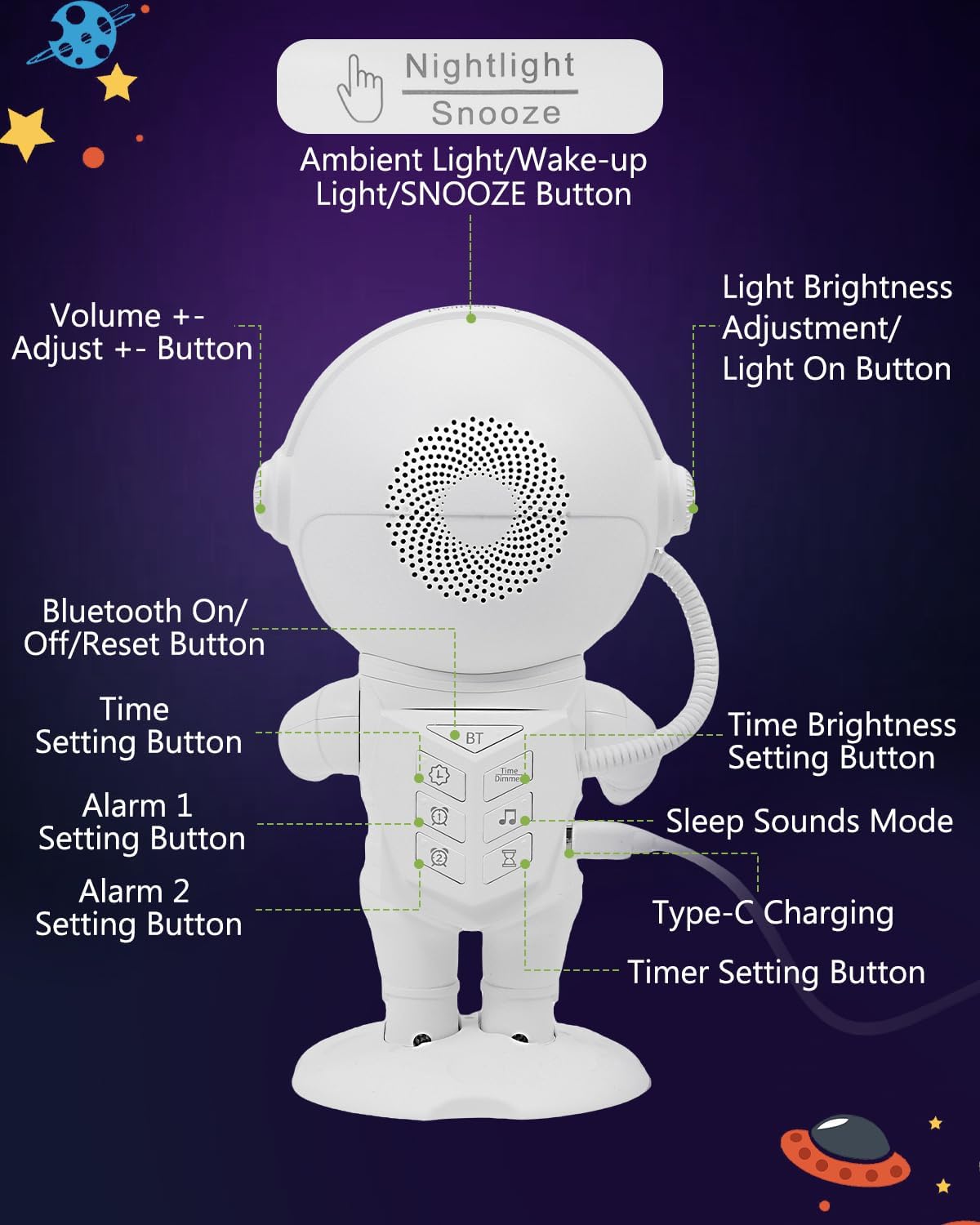
Detailed diagram illustrating the location and function of each button and port on the KeeKit Astronaut Wake Up Light.
- Nightlight / Snooze Button: Tap to activate snooze during an alarm, or to cycle through night light modes.
- Volume +/- Buttons: Adjust the volume for alarms, sleep sounds, and Bluetooth audio.
- Bluetooth On/Off/Reset Button: Activates Bluetooth pairing mode or resets the device.
- Time Setting Button: Used to enter and adjust time settings.
- Alarm 1 Setting Button: Configures the first alarm.
- Alarm 2 Setting Button: Configures the second alarm.
- Sleep Sounds Mode Button: Cycles through available sleep sounds.
- Light Brightness Adjustment / Light On Button: Adjusts the brightness of the light or turns it on/off.
- Time Brightness Setting Button: Adjusts the brightness of the digital time display.
- Type-C Charging Port: Connect the provided USB-C cable for power.
- Timer Setting Button: Sets the auto-off timer for sleep sounds and lights.
4. Setup
4.1 Power Connection
- Connect the provided USB-A to USB-C charging cable to the Type-C Charging Port on the back of the Astronaut Wake Up Light.
- Plug the USB-A end of the cable into a compatible USB power adapter (not included) or a powered USB port.
- The device requires continuous power to function.
4.2 Initial Time Setting
- Press and hold the Time Setting Button until the hour display flashes.
- Use the Volume +/- Buttons to adjust the hour.
- Press the Time Setting Button again to switch to minute adjustment.
- Use the Volume +/- Buttons to adjust the minutes.
- Press the Time Setting Button once more to confirm and exit time setting.
5. Operating Instructions
5.1 Alarm Setting (Dual Alarms)
The device supports two independent alarms.
- Press and hold either the Alarm 1 Setting Button or Alarm 2 Setting Button until the alarm hour display flashes.
- Use the Volume +/- Buttons to adjust the hour.
- Press the respective Alarm Setting Button again to switch to minute adjustment.
- Use the Volume +/- Buttons to adjust the minutes.
- Press the Alarm Setting Button to select the alarm sound (7 options available).
- Press the Alarm Setting Button to set the sunrise simulation duration (10-120 minutes).
- Press the Alarm Setting Button to confirm and activate the alarm. An alarm icon will appear on the display.
- To deactivate an alarm, press the corresponding Alarm Setting Button until the alarm icon disappears.

The image demonstrates the snooze function by tapping the top of the astronaut's helmet, highlighting the dual alarm capability and 9-minute snooze interval.
5.2 Sunrise Simulation
The sunrise simulation feature gradually increases light intensity before your set alarm time, mimicking a natural sunrise.
- During alarm setup, you can select a sunrise duration between 10 and 120 minutes.
- The light will gradually brighten from 1% to 100% intensity, transitioning from warm amber to daylight white.

This image depicts the sunrise simulation feature, showing the light gradually brightening to gently wake a sleeping child.
5.3 Dimmable Color-Changing Night Light
The device offers 22 lighting modes for use as a night light or mood light.
- Tap the Nightlight / Snooze Button to turn on the night light and cycle through 16 solid colors and 6 dynamic mood light modes.
- Use the Light Brightness Adjustment / Light On Button to adjust the brightness of the selected light mode.
- To turn off the night light, continue tapping the Nightlight / Snooze Button until the light turns off, or press and hold the Light Brightness Adjustment / Light On Button.
5.4 Sleep Sounds & Auto-off Timer
The device includes 21 relaxing audio options to aid sleep or focus.
- Press the Sleep Sounds Mode Button to cycle through the 21 available sleep sounds (e.g., white noise, fan, nature sounds, lullabies).
- Use the Volume +/- Buttons to adjust the sound volume (16 levels).
- To set an auto-off timer, press the Timer Setting Button. Cycle through options: 15, 30, 45, 60, or 90 minutes. The sound and light will automatically turn off after the selected duration.
- To turn off sleep sounds manually, press the Sleep Sounds Mode Button until no sound is playing, or set the timer to 'OFF'.

This image displays the variety of 21 soothing sounds and the auto-off timer options (15-90 minutes) designed to assist with sleep.
5.5 Snooze Function
When an alarm sounds:
- Tap the Nightlight / Snooze Button on the top of the device to activate the snooze function.
- The alarm will pause for 9 minutes and then sound again. This can be repeated indefinitely.
- If no action is taken, the alarm will automatically turn off after 30 minutes.
5.6 Bluetooth Speaker
The device can connect to your smartphone or other Bluetooth-enabled devices to play audio.
- Press the Bluetooth On/Off/Reset Button to activate Bluetooth pairing mode. The Bluetooth icon on the display will flash.
- On your device (e.g., smartphone), search for Bluetooth devices and select "KeeKit QML-0778H" to pair.
- Once paired, the Bluetooth icon will stop flashing, and you can play audio through the Astronaut Wake Up Light.
- Use the Volume +/- Buttons on the device or your connected device to adjust the volume.
- Press the Bluetooth On/Off/Reset Button again to disconnect Bluetooth.

The image illustrates the Bluetooth speaker functionality, showing the device connected and playing audio, along with the adjustable display brightness settings.
5.7 Smart Display Brightness
The digital time display brightness can be adjusted.
- Press the Time Brightness Setting Button to cycle through display brightness levels: Off, Low, High, and Auto.
- In Auto mode, the display will automatically dim between 10 PM and 6 AM.
6. Maintenance
- Cleaning: Wipe the device with a soft, dry cloth. Do not use abrasive cleaners or solvents.
- Storage: Store the device in a cool, dry place when not in use for extended periods.
- Power: Ensure the device is unplugged before cleaning or moving.
7. Troubleshooting
| Problem | Possible Cause | Solution |
|---|---|---|
| Device does not power on. | Not properly connected to power source. | Ensure the USB-C cable is securely connected and the power adapter is functional. |
| Alarm does not sound. | Alarm not activated or volume too low. | Check if the alarm icon is displayed. Increase alarm volume using Volume +/- Buttons. |
| Sunrise simulation not working. | Sunrise duration not set during alarm configuration. | Reconfigure the alarm and ensure a sunrise duration is selected. |
| Bluetooth pairing fails. | Device not in pairing mode or too far from source. | Press the Bluetooth On/Off/Reset Button to enter pairing mode. Ensure devices are within range. |
| Display is too dim or off. | Display brightness set to 'Off' or 'Auto' during dim hours. | Press the Time Brightness Setting Button to adjust brightness or disable 'Auto' mode. |
8. Specifications
| Feature | Detail |
|---|---|
| Model Number | QML-0778H |
| Product Dimensions | 22.3 x 3.81 x 11 cm |
| Item Weight | 757.5 g |
| Light Source Type | LED |
| Wattage | 10 watts |
| Material | Acrylonitrile Butadiene Styrene (Plastic) |
| Color | White |
| Sunrise Simulation | Adjustable 10-120 minutes |
| Night Light Colors | 22 modes (16 solid, 6 dynamic) |
| Sleep Sounds | 21 options, 16 volume levels |
| Auto-off Timer | 15, 30, 45, 60, 90 minutes |
| Snooze Duration | 9 minutes (unlimited) |
| Display Dimming | Adjustable (Off/Low/High/Auto) |
9. Warranty & Support
9.1 Warranty Information
KeeKit provides a 1-Year Warranty for this product, ensuring peace of mind. This warranty covers manufacturing defects and issues arising from normal use.
9.2 Return Policy
The product is eligible for a return or replacement within 30 days of purchase, in accordance with standard return policies.
9.3 Customer Support
For any questions, technical assistance, or warranty claims, please contact KeeKit customer support. Support is committed to responding within 24 hours. For further information, you may visit the official KeeKit store:


