
1. Introduction
This manual provides detailed instructions for the installation, operation, and maintenance of your AWESAFE Android 13 Car Radio. This unit is designed to upgrade your vehicle's infotainment system with modern features such as Wireless CarPlay, Android Auto, GPS Navigation, and Bluetooth connectivity. Please read this manual thoroughly before installation and use to ensure proper function and safety.

Image: The AWESAFE 10-inch Car Radio seamlessly integrated into a Chevy Silverado dashboard, displaying a vibrant user interface.
2. Applicable Car Models
This AWESAFE Car Radio is compatible with the following vehicle models:
- For Chevy: Silverado 1500 (2007-2013), Silverado 2500HD (2007-2013), Silverado 3500HD (2007-2013)
- For Chevrolet: Avalanche (2007-2011), Express Van (2008-2011), Impala (2006-2012)
- For GMC: Acadia (2007-2012), Savana (2008-2013), Sierra (2007-2011), Yukon (2007-2013)

Image: A visual representation of the compatible vehicle models for this car radio unit.
3. Package Contents
Verify that all items are present in the package before proceeding with installation:
- AWESAFE Car Radio Unit (10.1 inch display)
- RCA Cable
- Power Cable (x2, specific to vehicle models)
- Can Bus Decoder
- Crowbar (for trim removal)
- Reversing Line (for backup camera connection, if applicable)
- Antenna
- Screwdriver
- Back Video Input Cable
- USB Cable (x2)
- Microphone
- Speaker (for chime/alerts)
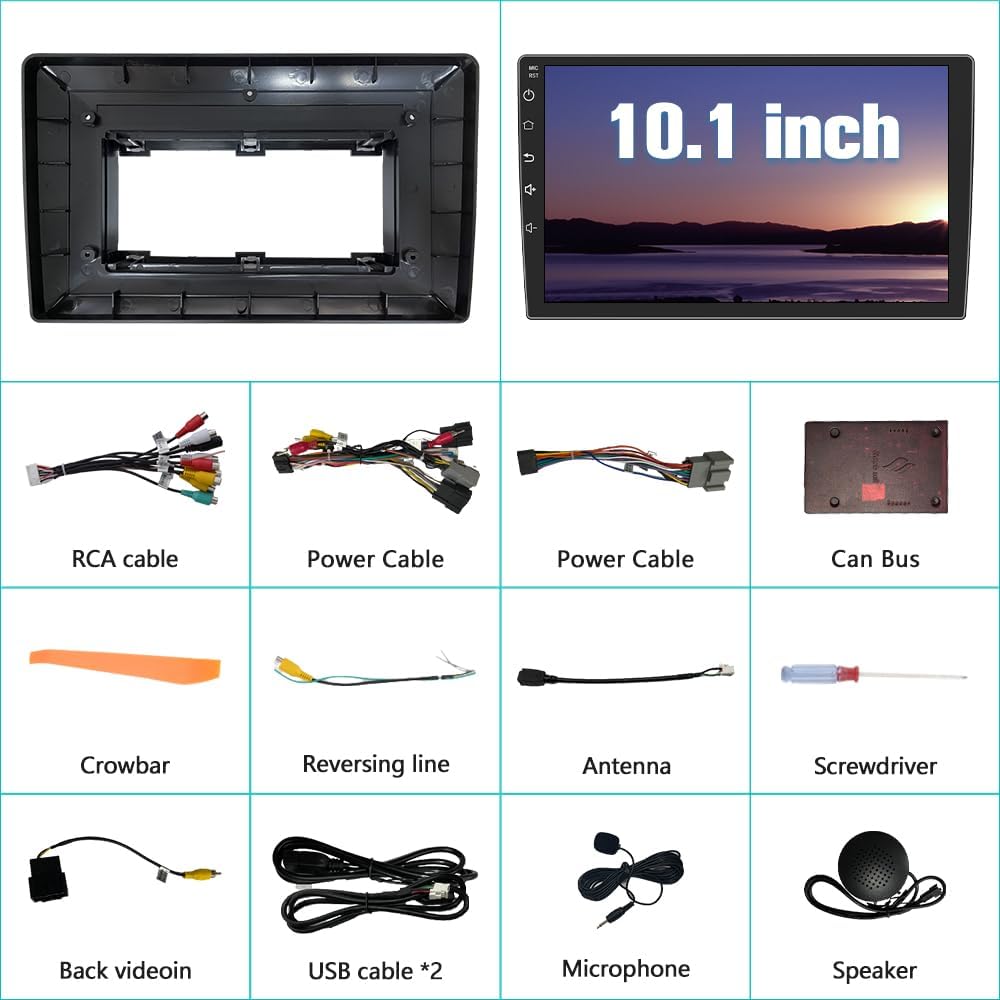
Image: An overview of the 10.1-inch display unit and all accompanying cables and tools provided in the package.
4. Setup & Installation
Installation of this car radio requires basic automotive electrical knowledge. If you are unsure about any steps, it is recommended to seek professional installation to prevent damage to the unit or your vehicle.
4.1 General Installation Steps:
- Preparation: Disconnect the vehicle's battery to prevent electrical shorts.
- Remove Old Unit: Carefully remove the existing car radio and trim using the provided crowbar and screwdriver. Refer to your vehicle's specific service manual for detailed trim removal instructions.
- Wiring Connection: Connect the provided power cables, RCA cables, USB cables, antenna, microphone, and Can Bus decoder to the new AWESAFE unit. Ensure all connections are secure. Refer to the wiring diagram below.
- Test Functionality: Before fully reassembling, temporarily connect the battery and test the basic functions of the radio (power on, sound, touch screen, steering wheel controls, etc.).
- Secure Unit: Mount the new car radio securely into the dashboard.
- Reassemble: Reinstall the vehicle's trim and reconnect the battery.
4.2 Wiring Diagram:
The following diagram illustrates the ISO wiring harness and RCA cable connections. Match the labels on the cables to the corresponding ports on the head unit and your vehicle's wiring.

Image: A comprehensive diagram showing the ISO wiring harness and RCA cable connections for proper installation.
5. Operating Instructions
5.1 Basic Controls
The unit features a responsive touchscreen interface. Power on/off, volume adjustment, and menu navigation are typically performed via on-screen controls or physical buttons/knobs if present on your specific model.
5.2 Bluetooth Connectivity
Pair your smartphone via Bluetooth for hands-free calling and wireless audio streaming.
- Access the Bluetooth settings on the car radio.
- Enable Bluetooth on your smartphone and search for available devices.
- Select the car radio's Bluetooth name (e.g., "AWESAFE") from your phone's list and confirm pairing.
- Once connected, you can make/receive calls and play music wirelessly. The built-in microphone captures your voice, and car speakers output audio.

Image: The Bluetooth interface on the car radio display, showing a phone call in progress and music streaming capabilities.
5.3 GPS Navigation
The unit comes with a built-in offline map of North America. Online navigation is also supported when connected to Wi-Fi.
- Access the Navigation application from the main menu.
- For offline maps, ensure the map data is downloaded and updated.
- For online navigation, connect to a Wi-Fi hotspot (see section 5.5).
- Enter your destination to receive turn-by-turn directions.

Image: A GPS navigation map showing a route with distance and estimated arrival time on the car radio display.
5.4 Wireless CarPlay & Android Auto
Connect your iPhone or Android phone wirelessly or via USB cable to access CarPlay or Android Auto features.
- Ensure your phone's Bluetooth and Wi-Fi are enabled.
- On the car radio, select the CarPlay or Android Auto icon.
- Follow the on-screen prompts to connect your device. For wireless connection, pair via Bluetooth first, then confirm the Wi-Fi connection.
- Once connected, you can use voice assistants, get directions, make calls, send messages, and enjoy music through the car radio interface.
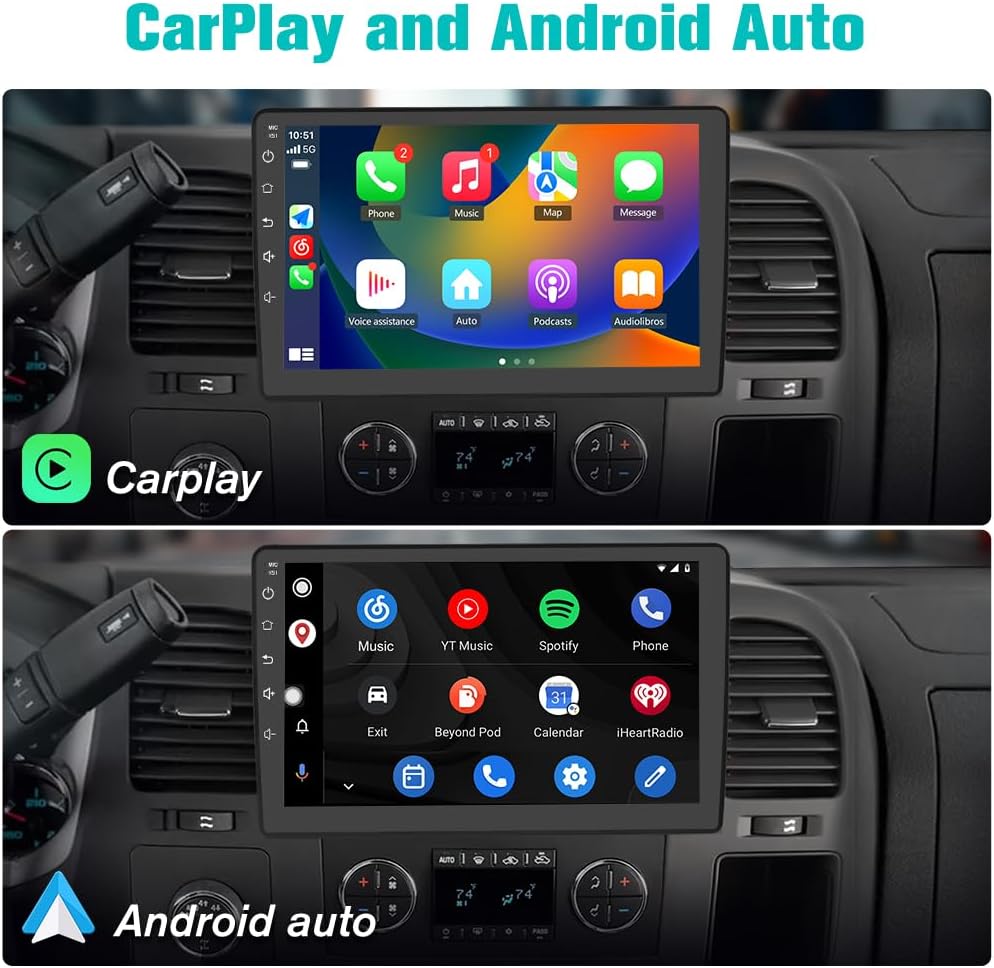
Image: The car radio displaying both Apple CarPlay and Android Auto interfaces, showing various app icons.
5.5 Wi-Fi Connectivity
Connect the car radio to a Wi-Fi hotspot (e.g., from your smartphone) to access online features, download apps, and use online navigation.
- Go to the system settings and select 'Wi-Fi'.
- Turn on Wi-Fi and scan for available networks.
- Select your desired network and enter the password if required.
- Once connected, you can browse the internet, stream online music, and use online navigation applications.

Image: The car radio display showing Wi-Fi connectivity options and a web browser interface.
5.6 Steering Wheel Control
The unit supports steering wheel controls, allowing you to manage audio and calls without taking your hands off the wheel. This feature requires proper wiring and configuration.
- After installation, access the 'Steering Wheel Control' settings in the unit's menu.
- Follow the on-screen instructions to program each button on your steering wheel to its corresponding function (e.g., volume up/down, track skip, answer/end call).
- Test all programmed buttons to ensure they function correctly.

Image: The car radio display showing the interface for programming steering wheel controls, with examples of button functions.
5.7 Split Screen Function
The split-screen feature allows you to run two applications simultaneously on the display, such as navigation and music playback.
- Open the first application you wish to use.
- Long-press the recent apps button or follow the specific gesture/button combination for split-screen mode (refer to the unit's on-screen guide).
- Select the second application to occupy the other half of the screen.

Image: The car radio display demonstrating the split-screen feature, showing navigation on one side and music playback on the other.
5.8 FM Radio
Access the FM Radio application to listen to local radio stations.
- Open the 'FM Radio' app from the main menu.
- Use the on-screen controls to scan for stations, manually tune, or select from saved presets.

Image: The car radio display showing the FM radio interface with frequency tuning and preset options.
5.9 Built-in DSP (Digital Sound Processor)
The integrated DSP allows for advanced audio customization, including equalization and sound field adjustments, to optimize your listening experience.
- Navigate to the 'Sound Settings' or 'DSP' application.
- Adjust equalizer bands, balance, fader, and other audio parameters to suit your preferences.

Image: The car radio display showing the Built-in DSP interface with various audio adjustment options like equalizer and sound field.
6. Maintenance
To ensure the longevity and optimal performance of your AWESAFE Car Radio, follow these maintenance guidelines:
- Cleaning: Use a soft, dry cloth to clean the screen and exterior. Avoid abrasive cleaners or solvents that may damage the surface.
- Software Updates: Periodically check for software updates provided by AWESAFE to ensure you have the latest features and bug fixes. Updates can often be performed via Wi-Fi.
- Temperature: Avoid exposing the unit to extreme temperatures for prolonged periods.
- Connections: Ensure all cables remain securely connected. Loose connections can lead to intermittent issues.
7. Troubleshooting
If you encounter issues with your car radio, refer to the following common troubleshooting steps:
| Issue | Possible Cause / Solution |
|---|---|
| Unit does not power on | Check power cable connections. Ensure vehicle battery is connected and charged. Check vehicle's fuse box for blown fuses. |
| No sound | Check speaker wire connections. Ensure volume is not muted or set to zero. Verify correct audio source is selected. |
| Steering Wheel Controls not working | Ensure the steering wheel control wires are correctly connected. Re-program the steering wheel buttons in the unit's settings. Some vehicles may require an additional interface (not included). |
| Bluetooth connection issues | Ensure Bluetooth is enabled on both the unit and your phone. Delete previous pairings and try reconnecting. Restart both devices. |
| GPS signal weak or inaccurate | Ensure the GPS antenna is properly installed and has a clear view of the sky (e.g., on the dashboard). Avoid obstructions. |
| CarPlay/Android Auto not connecting | For wireless, ensure Bluetooth and Wi-Fi are active on your phone. For wired, try a different USB cable. Ensure your phone's operating system is up to date. |
| Sound stops when reversing | This is often a default setting for safety. Check the unit's system settings for options to adjust or disable this behavior, if available. |
If the issue persists after attempting these steps, please contact AWESAFE customer support.
8. Specifications
| Feature | Detail |
|---|---|
| Display Size | 10 Inches |
| Operating System | Android 13 |
| Memory (RAM) | 2GB |
| Storage (ROM) | 32GB |
| Connectivity | Bluetooth, Wi-Fi, USB |
| Special Features | Wireless CarPlay, Android Auto, GPS Navigation (North America Map), Steering Wheel Control, Split Screen, Built-in DSP |
| Item Weight | 3.98 pounds (1.81 Kilograms) |
| Package Dimensions | 11.46 x 7.76 x 5 inches |
| Manufacturer | AWESAFE |
9. Warranty & Support
Your AWESAFE Car Radio comes with a 1-year warranty from the date of purchase, covering manufacturing defects.
For technical assistance, troubleshooting, or warranty claims, please contact AWESAFE Customer Support:
- Email: AWESAFE-US@outlook.com
- Support Hours: 24 Hours Customer Support

Image: A customer support representative ready to assist with inquiries.