
1. Introduction
This manual provides essential information for setting up, operating, maintaining, and troubleshooting your new CyberPowerPC Gamer Xtreme GXiVR8060A47 Gaming PC. This system is designed for high-performance gaming and demanding multimedia tasks, featuring an Intel Core i5-14400F processor and NVIDIA GeForce RTX 5060 graphics.
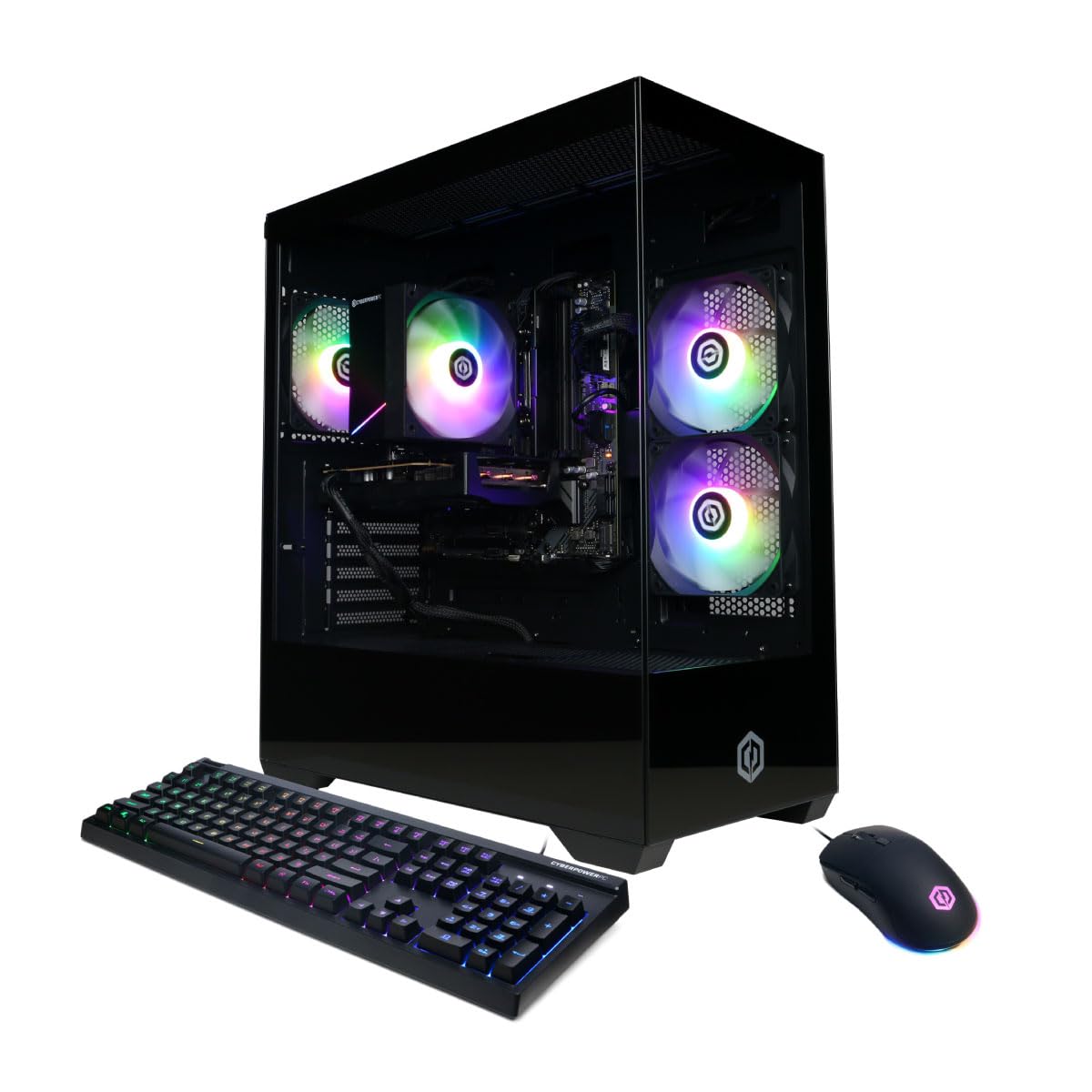
Image: Front view of the CyberPowerPC Gamer Xtreme GXiVR8060A47 Gaming PC with RGB lighting.
2. Package Contents
Verify that all items are present in the package:
- CyberPowerPC Gamer Xtreme GXiVR8060A47 Gaming PC
- Power Cord
- Gaming Keyboard
- Gaming Mouse
- Documentation (including this manual)

Image: The CyberPowerPC gaming desktop tower, keyboard, and mouse.
3. Setup Guide
3.1 Unboxing and Placement
- Carefully remove the PC and all accessories from the packaging. Retain packaging for future transport or warranty claims.
- Place the PC on a stable, flat surface with adequate ventilation. Ensure there is clear space around the air intake and exhaust vents.
- Remove any internal packing foam or protective films from the PC components.
3.2 Connecting Peripherals
Connect your monitor, keyboard, mouse, and other peripherals to the appropriate ports on the back of the PC.
- Monitor: Connect your monitor to the graphics card (NVIDIA GeForce RTX 5060) ports (HDMI or DisplayPort). Do not connect to the motherboard's video outputs if a dedicated graphics card is installed.
- Keyboard and Mouse: Connect to any available USB ports.
- Power: Connect the power cord to the PC's power supply unit (PSU) and then to a grounded electrical outlet.
- Network: For wired internet, connect an Ethernet cable to the LAN port. For wireless internet, the system is WiFi 6 ready.

Image: Rear view of the PC showing various connectivity ports for peripherals.
3.3 Initial Boot-Up
- Press the power button located on the front or top of the PC.
- The system will boot into Windows 11 Home. Follow the on-screen instructions to complete the initial Windows setup, including language, region, and user account creation.
- It is recommended to check that the graphics card is securely seated in its slot after shipping. Gently press down on the graphics card near the PCIe slot to ensure it is fully engaged.
4. Operating Instructions
4.1 Power On/Off
- Power On: Press the power button once.
- Shut Down: Click the Start button in Windows, then select Power > Shut down. Avoid directly holding the power button to turn off the PC, as this can lead to data loss or system corruption.
- Restart: Click the Start button in Windows, then select Power > Restart.
4.2 Windows 11 Home
Your PC comes pre-installed with Windows 11 Home. Familiarize yourself with its interface and features. Regular updates are crucial for security and performance.
4.3 Gaming and Performance
The CyberPowerPC Gamer Xtreme GXiVR8060A47 is optimized for gaming. For optimal performance:
- Ensure graphics drivers are up to date. Visit the NVIDIA website for the latest drivers.
- Close unnecessary background applications when gaming.
- Adjust in-game graphics settings to balance visual quality and frame rate according to your preference.
4.4 RGB Lighting Control
Your PC features custom RGB lighting. Control options may include:
- Case Button: A dedicated button on the PC case allows cycling through various lighting modes and colors.
- Software Control: For advanced customization, connect the RGB fan cables to the motherboard's RGB headers and use compatible motherboard software (if available) to synchronize and control lighting effects. Refer to your motherboard manual for specific instructions.

Image: Internal view of the PC showcasing the RGB fans and components.
5. Maintenance
5.1 Cleaning Your PC
- Exterior: Use a soft, damp cloth to wipe down the exterior of the case. Avoid harsh chemicals.
- Interior: Periodically clean dust from inside the PC using compressed air. Focus on fans (CPU cooler, case fans, GPU fans) and heatsinks. Ensure the PC is powered off and unplugged before opening the case.
- Dust Filters: If your case has removable dust filters, clean them regularly to maintain optimal airflow.
5.2 Software Updates
Regularly update your operating system, drivers (especially graphics drivers), and antivirus software to ensure system stability, security, and performance.
5.3 Airflow and Cooling
Proper airflow is critical for component longevity. Ensure the PC is placed in an open area, not confined in a cabinet, to allow for unrestricted air circulation.
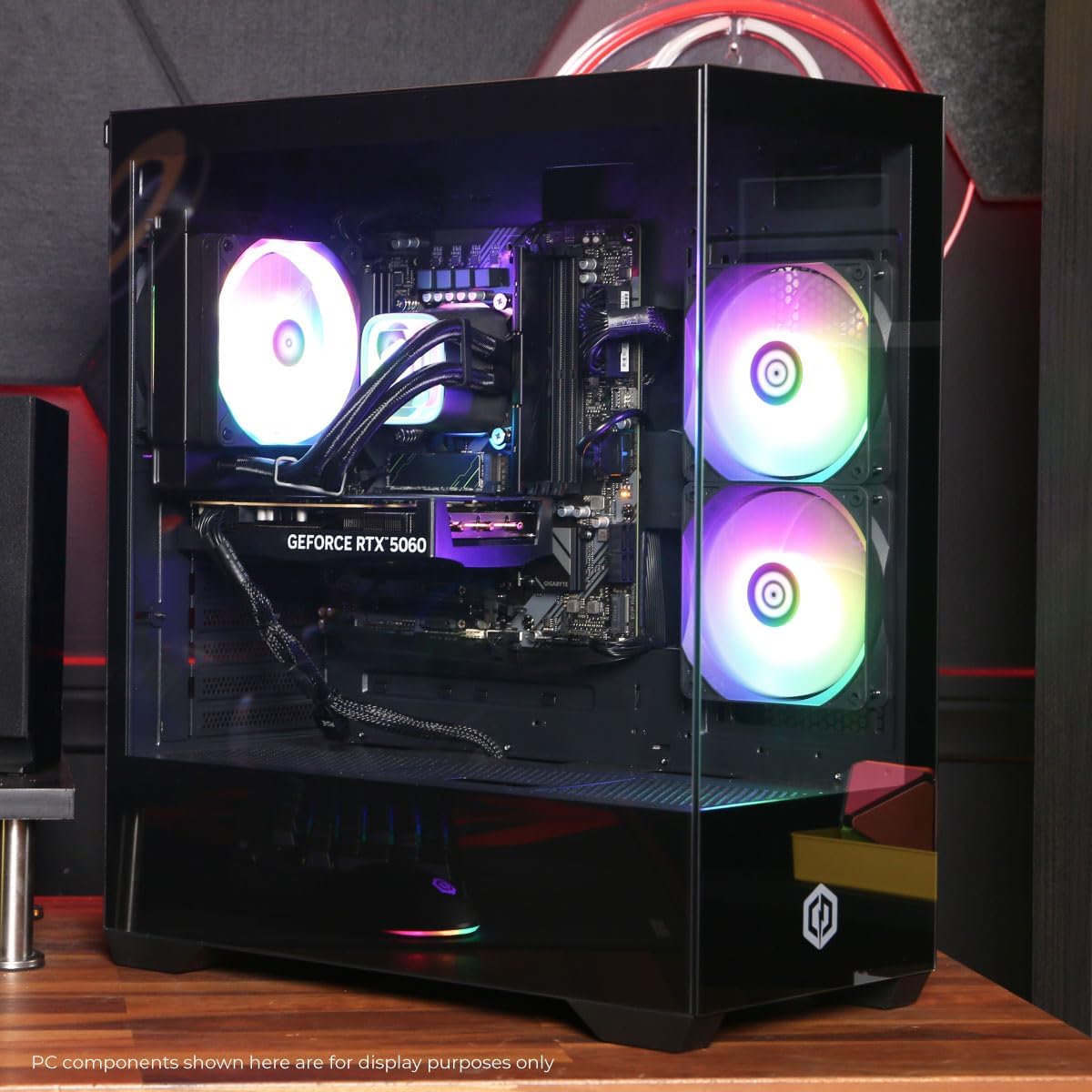
Image: Top view of the PC, highlighting the mesh panel for ventilation.
6. Troubleshooting
If you encounter issues, refer to the following common troubleshooting steps:
- No Display: Ensure your monitor is connected to the graphics card's output, not the motherboard's. Check all cable connections (power, video). Try a different video cable or monitor if possible.
- PC Not Powering On: Verify the power cord is securely connected to both the PC and the wall outlet. Check the power switch on the PSU (if present) is in the 'On' position. Try a different power outlet.
- Excessive Fan Noise: This can indicate dust buildup or a fan issue. Clean the interior of the PC as described in the Maintenance section. If the noise persists, contact support.
- System Instability/Blue Screen Errors (BSOD): Ensure all drivers are updated. Check for Windows updates. Run a memory diagnostic tool (Windows Memory Diagnostic) to check RAM integrity. Ensure components are properly seated.
- Peripherals Not Working: Try connecting the keyboard or mouse to different USB ports. Ensure drivers are installed for specialized peripherals.
For persistent issues, refer to the Warranty and Support section for contact information.
7. Specifications
| Component | Detail |
|---|---|
| Model Name | Gamer Xtreme GXiVR8060A47 |
| Processor | Intel Core i5-14400F 2.5GHz (10 Cores) |
| Chipset | Intel B760 |
| Graphics Card | NVIDIA GeForce RTX 5060 8GB GDDR7 |
| RAM | 16GB DDR5 (4800 MT/s) |
| Storage | 1TB PCIe 4.0 NVMe SSD |
| Operating System | Windows 11 Home |
| Connectivity | WiFi 6, Bluetooth 5.3, 1x LAN |
| USB Ports | 2 x USB-A 3.2, 6 x USB-A 2.0 (Total 8) |
| Video Output | 1x HDMI, 2x DisplayPort |
| Audio | 7.1 Channel Audio |
| Dimensions (L x W x H) | Approx. 19.09 x 8.27 x 18.90 inches (54.5 x 52.5 x 29.5 cm) |
| Weight | Approx. 13.96 kg |

Image: Detailed internal view of the PC showing the CPU cooler, RAM, and graphics card.
8. Warranty and Support
8.1 Warranty Information
Your CyberPowerPC Gamer Xtreme GXiVR8060A47 Gaming PC comes with a 1 Year Limited Warranty covering parts and labor. Please retain your proof of purchase for warranty claims.
8.2 Technical Support
CyberPowerPC offers Free Lifetime Technical Support for your product. For assistance with setup, troubleshooting, or any other technical inquiries, please contact CyberPowerPC customer service.
Contact information can typically be found on the CyberPowerPC official website or in the documentation included with your PC.


