
UGREEN 35371EU
Contents
UGREEN 6-Port Gigabit PoE+ Ethernet Switch User Manual
Model: 35371EU
Introduction
Thank you for choosing the UGREEN 6-Port Gigabit PoE+ Ethernet Switch. This device is designed to expand your network connectivity with high-speed Gigabit Ethernet ports and Power over Ethernet (PoE+) capabilities, making it ideal for connecting IP cameras, wireless access points, and other PoE-compatible devices. This manual provides comprehensive instructions for setting up, operating, and maintaining your switch to ensure optimal performance and longevity.
Safety Information
- Ensure the power adapter provided is used.
- Do not expose the device to water, fire, high temperatures, or humid environments.
- Do not attempt to disassemble, repair, or modify the device.
- Place the switch on a stable surface or mount it securely to a wall.
- Ensure proper ventilation around the device to prevent overheating.
- This device features 6KV lightning protection; however, it is recommended to disconnect the power during severe thunderstorms.
Package Contents
Please check the package contents upon opening. If any items are missing or damaged, contact UGREEN customer support.
- 1x UGREEN 6-Port Gigabit PoE+ Ethernet Switch
- 1x Power Adapter
- 1x User Manual
- 20x Port Label Stickers (Optional, for organization)
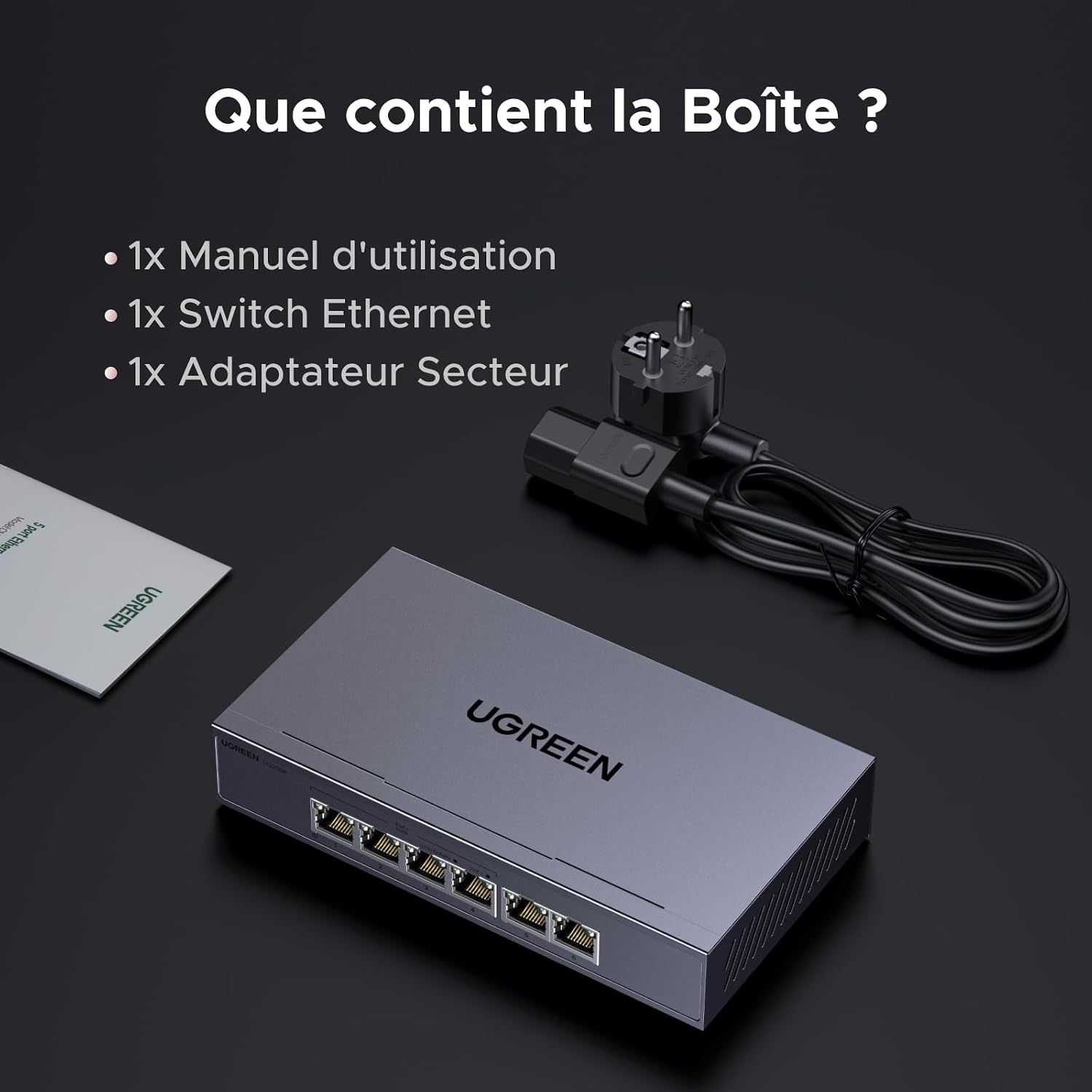
Image: What's in the Box - The UGREEN 6-Port Gigabit PoE+ Ethernet Switch, its power adapter, and the user manual.
Product Overview
The UGREEN 6-Port Gigabit PoE+ Ethernet Switch features a robust metal casing for efficient heat dissipation and clearly labeled ports for easy connection.

Image: Front view of the UGREEN 6-Port Gigabit PoE+ Ethernet Switch, highlighting the six RJ45 ports and status LEDs.
Port Layout and Indicators
- Ports 1-4: PoE+ Gigabit RJ45 Ports. These ports provide both data and power (up to 30W per port, 60W total for all PoE ports) to compatible devices.
- Ports 5-6: Gigabit RJ45 Uplink Ports. These ports are typically used to connect to your router or main network.
- LED Indicators: Each port has LED indicators for Link/Activity and PoE status.
- Mode Switch: A physical switch on the side allows selection between Standard, VLAN, and Extend modes.

Image: Diagram illustrating the easy setup and connectivity of the UGREEN PoE switch, showing its power input, two Gigabit LAN ports, and four PoE LAN ports, and their typical connections to devices such as surveillance cameras, printers, laptops, and NAS systems.

Image: Features of the UGREEN switch, including its efficient heat dissipation design, the physical switch for selecting between Extension, VLAN, and Standard modes, and its support for wall mounting.
Setup
Follow these steps for initial setup of your UGREEN PoE+ Ethernet Switch.
- Unpack the Switch: Carefully remove the switch and all accessories from the packaging.
- Choose a Location: Place the switch on a flat, stable surface or mount it to a wall using appropriate hardware (not included). Ensure adequate ventilation.
- Connect Power: Connect the provided power adapter to the DC input port on the switch and then plug the adapter into a power outlet. The power LED indicator will illuminate.
- Connect to Router/Network: Use an Ethernet cable to connect one of the uplink ports (Port 5 or 6) on the switch to your router or main network device.
- Connect Devices:
- For PoE-compatible devices (e.g., IP cameras, wireless APs), connect them to Ports 1-4 using Ethernet cables. The switch will automatically provide power and data.
- For non-PoE devices (e.g., PCs, NAS, game consoles), you can connect them to any of the 6 ports.
- Verify Connections: Check the LED indicators for each connected port. A solid green light typically indicates a successful link, and blinking indicates activity. For PoE ports, an additional LED may indicate PoE power delivery.

Image: Extended Application - Illustrates plugging in the switch and connecting various devices such as laptops, PCs, game consoles, cameras, Network Video Recorders (NVRs), and Network Attached Storage (NAS) to its ports.
Operating Modes
The UGREEN PoE+ Ethernet Switch offers three operating modes, selectable via a physical switch on the side of the device. Choose the mode that best suits your network requirements.

Image: Three Modes of PoE Switch - Visual representation of the Standard, VLAN, and Extend modes with their key characteristics.
1. Standard Mode
- Functionality: In this mode, all ports (1-6) operate as standard Gigabit Ethernet ports with auto-negotiation. All ports can communicate with each other.
- PoE: Ports 1-4 provide PoE+ power according to IEEE 802.3AT/AF standards.
- Use Case: Ideal for general network expansion where all connected devices need to communicate freely.
2. VLAN Mode
- Functionality: In VLAN mode, Ports 1-4 are isolated from each other, meaning devices connected to these ports cannot communicate directly with each other. They can only communicate with the uplink ports (Ports 5 and 6).
- PoE: Ports 1-4 continue to provide PoE+ power.
- Use Case: Enhances network security by preventing inter-device communication on PoE ports, commonly used for surveillance systems where cameras should only communicate with the NVR/router.

Image: Port Isolation (VLAN) - Shows how ports 1-4 are blocked from communicating with each other, only communicating with ports 5/6, which are connected to the router, NVR, and NAS.
3. Extend Mode
- Functionality: This mode extends the maximum transmission distance for data and PoE power up to 250 meters (820 feet) over standard Ethernet cables.
- Speed Limitation: When Extend mode is activated, the data transmission speed on Ports 1-4 is reduced to 10 Mbps.
- PoE: Ports 1-4 continue to provide PoE+ power over the extended distance.
- Use Case: Ideal for long-distance deployments of IP cameras or other PoE devices where standard 100-meter Ethernet limits are insufficient.

Image: Ultra-long Transmission Distance Up To 250M - Illustrates the extended range capability of the switch, noting the 10 Mbps speed reduction in Extend mode.
Maintenance
To ensure the longevity and optimal performance of your UGREEN PoE+ Ethernet Switch, follow these maintenance guidelines:
- Cleaning: Use a soft, dry cloth to clean the exterior of the switch. Do not use liquid or aerosol cleaners.
- Ventilation: Ensure that the ventilation holes on the switch are not blocked. Maintain adequate space around the device for airflow.
- Cable Management: Keep network cables neatly organized to prevent strain on ports and improve airflow.
- Power Cycle: If the switch becomes unresponsive, disconnect the power adapter, wait for 10 seconds, and then reconnect it.
- Firmware Updates: Check the official UGREEN website periodically for any available firmware updates.
Troubleshooting
If you encounter issues with your UGREEN PoE+ Ethernet Switch, refer to the following common problems and solutions:
| Problem | Possible Cause | Solution |
|---|---|---|
| No power/LEDs off | Power adapter not connected or faulty. | Ensure the power adapter is securely connected to the switch and a working power outlet. Try a different outlet. |
| No network connection on a port | Loose cable, faulty cable, incorrect mode, or device issue. |
|
| PoE device not receiving power | Device not PoE compatible, cable issue, or total power budget exceeded. |
|
| Slow network speed in Extend Mode | This is expected behavior. | Extend mode reduces speed to 10 Mbps to achieve longer transmission distances. If full Gigabit speed is required, switch to Standard or VLAN mode and ensure cable length is within 100 meters. |
| Devices in Ports 1-4 cannot communicate with each other in VLAN Mode | This is expected behavior. | VLAN mode isolates ports 1-4. If inter-device communication is needed, switch to Standard mode. |
Specifications
| Feature | Detail |
|---|---|
| Model Number | 35371EU |
| Brand | UGREEN |
| Number of Ports | 6 (4 PoE+, 2 Gigabit Uplink) |
| PoE Standard | IEEE 802.3af/at |
| PoE Power Output | Up to 30W per port, 60W total |
| Data Transfer Rate | 6 Gigabits per second (total switching capacity) |
| Interface Type | RJ45 |
| Housing Material | Metal |
| Lightning Protection | 6KV |
| Operating Modes | Standard, VLAN, Extend (250m @ 10Mbps) |
| Color | Grey |
| Compatible Devices | Wireless IP Camera AP, PC, NAS, Game Consoles, Printers, etc. |
| Included Components | 1 Power Adapter |
| Manufacturer | Ugreen Group Limited |
| Country of Origin | China |
Warranty and Support
UGREEN provides a 24-month warranty for this product. For technical support, warranty claims, or any inquiries, please contact UGREEN customer service through the official UGREEN website or your point of purchase.
You can find more information and support resources on the official UGREEN website: www.ugreen.com
Ask a question about this manual
Ask about setup, troubleshooting, compatibility, parts, safety, or missing instructions. Manuals+ will review the question and use this page’s manual context to help answer it.