
1. Introduction
Thank you for choosing the Tecaki X5 Mini Projector. This manual provides essential information for setting up, operating, maintaining, and troubleshooting your device. Please read it thoroughly to ensure optimal performance and longevity of your projector.

Image 1.1: The Tecaki X5 Mini Projector, a compact and portable device.
The Tecaki X5 is a versatile mini projector featuring built-in Android TV, 1080P and 4K support, Dual-Band WiFi 6, Bluetooth 5.2, electric focus, auto keystone correction, and a 180° rotatable design for flexible projection. Its lightweight and compact design makes it ideal for various entertainment and presentation needs.

Image 1.2: The Tecaki X5 Mini Projector is designed for portability, easily fitting into a backpack.
2. Setup Guide
2.1 Unboxing and Components
Before starting, ensure all components are present:
- Tecaki X5 Mini Projector
- Power Adapter
- Remote Control
- User Manual (this document)
2.2 Power Connection
- Connect the power adapter to the projector's power input port.
- Plug the power adapter into a suitable electrical outlet.
- Press the power button on the projector or remote control to turn on the device.
2.3 Placement and Projection Angle
The Tecaki X5 projector offers flexible placement options due to its 180° rotatable design and support for various mounting types.

Image 2.1: The projector's 180° rotatable design allows projection onto walls or ceilings.
- Tabletop Projection: Place the projector on a flat surface.
- Ceiling Projection: Use the 180° rotation feature to project onto the ceiling.
- Wall Mounting: The projector supports wall mounting (mounting hardware not included).
- Tripod Mounting: A standard tripod screw hole is available for tripod use.
2.4 Focus and Keystone Correction
Achieve a clear and perfectly rectangular image with the electric focus and AI auto keystone correction features.

Image 2.2: Use the remote control for electric focus adjustment.
- Electric Focus: Press the F+ or F- buttons on the remote control to quickly adjust the image sharpness.
- AI Auto 4P Keystone Correction: The projector automatically adjusts the image to be rectangular. Manual adjustments can be made if needed through the settings menu, offering a wide ±45° range.
- Zoom Function: Adjust the projection size from 50% to 100% without moving the projector, using the zoom function in the settings.
2.5 Network Connection (WiFi 6)
Connect your projector to a wireless network for online streaming and app access.

Image 2.3: The projector supports faster Dual-Band WiFi 6 for seamless streaming.
- Navigate to the Settings menu on the projector.
- Select Network & Internet.
- Turn on Wi-Fi and select your desired network from the list.
- Enter the Wi-Fi password if prompted and connect.
2.6 Bluetooth Pairing
Connect external Bluetooth audio devices for an enhanced sound experience.
- Ensure your Bluetooth speaker or headphone is in pairing mode.
- On the projector, go to Settings > Connected Devices > Bluetooth.
- Turn on Bluetooth and select your device from the available list to pair.
Note: Bluetooth on the projector supports audio output to speakers/headphones only and does not support connection with smartphones.
3. Operating Instructions
3.1 Smart TV System and Apps
The Tecaki X5 features a built-in Android TV system, providing direct access to popular streaming services.
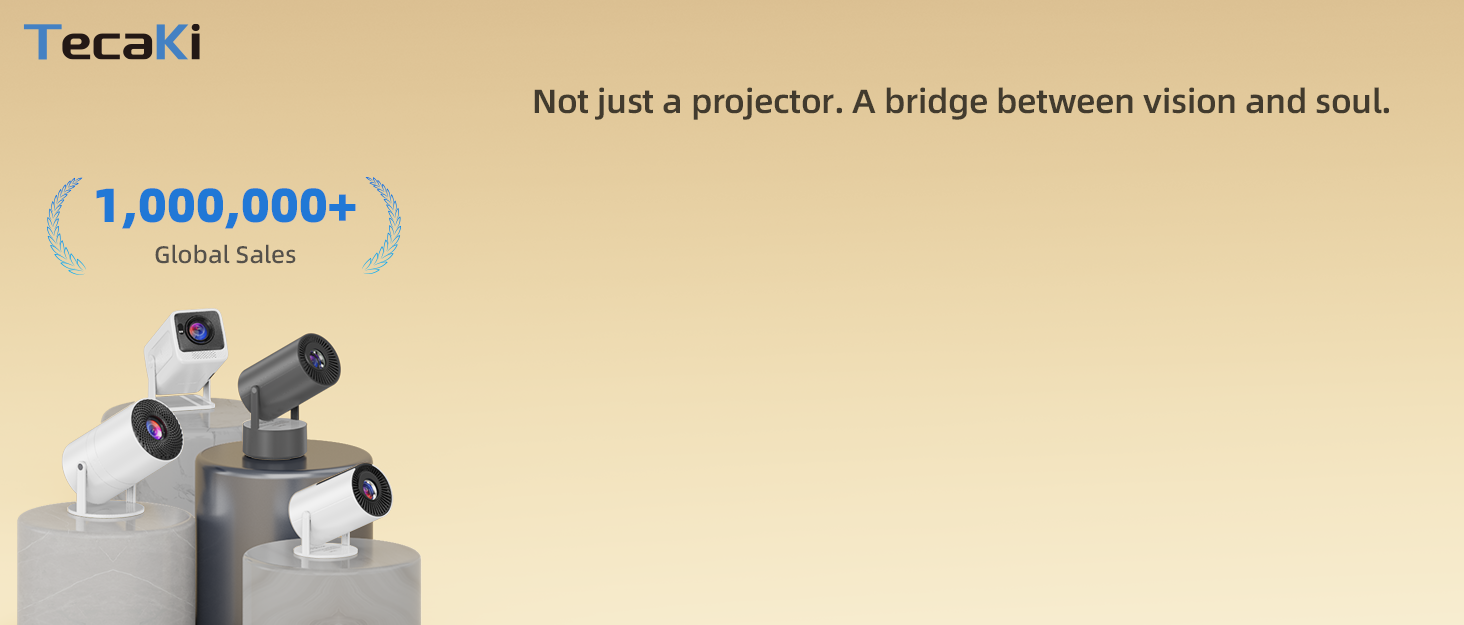
Image 3.1: The projector's interface with pre-installed streaming applications.
- Navigation: Use the remote control to navigate the home screen and select applications.
- Pre-installed Apps: Access Netflix, YouTube, Prime Video, and other apps directly.
- App Store: Download additional applications from the integrated app store.
3.2 Connecting External Devices
The projector offers multiple connectivity options for various devices.

Image 3.2: Overview of the projector's HDMI, USB, and Audio ports with compatible devices.
- HDMI Port: Connect devices such as TV sticks, Roku, laptops, gaming consoles (PS5, Switch), and DVD players.
- USB Port: Connect USB drives for media playback or other USB-compatible accessories.
- 3.5mm Audio Jack: Connect wired headphones or external speakers.
3.3 Adjusting Projection Size
The projector supports a maximum projection size of 200 inches, with an optimal range of 80-100 inches for the best viewing experience.

Image 3.3: Recommended projection distances for various screen sizes (40", 80", 100", 160").
- Minimum Image Size: 32 inches (at approximately 3.2 feet distance).
- Maximum Image Size: 200 inches (at approximately 16.4 feet distance).
- Zoom: Use the digital zoom function (50%-100%) in the settings to fine-tune the image size without physically moving the projector.
3.4 Visual and Audio Quality
Experience stunning visuals and clear audio with the Tecaki X5.

Image 3.4: Visual representation of the projector's FHD 1080P support, contrast, brightness, and vivid colors.
- Resolution: Native 1280x720P, supports 1080P and 4K input for sharp, full HD visuals.
- Contrast: 10000:1 contrast ratio for deeper blacks and brighter highlights.
- Audio: Built-in stereo sound system. For a more immersive experience, connect external Bluetooth speakers or headphones.
4. Maintenance
4.1 Cleaning
Regular cleaning helps maintain optimal performance and image quality.
- Lens: Use a soft, lint-free cloth specifically designed for optical lenses to gently wipe the projector lens. Avoid abrasive materials or harsh chemicals.
- Exterior: Wipe the projector's exterior with a soft, dry cloth.
- Ventilation: Ensure the ventilation openings are clear of dust and obstructions to prevent overheating.
4.2 Lamp Life
The Tecaki X5 projector is equipped with advanced LED lights designed for extended use.

Image 4.1: The projector's optical system is designed for durability and long lamp life.
- The light source has an operating life of up to 80,000 hours.
- Proper ventilation and avoiding extreme temperatures will help maximize lamp lifespan.
4.3 Eye Protection
The projector is designed with features to minimize eye strain.
- Equipped with 3 optical glass lenses to provide better image quality while effectively filtering harmful blue light.
5. Troubleshooting
If you encounter issues with your Tecaki X5 Mini Projector, refer to the following common problems and solutions:
| Problem | Possible Cause | Solution |
|---|---|---|
| No Power | Power cable disconnected; Power outlet issue; Projector off. | Ensure power cable is securely connected. Try a different outlet. Press the power button. |
| No Image / Blank Screen | Input source not selected; Device not connected; Lens cap on. | Select correct input source (HDMI, USB). Check cable connections. Remove lens cap. |
| Blurry Image | Focus not adjusted; Projector too far/close; Keystone not corrected. | Use electric focus (F+/F- buttons). Adjust projector distance. Use auto keystone correction or manual adjustment. |
| Image is Trapezoidal | Projector not perpendicular to screen. | Use AI auto 4P keystone correction. Adjust the projector's angle. |
| No Sound | Volume too low; Muted; External audio device not connected/selected. | Increase volume. Unmute. Check Bluetooth connection or 3.5mm audio cable. Select correct audio output in settings. |
| Cannot Connect to Wi-Fi | Incorrect password; Router issue; Projector software glitch. | Verify Wi-Fi password. Restart your router. Restart the projector and try connecting again. |
| Remote Control Not Working | Batteries low/dead; Obstruction; Remote not paired. | Replace batteries. Remove obstructions between remote and projector. Re-pair remote if necessary (refer to device settings). |
6. Specifications
Detailed technical specifications for the Tecaki X5 Mini Projector:
| Feature | Detail |
|---|---|
| Model Number | X5 |
| Product Dimensions | 9.6 x 9.6 x 18 cm |
| Item Weight | 0.8 kg |
| Native Resolution | 1280 x 720 pixels |
| Display Resolution Maximum | 1920 x 1080 pixels (1080P Supported) |
| 4K Support | Yes (via HDMI connection to 4K-capable device) |
| Display Type | LCD |
| Contrast Ratio | 10000:1 |
| Light Source Operating Life | 80,000 hours |
| Connectivity Technology | Dual-Band WiFi 6, Bluetooth 5.2, HDMI, USB, 3.5mm Jack |
| Special Features | Built-in Android TV, Electric Focus, AI Auto Keystone Correction (±45°), 180° Rotatable Stand, 50%-100% Zoom |
| Minimum Image Size | 32 inches |
| Maximum Image Size | 200 inches |
| Minimum Throw Distance | 3.2 feet |
| Maximum Throw Distance | 16.4 feet |
| Mounting Type | Ceiling Mount, Floor Mount, Tabletop Mount, Tripod Mount, Wall Mount |
| Wattage | 45 watts |
| Voltage | 220 volts |
7. Warranty and Support
7.1 Product Warranty
Tecaki is committed to product quality and customer satisfaction.
- Manufacturer Warranty: The Tecaki X5 Mini Projector comes with a 2-year manufacturer warranty.
- Reliability Period: A 3-year reliability period ensures your purchase is worry-free.
- Extended Warranty: An optional 24-month extended warranty may be available. Please consult Tecaki service support to activate your product warranty and inquire about extensions.
7.2 Technical Support
For any technical assistance or inquiries, please contact Tecaki customer support.
- Lifetime Technical Support: Tecaki provides lifetime technical support for its products.
- Response Time: Expect a quick and professional reply within 24 hours.
For the most up-to-date support information and contact details, please visit the official Tecaki website or refer to the contact information provided with your product packaging.
8. Product Videos
Currently, there are no instructional videos available for embedding in this manual. Please check the official Tecaki product page or website for any available video guides.