
1. Introduction
The OSCOO T10 is a high-performance 512GB external Solid State Drive (SSD) designed for rapid data transfer and versatile compatibility. Featuring both USB Type-C and Type-A connectors, it offers seamless connectivity across a wide range of devices, including smartphones, tablets, laptops, and gaming consoles. Its robust zinc alloy construction ensures durability and efficient heat dissipation, making it an ideal solution for professionals and everyday users requiring reliable portable storage.
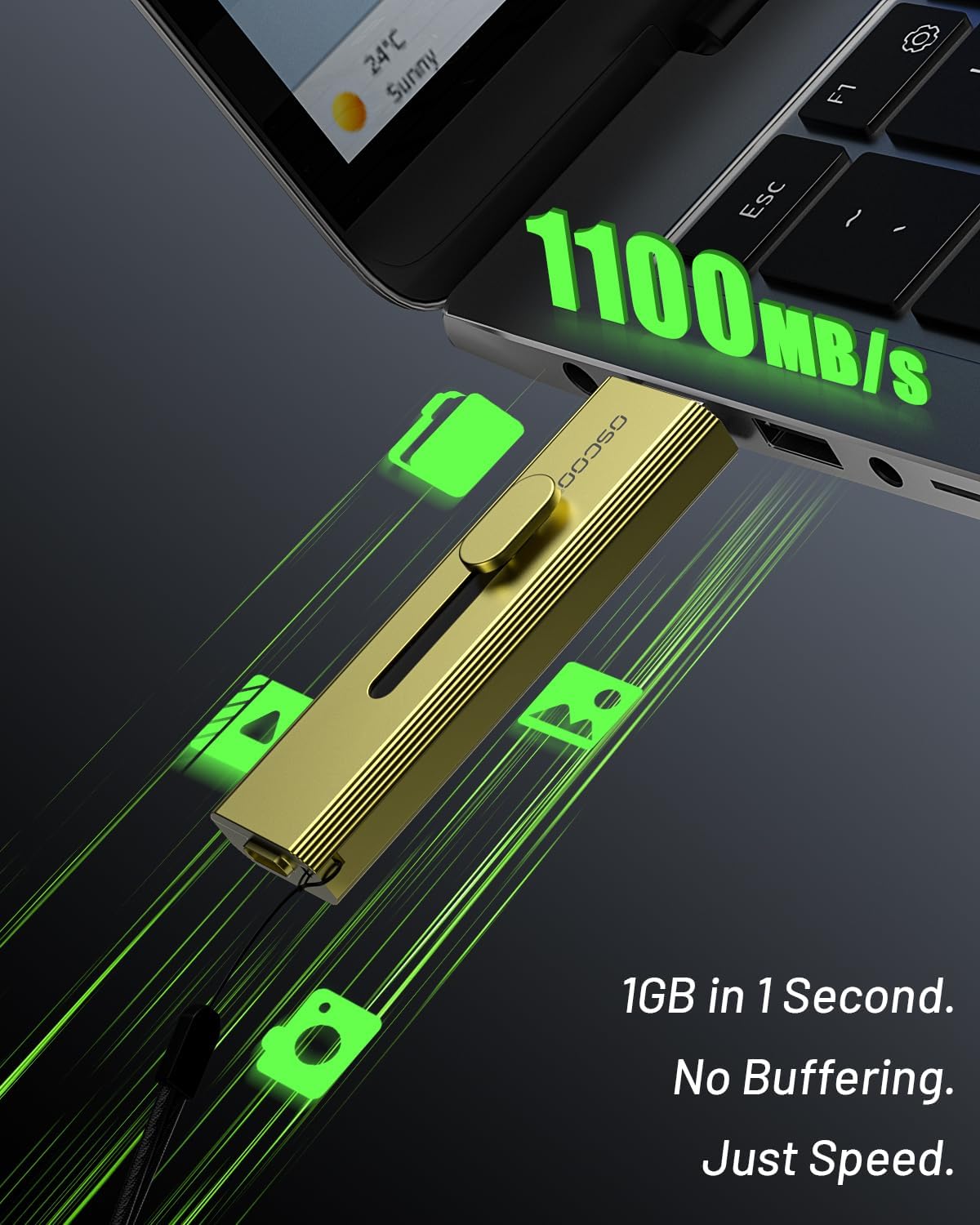
Figure 1: OSCOO T10 512GB External SSD Hard Drive
2. Product Features
- High-Speed Data Transfer: Achieves read speeds up to 1100MB/s, enabling quick transfer of large files, 4K videos, and RAW photos.
- 4K ProRes Recording Capability: Supports direct 4K 120fps ProRes recording on compatible iPhone 15/16/17 series devices, ideal for content creation.
- Dual-Port Connectivity: Equipped with both USB-C and USB-A connectors (USB 3.2 Gen 2), ensuring broad compatibility with various devices without requiring adapters.
- Durable Construction: Crafted from premium zinc alloy, providing shock resistance, efficient heat dissipation, and silent operation.
- Advanced Data Management Features: Includes TRIM support, SMART monitoring, LDPC ECC error correction, and wear leveling for long-term performance and data integrity.
3. Package Contents
Verify that all items are present in your package:
- OSCOO T10 External SSD Hard Drive
- Lanyard (may be pre-attached or included separately)
4. Setup and Connection
The OSCOO T10 features a convenient 3-step push-pull mechanism to switch between USB-A and USB-C connectors.

Figure 2: 3-Step Push-Pull Port Mechanism
- Identify the Connector: Determine whether your device requires a USB-A or USB-C connection.
- Extend the Connector: Gently push the slider on the SSD to extend the appropriate connector (USB-A or USB-C).
- Connect to Device: Insert the extended connector into the corresponding port on your smartphone, tablet, laptop, or other compatible device.
The device is plug-and-play, meaning no additional drivers are typically required for basic functionality.
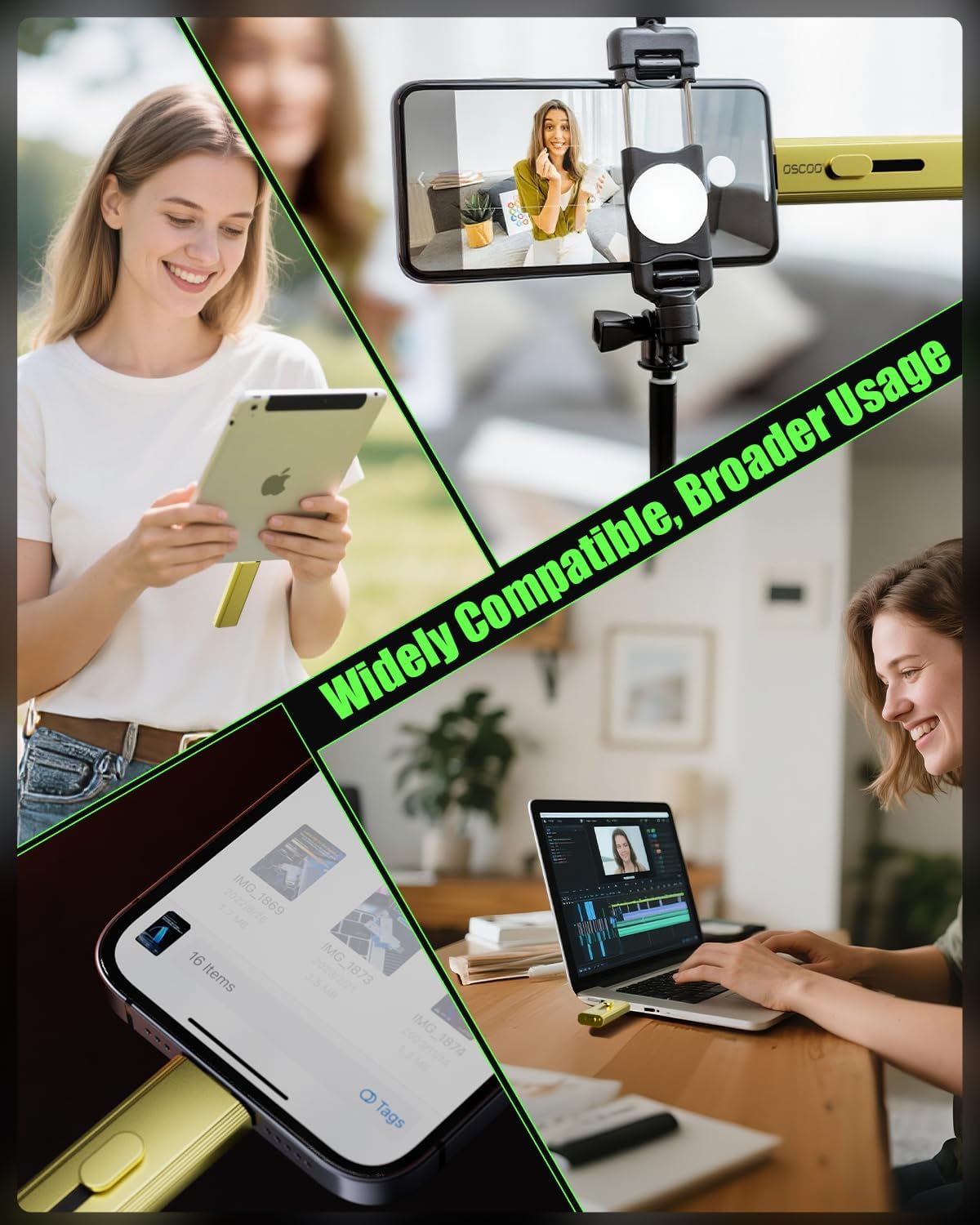
Figure 3: OSCOO T10 connected to various devices
5. Operating Instructions
5.1 File Transfer with iOS Devices (iPhone 15 Pro example)
The OSCOO T10 allows for direct file transfer and storage expansion for compatible iOS devices.
Video 1: Product Usage Guidance for T10 flash drive (iOS and Android file transfer demonstration)
- Connect the OSCOO T10 to your iPhone via the USB-C port.
- Open the 'Files' app on your iPhone.
- Navigate to 'Browse' and select 'OSCOO T10' under Locations.
- To transfer files from iPhone to T10: Open 'Photos', select desired photos/videos, tap the Share icon, then 'Save to Files', and choose 'OSCOO T10'.
- To transfer files from T10 to iPhone: In the 'Files' app, open 'OSCOO T10', select desired files, tap the Share icon, then 'Save Image/Video' to save to your iPhone's Photos app.

Figure 4: Smartphone Storage Expansion with OSCOO T10
5.2 File Transfer with Android Devices
The OSCOO T10 can be used to expand storage and transfer files on Android devices that support OTG (On-The-Go) functionality.
Video 2: Product Usage Guidance for T10 flash drive (iOS and Android file transfer demonstration)
- Connect the OSCOO T10 to your Android phone via the USB-C port.
- A notification may appear asking to open a file manager. Select 'My Files' or a similar file management application.
- The OSCOO T10 will appear as an external storage device (e.g., 'OTG', 'USB Drive', 'OSCOO T10').
- To transfer files from Android to T10: Open 'Photos' or your gallery app, select desired media, tap the Share/Move icon, and choose the OSCOO T10 as the destination.
- To transfer files from T10 to Android: In your file manager, open 'OSCOO T10', select desired files, and choose to 'Move' or 'Copy' them to your device's internal storage (e.g., DCIM folder for photos).
5.3 File Transfer with Laptops and PCs
The OSCOO T10 provides fast and reliable data transfer with computers.
Video 3: OSCOO T10 Portable SSD, USB 3.2 Gen 2 (demonstrates computer usage)
- Connect the OSCOO T10 to an available USB-A or USB-C port on your computer.
- The SSD will appear as a removable drive in 'This PC' (Windows) or 'Finder' (macOS).
- Drag and drop files to and from the OSCOO T10 drive icon to transfer data.
- For optimal speeds (up to 1100MB/s), ensure your computer's port supports USB 3.2 Gen 2, USB 3.2 Gen2x2, or Thunderbolt 4/5 interfaces.

Figure 5: High-Speed Data Transfer with OSCOO T10
6. Maintenance
- Safe Removal: Always safely eject the OSCOO T10 from your device before unplugging it to prevent data corruption.
- Physical Care: Keep the SSD clean and free from dust and debris. Avoid exposing it to extreme temperatures or moisture. The zinc alloy casing provides good protection, but proper care extends its lifespan.
- Firmware Updates: Periodically check the OSCOO official website for any available firmware updates to ensure optimal performance and compatibility.
7. Troubleshooting
- Device Not Recognized:
- Ensure the SSD is fully inserted into the port.
- Try a different USB port on your device.
- Restart your computer or mobile device.
- Verify that your mobile device supports OTG functionality if connecting to a smartphone/tablet.
- Slow Transfer Speeds:
- Ensure you are using a USB 3.2 Gen 2 (or higher) compatible port on your host device. Older USB 2.0/3.0 ports will result in slower speeds.
- Close other applications that might be using system resources or performing background transfers.
- Check the health of the SSD using SMART monitoring tools (if available on your operating system).
- Data Corruption:
- Always safely eject the drive before disconnecting.
- If issues persist, consider reformatting the drive (this will erase all data).
8. Specifications
| Feature | Specification |
|---|---|
| Digital Storage Capacity | 512 GB |
| Hard Disk Interface | USB 2.0/3.0 (backward compatible) |
| Connectivity Technology | USB (Type-C and Type-A) |
| Hardware Connectivity | USB 3.2 Gen 2 |
| Read Speed | Up to 1100 Megabytes Per Second |
| Model Number | T10 |
| Compatible Devices | Desktop, Gaming Console, Laptop, Smartphone, Tablet |
| Special Features | Backward Compatible, Dust Resistant, Native Command Queuing, Portable, Waterproof (refer to product details for specific IP rating if available) |
| Item Weight | 45.6 Grams |
9. Warranty and Support
OSCOO products are designed for reliability and performance. For warranty information, technical support, or customer service inquiries, please refer to the official OSCOO website or contact your retailer. Keep your proof of purchase for warranty claims.
