
1. Introduction
This manual provides essential information for the safe and efficient operation, maintenance, and troubleshooting of your Lefant M310 Ultra Robot Vacuum Cleaner. Please read it thoroughly before using the product and keep it for future reference.
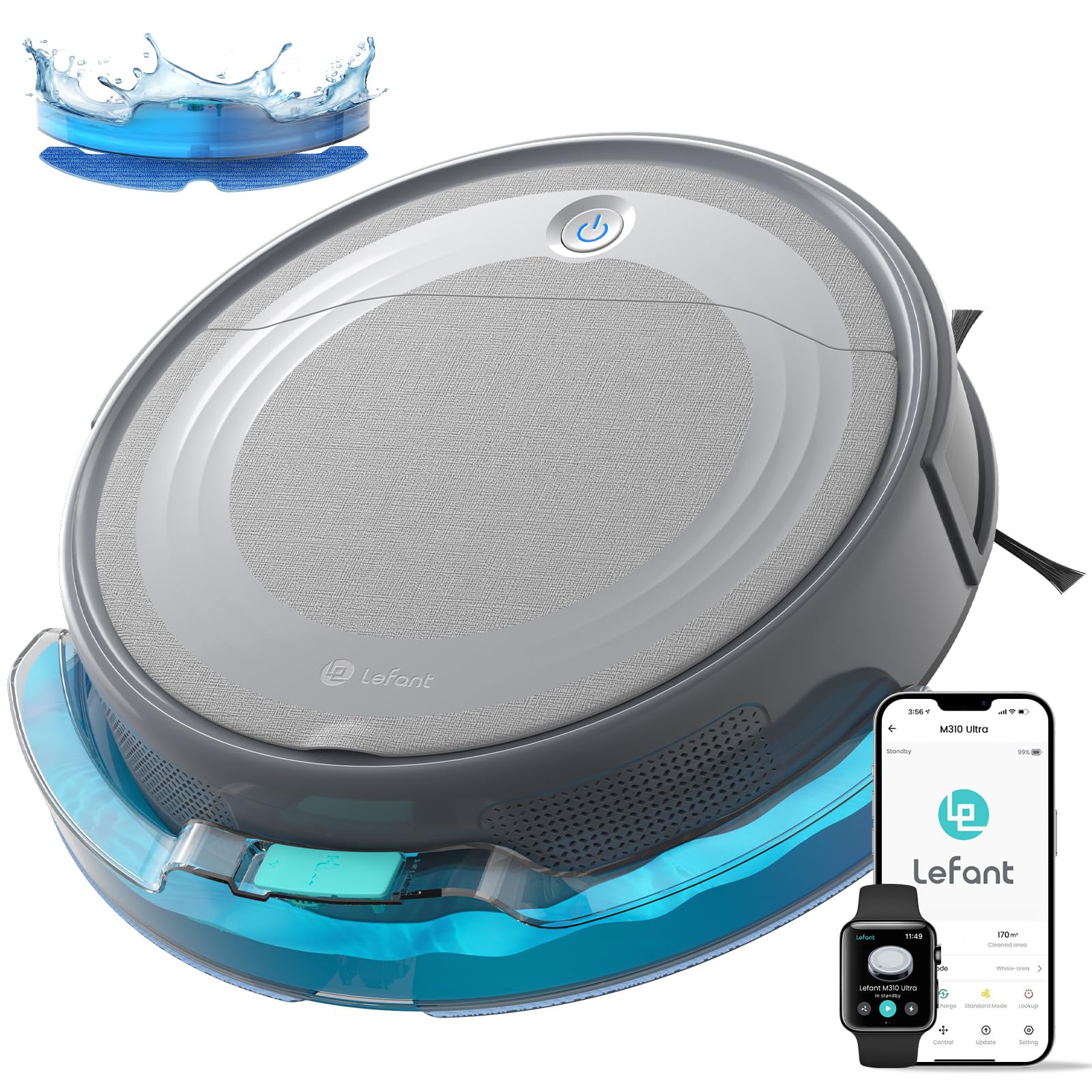
Figure 1: Lefant M310 Ultra Robot Vacuum Cleaner Overview
2. Safety Instructions
- Read all instructions before use.
- Do not operate the robot vacuum near open flames or flammable materials.
- Keep hair, loose clothing, fingers, and all body parts away from openings and moving parts.
- Do not use the robot vacuum to pick up large debris, liquids, or burning/smoking objects.
- Ensure the charging dock is placed on a flat surface against a wall, with clear space around it.
- Supervise children and pets when the robot vacuum is operating.
- Only use the original power adapter and charging dock provided with the device.
- Do not immerse the robot vacuum or its electronic components in water.
- Turn off the power switch and unplug the charging dock before cleaning or maintenance.
3. Product Components
The Lefant M310 Ultra package includes the following components:
- Lefant M310 Ultra Robot Vacuum Cleaner
- 2-in-1 Water Tank + Dustbin
- Charging Station
- Power Adapter
- Cleaning Brush
- Mop Cloth Holder
- Side Brushes (2 pairs)
- Washable Mop Cloth
- Disposable Mop Cloths (5 pieces)
- User Manual
- HEPA Filter
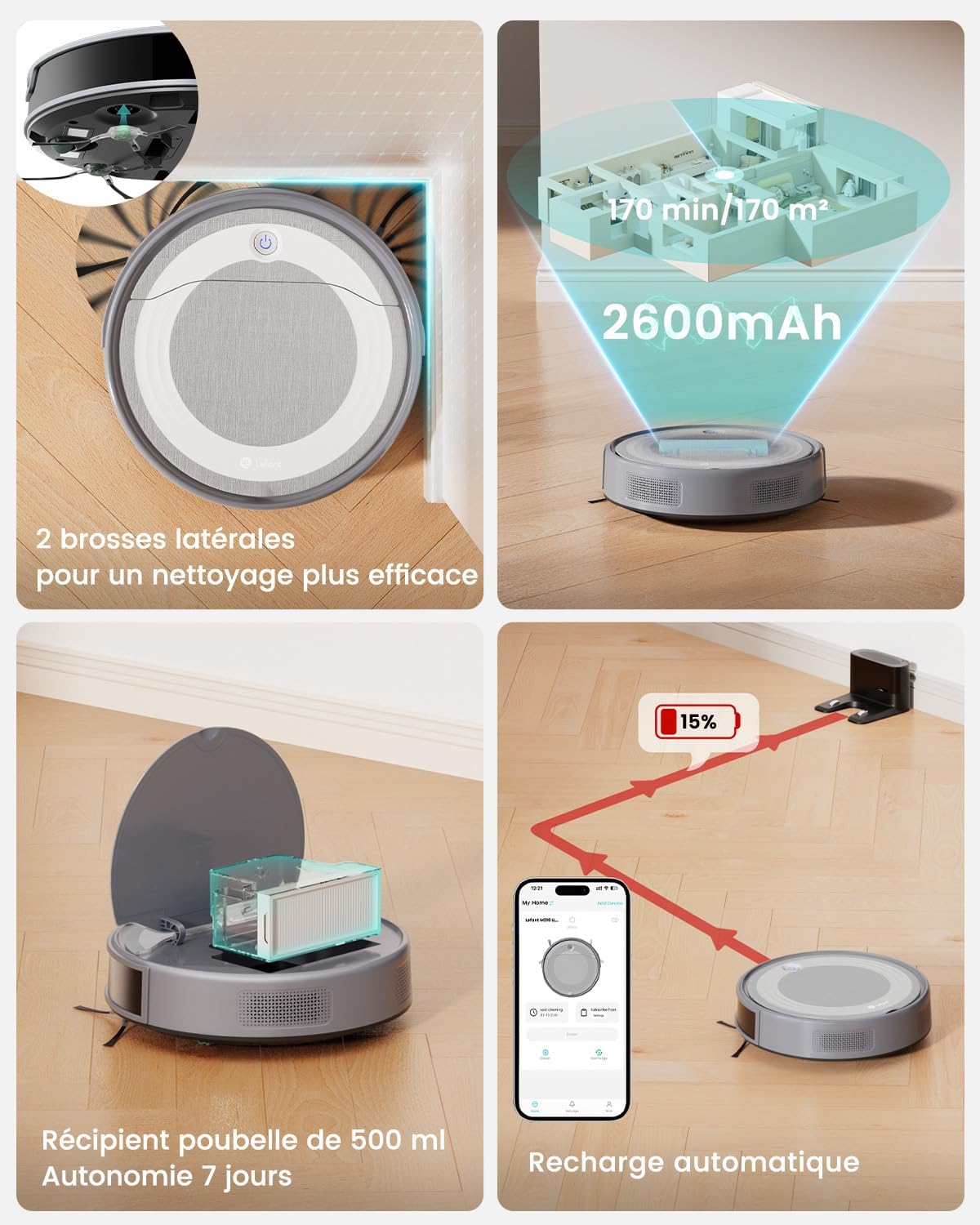
Figure 2: Robot Vacuum with Dustbin and Filter Components
4. Setup
4.1 Unpacking and Initial Preparation
- Remove all packaging materials and protective films from the robot vacuum and its accessories.
- Install the side brushes by pressing them onto the corresponding posts until they click into place.
- Place the charging station against a wall on a hard, level surface. Ensure there is at least 0.5 meters (1.6 feet) of clear space on both sides and 1.5 meters (4.9 feet) in front of the charging station.
- Connect the power adapter to the charging station and plug it into a wall outlet.
- Place the robot vacuum on the charging station to charge fully before first use. The indicator light will show charging status.

Figure 3: Proper placement of the charging station and automatic recharge feature.
4.2 Connecting to the Lefant App
The Lefant M310 Ultra can be controlled via the Lefant app, Google Assistant, or Amazon Alexa. For app control:
- Download the "Lefant" app from your smartphone's app store (iOS or Android).
- Register an account and log in.
- Ensure your phone is connected to a 2.4 GHz Wi-Fi network. The robot vacuum is only compatible with 2.4 GHz Wi-Fi.
- Follow the in-app instructions to add your M310 Ultra robot vacuum. This typically involves pressing and holding a button on the robot to enter pairing mode.

Figure 4: Controlling the robot vacuum via the Lefant app and voice commands.
5. Operating Instructions
5.1 Cleaning Modes
The M310 Ultra offers various cleaning modes:
- Auto Clean: The robot intelligently navigates and cleans the entire area using its ToF laser navigation and PSD obstacle avoidance technology.
- Spot Clean: Focuses on a specific dirty area.
- Edge Clean: Cleans along walls and furniture edges.
- Scheduled Clean: Set cleaning schedules via the Lefant app.
- Vacuum Only: For dry vacuuming.
- Mop Only: For wet mopping (requires water tank installation).
- Vacuum & Mop: Simultaneous vacuuming and mopping.

Figure 5: Illustration of the three-in-one cleaning solution: vacuum, sweep, and mop.
5.2 ToF Navigation and Obstacle Avoidance
The M310 Ultra utilizes advanced ToF (Time-of-Flight) laser navigation for precise mapping and efficient cleaning paths. Its exclusive PSD (Position Sensitive Detector) obstacle avoidance technology, with 9 sets of triangular front sensors, accurately measures distances and avoids obstacles within a 180° detection field, even thin table and chair legs.

Figure 6: Visual representation of the PSD obstacle avoidance technology with a 190° detection range.

Figure 7: Matrix Clean Technology demonstrating precise ToF navigation and thorough cleaning coverage.
5.3 Carpet Detection and Suction Adjustment
The M310 Ultra features infrared technology for instant carpet detection. When a carpet is detected, the suction power automatically increases by 200% for deeper cleaning. For mopping, intelligent anti-carpet sensors prevent the mop from passing over carpets. If necessary, place a carpet in restricted areas or attach the mop tray to the robot vacuum.

Figure 8: Robot vacuum detecting and cleaning a carpet, with automatic suction boost.
6. Maintenance
Regular maintenance ensures optimal performance and extends the lifespan of your robot vacuum.
6.1 Emptying the Dustbin and Cleaning Filters
The 500 ml dustbin should be emptied regularly, ideally after each cleaning cycle or as needed, especially in homes with pets. The M310 Ultra features an excellent filtration system with a durable stainless steel filter for large particles and an efficient HEPA filter for fine particles.
- Press the dustbin release button and pull out the 2-in-1 water tank/dustbin module.
- Open the dustbin cover and empty its contents into a trash bin.
- Remove the stainless steel filter and HEPA filter. Tap them gently to remove dust.
- Rinse the dustbin and stainless steel filter with water. Do not wash the HEPA filter with water.
- Allow all components to air dry completely before reassembling.
- Reinstall the filters and close the dustbin cover. Insert the module back into the robot vacuum.
6.2 Cleaning Side Brushes
Check the side brushes regularly for tangled hair or debris. Remove any obstructions using the cleaning tool provided.
- Gently pull the side brushes upwards to remove them.
- Remove any hair or debris wrapped around the brushes or the brush posts.
- Reinstall the side brushes by pressing them down until they click.
6.3 Cleaning Sensors and Charging Contacts
Wipe the sensors and charging contacts on both the robot and the charging station with a clean, dry cloth to ensure proper function.
- Front bumper sensors
- Cliff sensors (on the bottom of the robot)
- Charging contacts (on the robot and charging station)
6.4 Mopping System Maintenance
If using the mopping function:
- After each use, remove the mop cloth from the holder.
- Wash the reusable mop cloth by hand or machine.
- Empty any remaining water from the water tank and allow it to air dry.
- Replace disposable mop cloths as needed.
7. Troubleshooting
| Problem | Possible Cause | Solution |
|---|---|---|
| Robot does not turn on. | Low battery; Power switch off. | Charge the robot; Turn on the main power switch. |
| Robot cannot charge. | Charging contacts dirty; Charging station unplugged. | Clean charging contacts; Ensure charging station is plugged in. |
| Robot gets stuck frequently. | Too many obstacles; Loose cables/rugs. | Clear the area of small objects; Secure cables and loose rugs. |
| Poor cleaning performance. | Full dustbin; Clogged filters; Worn side brushes. | Empty dustbin; Clean/replace filters; Replace side brushes. |
| App connection issues. | Incorrect Wi-Fi band (not 2.4 GHz); Robot not in pairing mode. | Ensure 2.4 GHz Wi-Fi; Follow app instructions to re-pair. |
8. Specifications
| Feature | Specification |
|---|---|
| Brand | Lefant |
| Model Name | M310 Ultra |
| Model Number | M320 (as per product specifications, note discrepancy with M310 Ultra title) |
| Color | Grey |
| Product Dimensions (L x W x H) | 28 x 28 x 7.9 cm (11 x 11 x 3.1 inches) |
| Item Weight | 2.15 kg (4.74 lbs) |
| Dustbin Capacity | 500 ml |
| Water Tank Capacity | 200 ml (integrated with dustbin) |
| Suction Power | 6000 Pa |
| Battery Life (Runtime) | Up to 170 minutes (2 hours 50 minutes) |
| Noise Level | 60 Decibels |
| Voltage | 19 Volts |
| Filter Type | HEPA |
| Navigation Type | ToF Intelligent Navigation |
| Obstacle Avoidance | PSD Technology (9 sets of triangular front sensors, 180° detection) |
| Control Type | App Control, Button Control, Voice Control (Alexa, Google Assistant) |
| Wi-Fi Compatibility | 2.4 GHz only |
| Recommended Surface | Hard floors (wood, tile, marble), Carpets |
Note: The product title refers to M310 Ultra, while specifications list M320 as the model number. Please refer to your product packaging for the exact model number.
9. Warranty and Support
Lefant products come with a standard manufacturer's warranty. For specific warranty details, please refer to the warranty card included in your product packaging or visit the official Lefant website.
For technical support, troubleshooting assistance, or to inquire about replacement parts, please contact Lefant customer service through the following channels:
- Lefant App: Access support features directly within the application.
- Official Website: Visit www.lefant.com for FAQs, support resources, and contact information.
- Email Support: Refer to your warranty card or the Lefant website for the appropriate support email address.
Please have your product model (M310 Ultra) and purchase information ready when contacting support.


