
1. Introduction
Thank you for choosing the Avylet RM Dual Dashcam. This manual provides detailed instructions for the installation, operation, and maintenance of your dashcam. Please read this manual thoroughly before using the device to ensure proper functionality and to maximize your driving safety and recording experience.
Important Reminders:
- A memory card is not included in the package and must be purchased separately.
- If the adhesive mount is deformed or does not install correctly, please contact customer service for a replacement.
- When connected to the dashcam's Wi-Fi via the mobile application, the dashcam cannot be used simultaneously with Apple CarPlay or Android Auto. Only one Wi-Fi connection is allowed at a time.
- For any questions regarding the dashcam or its compatibility, please contact Avylet customer service.
2. Package Contents
Please check the package contents upon unboxing. If any items are missing or damaged, contact customer support.
- Avylet RM Front Dashcam Unit
- Rear Camera
- Power Cable (Car Charger)
- Rear Camera Cable
- Adhesive Mount
- User Manual
- Note: External GPS module and ACC hardwire kit are sold separately. Memory card is not included.
3. Product Overview
The Avylet RM Dual Dashcam features a compact design with a rotatable camera for optimal positioning. It includes a built-in screen for real-time viewing and settings adjustment.

Image: The Avylet RM Dual Dashcam, showing both front and rear units, alongside a smartphone displaying the live view and GPS tracking on a map.

Image: An illustration highlighting the versatile features of the Avylet RM dashcam, including its compact design, rotatable camera, 170° wide angle, 4K resolution, external GPS, Wi-Fi, 256GB support, and Super Night Vision.
4. Setup and Installation
4.1 Inserting the Memory Card
- Ensure the dashcam is powered off.
- Locate the memory card slot on the dashcam.
- Insert a high-speed (Class 10 or higher) microSD card (up to 256GB, not included) into the slot until it clicks.
- To remove, gently push the card in until it springs out.
- It is recommended to format the memory card within the dashcam settings before first use and periodically thereafter.
4.2 Mounting the Dashcam
The dashcam can be mounted on the windshield or dashboard using the provided adhesive mount.
- Clean the chosen area on your windshield or dashboard thoroughly.
- Attach the adhesive mount to the dashcam.
- Remove the protective film from the adhesive pad.
- Press the dashcam firmly onto the desired location, ensuring a clear view of the road and easy access to controls.
- Adjust the camera lens angle for optimal recording coverage.
4.3 Connecting the Power Supply
- Connect the car charger to your vehicle's 12V power outlet (cigarette lighter socket).
- Connect the other end of the power cable to the dashcam's power input port.
- Route the cable neatly along the windshield trim to avoid obstructing your view.
4.4 Connecting the Rear Camera
- Mount the rear camera on the rear windshield, ensuring a clear view.
- Connect the rear camera cable to the rear camera port on the main dashcam unit.
- Route the cable discreetly from the front unit to the rear camera.
4.5 External GPS Module (Optional)
An optional external GPS module (sold separately) can be connected to record real-time driving data.
- Connect the external GPS module to the designated port on the dashcam.
- Mount the GPS module in a location with a clear view of the sky for optimal signal reception.

Image: The Avylet RM dashcam demonstrating support for an external GPS module, with a laptop and smartphone displaying recorded driving data including location, speed, and route.
5. Operating Instructions
5.1 Power On/Off
- The dashcam will automatically power on and begin recording when connected to power and the vehicle ignition is turned on.
- It will automatically power off shortly after the vehicle ignition is turned off.
- To manually power on/off, press and hold the power button.
5.2 Recording Modes
- Normal Recording: Continuously records video when the vehicle is in operation. Older files are overwritten by new ones when the memory card is full (loop recording).
- Emergency Recording: In the event of a collision or sudden braking, the G-sensor will trigger emergency recording, locking the current video segment to prevent it from being overwritten.
- Parking Monitoring: When the vehicle is parked, the dashcam can monitor for impacts (Parking Mode) or record time-lapse video to save storage space. This feature requires the optional ACC hardwire kit (not included).
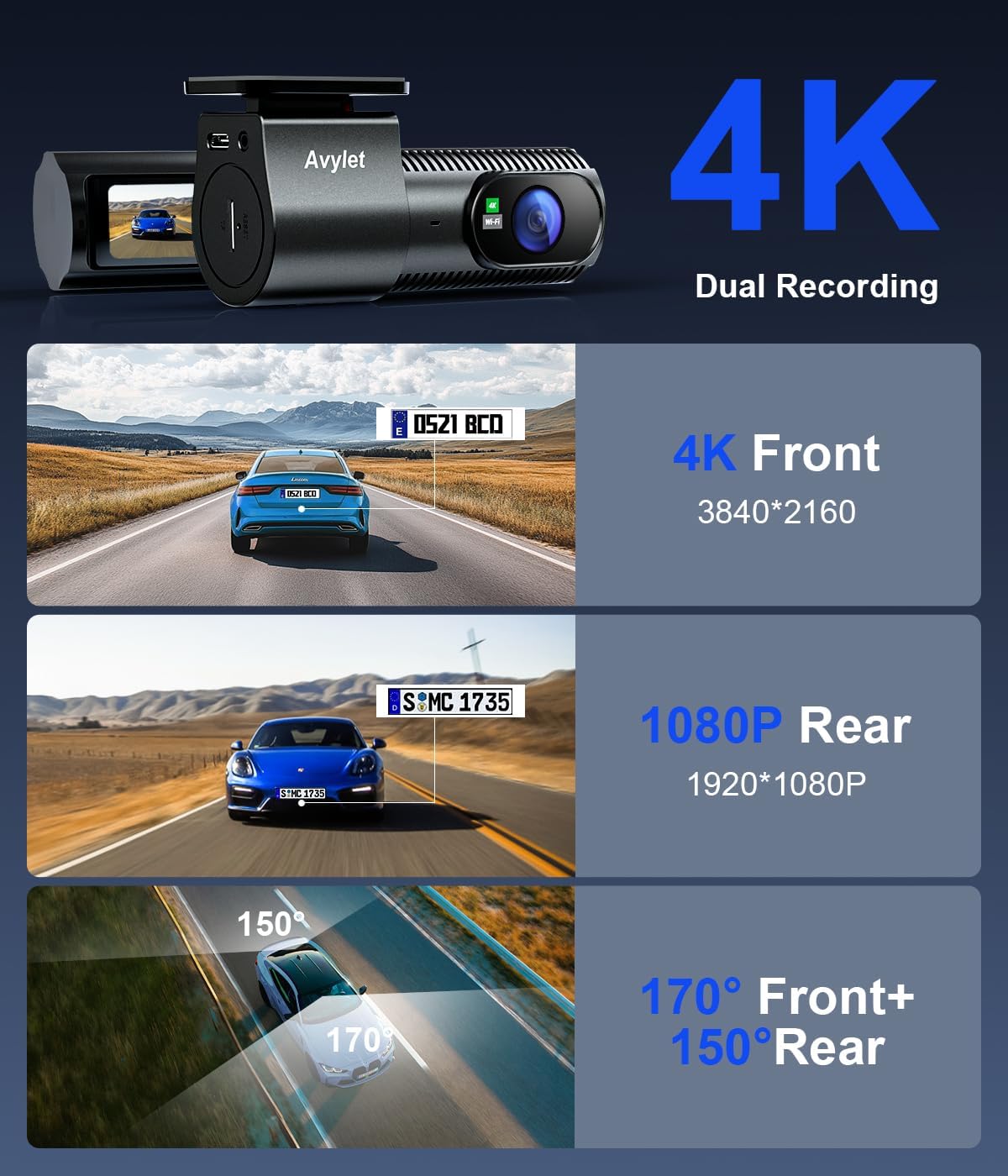
Image: An illustration demonstrating the dual recording capabilities of the Avylet RM dashcam, capturing 4K (3840x2160) from the front and 1080P (1920x1080) from the rear, with wide 170° front and 150° rear fields of view.
5.3 Wi-Fi Connection and Mobile App
Connect your smartphone to the dashcam via Wi-Fi to view live footage, playback recordings, and adjust settings using the dedicated mobile application.
- Download the Avylet mobile application from your smartphone's app store.
- Enable Wi-Fi on your dashcam (refer to dashcam settings).
- On your smartphone, go to Wi-Fi settings and connect to the dashcam's Wi-Fi network (SSID and password usually displayed on the dashcam screen).
- Open the Avylet app. You should now be able to access live view and other functions.
- Note: If you experience issues with live view after connecting to Wi-Fi, turn off cellular data on your phone and try again.

Image: The Avylet RM dashcam positioned next to a smartphone displaying the live video feed from the dashcam, indicating successful Wi-Fi connection and app functionality.
5.4 Viewing GPS Data
If an external GPS module is connected, your driving data (speed, location, route, time) is embedded in the video files. This data can be viewed using a dedicated player on your computer. Contact customer service to download the necessary player software.
5.5 Firmware Updates (OTA Upgrade)
The dashcam supports Over-The-Air (OTA) firmware upgrades to ensure your device has the latest features, bug fixes, and security enhancements.

Image: The Avylet RM dashcam with a smartphone illustrating the OTA (Over-The-Air) upgrade process, indicating that firmware can be updated wirelessly.
6. Features Overview
The Avylet RM Dual Dashcam is equipped with advanced features to provide comprehensive road coverage and security.
- 4K Front + 1080P Rear Recording: Captures clear video evidence with 4K (3840x2160@30fps) resolution for the front camera and 1080P (1920x1080@30fps) for the rear camera.
- 2K Quad HD & 170° Wide Angle: The front camera offers 2K Quad HD resolution and a 170° wide-angle lens to minimize blind spots and capture a broad view of the road.
- External GPS Module Support: Records real-time driving data including speed, location, and route, which can be crucial for insurance claims. (GPS module sold separately).
- 24-Hour Parking Monitoring: Offers Parking Mode (impact detection) and Time-Lapse recording when parked. Requires an ACC hardwire kit (sold separately) for continuous power.
- Super Night Vision: Enhanced low-light performance with a Novatek Chip, 6-layer glass lens, WDR (Wide Dynamic Range), and F1.6 aperture for clear recordings in challenging light conditions.
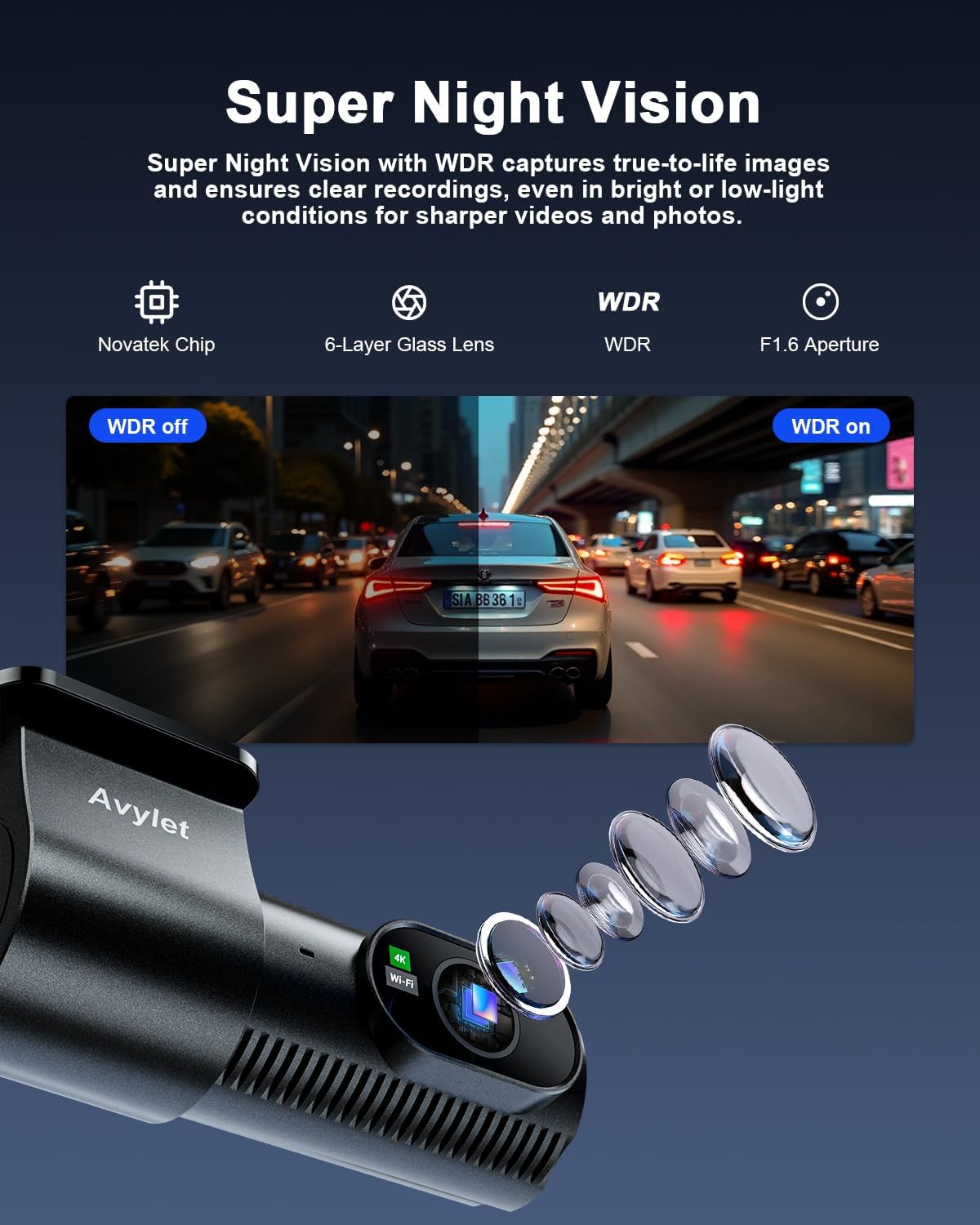
Image: An illustration of the Super Night Vision feature, comparing video quality with WDR (Wide Dynamic Range) off and on, demonstrating improved clarity in low-light conditions.
7. Maintenance
7.1 Memory Card Care
- Regularly format the memory card (e.g., once a month) within the dashcam settings to ensure optimal performance and prevent data corruption.
- Replace the memory card if you notice frequent errors or degraded performance.
- Use only high-quality, high-speed (Class 10 or U3 recommended) microSD cards from reputable brands.
7.2 Cleaning the Device
- Use a soft, dry cloth to clean the dashcam body and screen.
- For lenses, use a specialized lens cleaning cloth and solution to avoid scratches.
- Do not use abrasive cleaners or solvents.
7.3 Environmental Considerations
- Avoid exposing the dashcam to extreme temperatures for prolonged periods.
- Ensure the dashcam is securely mounted to prevent damage from vibrations or impacts.
8. Troubleshooting
| Problem | Possible Solution |
|---|---|
| Dashcam does not power on. |
|
| Recording stops or freezes. |
|
| Cannot connect to Wi-Fi / Live View not working. |
|
| Adhesive mount is not sticking. |
|
| GPS data is not being recorded. |
|
9. Specifications
| Brand | Avylet |
| Model Name | RM |
| Connectivity Technology | Wi-Fi |
| Special Features | 4K/1080P Dual Recording, External GPS Module Support, Parking Monitor |
| Video Capture Resolution | 4K (3840 x 2160 pixels) Front, 1080P (1920 x 1080 pixels) Rear |
| Mounting Type | Windshield Mount or Dashboard Mount |
| Field Of View | 170 Degrees (Front) |
| Color | Black |
| Vehicle Service Type | Car |
10. Warranty and Customer Support
Avylet products come with a standard warranty. For specific warranty terms and conditions, please refer to the warranty card included with your product or visit the official Avylet website. If you encounter any issues, have questions about product compatibility, or require technical assistance, please do not hesitate to contact Avylet customer service. Our support team is available to help you.
Contact Information: Please refer to the contact details provided on the product packaging or the official Avylet website.