
Introduction
This manual provides detailed instructions for the installation, operation, and maintenance of your FalconEye Electronics Dual Pinnacle Pro 4K Dash Cam with GPS. Please read this manual thoroughly before using the device to ensure proper functionality and safety.
The FalconEye Dual Pinnacle Pro is a high-performance dash camera system designed to record vehicle activity. It features a 4K Ultra HD front camera and a 1080P waterproof secondary camera, offering comprehensive coverage. Key features include built-in Wi-Fi, continuous loop recording, G-Sensor incident detection, enhanced night vision, and GPS for speed and location tracking.
Package Contents
Before proceeding with installation, verify that all items are present in the package:
- FalconEye Dual Pinnacle Pro 4K Dash Cam (Main Unit)
- Secondary 1080P Camera
- Car Charger
- Mounting Bracket
- GPS Module (integrated or separate, depending on model)
- User Manual (this document)

Image: The FalconEye Dual Pinnacle Pro 4K Dash Cam main unit, secondary camera, car charger, and other included accessories.
Setup
- Insert Memory Card: Ensure the dash cam is powered off. Insert a compatible microSD card (up to 256GB, not included with this model) into the designated slot until it clicks into place.
- Mount the Main Unit: Attach the main dash cam unit to the windshield using the provided mounting bracket. Position it to ensure a clear view of the road ahead without obstructing the driver's vision.
- Connect Secondary Camera: Connect the secondary 1080P camera to the main unit using the provided cable. Mount the secondary camera in the desired location (e.g., rear window) ensuring it has a clear view.
- Power Connection: Connect the car charger to the dash cam's power input and then into your vehicle's 12V power outlet. The device will typically power on automatically when the vehicle starts.
- Initial Setup: Upon first power-on, the device may prompt you to set the date, time, and language. Follow the on-screen instructions using the 3-inch IPS touchscreen.
- GPS Functionality: The integrated GPS module will automatically begin tracking speed and location. If you wish to disable GPS recording, navigate to the settings menu on the device.
- Wi-Fi and App Connection:
- Download the FalconEye smartphone application from the Apple App Store or Google Play Store.
- Enable Wi-Fi on your dash cam via the settings menu.
- On your smartphone, connect to the dash cam's Wi-Fi network (SSID and password will be displayed on the dash cam screen).
- Open the FalconEye app to view live footage, manage settings, and download recorded videos.

Image: The FalconEye Dual Pinnacle Pro 4K Dash Cam main unit and its detachable secondary camera, ready for installation.
Operating Instructions
- Automatic Recording: Once powered on, the dash cam will automatically begin recording. The front camera records in 4K Ultra HD (2160p@30fps) with a 170° wide-angle lens, and the secondary camera records in 1080P with a 150° wide-angle lens.
- Loop Recording: The device utilizes continuous loop recording. When the memory card is full, the oldest unlocked video files will be overwritten by new recordings. This ensures continuous protection without manual memory management.
- G-Sensor Functionality: The built-in G-Sensor detects sudden impacts, hard braking, or collisions. When such an event occurs, the current video file is automatically locked and saved to prevent it from being overwritten by loop recording.
- Touchscreen Operation: Use the 3-inch IPS touchscreen to navigate menus, adjust settings, and playback recorded footage directly on the device.
- Enhanced Night Vision: The dash cam features enhanced night vision with a Sony Sensor, improving video clarity in low-light conditions.
- Viewing Recorded Footage:
- On Device: Access the playback menu on the touchscreen to review videos.
- Via Smartphone App: Connect your smartphone to the dash cam's Wi-Fi and use the app to stream or download recordings.
- On Computer: Remove the microSD card and insert it into a computer's card reader. Use a compatible video player to view the files. GPS data can be viewed using dedicated player software (often available for download from the manufacturer's website).
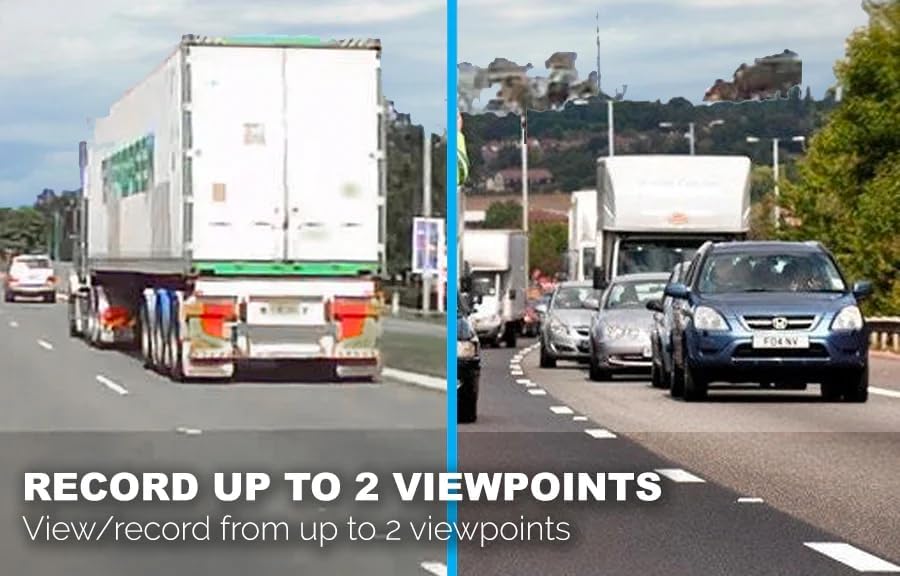
Image: A split screen view demonstrating the dash cam's ability to record from two viewpoints simultaneously, capturing both front and rear perspectives.

Image: An illustration of the loop recording function, showing how the dash cam automatically overwrites older, unlocked files when the memory card reaches its capacity.
Maintenance
- Memory Card Management:
- Regularly format the microSD card (at least once a month) to maintain optimal performance and prevent data corruption. This can usually be done through the dash cam's settings menu.
- Replace the microSD card if you experience frequent recording errors or data loss, as memory cards have a limited lifespan due to continuous overwriting.
- Cleaning the Device:
- Use a soft, dry cloth to clean the dash cam's lenses and screen. Avoid abrasive materials or chemical cleaners.
- Ensure the mounting area on the windshield is clean and free of debris for secure attachment.
- Firmware Updates: Periodically check the FalconEye Electronics website for available firmware updates. Updates can improve performance, add features, or resolve issues. Follow the provided instructions carefully when performing updates.
Troubleshooting
- Dash Cam Not Powering On:
- Check the car charger connection to both the dash cam and the vehicle's power outlet.
- Ensure the vehicle's power outlet is functional.
- Verify the car charger's fuse is intact.
- Recording Errors / Footage Not Saving:
- Ensure a compatible microSD card is properly inserted.
- Format the microSD card.
- Try a different, high-quality microSD card.
- Check if the card is full (though loop recording should prevent this for unlocked files).
- Poor Video Quality:
- Clean the camera lenses.
- Ensure the protective film has been removed from the lenses.
- Check video resolution settings in the menu.
- GPS Not Working:
- Ensure the GPS function is enabled in the settings.
- Verify the dash cam has a clear view of the sky for satellite reception.
- Wi-Fi Connection Issues:
- Ensure Wi-Fi is enabled on the dash cam.
- Restart both the dash cam and your smartphone.
- Confirm you are connecting to the correct Wi-Fi network provided by the dash cam.
Specifications
| Front Camera Resolution | 4K Ultra HD (2160p@30fps) |
| Front Camera Angle | 170° Ultra Wide Angle Lens |
| Secondary Camera Resolution | 1080P |
| Secondary Camera Angle | 150° Wide Angle HD Camera |
| Display | 3" IPS Touchscreen |
| Memory Card Support | Up to 256GB SD card |
| Connectivity | Built-in Wi-Fi, USB |
| Special Features | GPS, G-Sensor, Loop Recording, Enhanced Night Vision (Sony Sensor), Smartphone App Control |
| Product Dimensions | 5 x 3 x 4 inches |
| Item Weight | 1.2 pounds |
| Battery | 1 Lithium Polymer battery (included) |
| Mounting Type | Windshield Mount |
Warranty and Support
For warranty information, technical support, or service inquiries, please contact FalconEye Electronics directly. Refer to the product packaging or the official FalconEye Electronics website for the most current contact details and warranty terms.
Manufacturer: FalconEye Electronics
